Configure employee payments
Once you've added a bank account to your business, you can configure how Paysense generates ABA files: the standard Australian banking format used to process bulk employee payments. The ABA configuration tells your bank which account to draw funds from and how to identify your payroll transactions.
This guide walks through setting up an ABA configuration for employee payments.
What you'll need
| Item | Required | Notes |
|---|---|---|
| A business bank account in Paysense | Yes | See Add bank accounts if you haven't done this yet |
| APCA User ID | Yes | Provided by your bank when you register for bulk payments |
| Institution code | Yes | A 3-digit code identifying your bank (e.g. WBC for Westpac) |
| Authorised user name | Yes | The name your bank has on file for the person authorised to submit ABA files |
Your bank provides the APCA User ID and institution code when you apply for bulk payment (direct entry) access. Contact your bank if you don't have these details.
Step 1: Open the Employee Payments page
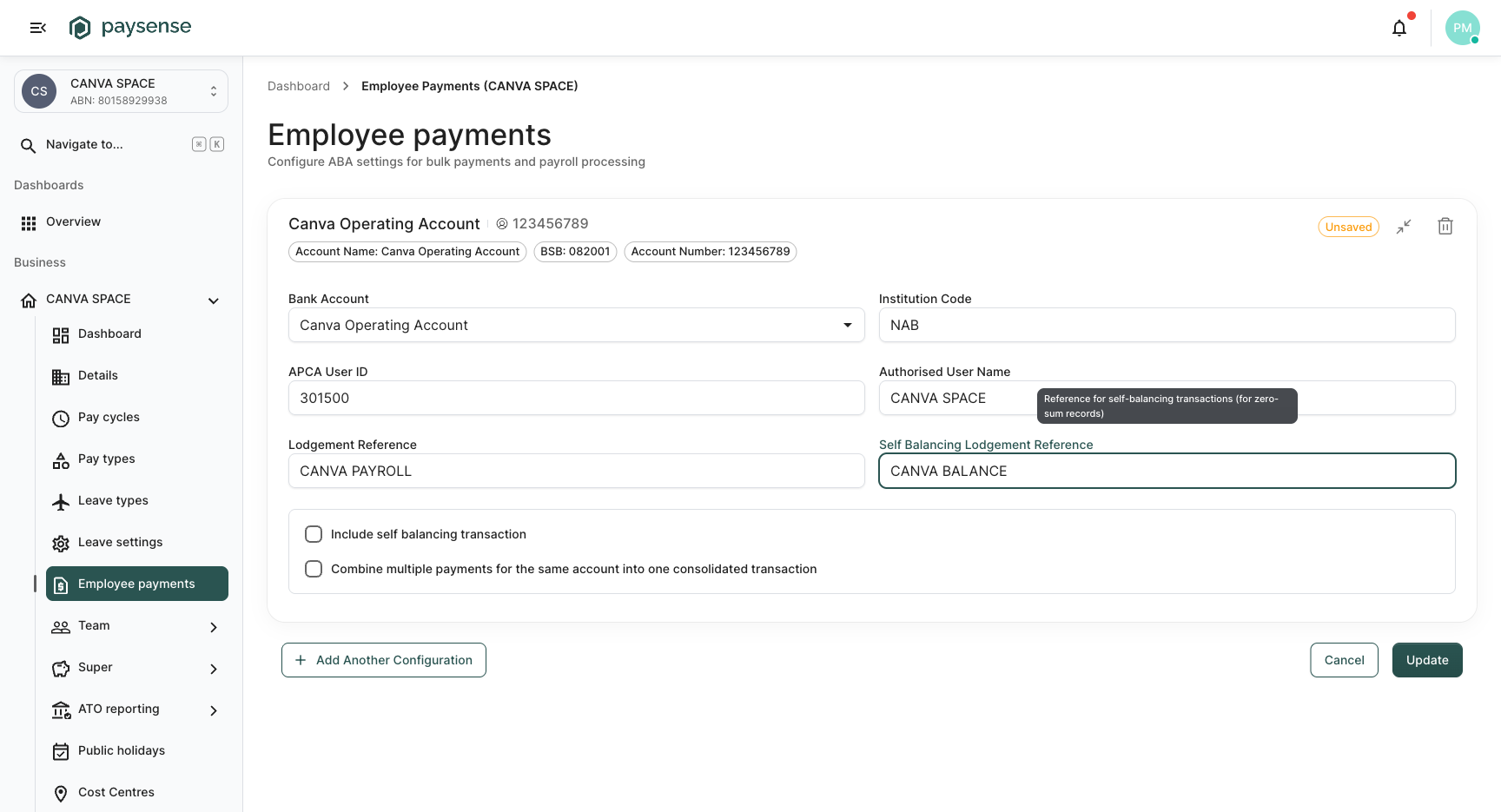
From the left-hand sidebar, expand the business name and click Employee payments. You'll land on the Employee payments page with a blank ABA configuration card.
Step 2: Fill in the ABA configuration
Complete the fields on the configuration card:
| Field | Required | Notes |
|---|---|---|
| Bank Account | Yes | Select the business bank account that payroll payments will be drawn from |
| Institution Code | Yes | 3-digit code identifying your bank: provided by your bank |
| APCA User ID | Yes | Your Australian Payments Clearing Association user ID: provided by your bank |
| Authorised User Name | Yes | The name of the person authorised to submit bulk payment files |
| Lodgement Reference | No | A reference that appears on employee bank statements for each payment |
| Self Balancing Lodgement Reference | No | A reference for self-balancing (zero-sum) transactions, if enabled |
Options
At the bottom of the card, two optional checkboxes control how the ABA file is generated:
| Option | What it does |
|---|---|
| Include self balancing transaction | Adds a balancing transaction so the file totals zero: some banks require this |
| Combine multiple payments for the same account | Merges multiple payments to the same employee bank account into a single transaction line |
Check with your bank whether they require a self-balancing ABA file. Most modern banks do not, but some older systems expect the file to net to zero.
When you've completed the form, click Update to save the configuration.
Multiple configurations
If your business pays different groups of employees from different bank accounts, you can create additional ABA configurations. Click Add Another Configuration at the bottom of the page to add a second card, and fill in the details for the other account.
Each configuration can be selected independently when generating payment files from a pay run.
What's next
- Add an employee: add employees to the business and configure their individual bank details
- Run a pay run: once employees and payment configuration are set up, create a pay run from the sidebar under Pay Runs → New