Manage team member permissions
Paysense uses scope-based permissions to decide what each team member can see and do inside a business. Scopes are fine-grained (for example, payrun:finalise or superfund:delete), but you almost never need to think about them individually. Instead, the Manage permissions screen lets you pick from five role presets that cover the most common payroll job functions, then drop into the advanced scope picker only when you need to tweak something.
This tutorial walks through opening the screen, picking a role preset, customising it in the advanced panel, and saving the changes. It also explains the two safety nets that keep you from accidentally locking yourself out or leaving the wrong permissions behind: locked scopes and self-protection.
What you'll need
| Item | Required | Notes |
|---|---|---|
| A business in Paysense | Yes | You can manage permissions in any business where you're the owner or have the Manage permissions scope. |
| At least one team member to edit | Yes | The current user always appears in the list; you can manage your own permissions, with one safety net (see Self-protection). |
| A clear idea of what the person should be able to do | Yes | Pick a role preset first, then refine from there. |
If you haven't invited the person yet, head to Team > Invitations and use the Invite button. You can set the permissions during the invite, or leave them at the default Payroll Admin and refine them on this screen after the invite is accepted.
Step 1: Open the Team Members screen
From the left-hand sidebar, expand your business and click Team > Members. You'll land on the members list at /business/{businessId}/team/members.
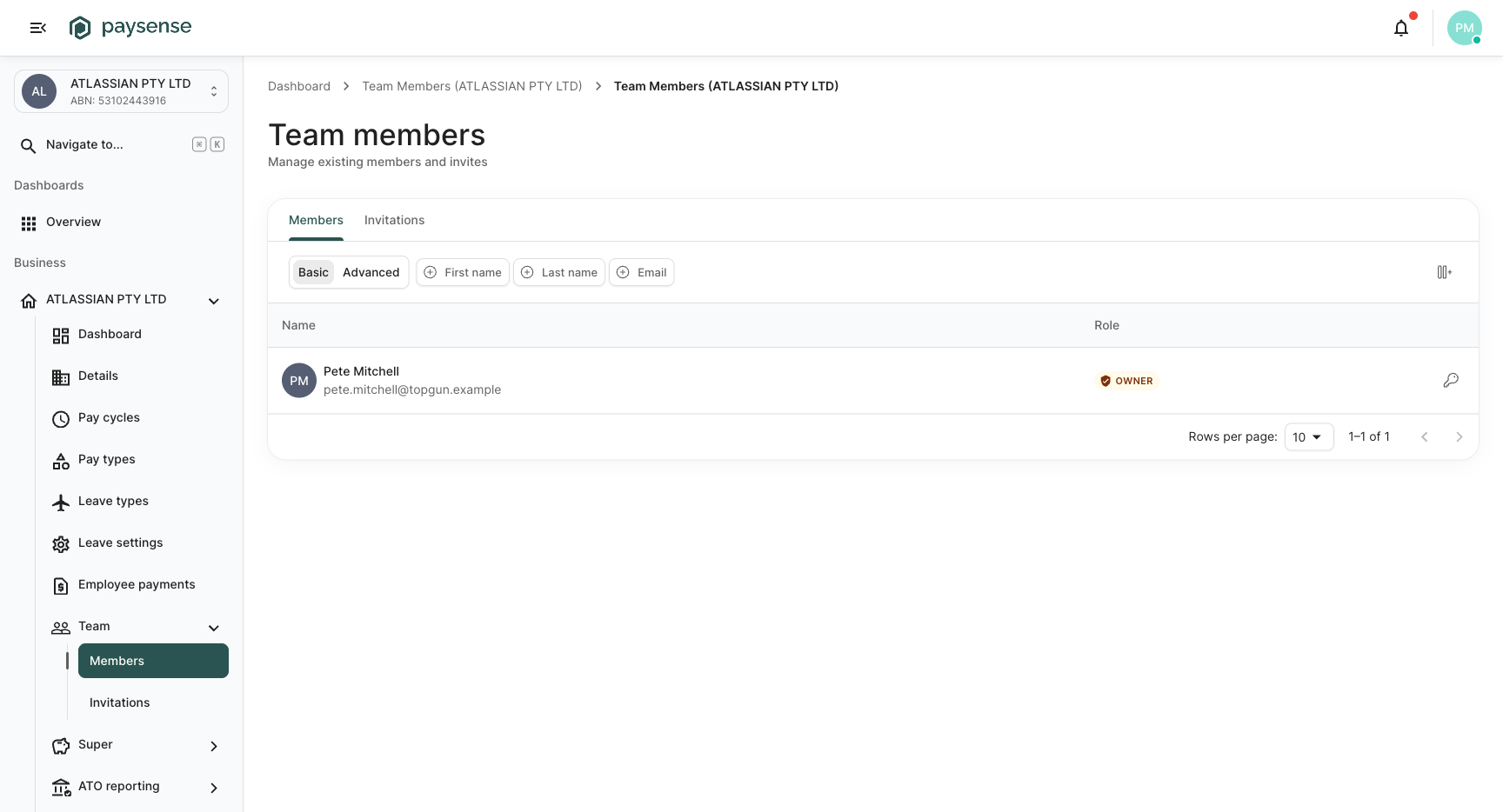
Each row shows:
| Column | Notes |
|---|---|
| Name | The member's full name and the email address they sign in with |
| Role | A status badge showing either Owner (the business owner, with a shield icon) or the member's display role |
| Actions | Action menu with Manage permissions and, where allowed, Remove from team |
The Owner badge is purely informational. The owner is the user who originally created (or was made owner of) the business; they always have the full set of permissions and cannot be removed from the team. You can still open Manage permissions on the owner row to view their scopes, but most teams leave the owner's permissions untouched.
Find the row for the member you want to manage and click the key icon (Manage permissions) in the Actions column. The row gets a primary-coloured outline and a side panel slides in from the right.
Step 2: Pick a role preset
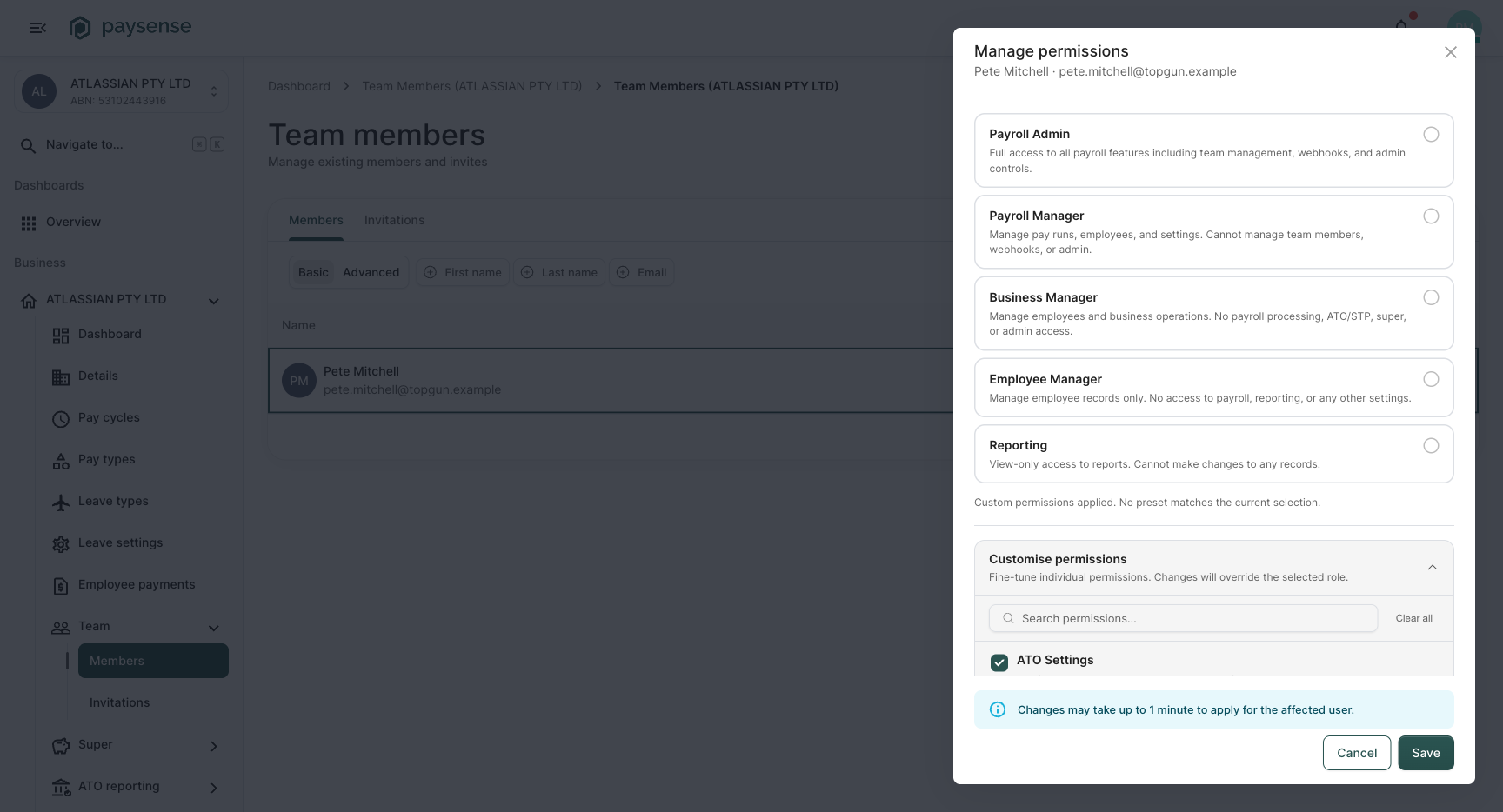
The Manage permissions panel opens with two stacked sections:
- Five role-preset cards at the top - the fast path for most edits.
- A "Customise permissions" accordion at the bottom - opens the full scope picker when you need to fine-tune.
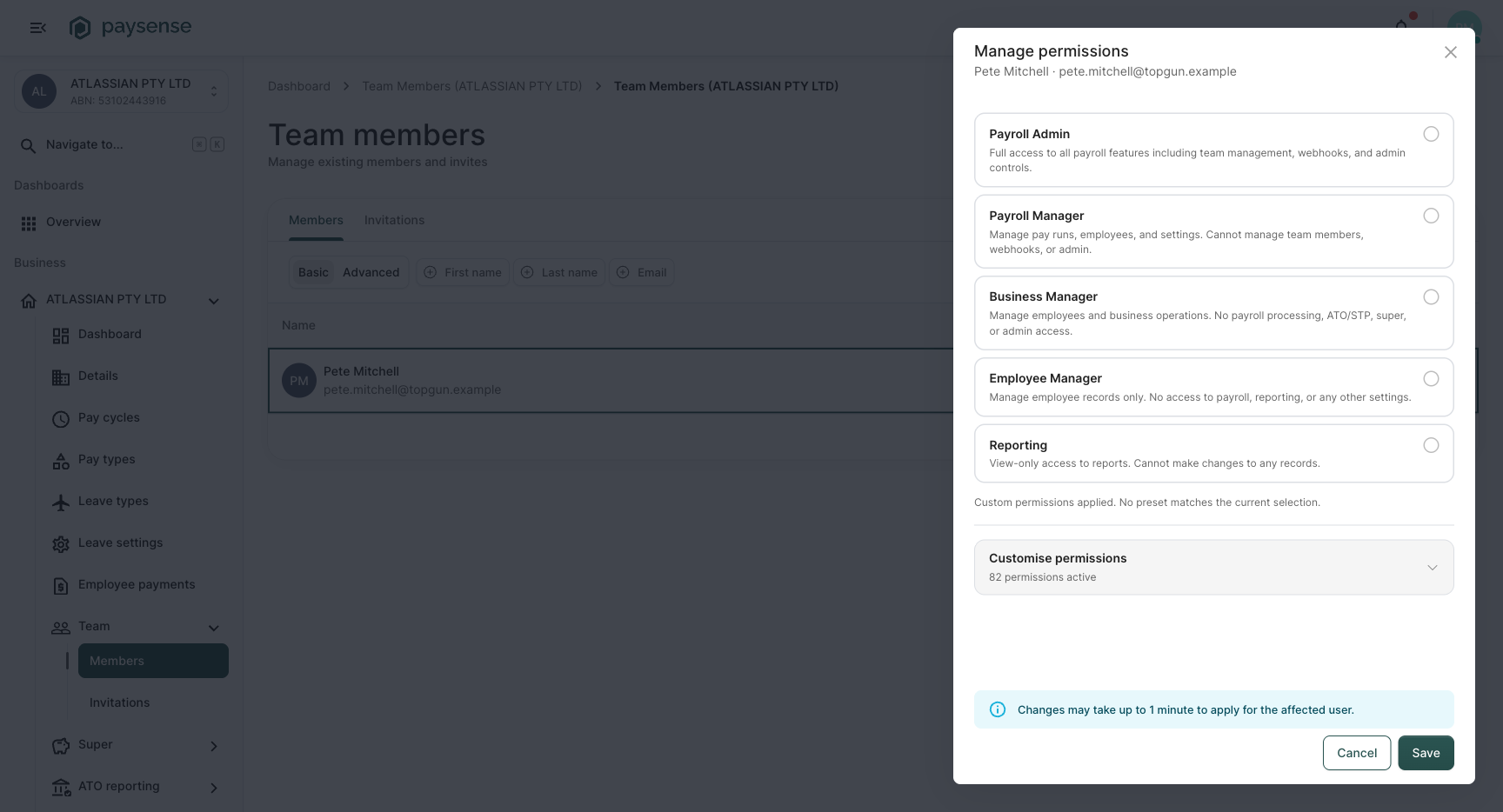
Pick a role by clicking its card. The selected card highlights in primary colour and a check mark (✓) appears on the right.
| Role | What they can do | What they can't do |
|---|---|---|
| Payroll Admin | Everything. Full access to all payroll features, team management, webhooks, and admin controls. | Nothing - this is the highest role short of being the owner. |
| Payroll Manager | Manage pay runs, employees, super, ATO/STP, leave, timesheets, reports. | Cannot invite or remove team members, manage webhooks, or change other users' permissions. |
| Business Manager | Manage employees, leave, timesheets, cost centres, public holidays. | No payroll processing, ATO/STP, super contributions, bank accounts, chart of accounts, or admin. |
| Employee Manager | View, edit, and delete employee records. | No payroll, no reporting, no settings access of any kind. |
| Reporting | View-only access to reports. | Cannot make any changes anywhere in the business. |
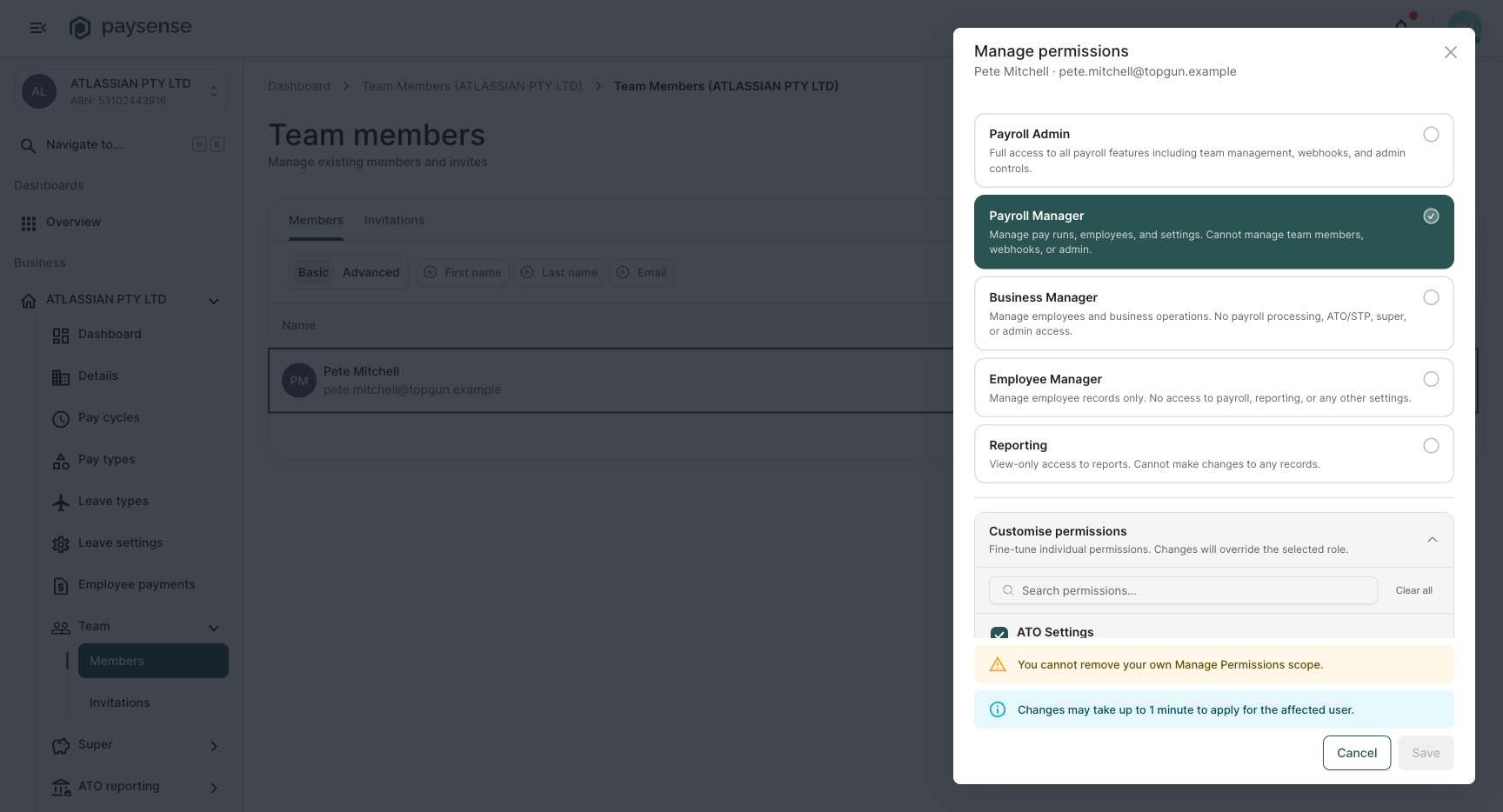
Clicking a preset doesn't save - it just sets the working selection. You'll see the Customise permissions accordion header at the bottom update to show how many permissions are now active (for example, 82 permissions active for Payroll Admin).
If none of the presets quite fit, pick the closest one and then refine it in the advanced panel (Step 3). The accordion will mark your selection as Custom permissions applied. No preset matches the current selection. once you start tweaking - that's expected and saves cleanly.
What's the Reporting role useful for?
The Reporting preset grants exactly one scope: report:read. The picker pulls in any dependencies the report screens need to load (employee lookups, cost centre filters, pay run lists), but the user can't change anything. It's the right role for an accountant, auditor, or external bookkeeper who needs to pull payslips and audit logs without any risk of editing real data.
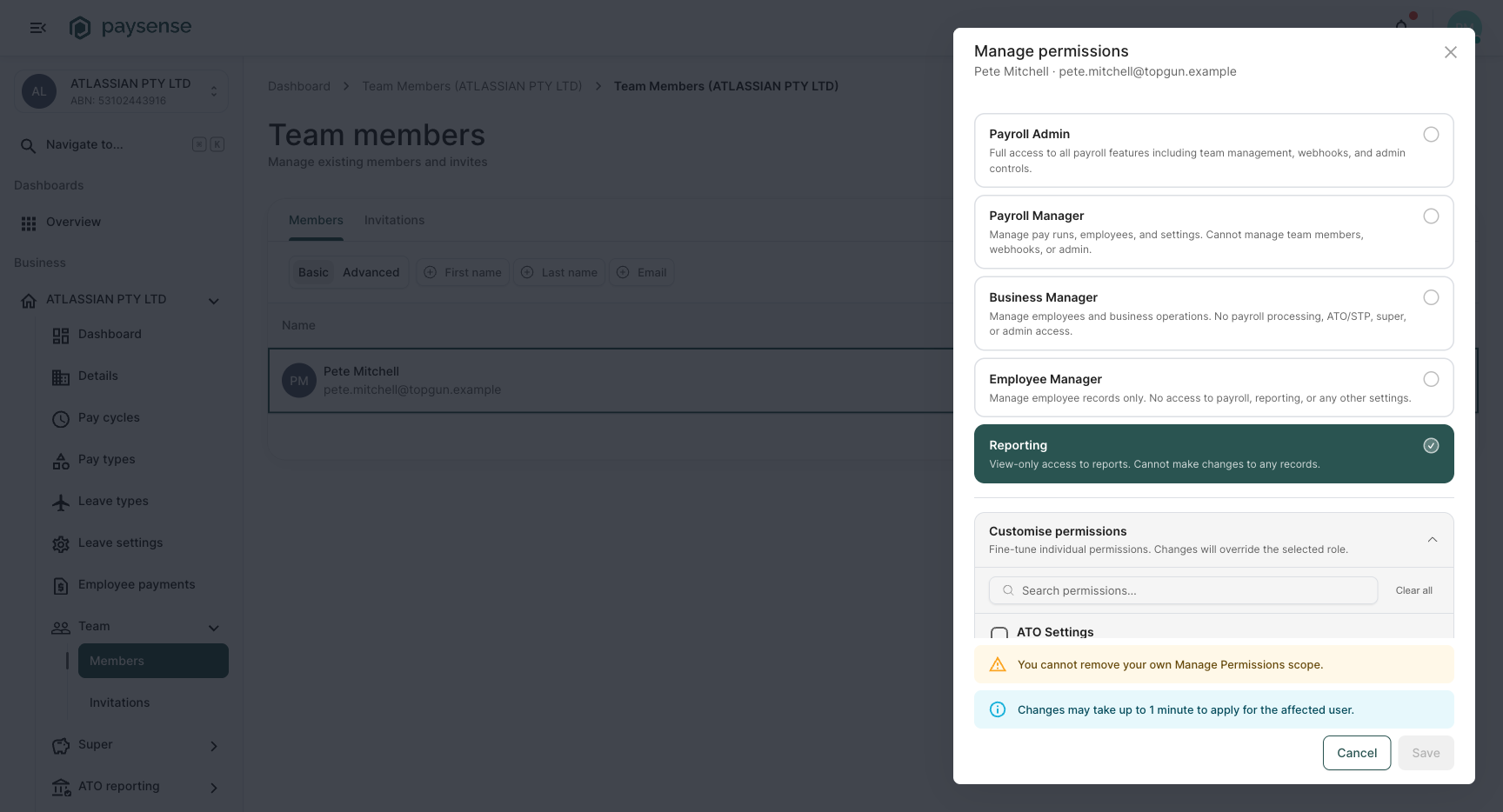
Step 3: Customise individual permissions (optional)
When a preset is close but not quite right, click the Customise permissions row to expand the advanced scope picker.
Inside the accordion you'll find every scope group in the system, sorted alphabetically:
- Group header with a checkbox - toggles all scopes in that group on or off at once. The checkbox shows an indeterminate state when some (but not all) of the group's scopes are selected.
- Action chips underneath - one chip per action (View, Edit, Delete, plus group-specific actions like Finalise, Approve, Publish, Submit, Validate, Cancel, Recalculate, Regenerate, or Import).
Click a chip to toggle that single scope. Click the group checkbox to toggle the whole group. Hover any chip to see a tooltip explaining what that action does.
Searching for a specific permission
The Search permissions… box at the top of the accordion filters the visible groups by name or description. Type super to narrow to Super Contributions, Super Funds, and Super Payments; type report for Reports and Webhook Logs. The search is forgiving (case-insensitive, matches descriptions too) and clears with the X in the search box.
Clearing everything
The Clear all button next to the search box removes every selected scope. Useful when you want to start from scratch instead of from a preset - for example, when you're building a tightly-scoped role for an external contractor.
Step 4: Understand locked scopes
When you select an action that depends on another (for example, payrun:finalise requires payrun:read to even load the pay run screen), Paysense automatically adds the dependency to your selection. To stop you from breaking your own selection, those auto-added dependencies are then locked - they show a small padlock icon and can't be unticked while anything that needs them is still selected.
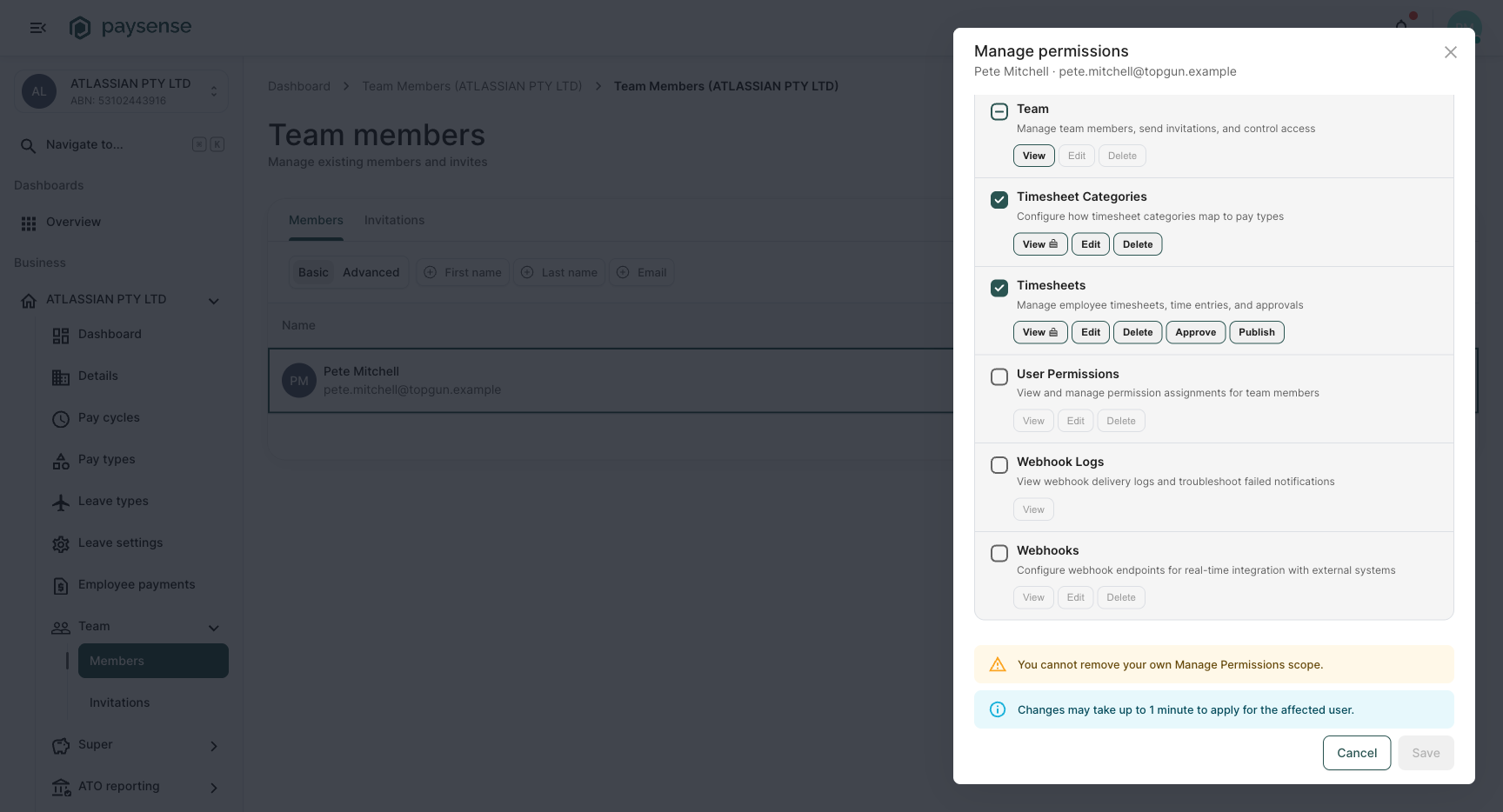
Hover any locked chip to see exactly which other scopes are keeping it in place. The tooltip reads Required by: <list of scopes>. To unlock the chip, untick the scopes listed there first - the lock releases as soon as nothing depends on it any more.
| Example | Why it's locked |
|---|---|
| Pay Cycles (View) | Required by Pay Runs (Edit), Employees (View), Super Contributions (Edit), and several others. The dropdowns on those screens need to load the pay cycle list. |
| Business Details (View) | Required by Employees (View) (loads default hours-per-day) and Timesheets (View) (loads end-of-week setting). |
| STP (View) | Required by Pay Runs (View) (the pay run detail screen always queries matching STP events). |
| Employees (View) | Required by almost every screen that needs an employee picker. |
Locked scopes are a safety net, not a limitation. They mean: "if you want X to work, you need Y too." The picker handles this for you; just pick the action you care about and trust the dependency system to fill in the rest.
Self-protection: can't lock yourself out
If you're editing your own permissions row, there's one extra safety net. The scope that grants access to this very screen (User Permissions (Edit)) cannot be removed from your own selection. If you try to deselect it, the Save button is disabled and a warning appears at the bottom of the panel:
You cannot remove your own Manage Permissions scope.
This stops a single misclick from locking yourself out of the permissions screen entirely. If you genuinely want to step down from being able to manage permissions, ask the business owner (or another administrator) to do it for you - they don't have the self-edit restriction.
You can remove other scopes from yourself (for example, you can deselect payrun:finalise on your own row). Only the Manage permissions scope itself is protected when self-editing. Everything else is fair game.
Step 5: Save the changes
Once you're happy with the selection, click Save at the bottom of the panel.
| State | What it means |
|---|---|
| Save enabled | Selection is valid and different from what's currently stored. |
| Save disabled, no warning | You're editing your own row and removed the Manage permissions scope - see Self-protection. |
| Save disabled, loading spinner | A save is in progress. Wait for it to finish before clicking again. |
After a successful save you'll see a "Permissions updated" toast in the bottom-right and the panel closes automatically. Paysense also shows a persistent info alert above the action buttons:
Changes may take up to 1 minute to apply for the affected user.
This is because the user's permission set is cached for performance. The cache rebuilds on the next request after the save, so as soon as the affected person reloads or navigates to a new page, the new permissions kick in. If they happen to be staring at a screen the whole time, ask them to refresh after a minute.
Be deliberate about granting Delete scopes (especially payrun:delete, employee:delete, bankaccount:delete, and chartofaccounts:delete). These actions are permanent and skip the soft-delete pathway used by many record types. The preset roles deliberately include or exclude delete based on the role's typical responsibility; if you find yourself enabling delete on a non-admin role, double-check that's really what you want.
What's next
Now that you've assigned permissions, the typical follow-ups are:
- Invite the rest of your team - head to Team > Invitations and use the Invite button. The invite dialog uses the same scope picker, so you can grant the right permissions up-front instead of editing them after the fact.
- Audit who has access to what - the members list shows everyone in the business, but to see a specific person's current scopes you need to reopen Manage permissions on their row. The roles you see in the badge column are the display role; the actual scopes can be customised away from the preset.
- Track permission changes - every save is recorded in the audit log. Head to Reports > Audit Logs to see when permissions were last changed for a member and by whom.
Troubleshooting
| Symptom | Likely cause | What to do |
|---|---|---|
| Save button is disabled and a warning appears about losing your own Manage Permissions scope | You're editing your own row and deselected User Permissions (Edit) | Re-tick the Edit chip on the User Permissions group, or ask another administrator to make the change for you |
| The user says they still can't see a screen after I saved | Permission cache hasn't rebuilt yet | Ask them to refresh the page or wait up to 1 minute |
| A scope chip won't untick and shows a padlock | Another selected scope depends on it | Hover the chip to see the Required by: list, then untick those scopes first |
The selection shows Custom permissions applied. No preset matches the current selection. even though I picked a preset | One of the chips was toggled after the preset was applied, or the user already had a non-preset selection saved | If you wanted the clean preset, re-click the role card; otherwise leave it as Custom |
| Manage permissions action isn't visible on a row | You don't have the Manage permissions scope yourself | Ask the business owner or another administrator to grant you User Permissions (Edit) |
| Role badge says Owner and I can't remove that person | The owner is intentionally protected from deletion | Transfer ownership first (contact support if you need to change the business owner) |
| The accordion is missing a permission group I expected to see | The search box may have a stale query in it, or the resource is intentionally hidden (for example, the internal Employee Portal scope) | Clear the search box. If it's still missing, the scope may be reserved for internal use. |
If you hit a problem the table doesn't cover, the Audit Logs screen (under Reports) logs every permission change with the user, business, before/after scope list, and timestamp - check there first when investigating an unexpected access issue.