Set up associated entities
An associated entity in Paysense is another registered company in your group that employs some of your staff. Their payslips and their ATO reporting carry that company's ABN instead of the parent business's, while everything else stays shared: one employee list, one set of pay types, leave types and pay cycles, one pay run.
This tutorial walks through the Associated Entities screen end-to-end on the CANVA SPACE business (its legal name, and the one Paysense shows as the parent entity, is CANVA PTY LTD), adding CANVA OPERATIONS PTY LIMITED as a second ABN. By the end you'll have an entity you can attach employees to from their pay run settings.
What you'll need
| Item | Required | Notes |
|---|---|---|
| A business in Paysense | Yes | Created via the Add a business tutorial. The entity is added under it. |
| The Associated Entities feature turned on | Yes | Off by default. Without it the screen is hidden and the route returns Not Found. |
The AssociatedEntity.Read permission | Yes | Gates the list, the new form, and the edit screen. On its own it only lets you view the list - every button that adds or edits an entity also needs AssociatedEntity.Write. |
The AssociatedEntity.Write permission | Yes | Needed to create or save. AssociatedEntity.Delete is a separate permission for removing one. |
| The entity's ABN | Yes | Looked up against the Australian Business Register, or typed in. It cannot be changed after the entity is created. |
| A registered address and a contact | Yes | The contact and the address postcode are reported to the ATO with the entity's pay events, and the address is sent to Beam when the entity registers |
| A payslip logo | Optional | PNG or JPG, up to 5MB. Can be added later from the edit screen. |
You do not need an associated entity to trade under a second business name, and you do not need one to split reporting by location - use cost centres for that. Add one only when a second registered company in your group actually employs some of your staff.
Step 1: Open the Associated Entities screen
From the left-hand sidebar, expand the business name and click Associated entities. You'll land on the list at /business/{businessId}/associated-entities.
On a business with no entities yet, the screen explains what an associated entity is and when you need one, and offers a single Add your first entity button.
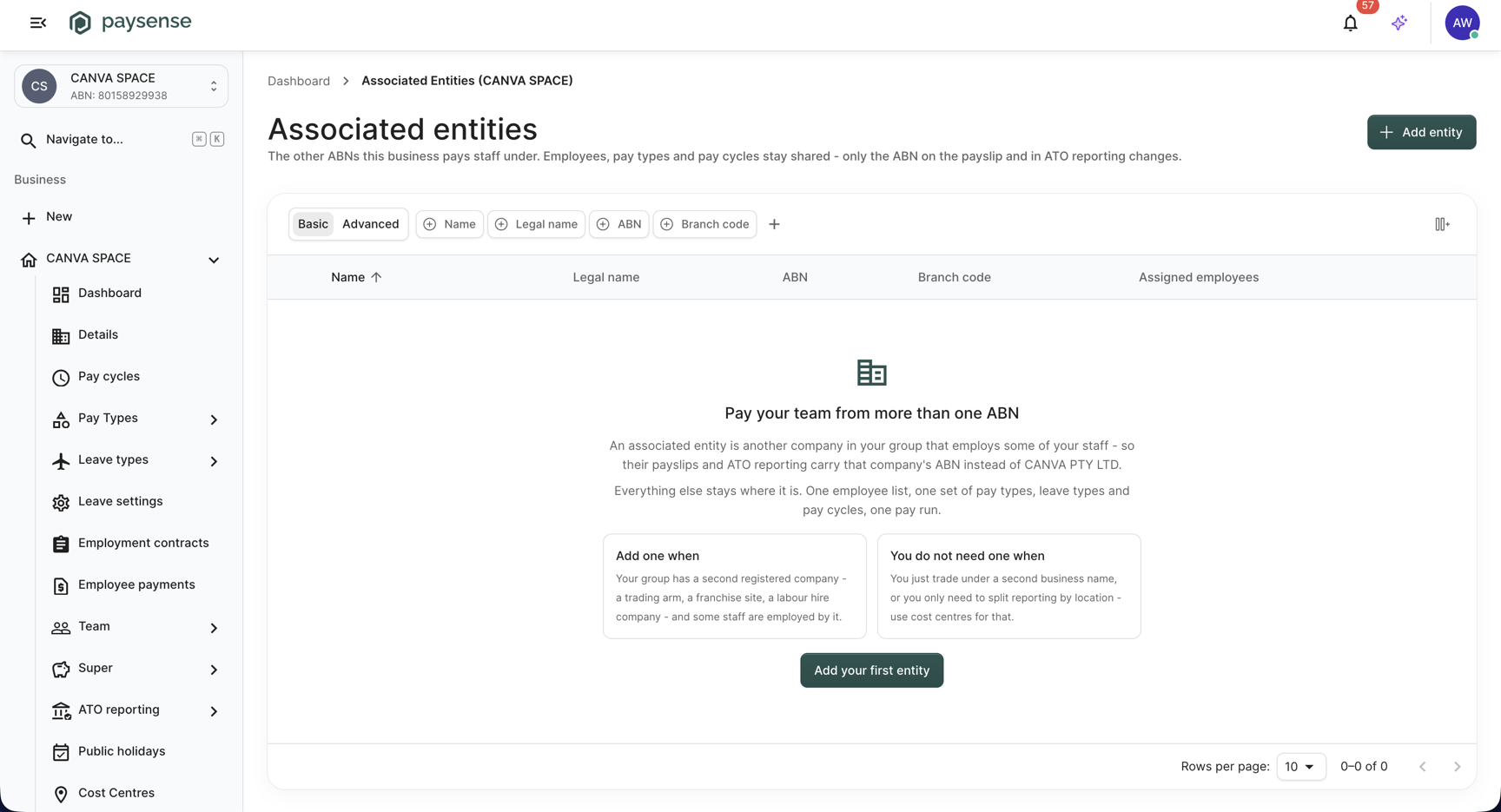
Once entities exist, the list shows one row each:
| Column | What it shows |
|---|---|
| Beam status | A chip such as Not registered, Authorised or Covered by primary. Only appears if you have permission to see Beam participants. |
| Name | The name shown in Paysense and reported to the ATO |
| Legal name | The entity's registered legal name, printed on payslips |
| ABN | The ABN the entity's pay events are reported under |
| Branch code | The PAYG withholding branch, or - when the entity has only one |
| Assigned employees | How many employees are currently paid under the entity, or None |
The Add entity button in the top-right does the same thing as Add your first entity. Both open the form at /business/{businessId}/associated-entities/new.
Step 2: Look up the entity in the Australian Business Register
Click Add your first entity. The New associated entity form opens with three sections - Entity details, Address and Contact - plus optional payslip branding.
The fastest way to fill in the first section is the Search the Australian Business Register field at the top. Type the company's name and wait a moment. Paysense queries the ABR live and lists matching entities with their ABN and registered locality.
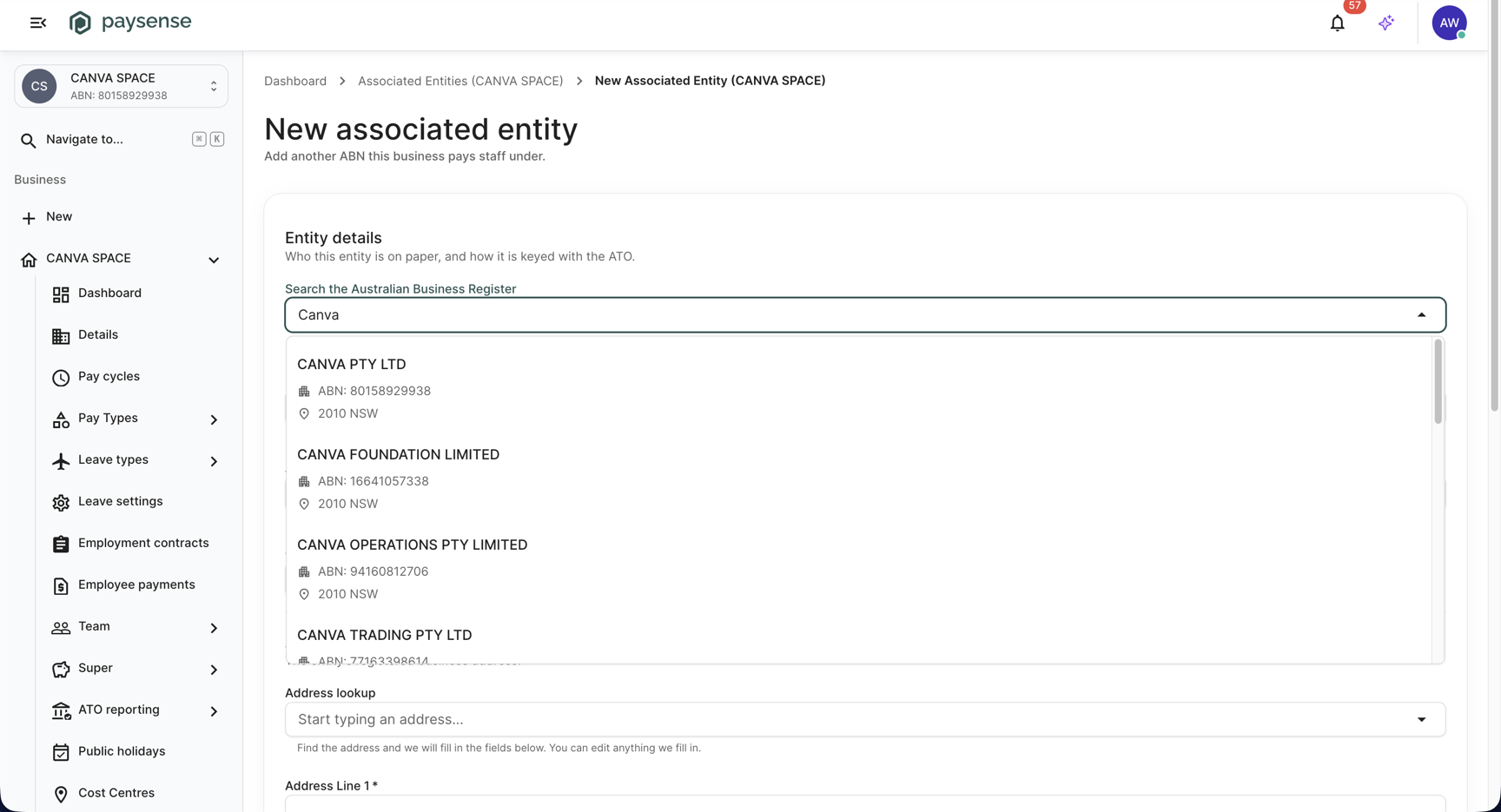
Select the entity that employs the staff - for this walkthrough, CANVA OPERATIONS PTY LIMITED. Paysense fills in Entity name, Legal name and ABN from the ABR record. You can edit anything it fills in.
| Field | Required | Notes |
|---|---|---|
| Search the Australian Business Register | No | A convenience only. The selection itself is never saved - it only fills in the three fields below. Needs at least 2 characters. |
| Entity name | Yes | Up to 255 characters. This is the name shown in Paysense and reported to the ATO as the entity's organisation name in its pay events. |
| Legal name | Yes | Up to 255 characters. The entity's name on the register. This is the employer name printed on payslips. |
| ABN | Yes | 11 digits, checked against the standard ABN check digit. Must not already be used by another entity on this business. It cannot be changed once the entity is created - the ATO reports against it and lodged pay events reference it. |
| Branch code | No | Up to 50 characters. The entity's PAYG withholding branch. Leave blank if it has only one. |
| Correlation ID | No | Up to 50 characters. Your own reference for the entity. Paysense does not act on it, but you can search and filter the list by it. |
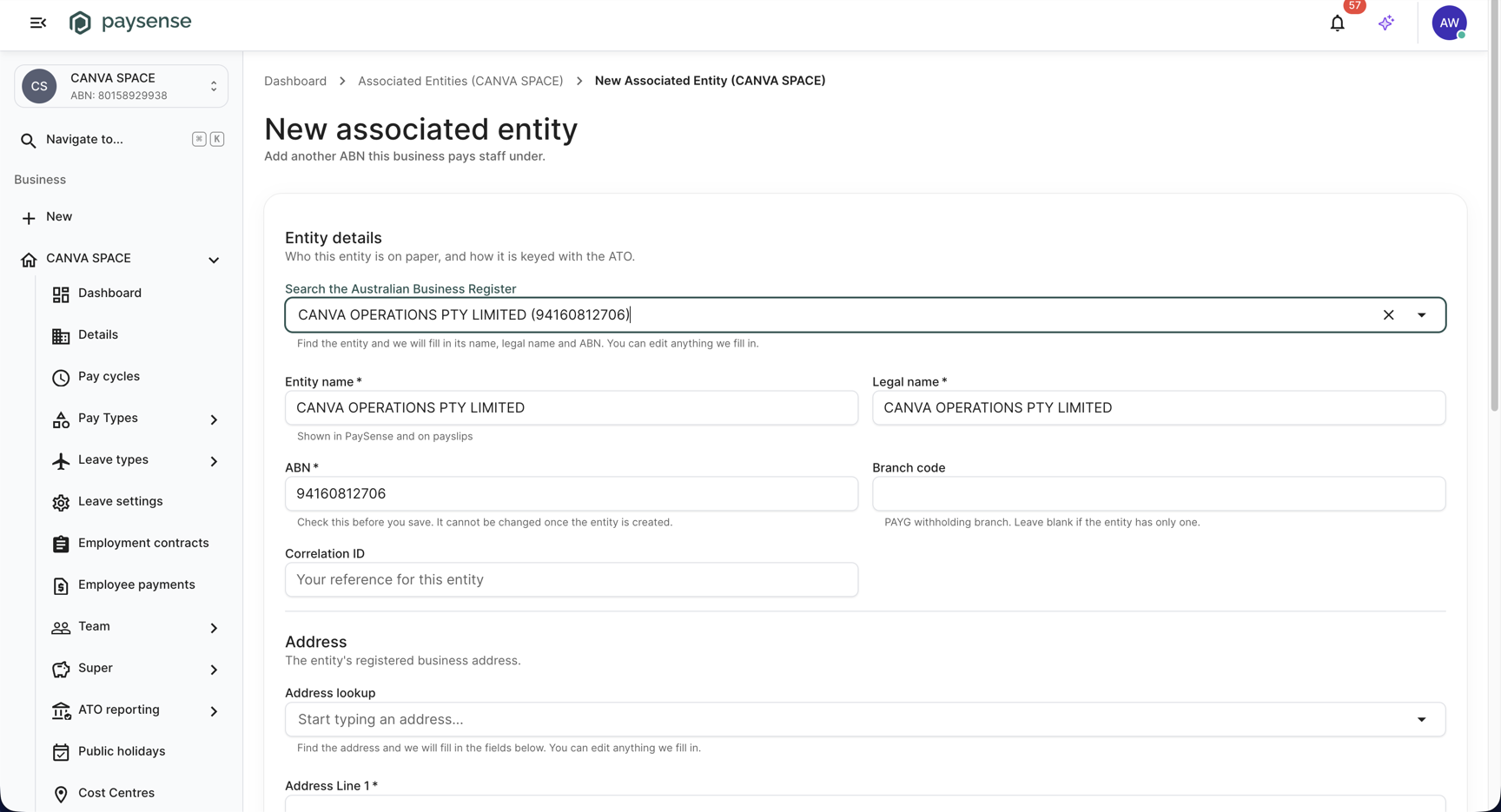
Check the ABN before you save. Correcting it afterwards is not possible - you would have to create a second entity with the right ABN and move the employees across.
Step 3: Add the entity's address
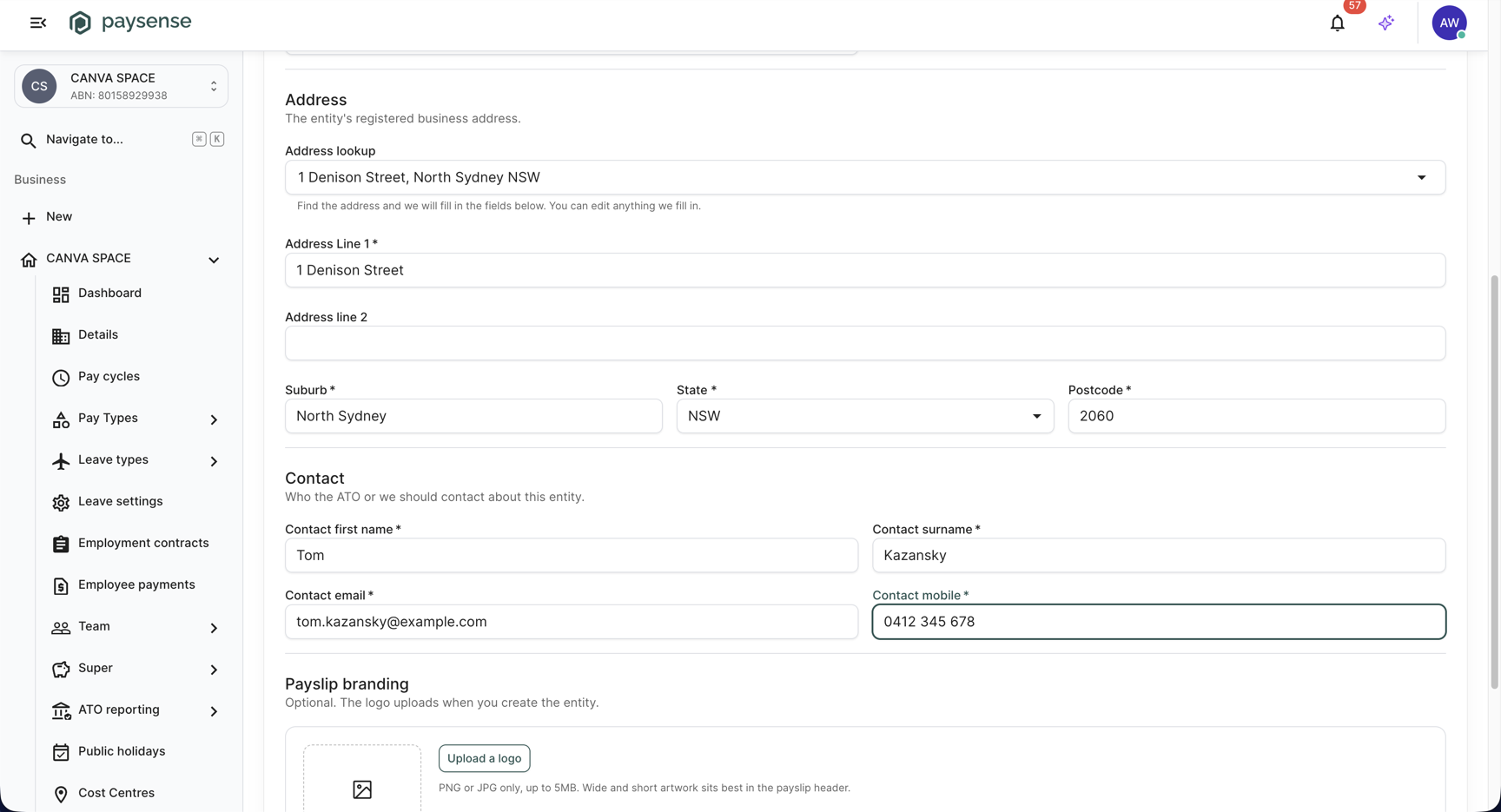
The Address section captures the entity's registered business address. It is mandatory as a whole: Paysense reports its postcode to the ATO, and Beam uses the full address when the entity registers.
Start typing in Address lookup and pick the match. Paysense fills Address Line 1, Address line 2, Suburb, State and Postcode from the result. You can also skip the lookup and type each field yourself.
| Field | Required | Notes |
|---|---|---|
| Address lookup | No | A convenience only. If the place has no state, Paysense leaves your own choice in State. |
| Address Line 1 | Yes | Up to 255 characters |
| Address line 2 | No | Up to 255 characters. Use it for unit, level or suite numbers. |
| Suburb | Yes | Up to 100 characters |
| State | Yes | A dropdown of the Australian states and territories. The blank None item is not a valid choice - leaving it there blocks the save. |
| Postcode | Yes | Up to 10 characters |
The filled address is shown in the next step's screenshot, alongside the contact.
Step 4: Add the contact
The Contact section records who the ATO or Paysense should contact about this entity. All four fields are required.
| Field | Required | Notes |
|---|---|---|
| Contact first name | Yes | Up to 100 characters |
| Contact surname | Yes | Up to 100 characters |
| Contact email | Yes | Up to 255 characters, and must be a valid email address |
| Contact mobile | Yes | Up to 15 characters |
Step 5: Add a payslip logo (optional)
Payslip branding attaches a logo to the payslips of everyone paid under this entity. It is optional, and you can add or replace it later from the edit screen.
| Field | Required | Notes |
|---|---|---|
| Upload a logo | No | PNG or JPG only, up to 5MB. SVG is rejected because it can carry scripts. Wide, short artwork sits best in the payslip header. |
Pick a file and it is held, not uploaded: the chip reads Uploads when you create the entity, and the line beside it names the file. Change file swaps it and Remove clears it.
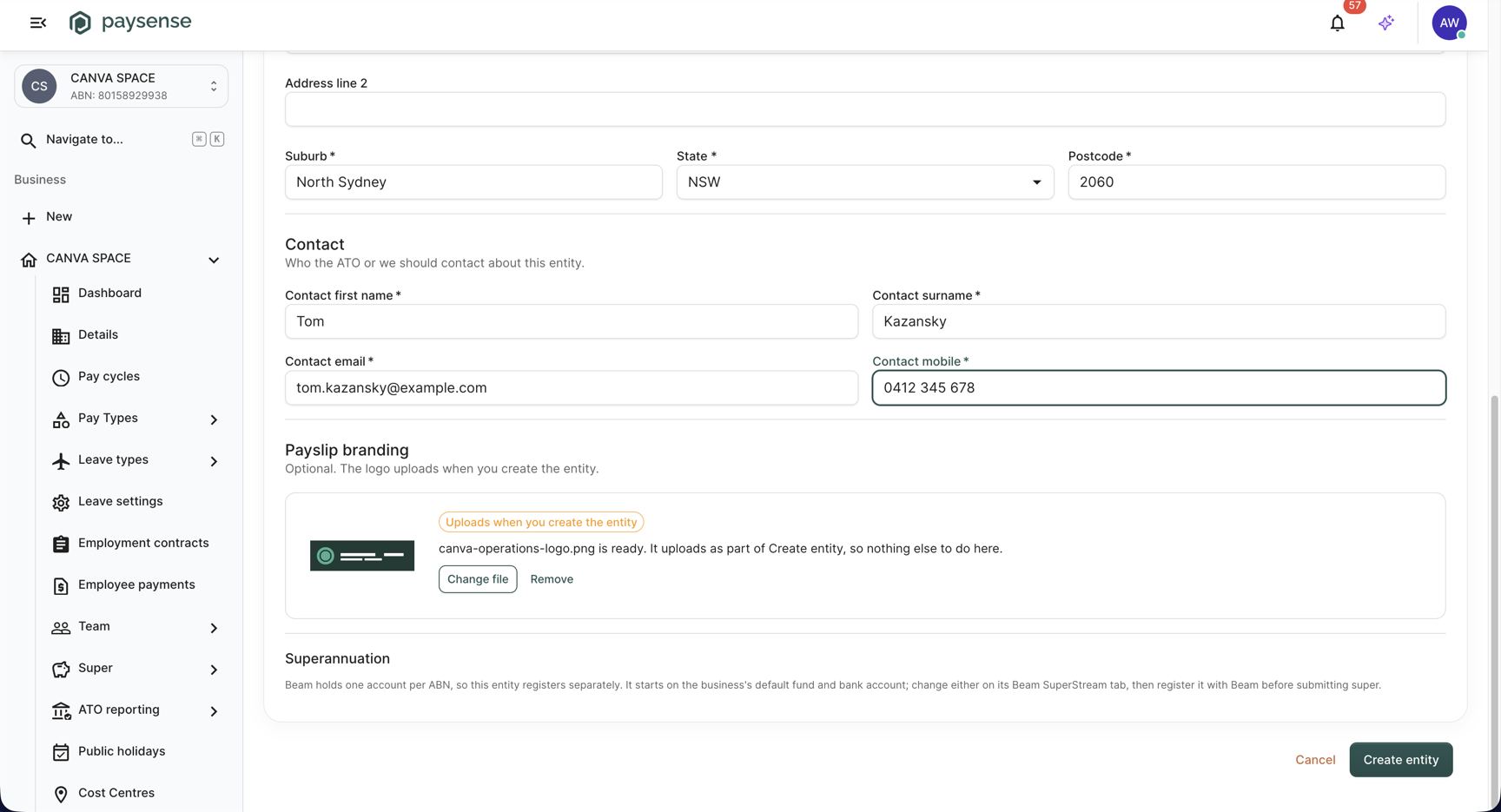
Below the logo, a Superannuation note explains that Beam holds one account per ABN, so this entity registers with Beam separately from the parent business.
Step 6: Create the entity
Click Create entity. On success Paysense returns you to the list with a "Success! Record has been created." toast, and the new entity appears as a row.
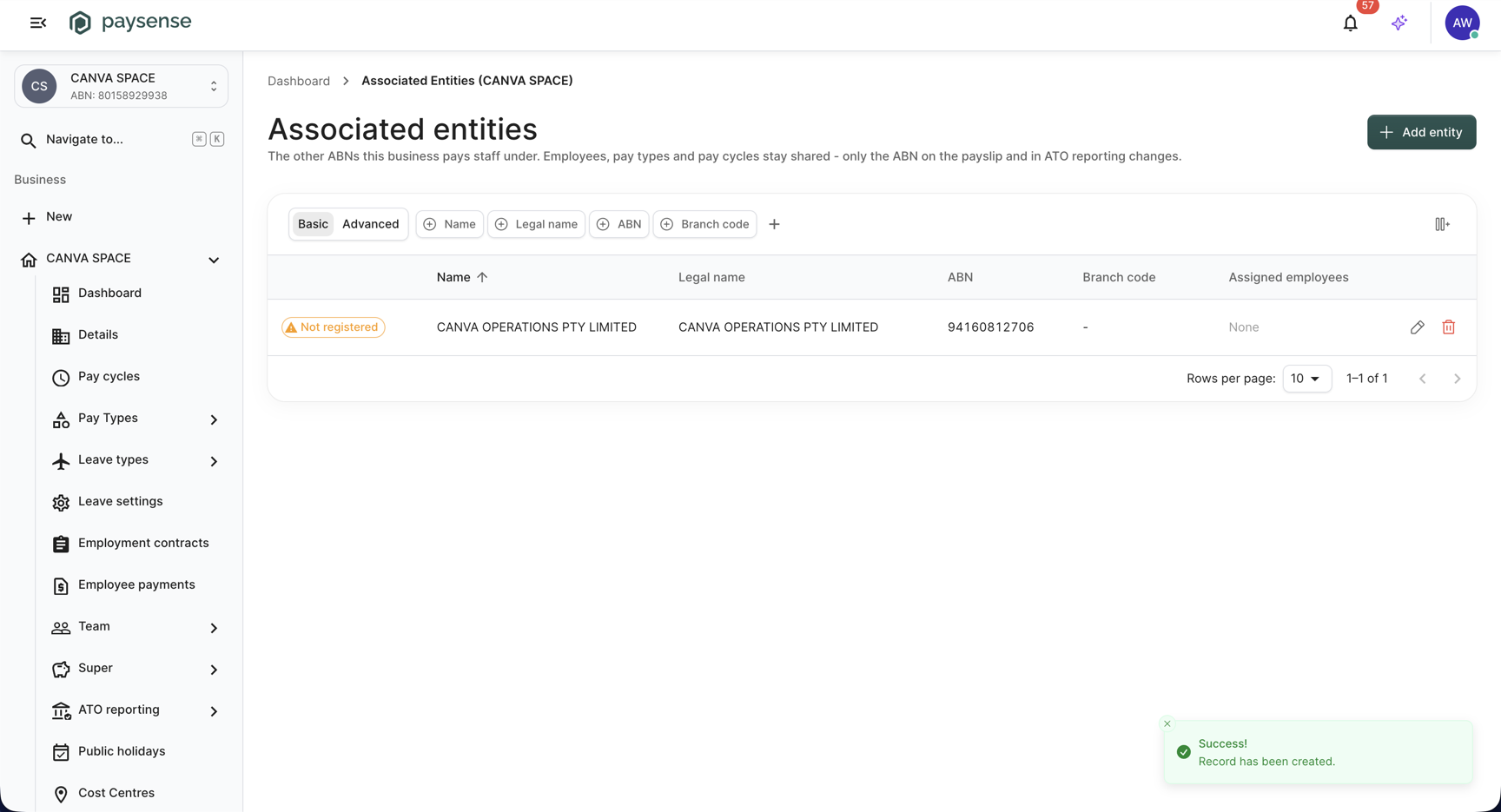
The row shows None under Assigned employees - the entity exists, but nobody is paid under it yet. Its Beam chip reads Not registered.
If the entity saves but the logo upload fails, Paysense keeps you on the page with a "Entity saved, logo upload failed" warning and offers Retry. The entity itself already exists and can be used in pay runs - only its payslip logo is missing. The address bar switches to the edit route at that point, so a refresh lands you on the saved entity rather than an empty form.
The logo, the primary button colour and the selected nav item colour come from your organisation's branding, so they differ from these screenshots in a partner-branded Paysense.
Step 7: Confirmation
The entity is ready once it appears in the list with its ABN, as in the Step 6 screenshot. There is no separate confirmation screen. Nothing changes for anyone's pay until you attach an employee to it.
To do that, open an employee's Pay run settings and set Associated entity to the new entity. The change takes effect from the start of that employee's current open pay period, and from then on their earnings are reported under the entity's ABN. See Manage employee pay run settings.
The two steps that follow are for later: changing an entity's details, and setting up its super.
Step 8: Edit an entity later
Click the pencil on any row to open /business/{businessId}/associated-entities/{associatedEntityId}/edit. The header names the entity, shows how many employees are assigned to it, and carries the Delete button.
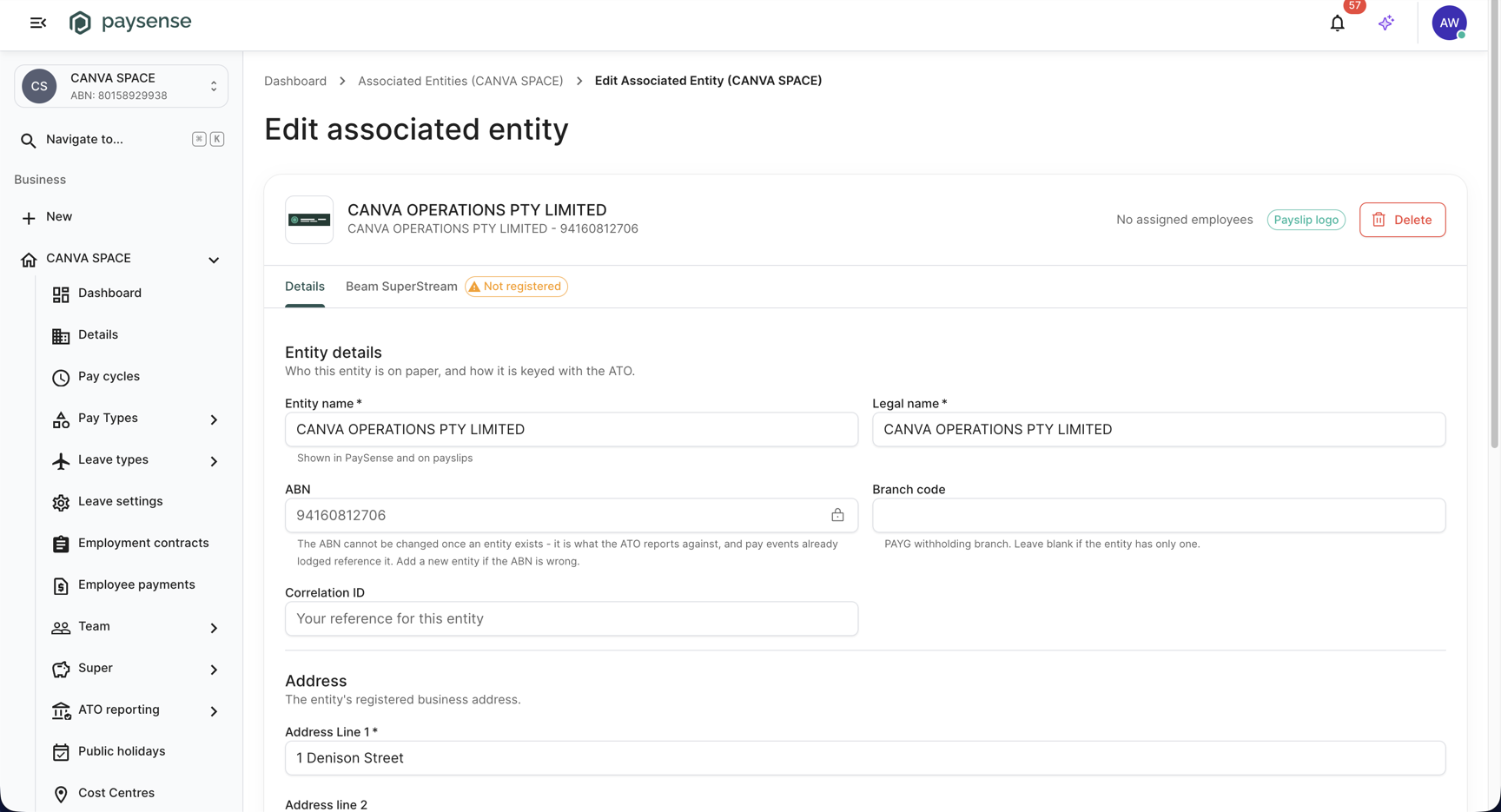
Two things differ from the create form:
- ABN is read-only, marked with a padlock, and its helper explains why: the ATO reports against it and lodged pay events reference it.
- The ABR search and the address lookup are gone. Picking an ABR result here would silently rewrite the name, legal name and ABN of an entity that may already have lodged pay events.
Everything else is editable. Cancel and Save changes sit at the foot of the form, below what the screenshot above shows. Click Save changes and Paysense confirms with a "Success! Record has been updated." toast.
Delete only works while no employee has ever been assigned to the entity, current or historical. While employees are currently assigned, the button is disabled and its tooltip tells you how many to move first. Once they have all moved off, a past assignment still blocks the delete, and the tooltip changes to "You cannot delete an entity that employees have been paid under. Nobody is assigned to it now, but a past assignment still references it."
Step 9: Check the entity's Beam SuperStream setup
Click the Beam SuperStream tab beside Details. The tab only appears if you have permission to see Beam participants - the same permission that shows the Beam status column on the list. Beam holds one account per ABN, so this entity has its own super setup rather than inheriting the parent business's.
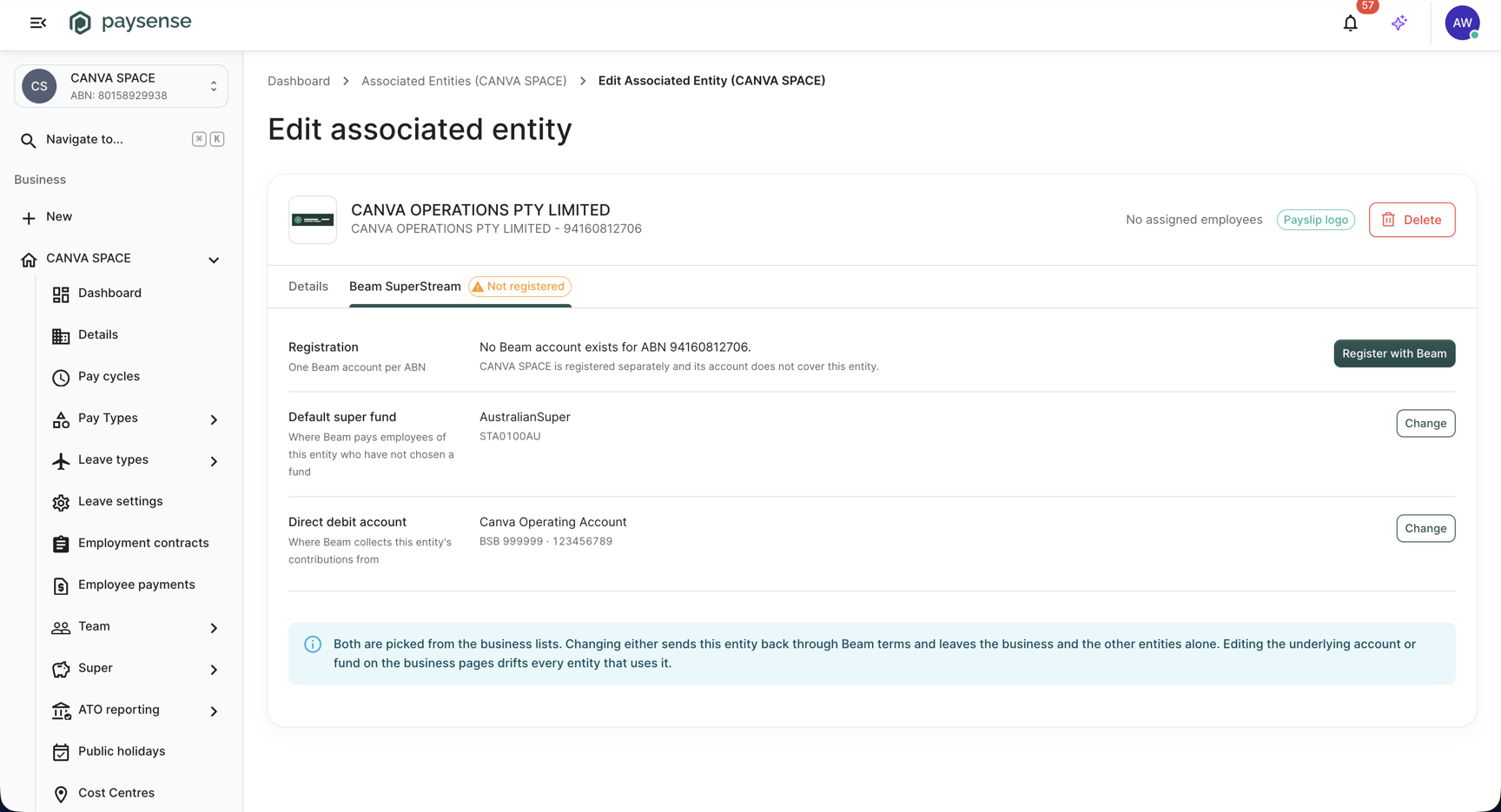
The tab is three rows:
| Row | What it shows | How to change it |
|---|---|---|
| Registration | Whether Beam holds an account for this entity's ABN. A new entity reads No Beam account exists for ABN {abn}., with a note that the parent business's own registration does not cover it. | Register with Beam starts a separate Beam onboarding for this entity |
| Default super fund | Where Beam pays employees of this entity who have not chosen their own fund. A new entity copies the business's default. | Change picks a different fund from the business's super fund list |
| Direct debit account | The account Beam debits for this entity's contributions, with its BSB and account number. A new entity copies the business's default. | Change picks a different account from the business's bank accounts |
A new entity copies the business's default fund and direct debit account when it is created, and holds them as its own from then on. An entity on the same ABN as the parent business is covered by the parent's Beam account instead, and copies nothing.
These two rows are what the Registration row checks. If this entity has no fund or no account of its own, Registration reads Cannot register yet and Register with Beam is disabled, and the other two rows read Not set with Set a fund and Pick an account in place of Change. On a new entity that means the business had no default to copy, so set those up first with Set up superannuation and Add bank accounts, then come back and set them here.
The chip next to the tab label mirrors the registration state - Not registered here, and the same chip appears in the leading column of the list.
Both the fund and the account are picked from the business's own lists, and changing either sends this entity back through Beam's terms. Editing the underlying fund or account on the business pages instead changes it for every entity that uses it.
Registering with Beam takes you out to Beam itself, and whoever completes it must be authorised to accept Beam's terms for that entity. Set up superannuation walks through what that onboarding involves.
The BSB in the screenshot above reads 999999 because it has been masked for publication. Your own screen shows the account's real BSB.
What's next
Now that the entity exists, the typical next steps are:
- Attach employees to it - set Associated entity on each person's pay run settings. See Manage employee pay run settings.
- Check your ATO reporting type - a business with associated entities usually lodges As an Intermediary. See Configure ATO settings.
- Register the entity with Beam - one Beam account per ABN, so the entity needs its own. See Set up superannuation.
- Lodge an STP event - the entity's employees are reported under its ABN. See Lodge an STP event.
Troubleshooting
| Symptom | Likely cause | What to do |
|---|---|---|
| The screen is blank or redirects to Not Found | The Associated Entities feature is off for your organisation | Ask your Paysense administrator to enable it |
| Redirects to No Access | Your user lacks the AssociatedEntity.Read scope | Ask a team member who can manage the team to grant it |
| Create entity does nothing and errors appear | A required field is empty or invalid | Scroll up - each invalid field carries a red message underneath |
| "ABN is invalid" | The number fails the ABN check digit | Re-check the ABN, or find the entity through the ABR search instead of typing it |
| "An associated entity with this ABN already exists for this business." | Another entity on this business already uses that ABN | Open the existing entity from the list instead of creating a second one |
| "The ABN cannot be changed once an entity exists." | You edited the ABN on an entity that has already been created | Leave it as it is. If the ABN is genuinely wrong, create a new entity and move the employees across. |
| "State is required." with a state apparently chosen | The dropdown is on its blank None item | Pick an actual state or territory |
| "That file type is not supported" on a logo | The file is not a PNG or JPG | Export it as PNG or JPG. SVG is rejected because it can carry scripts. |
| "Cannot delete an associated entity that has employees assigned to it (current or historical). Reassign employees first." | Someone is, or once was, paid under the entity | Move those employees to another entity or back to the parent business first. Ended assignments still count. |
If you hit a problem the table doesn't cover, check the Notifications panel on the business dashboard for the underlying error message.