Manage employee pay run settings
An employee's pay run settings decide how Paysense pays them in every pay run: their employment type, pay cycle, and cost centre, the employment contract or award they're on, their pay rate, and their working hours. A work pattern adds a repeating roster of shifts, so an hourly employee is paid for the shifts they're rostered on instead of a flat number of hours each week.
The Add Employee wizard sets most of these when you onboard someone. This tutorial covers the employee's Settings page, where you change them afterwards, using James Anderson at CANVA SPACE. By the end you'll have put James on the Designer progression employment contract and saved a two-week work pattern for him.
What you'll need
| Item | Required | Notes |
|---|---|---|
| An employee with a start date | Yes | Created via the Add an employee tutorial. Paysense won't save pay run settings for an employee who isn't active yet and has no start date. |
| The employee's pay details | Yes | Employment type, pay cycle, pay rate and rate unit, and days and hours per week |
| An employment contract, pay type definition, or leave type definition | Optional | Only if the employee is on an award or agreement. Set these up first with Set up employment contracts, Set up pay type definitions and levels, and Set up leave type definitions and leave types. |
| The employee's roster | Optional | Only needed for a work pattern: the shift start and end times, and any unpaid break, for each working day |
The Employee.Write permission | Yes | Without it the Update button is not shown |
Steps 2, 4, and 5 are only for employees on a contract or a roster. Change what the employee needs, then click Update once to save the whole page.
Step 1: Open the employee's Settings page
From the left-hand sidebar, expand the employee's name and click Settings (Employees → James Anderson → Settings). You'll land on Pay run settings at /business/{businessId}/employees/{employeeId}/payrunsettings.
The page has two cards. Pay Run Settings at the top covers how the employee is employed and which contract, award, and pay type they're paid under. Pay Rate Configuration below it covers their rate, hours, and work pattern. James is a Casual on the Casuals - Fortnightly pay cycle, with no employment contract yet.
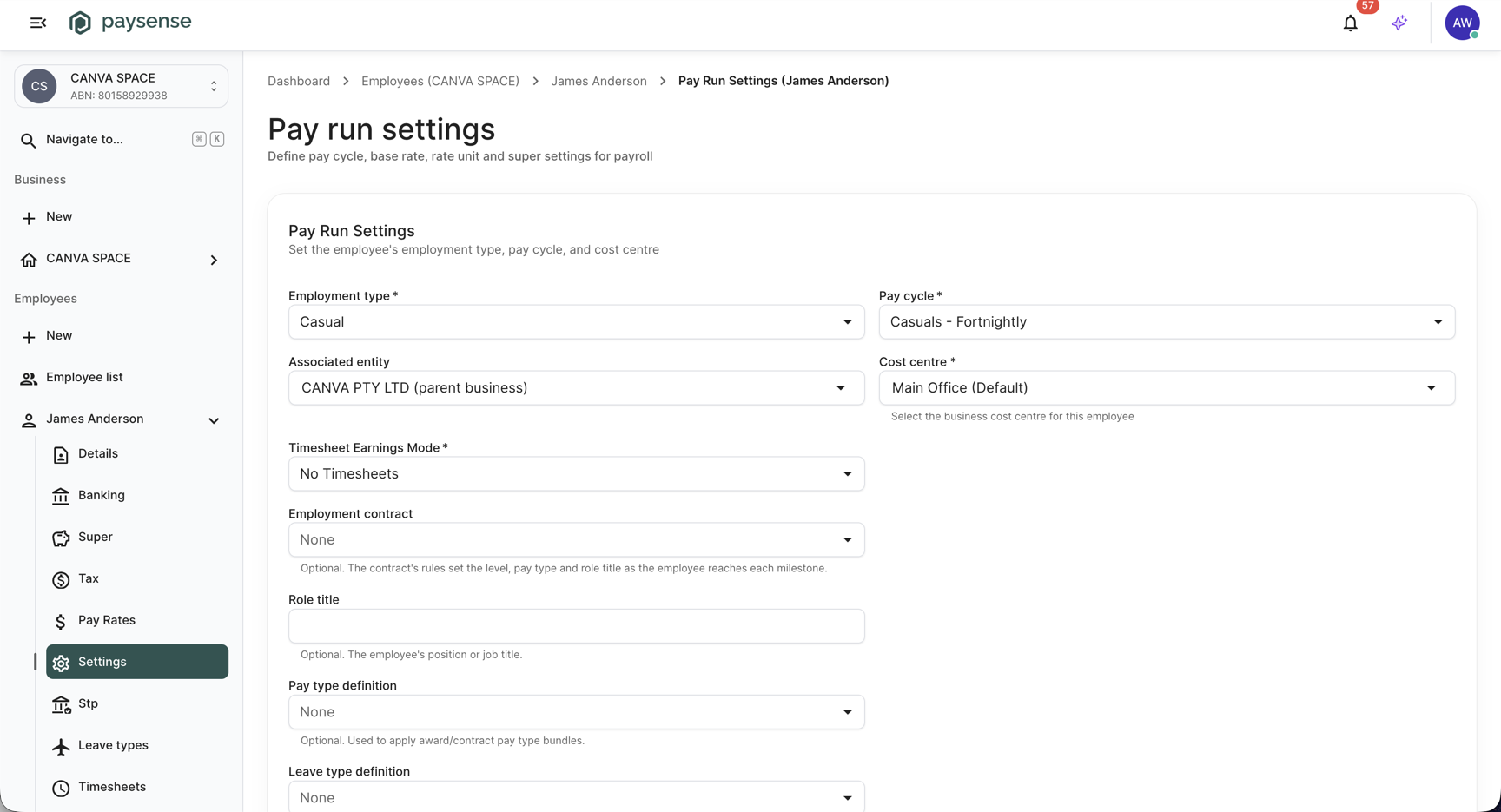
The selected nav item takes its colour from your partner's branding, so it will differ from the screenshots here.
| Field | Required | Notes |
|---|---|---|
| Employment type | Yes | Full Time, Part Time, or Casual |
| Pay cycle | Yes | One of the business's pay cycles, such as Casuals - Fortnightly. See Configure pay cycles. |
| Associated entity | No | Defaults to the parent business, such as CANVA PTY LTD (parent business). Pick an associated entity if it employs the person instead. The change takes effect from the start of the employee's current open pay period, and their earnings are reported under that entity's ABN from then on. |
| Cost centre | Yes | The business cost centre the employee's pay is allocated to. The business's default cost centre is marked (Default), and is what the employee falls back to. |
| Timesheet Earnings Mode | Yes | No Timesheets (the default) and Timesheet Supplement both pay the employee's standard earnings; Timesheet Only pays their timesheets in place of it. Any timesheets that have been imported are still paid on top under the first two, so use No Timesheets for an employee who doesn't submit any. |
| Employment contract | No | The contract whose rules set the employee's level, pay type, and role title as they reach each milestone. See Step 2. |
| Role title | No | The employee's position or job title, up to 100 characters. Filled in from the contract when you apply it. |
| Pay type definition | No | The award or agreement whose pay types and rates apply to the employee. Once one is picked, Primary pay type only lists that definition's pay types. |
| Level | No | Shown once a pay type definition is picked. The level whose rates apply to the employee. |
| Leave type definition | No | The award or agreement whose leave types apply to the employee |
| Primary pay type | Yes | The pay type the employee's ordinary hours are paid under, such as Casual Hourly or Ordinary Hours |
Associated entity, Timesheet Earnings Mode, Employment contract, Pay type definition, Level, and Leave type definition only appear when those features are turned on for your organisation. Employment contract also needs the EmploymentContract.Read permission.
Step 2: Assign an employment contract
If the employee is on an employment contract, pick it from Employment contract. For our example, choose Designer progression. Paysense checks the contract's rules against the employee's service today and shows what the contract currently applies. James has less than two years' service, so he falls in the contract's first band: Designer on Digital Services Agreement - Level 2 - Designer, paid Ordinary Hours at $42.00 hourly, with the Standard Leave Agreement.
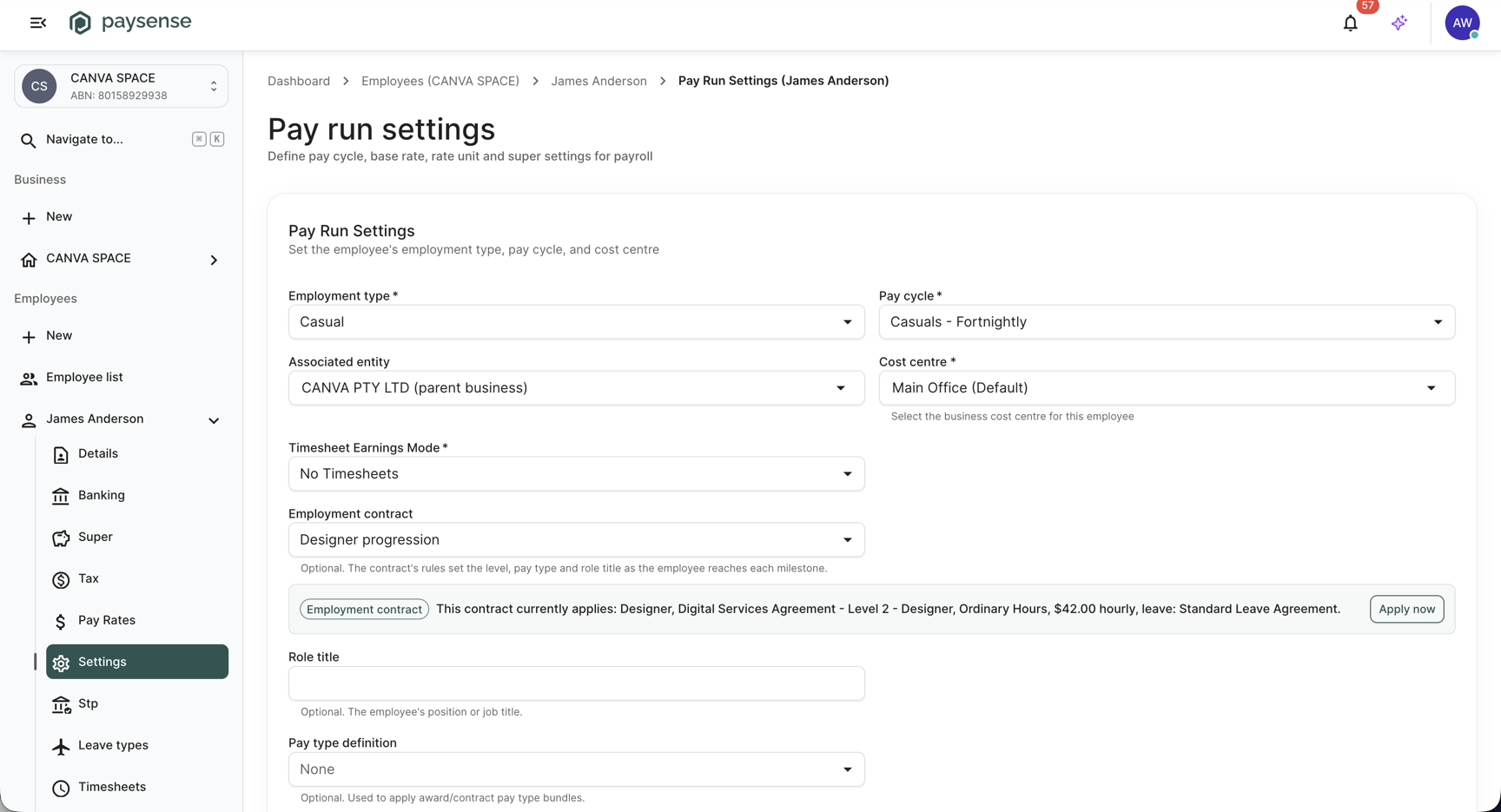
Nothing else on the form changes until you click Apply now. Click it, and Paysense copies the contract's values into Role title, Pay type definition, Level, and Primary pay type. It also fills Leave type definition when the contract has a leave rule that matches, and Pay rate and Rate unit when the matching rule sets a rate. James's rule sets all three. The contract panel then reads Matches these settings. A Level rate panel appears under Primary pay type with the level's rate for that pay type. For James it reads Matches this employee's rate.
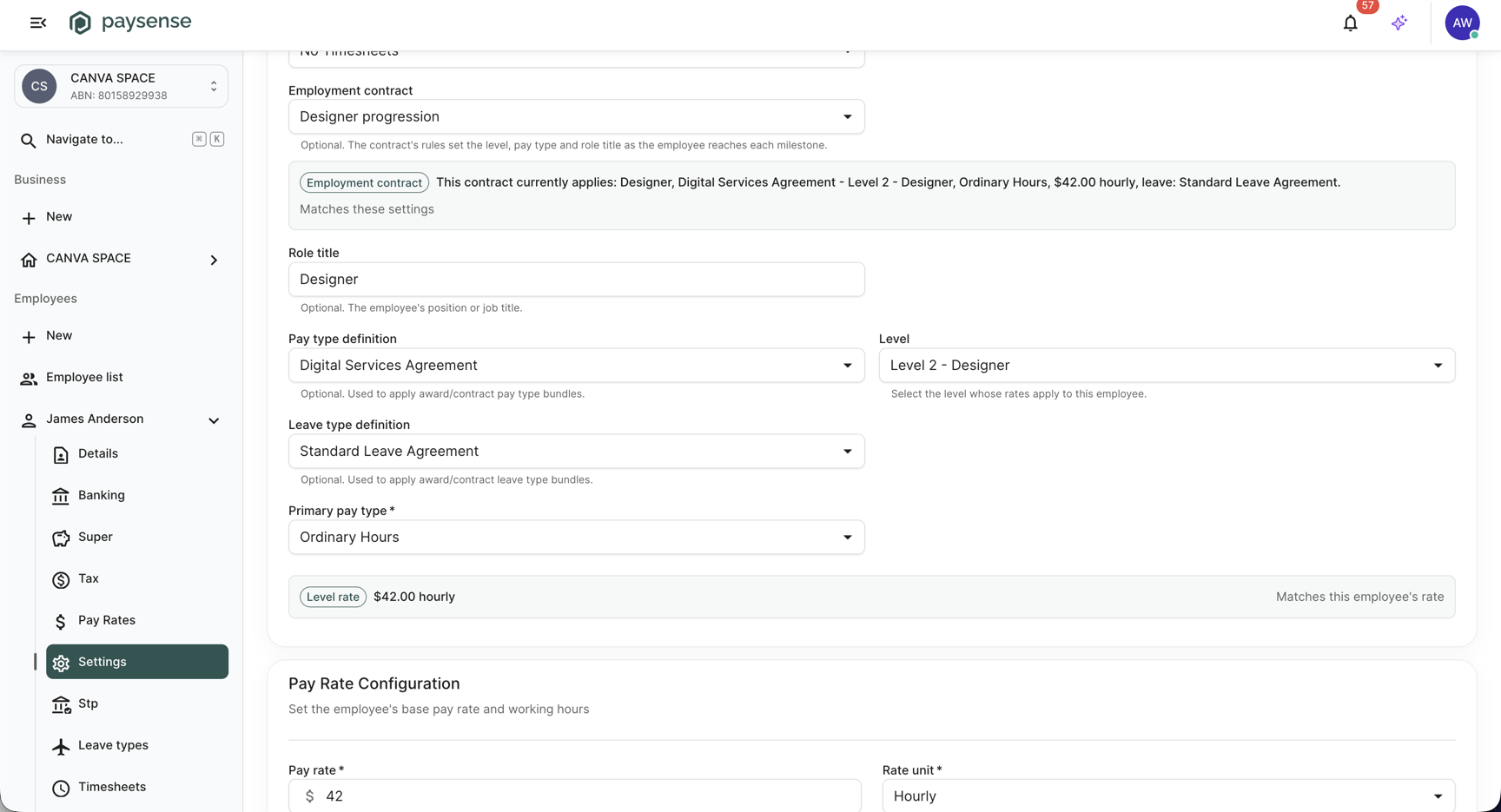
While an employee has a contract, Paysense checks it again each time a pay run that includes them is created or regenerated. If their Level or Leave type definition no longer matches the rule their service has reached, Paysense replaces the level and primary pay type with that rule's values, along with the role title where the rule sets one and the leave type definition where the rule has a matching leave rule. If the contract has Automatically update primary pay rate ticked, it replaces the pay rate and rate unit too. A level you change here by hand is put back at the next pay run.
If you save this page without the Employment contract field showing - because employment contracts are turned off, or you don't have the EmploymentContract.Read permission - Paysense removes the employee's contract. If nothing else on the page changed, it does so in place, so there is no new dated record showing when the contract came off.
Step 3: Set the pay rate and working hours
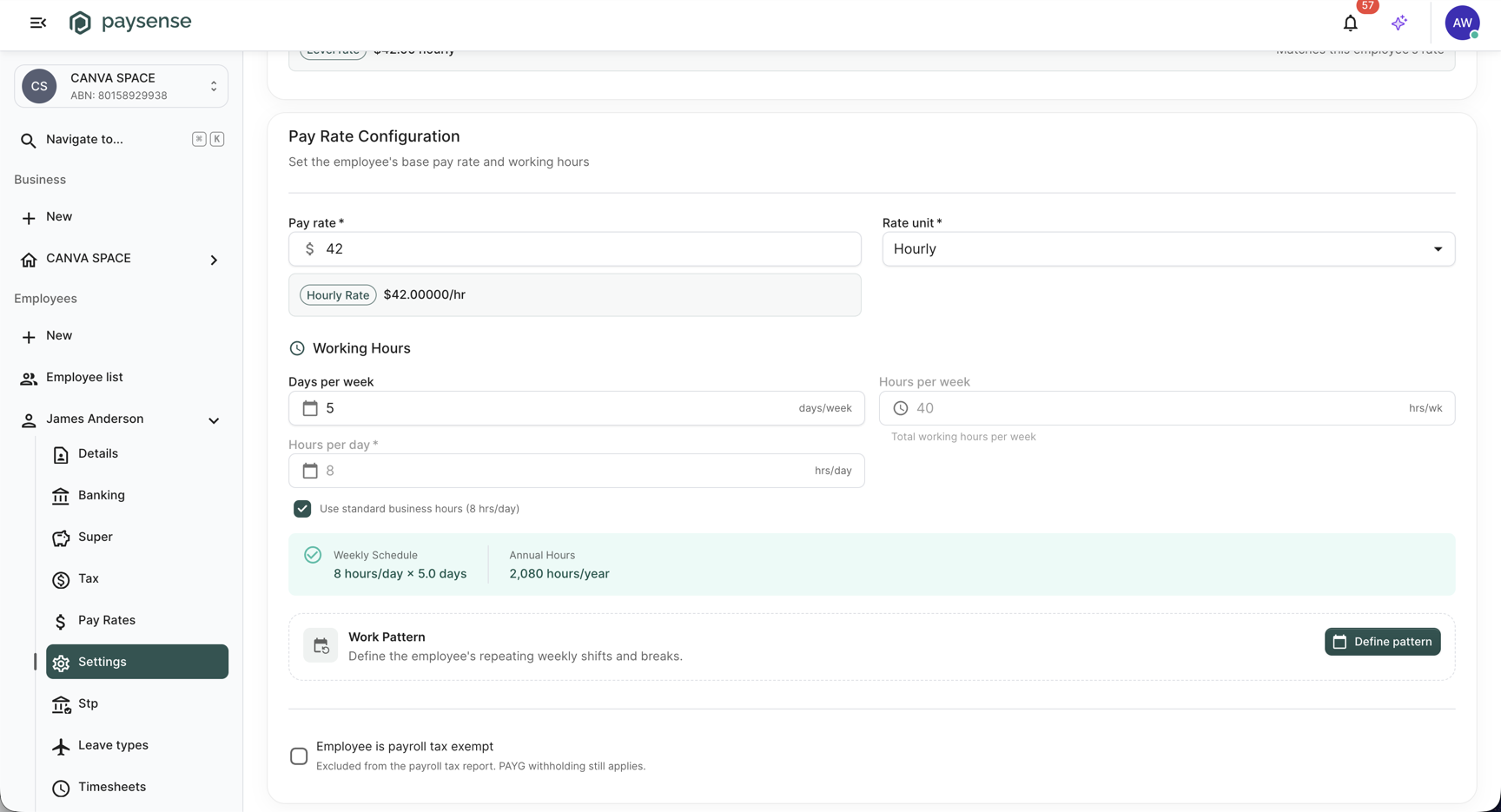
Scroll down to Pay Rate Configuration. It holds the employee's rate and the hours Paysense pays them for. James is paid $42 Hourly for 5 days of 8 hours, so the Weekly Schedule box reads 8 hours/day × 5.0 days and the Annual Hours box reads 2,080 hours/year.
| Field | Required | Notes |
|---|---|---|
| Pay rate | Yes | The amount paid per Rate unit, at least 1 on this form. Paysense shows the hourly equivalent underneath. An employee on an employment contract can be saved without a rate, because the contract supplies one. |
| Rate unit | Yes | Hourly, Daily, Monthly, or Yearly. A work pattern only sets pay for Hourly employees. |
| Days per week | Yes | Between 0.5 and 7 on this form |
| Hours per day | Yes | More than 0 and less than 24. Locked while Use standard business hours is ticked. |
| Use standard business hours | No | Ticked by default. Fills Hours per day with the business's standard hours per day. |
| Hours per week | No | Worked out for you: Hours per day × Days per week |
| Work Pattern | No | An optional repeating roster of shifts. See Step 4. |
| Employee is payroll tax exempt | No | Unticked by default. Tick it to leave the employee off the payroll tax report. PAYG withholding still applies. |
Step 4: Define a work pattern
Click Define pattern on the Work Pattern card. The Work pattern panel opens with one row per day, starting from the first day of your business's week. Each day reads Rest day until you click Add shift on it.
| Field | Required | Notes |
|---|---|---|
| Shift start | Yes | When the shift starts. On a shift with no end yet, picking it fills Shift end using the employee's hours per day, or 8 hours if they have none set. If the shift already has an end, the end moves with the start so the shift keeps its length. |
| Shift end | Yes | Must be after Shift start |
| Cost centre | No | Leave it on Default cost centre to charge the shift to the employee's cost centre from Step 1, or pick another cost centre for that day |
| Break start, Break end | Yes | Shown after you click Add break. The break must sit inside the shift and can't cover all of it. On a break with no end yet, picking a start fills the end 30 minutes later. If the break already has an end, the end moves with the start. |
For our example, James works Monday, Wednesday, and Friday. On each of those days, click Add shift and enter a Shift start of 09:00 AM. Paysense fills Shift end with 05:00 PM. Click Add break and enter a Break start of 12:00 PM, and Paysense fills Break end with 12:30 PM. Each day shows 7h 30m of paid time, and the Weekly pattern total reads 22h 30m.
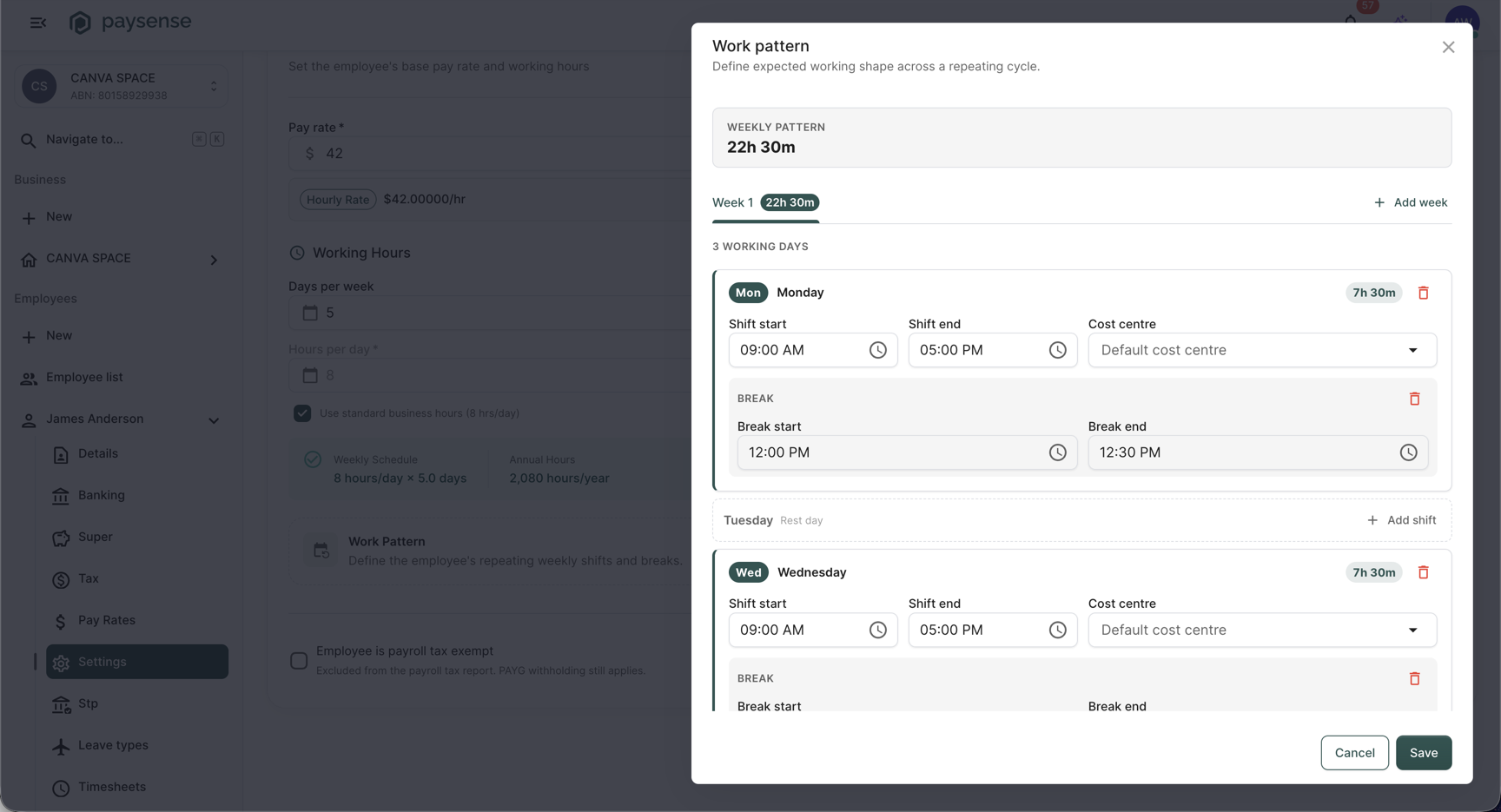
Breaks are unpaid, so Paysense takes them out of the day's hours. Each day can have one shift.
Step 5: Repeat the pattern over more than one week
If the roster changes from one week to the next, click Add week. Paysense adds a Week 2 tab and switches to it. The header becomes a 2-week cycle with the cycle's total hours and its weekly average. Three more controls appear:
- Week 1 starts sets where the cycle begins, and the line beside it tells you which week of the cycle this week is. The tab for this week carries a Current label.
- Copy week 1 to all copies week 1's shifts into every other week.
- Remove week deletes the week you're on. Week 1 can't be removed.
| Field | Required | Notes |
|---|---|---|
| Week 1 starts | No | Shown once the pattern has two or more weeks. Defaults to the start of the current week. The business week that contains this date is week 1 of the cycle. Add week and Remove week both put it back to the start of the current week, so set it after you have added every week you need. |
For our example, click Copy week 1 to all to copy James's shifts into week 2, then click the delete icon on Wednesday to make it a rest day. Week 2 now reads 15h 0m, and the header shows a 37h 30m cycle that averages 18h 45m per week. A pattern can have up to 8 weeks.
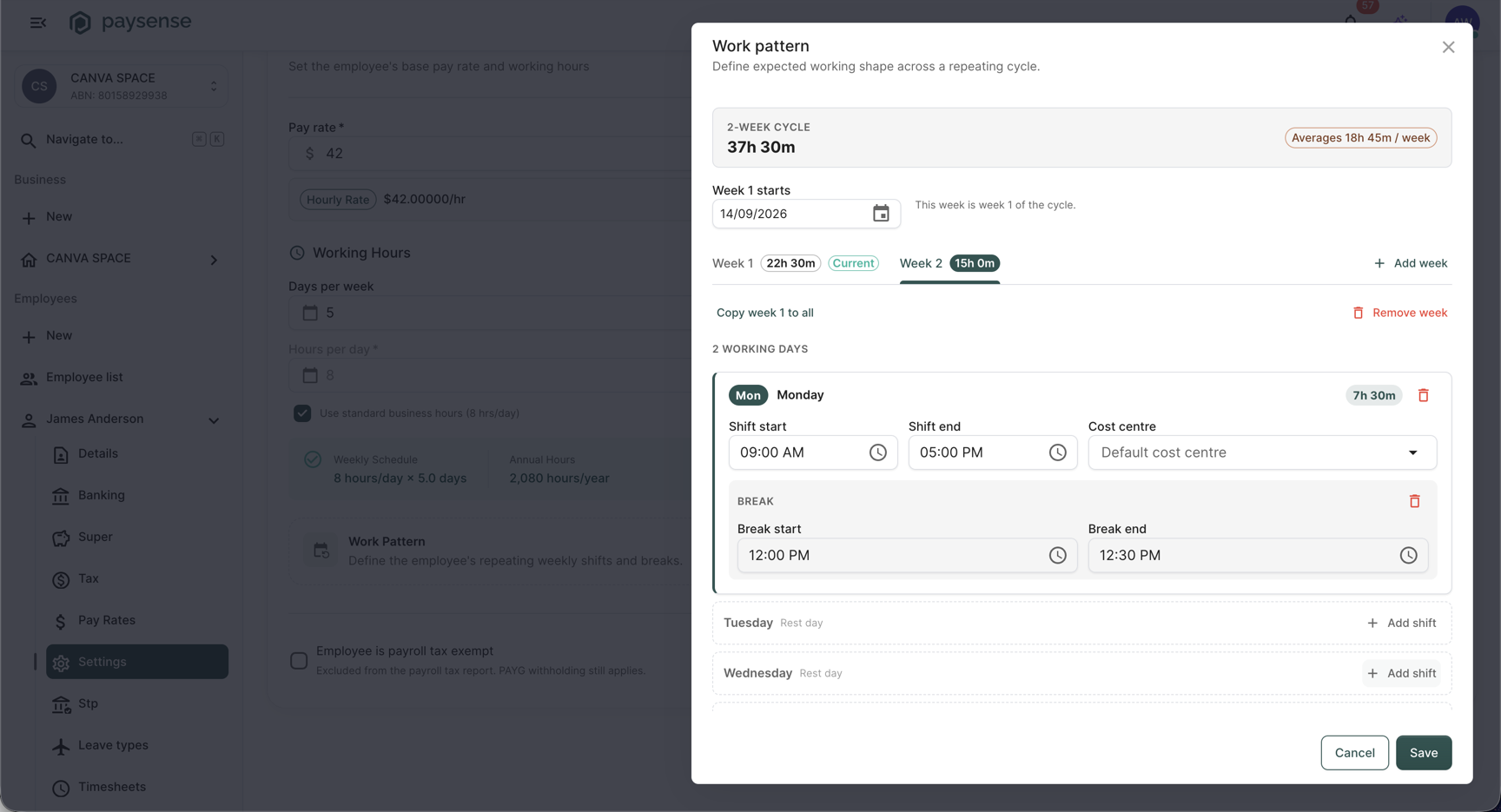
Click Save. If a rostered day is incomplete, the panel stays open. The problem for the week you're on appears above the day rows, such as "Tuesday: start and end times are required.", and a note at the bottom points to the weeks with errors, such as "Fix the highlighted error in week 2." Otherwise the panel closes and the Work Pattern card summarises the cycle.
Save in the panel doesn't store the pattern on its own. Click Update at the bottom of the page to save it with the rest of the employee's pay run settings.
Step 6: Confirmation
Click Update. Paysense saves the pay run settings and the work pattern together and shows a "Success! Record has been updated." toast in the bottom-right.
The Work Pattern card now reads 2-week cycle · 18h 45m avg/week, with a row of days for each week and the rostered days filled in. Edit pattern reopens the panel, and Clear removes the pattern. Click Update afterwards to save either change. The summary panel holding Weekly Schedule and Annual Hours is gone, because James is paid hourly and his pay now comes from the pattern.
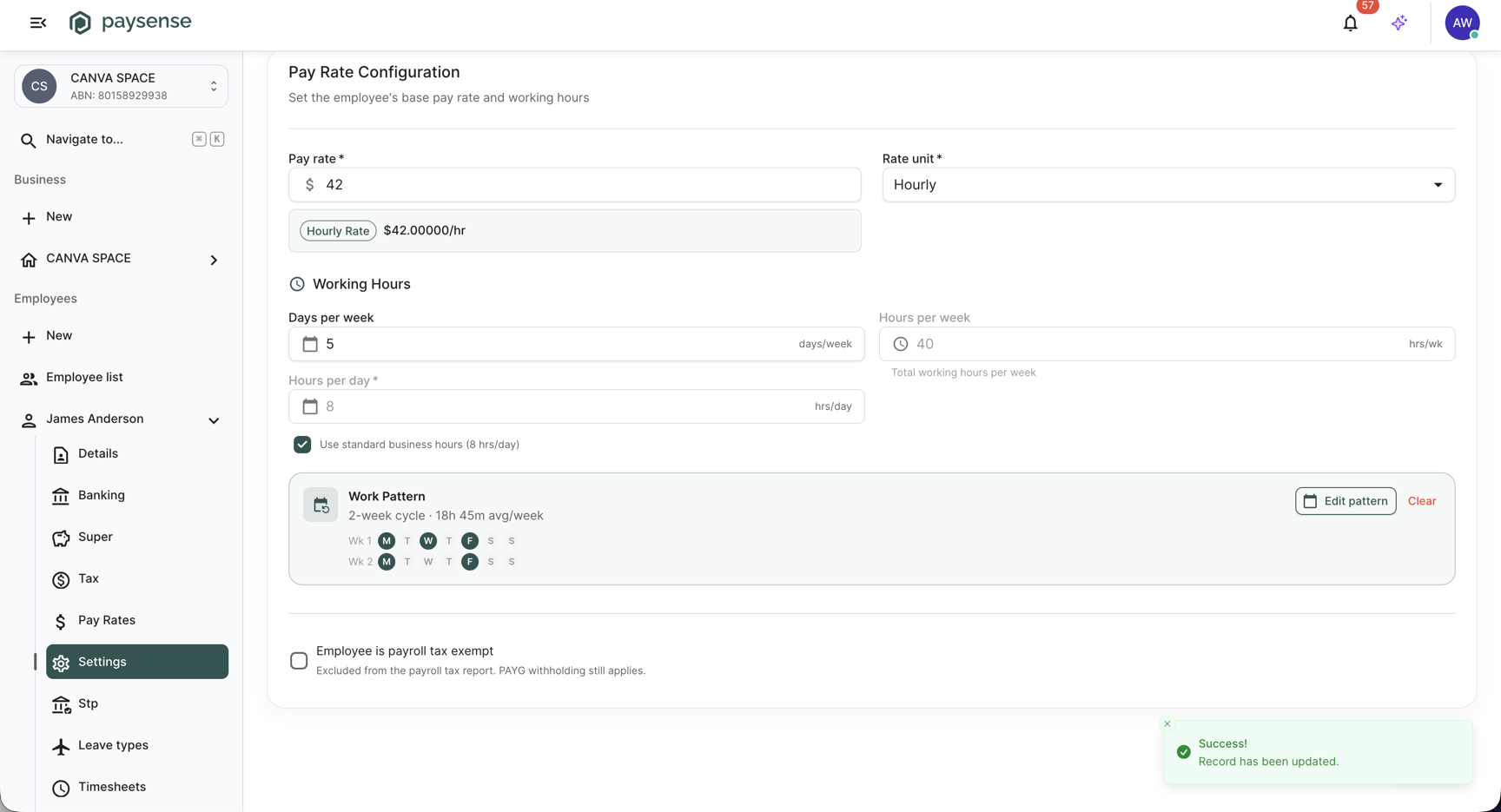
Paysense applies saved pay run settings from the end of the employee's last finalised pay run, so pay runs you've already finalised keep the settings they were calculated with. For an employee who hasn't been in one yet, it applies them from their start date, or from the end of the business's opening balances pay run where that falls earlier. For an hourly employee with a work pattern, each pay run pays a separate earnings line for every stretch of paid time, so a shift with a break in the middle of it pays two lines. Each line carries its own start and end times and the day's cost centre.
What's next
With the employee's pay run settings up to date, the typical next steps are:
- Check their tax settings - see Manage employee tax details.
- Build or adjust the contract behind their settings - see Set up employment contracts.
- Run a pay run - the new settings and roster apply from the next pay run. See Run your first pay run.
Troubleshooting
| Symptom | Likely cause | What to do |
|---|---|---|
| No Update button | Your account lacks the Employee.Write permission | Ask a team admin to grant it from Team → Members, or use an account that has it |
| Redirects to No Access | Your account lacks the Employee.Read permission | Ask a team admin to grant it from Team → Members |
| "Employee must have a StartDate to configure pay run settings." | The employee isn't active yet and has no start date | Finish the employee's personal details, including their start date - see Add an employee |
| "Pay rate is required" | Pay rate is empty | Enter the employee's pay rate |
| "Pay rate must be greater than zero" | Pay rate is less than 1 | Enter the employee's pay rate for the selected Rate unit |
| "Days per week is required", "Days per week must be a positive number.", or "Days per week cannot exceed 7." | Days per week is empty, below 0.5, or above 7 | Enter the number of days the employee works each week |
| "Hours per day must be less than 24." | Hours per day is 24 or more | Untick Use standard business hours and enter the employee's daily hours |
| "The pay type definition level is not part of the assigned employment contract." | Level was changed to one the contract's rules don't use | Pick a level the contract uses, or set Employment contract to None |
| "Work patterns only set pay for hourly employees. This employee is paid Yearly, so their pay uses the working hours above." | The employee has a work pattern, but Rate unit isn't Hourly | Expected - Paysense keeps the pattern but pays from Working Hours. Set Rate unit to Hourly if the roster should drive pay, or clear the pattern. |
| Work pattern panel won't close and shows "start and end times are required." above the day rows | A rostered day is missing its shift start or end | Fill in both times, or delete the shift to make the day a rest day |
| "break must sit within the shift." or "break cannot span the entire shift." | A break starts before the shift, ends after it, or covers all of it | Move the break inside the shift, or delete it |
| "Add at least one day with a shift." | The pattern has no shifts in any week | Add a shift, or click Cancel to close the panel without a pattern |
| Work pattern is missing after you leave the page | Save was clicked in the panel, but Update wasn't clicked on the page | Define the pattern again and click Update |
If you hit a problem the table doesn't cover, check the Notifications panel on the business dashboard for the underlying error message.