Export employees
Exporting employees downloads your employee records from Paysense as an Excel or CSV file. The file uses the same columns as the employee import, so an export is how you back up your list, review it in a spreadsheet, or produce a file to edit and re-import.
This tutorial walks through the export menu end-to-end for the FW DIGITAL PTY LTD business, which has six employees. By the end you'll have a dated spreadsheet of those employees saved to your computer.
What you'll need
| Item | Required | Notes |
|---|---|---|
| A business with employees | Yes | Export downloads whichever employees the business already has. A brand-new business exports nothing until you add an employee. |
The Employee.Read permission | Yes | The same permission needed to view the employees list. Without it the Export button is not available to you. |
Choose Blank template to download an empty file with just the header row. It's the quickest way to get a correctly-shaped file to fill in for Import employees.
Step 1: Open the export menu
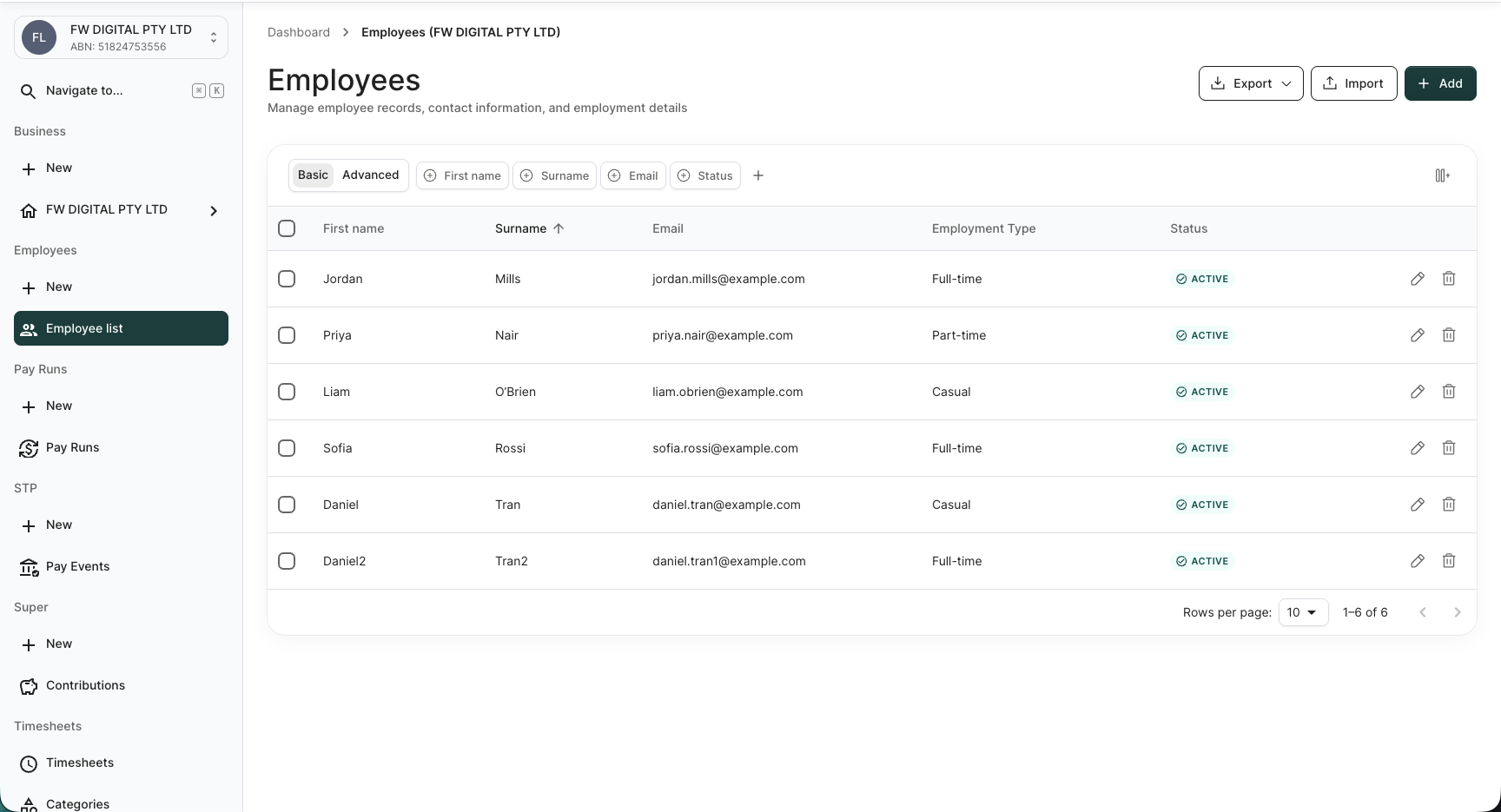
From the left-hand sidebar of your business, click Employees to land on the employees list at /business/{businessId}/employees. In the top-right, next to Import and Add, click Export.
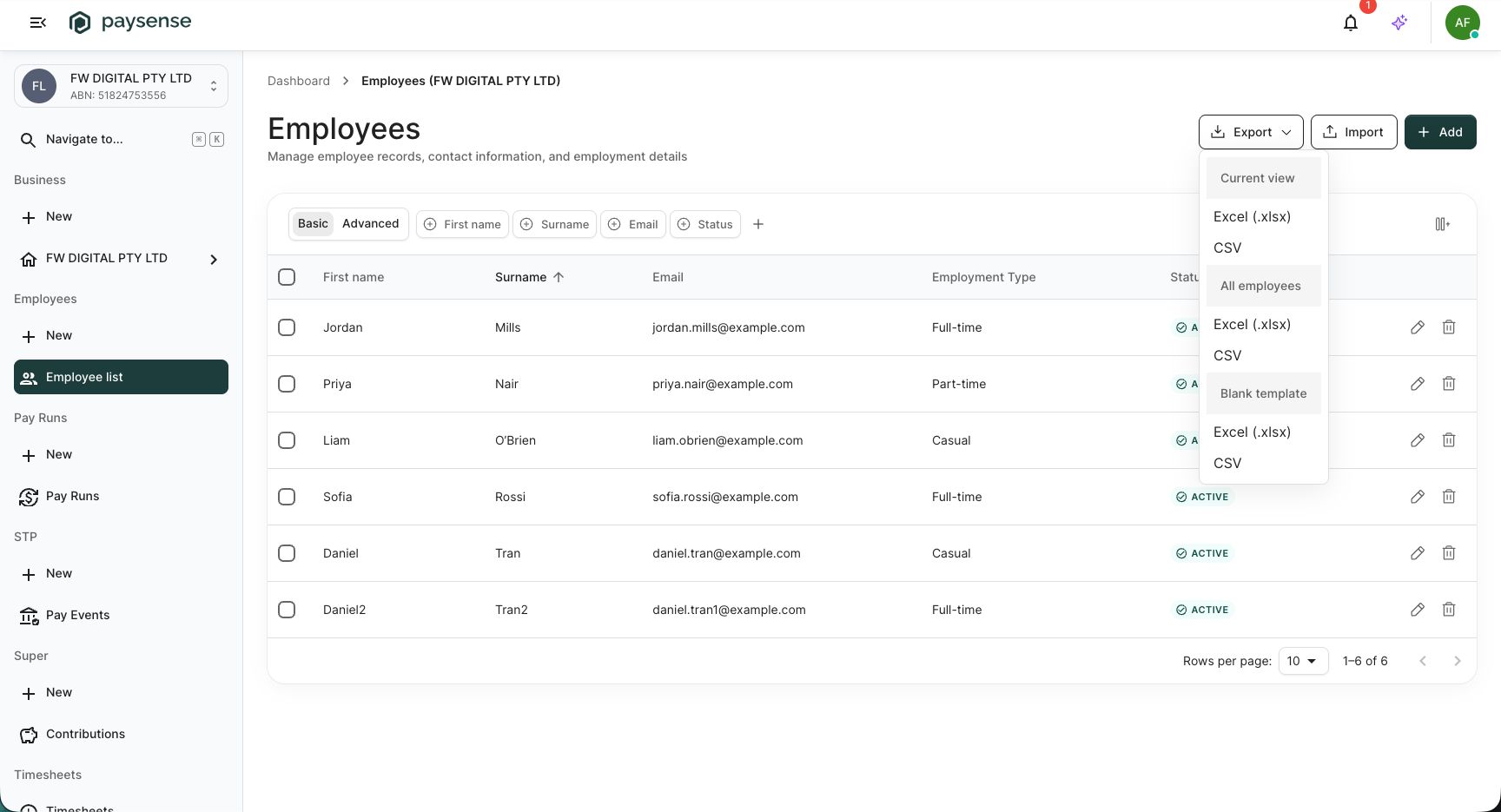
The Export button opens a menu grouped by what the export covers, with a file format under each group.
The Export, Import, and Add buttons and the selected nav item take their colour from your partner's branding, so they will differ from the screenshots here.
Step 2: Choose what to export and the format
Pick a group for which employees to include, then click the file format under it. The download starts straight away - there is no separate confirm step.
| Option | What it exports |
|---|---|
| Current view | Only the employees matching the list's current search. Use this after filtering the list to export just those rows. |
| All employees | Every employee in the business, ignoring any search on the list. |
| Blank template | The header row only, with no employees - a starting file for Import employees. |
| Format | Notes |
|---|---|
| Excel (.xlsx) | A spreadsheet workbook that opens in Excel, Numbers, or Google Sheets. |
| CSV | A plain-text, comma-separated file. Both formats carry the same columns. |
For this walkthrough, click Excel (.xlsx) under All employees.
Current view carries whatever you've typed into the list's search box, so filter the list first if you want a subset. All employees and Blank template ignore the search.
Step 3: Confirmation
Paysense gathers the employees, builds the file, and downloads it as employees-YYYYMMDD.xlsx (or .csv), named for today's date. It then shows an "Exported 6 employees." toast and returns you to the employees list.
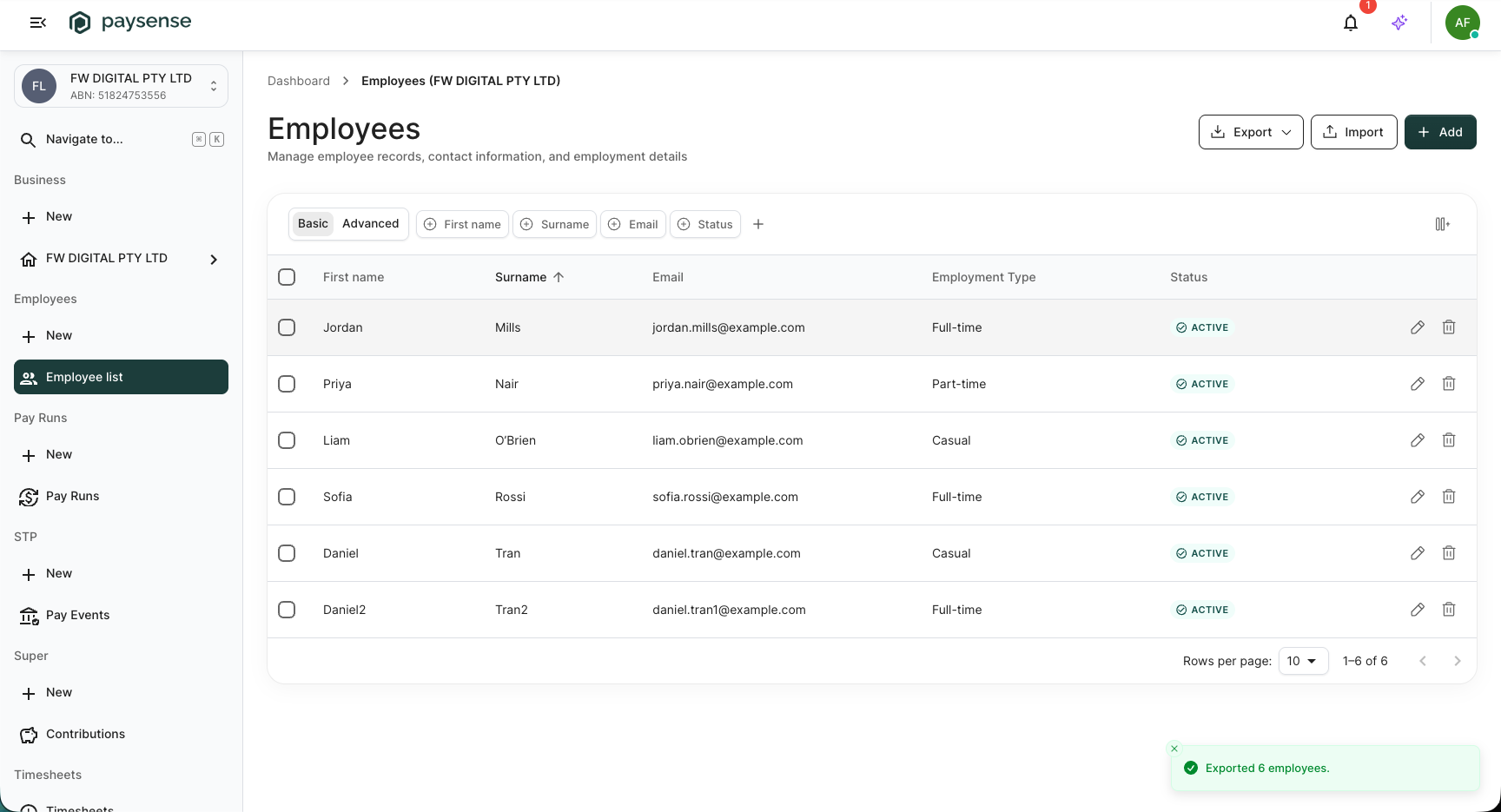
Open the downloaded file to see one row per employee under the export columns. A Blank template export skips the count toast, since it carries no employees.
What's next
Now that you can get your employees out as a file, the typical next steps are:
- Edit and bring them back in - change the file and load it with Import employees.
- Fill in a single employee's details - open any employee to complete their bank accounts and super funds.
- Run your first pay run - once your team is set up, see Run your first pay run.
Troubleshooting
| Symptom | Likely cause | What to do |
|---|---|---|
| No Export button on the employees list | Your account lacks the Employee.Read permission | Ask a team admin to grant it from Team → Members, or use an account that can view employees |
| Toast reads "There are no employees to export." | The chosen scope matched no employees - an empty business, or a Current view whose search excludes everyone | Clear the list's search and export All employees, or add an employee first |
| Blank template downloaded but showed no toast | Expected - a template carries no employees, so there is nothing to count | Open the file; it has the header row ready to fill in |
| Toast reads "Failed to export employees." | The export request to the server did not complete | Check your connection and try again; if it persists, check the Notifications panel for the error |
If you hit a problem the table doesn't cover, check the Notifications panel on the business dashboard - it logs each export event with the underlying message.