Set up leave type definitions and leave types
A leave type definition in Paysense is a reusable container that groups a set of leave types under one name - typically an award or an enterprise agreement - so employees and employment contracts can point at the same set of entitlements instead of re-keying them per person. Each definition holds a list of leave types, and each leave type sets how the balance is measured, how it accrues, how it is paid, and the accrual rules that top it up over time.
You need at least one leave type definition before you can build the Leave rules side of an employment contract, which maps service bands onto leave type definitions.
This tutorial walks through creating a definition and its first leave type end-to-end on the CBA Business test business. By the end you'll have a Standard Leave Agreement definition holding an Annual Leave type that accrues 20 days a year.
What you'll need
| Item | Required | Notes |
|---|---|---|
| A business in Paysense | Yes | Created via the Add a business tutorial |
The leavetypedefinition:read scope | Yes | Gates the screen and its Leave types → Definitions sidebar item. Without it the page redirects to No Access. |
The leavetypedefinition:write scope | Yes | Gates Add Definition and its save |
The leavetype:write scope | Yes | Gates Add Leave Type and its save |
| The Leave Type Definitions feature enabled | Yes | A tenant feature flag. When it is off, the Definitions item under Leave types is hidden. |
You don't have to build every leave type in one sitting. Create the definition first, then add leave types to it whenever you're ready - each one saves on its own.
Step 1: Open the Leave Type Definitions screen
From the left-hand sidebar of your business, expand Leave types and click Definitions. You'll land on the list at /business/{businessId}/leavetypedefinitions. On a business with no definitions yet, the screen shows an empty state and a Create your first definition button.
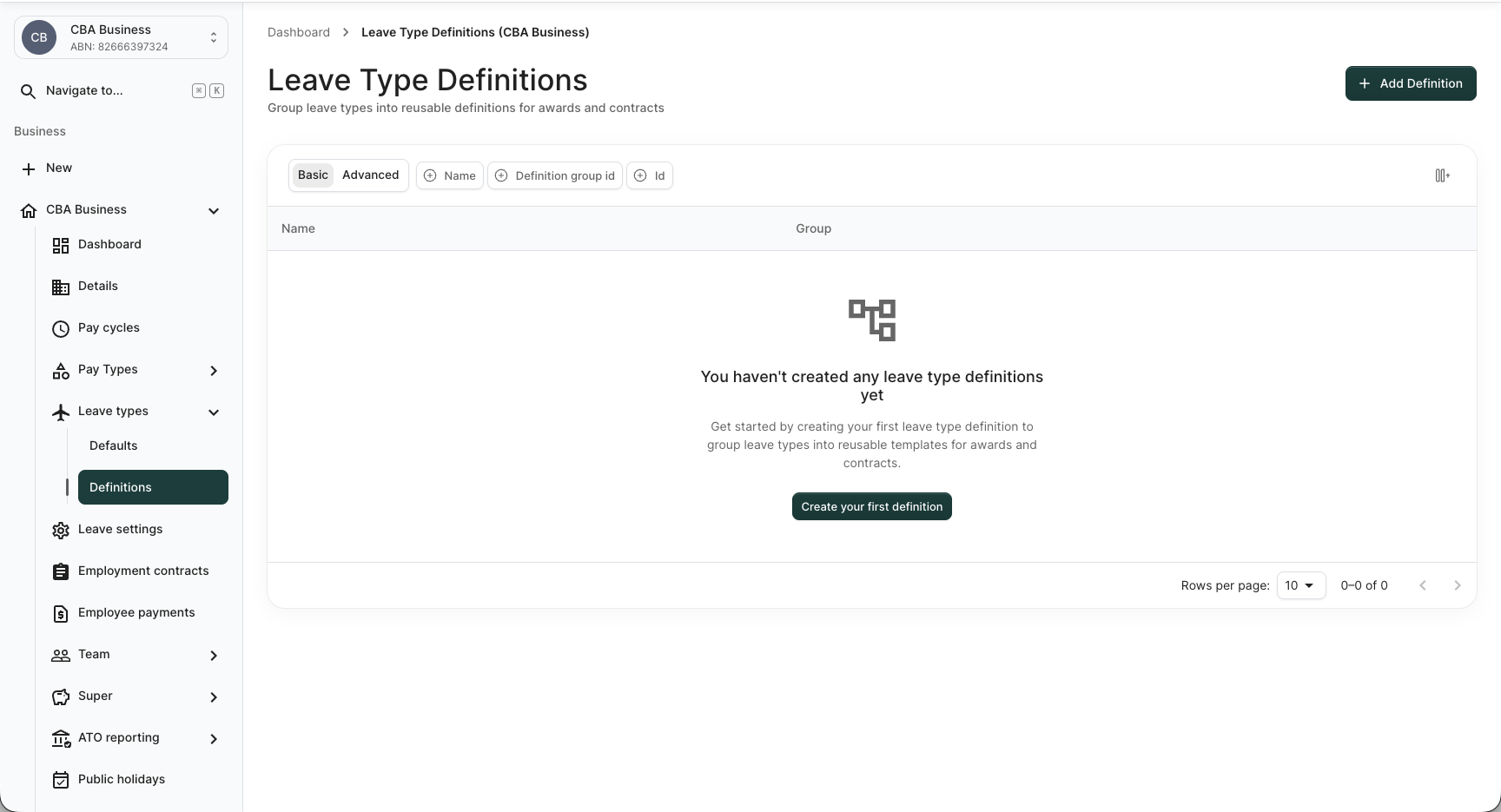
Click Add Definition in the top-right (or Create your first definition in the centre) to open the Add Leave Type Definition dialog.
The Add Definition button, the logo, and the highlighted sidebar item come from your partner's tenant branding and differ per portal. Look for the button labelled Add Definition, not for a particular colour.
Step 2: Create a leave type definition
The Add Leave Type Definition dialog collects the definition's name and an optional grouping number.
| Field | Required | Notes |
|---|---|---|
| Name | Yes | Up to 256 characters. Must be unique within the business - a duplicate is rejected with Leave type definition with name '<name>' already exists. |
| Group Id | No | Optional whole number. The helper text reads Used for award grouping - it groups definitions that belong to the same award so you can filter the list by it. |
For this walkthrough, enter the name Standard Leave Agreement and leave Group Id blank.
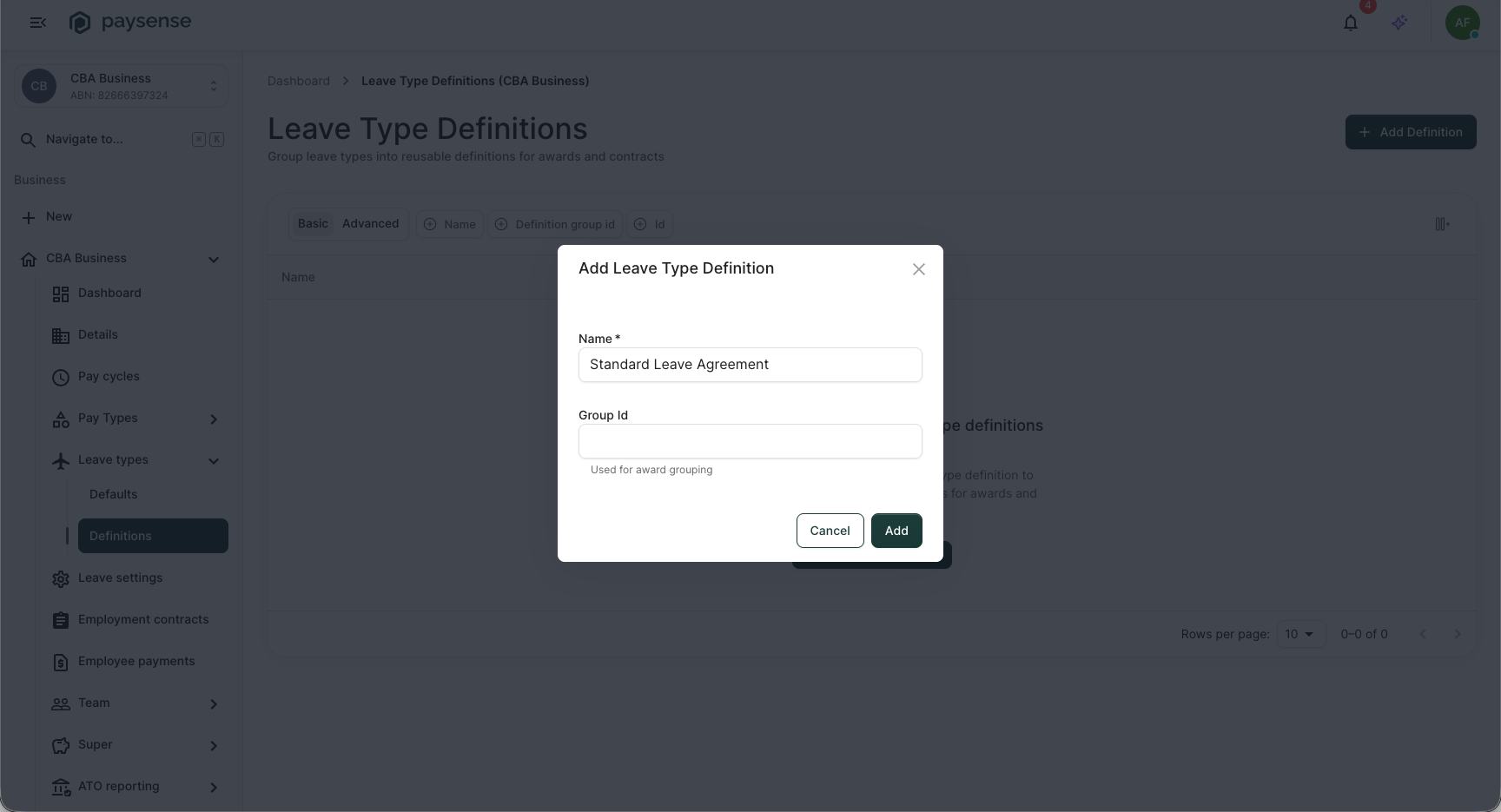
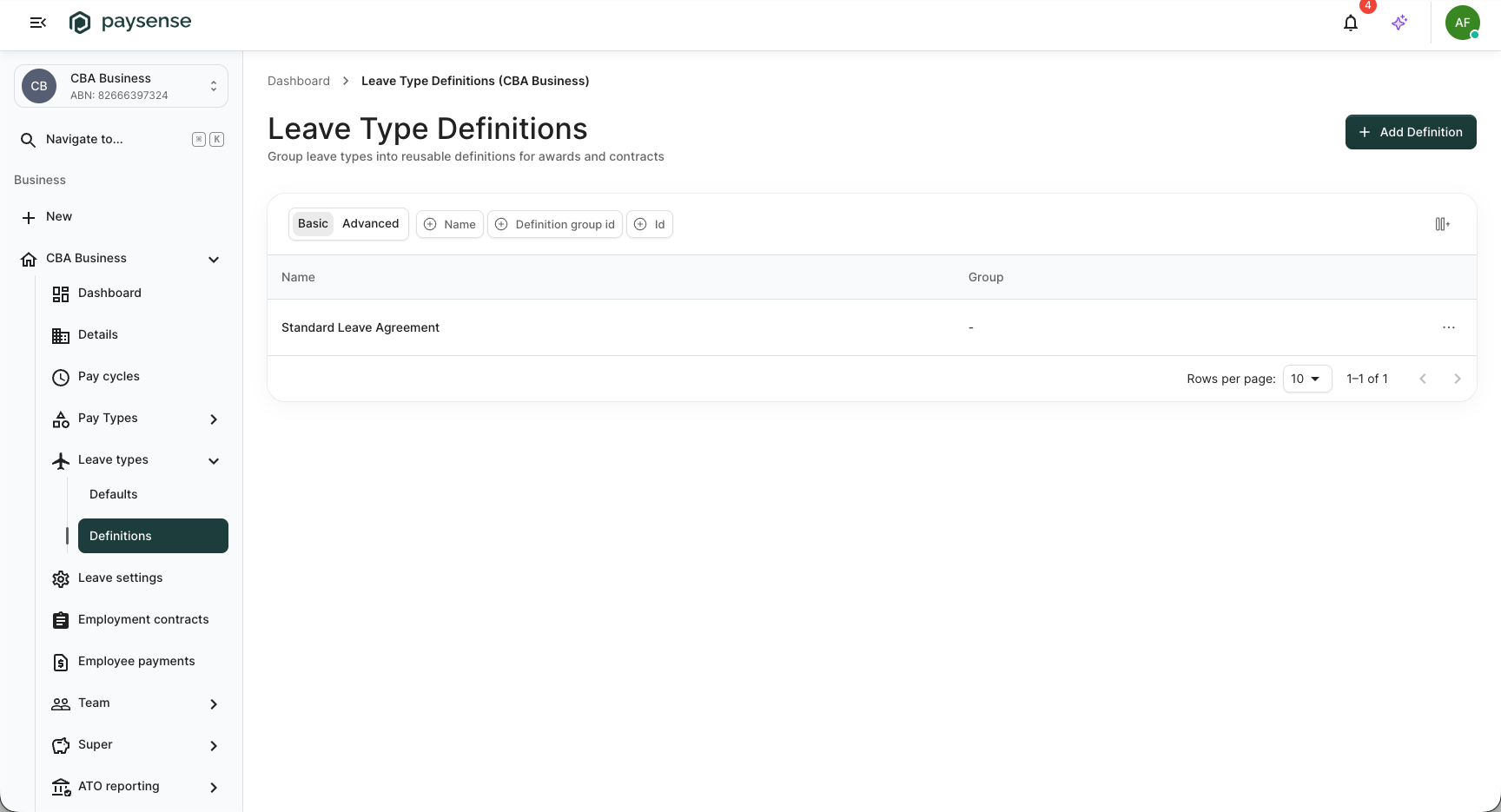
Click Add. Paysense saves the definition, closes the dialog, and the new Standard Leave Agreement row appears in the list with a - in the Group column.
Step 3: Open the definition's Leave Types screen
Each definition row carries a ⋯ actions menu on the right. Open it and click View to move to that definition's leave types at /business/{businessId}/leavetypedefinitions/{leaveTypeDefinitionId}/leavetypes.
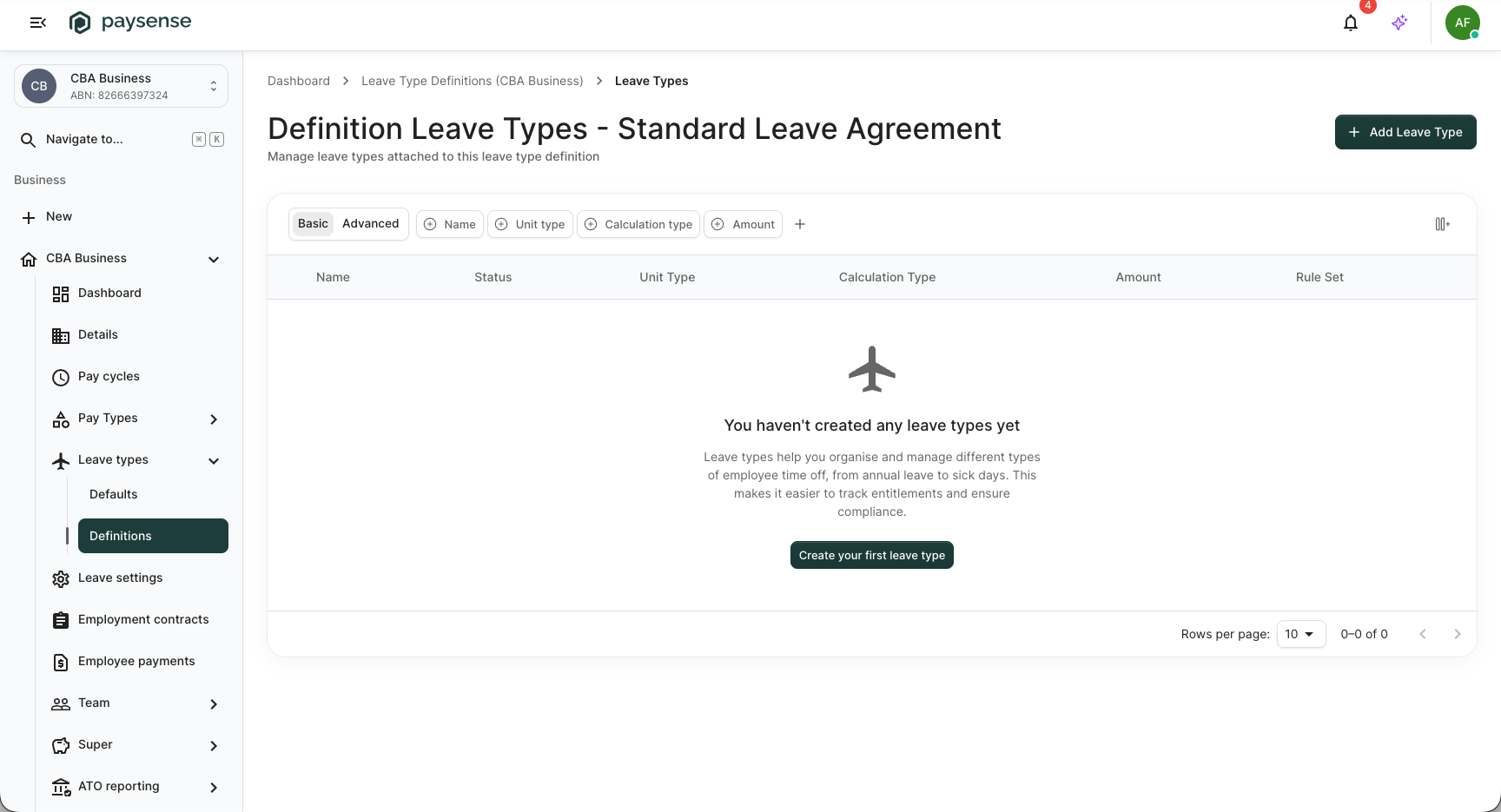
The screen title reads Definition Leave Types - Standard Leave Agreement, so you always know which definition you're adding leave types to. With none yet, it shows an empty state and a Create your first leave type button. The grid columns - Name, Status, Unit Type, Calculation Type, Amount, Rule Set - preview what each leave type carries.
The same ⋯ menu on the definitions list also holds Edit (rename it or change its Group Id) and Delete. Deleting asks you to confirm with Delete '<name>'? This cannot be undone. before it goes.
Step 4: Add a leave type
Click Add Leave Type in the top-right (or Create your first leave type) to open the New Leave Type panel.
| Field | Required | Notes |
|---|---|---|
| Name | Yes | Up to 256 characters (Leave type name must be 256 characters or fewer.). |
| Enabled | No | Toggle, on by default. Turn it off to park a leave type - Unit Type, Calculation Type, and Amount stop being required while it's off. |
| Unit Type | Yes | Hours or Days - the unit the balance is measured in. |
| Calculation Type | Yes | None, Per Hour Worked, Per Pay Run, Weekly, Monthly, or Yearly - how the balance accrues. |
| Amount | Yes | Zero or greater (Amount must be zero or greater.). The balance accrued each period, in the chosen unit. |
| Period Identifier | Conditional | Appears and is required only when Calculation Type is Weekly, Monthly, or Yearly. Employee Start Date, Start of Fiscal Year, Start of Year, Employee Anniversary, or Specified Date - what the accrual period is anchored to. |
| Period Date | Conditional | Appears and is required only when Period Identifier is Specified Date. |
| Payment Option | Yes | Don't Pay, Standard Settings, Use Selected Pay Type, Use Selected Pay Type (Default Rate), Pay on Selected, Deduct from Default, or Deduct and Transfer to another Pay Type - how the leave is paid when taken. |
| Payment Pay Type | Conditional | Appears for the "Use Selected" and "Deduct" options; required for the two Use Selected Pay Type options (Pay type is required for the selected payment option.). |
| Deduction Pay Type | Conditional | Appears and is required for Deduct and Transfer to another Pay Type (Deduction pay type is required for the selected payment option.). |
For this walkthrough, enter Annual Leave, leave Enabled on, and set Unit Type to Days, Calculation Type to Yearly, Amount to 20, the Period Identifier that appears to Employee Anniversary, and Payment Option to Standard Settings.
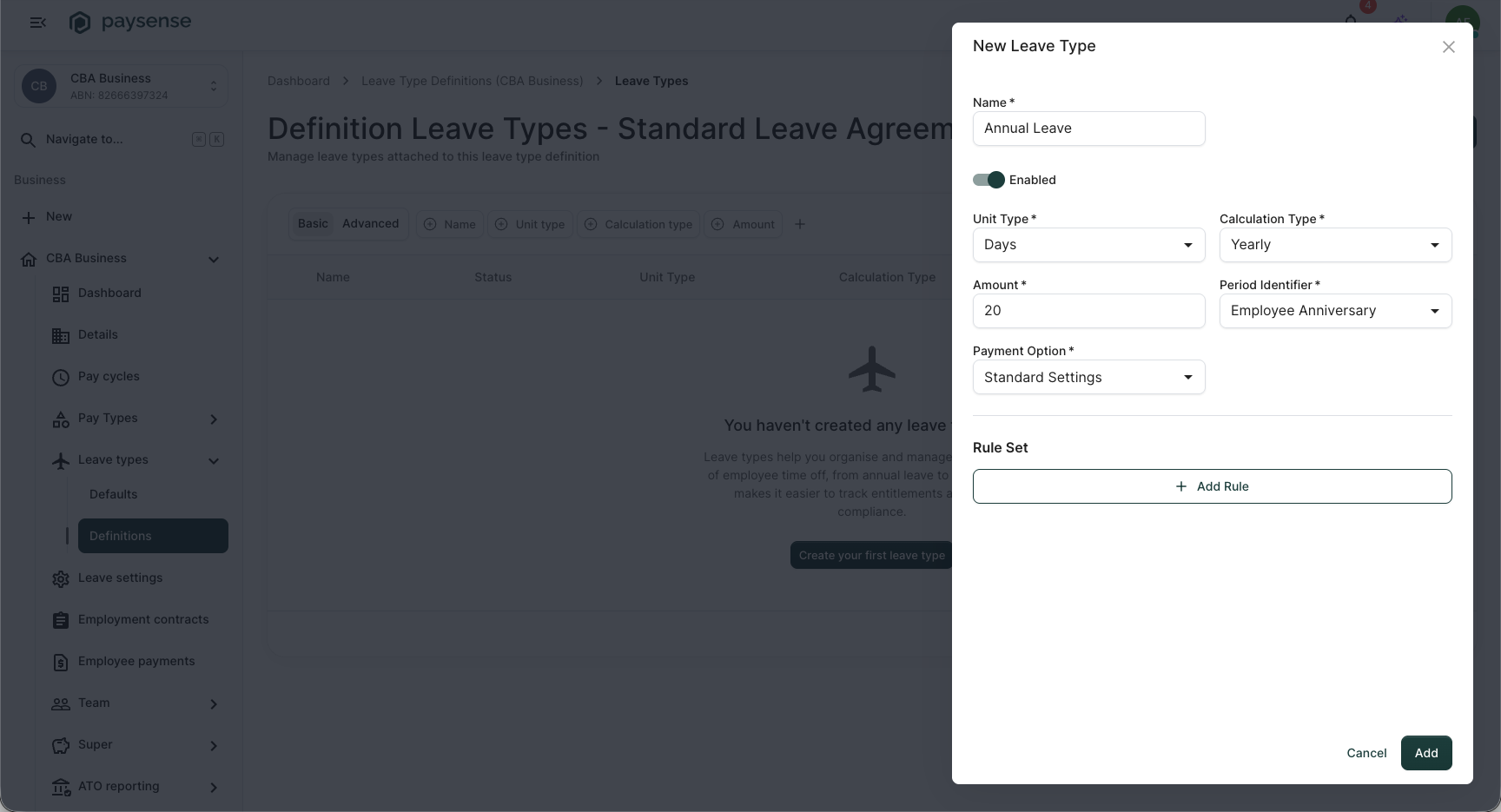
Standard Settings pays leave using the business's default settings, so it needs no pay type selected. The Use Selected Pay Type and Deduct options reveal a Payment Pay Type or Deduction Pay Type field that must point at an existing business pay type before you can save.
Step 5: Add an accrual rule
The Rule Set section holds optional accrual rules that adjust the balance when a condition is met. Click Add Rule to expand Rule 1, which has a Condition and an Action.
| Field | Required | Notes |
|---|---|---|
| Condition Type | Yes | Period Range or Leap Year. Period Range reveals Period Identifier, Period Start (zero or greater), Period End (optional; must be greater than start), and Period Type (Day/Week/Month/Year). |
| Action Type | Yes | Change Balance or Change Amount. Change Balance reveals a Balance Action (Accrue/Reset/Carry Over) and an Amount. |
| Stop Processing | No | Toggle. When on, no further rules are evaluated once this rule matches. |
For this walkthrough leave Condition Type on Period Range, set Period Identifier to Employee Anniversary, Period Start to 0, and Period Type to Year; then leave Action Type on Change Balance, set Balance Action to Accrue, and Amount to 20.
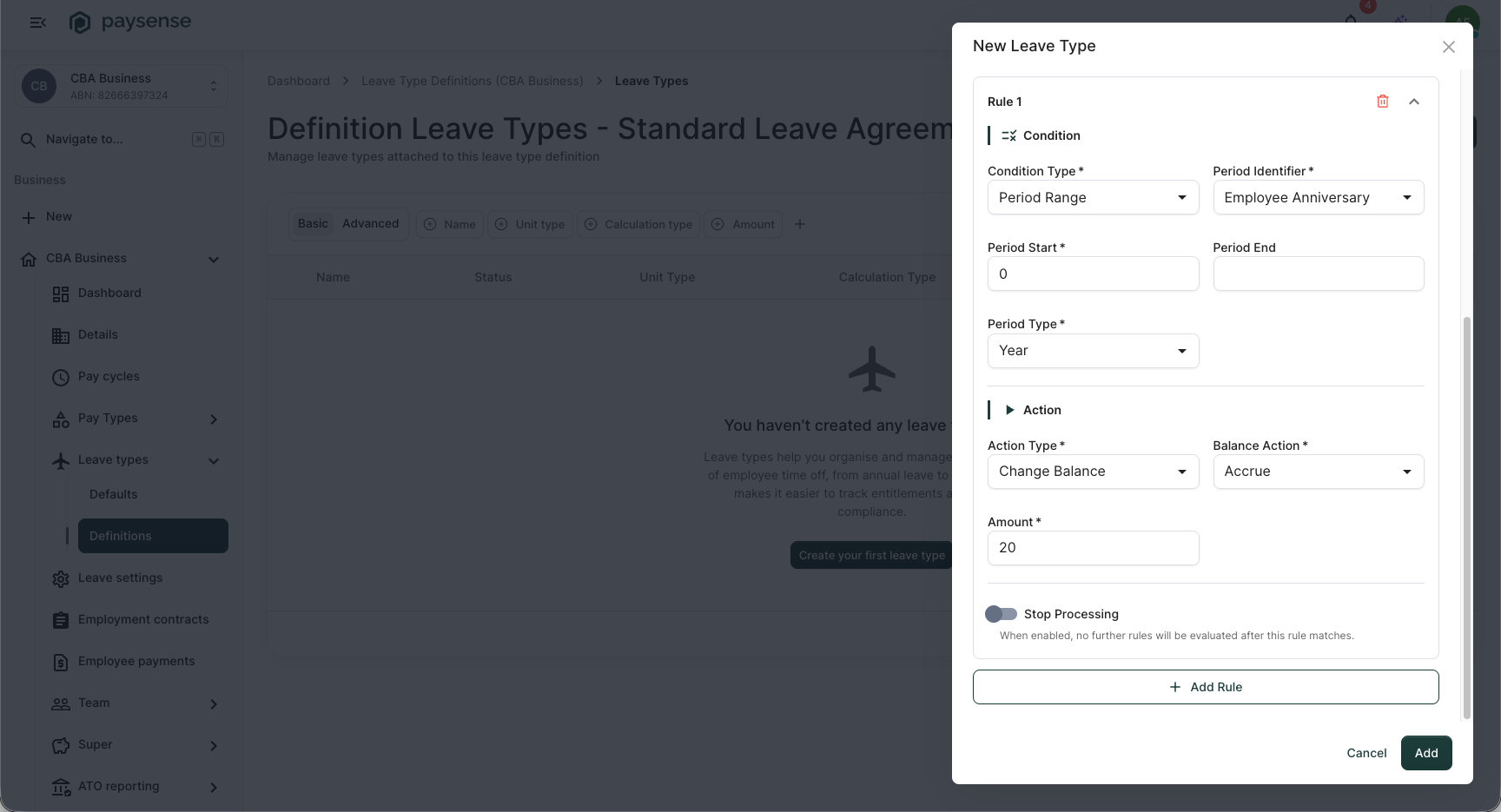
Click Add. Paysense saves the leave type, closes the panel, and the new row appears in the grid.
A Period Range condition needs a valid Period Type and a Period Start of zero or greater, and any Period End must be greater than Period Start (Period end must be greater than period start). A rule with gaps in these fields blocks the save.
Step 6: Confirmation
The leave types grid now lists Annual Leave as Enabled, in Days, accruing Yearly, with an Amount of 20 and 1 rule in its rule set, confirming the leave type is attached to the Standard Leave Agreement definition.
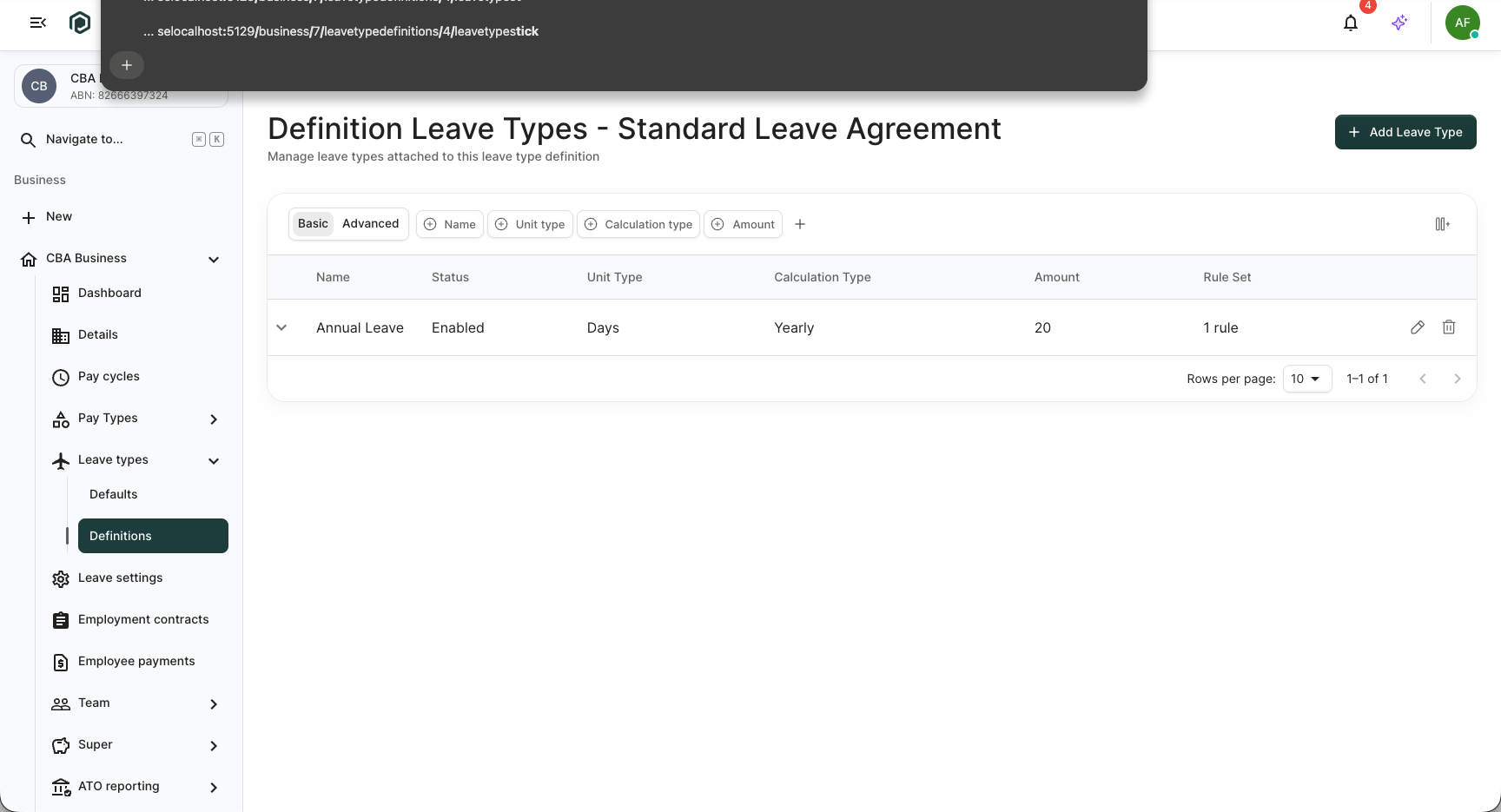
Each row carries a pencil to reopen the leave type and a trash icon to remove it. Repeat Step 4 to add the rest of the definition's leave types.
What's next
Now that a definition with a leave type exists, the typical next steps are:
- Add the rest of the leave types - repeat Step 4 for sick, carer's, and long service leave. Tutorial coming soon.
- Build an employment contract on top - map service bands onto this definition with a contract's Leave rules. See Set up employment contracts.
- Group pay the same way - pay type definitions mirror this structure for earnings. See Set up pay type definitions and levels.
Troubleshooting
| Symptom | Likely cause | What to do |
|---|---|---|
| Add Definition or Add Leave Type is missing | Your user lacks the leavetypedefinition:write or leavetype:write scope | Ask a team member with Manage team to grant it |
Leave type definition with name '<name>' already exists. | Another definition on this business already uses the name | Give the definition a different name |
Unit type is required. or Calculation type is required. | A required dropdown is still on Select... while the leave type is enabled | Pick a value, or turn Enabled off to park the leave type |
Period identifier is required for accrual calculation types. | Calculation Type is Weekly/Monthly/Yearly with no Period Identifier | Choose a Period Identifier for the accrual period |
Pay type is required for the selected payment option. | A "Use Selected Pay Type" option is chosen with no pay type | Select a Payment Pay Type, or switch to Standard Settings |
| Definitions item is missing under Leave types | The Leave Type Definitions feature flag is off for this tenant | Ask your Paysense administrator to enable it |
| Redirects to No Access | Your user lacks the leavetypedefinition:read scope | Ask a team member with Manage team to grant it |
If you hit a problem the table doesn't cover, check the Notifications panel on the business dashboard - Paysense logs every leave type definition action there.