Set up STP via MessageXchange (SSID)
Before Paysense can lodge Single Touch Payroll (STP) events with the ATO, your business needs a Software ID (SSID) registered against MessageXchange (the SBR-hosted gateway Paysense uses to talk to the ATO). The SSID is the credential the ATO checks every time an STP message arrives - it ties the message back to a specific business and a specific software provider, strengthening authentication and authorisation.
The setup is a one-time, three-party dance between you, Paysense + MessageXchange, and the ATO. Once done, every pay run you finalise can lodge an STP event without further setup.
This tutorial walks through each step end-to-end.
Deadline: from 1 July 2026 the ATO will mandate an SSID on every STP submission. After this date, lodgement without a properly authorised SSID is not possible.
Don't leave this to the last minute. The MX-to-ATO turnaround is a few business days, so plan the setup well before the cutover.
See the ATO's Sending service providers and software IDs page for the official guidance.
How the SSID flow works
There are four parties involved and a clear order of operations:
- You click Request SSID in Paysense.
- Paysense records the request and emails MessageXchange (MX) asking them to provision a Software ID for your business.
- MessageXchange does whatever they need on their side (regulatory checks, ATO registration of the software service) and emails an SSID back to Paysense.
- Paysense stores the SSID against your business and surfaces it in the STP Settings screen.
- You open the ATO Access Manager and link the SSID to MessageXchange's hosted SBR service under your ABN.
- You confirm in Paysense that access has been granted, and the business is ready to lodge STP.
The longest wait is between steps 2 and 4 - usually a few business days while MessageXchange completes their checks.
What you'll need
| Item | Required | Notes |
|---|---|---|
| The right ATO reporting type on the business | Not for the SSID request | Nothing in this flow is gated on it. Every business defaults to As a Business, so only change it if an agent or intermediary lodges. See Configure ATO settings. |
| An authorised contact or delegate for the business at the ATO | Yes | The ATO will only let an authorised person update the business's STP details |
| A myID account that's linked to the business | Yes | Required to log in to ATO Access Manager |
The atosettings:write scope in Paysense | Yes | Owners always have it. Other roles need it granted via Manage permissions |
| 2-5 business days of patience | Yes | MessageXchange takes a few days to issue the SSID after you click Request SSID |
Start this setup well before your first pay run. The SSID lead time is the main thing that catches teams out - if you wait until after you've finalised a pay run, you'll have STP events sitting in pending status until the SSID arrives.
Step 1: Open the STP Settings screen
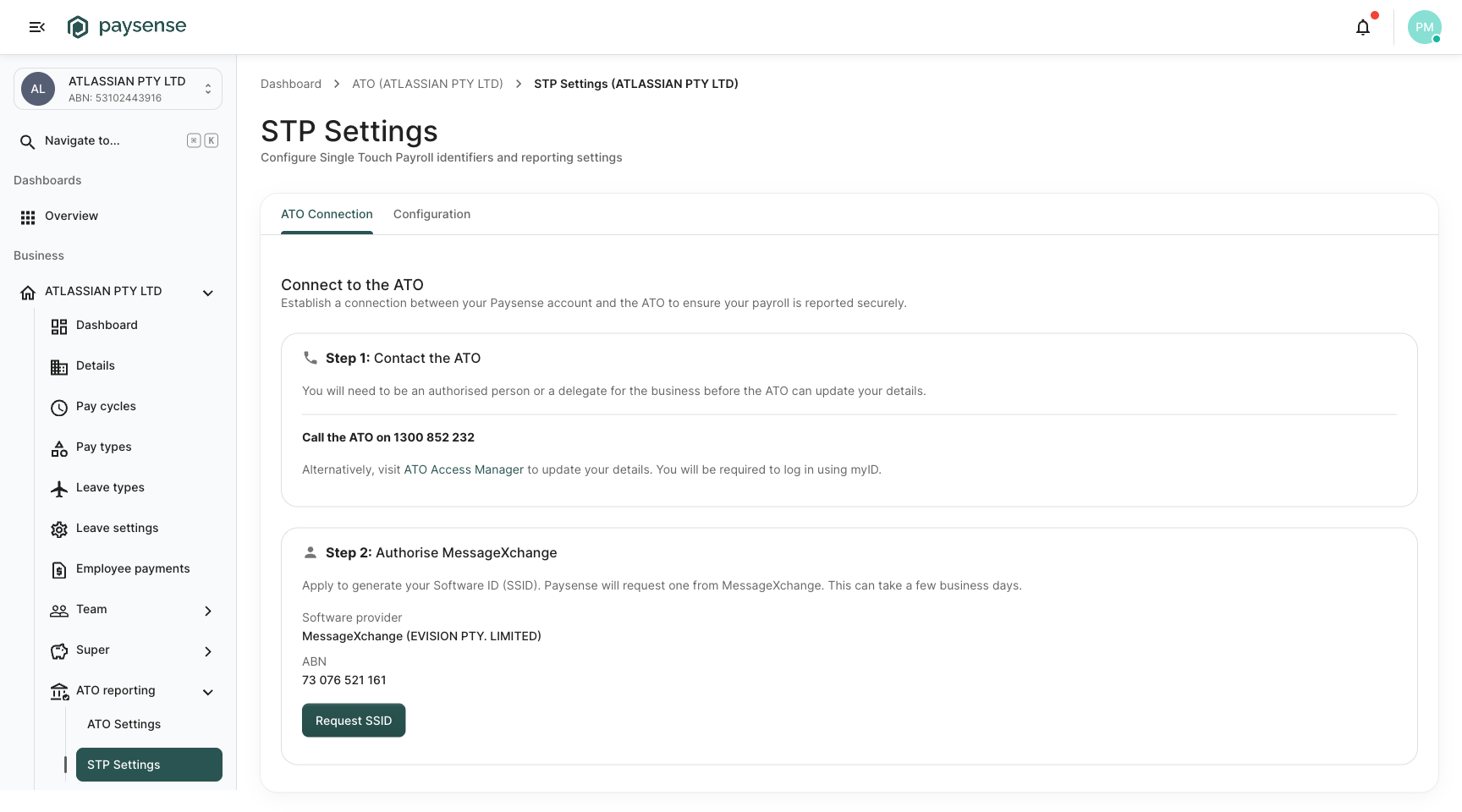
From the left-hand sidebar of your business, click ATO reporting > STP Settings. You'll land on the connection screen at /business/{businessId}/ato/stp/settings.
The screen has two tabs: ATO Connection (where the SSID lives) and Configuration. We're working in ATO Connection.
The page is laid out as two cards, one for each step of the setup:
| Card | Action |
|---|---|
| Step 1: Contact the ATO | Phone the ATO or use Access Manager to nominate the business as eligible to lodge STP. This step happens outside Paysense. |
| Step 2: Authorise MessageXchange | Request the SSID from MX, then link it in Access Manager once it arrives, then confirm here. |
Step 2: Contact the ATO
Before MessageXchange can be authorised on the ATO side, the ATO needs to know the business is eligible to lodge STP. There are two ways to do this:
- Phone: Call the ATO on 1300 852 232. The line is for business STP setup; you'll need the business's ABN and proof you're an authorised contact.
- Online: Log in to ATO Access Manager using your myID and update the business's details there.
The ATO needs to confirm:
- The business is registered for STP reporting.
- You are an authorised person or delegate for the business in the ATO's records.
If you're new to ATO Access Manager, the ATO's own guide to setting it up is the canonical reference. Paysense can't do this step for you - it's an ATO-side identity check.
Once you've completed the ATO call (or Access Manager change), come back to Paysense for Step 3.
Step 3: Request your Software ID (SSID)
On the Step 2: Authorise MessageXchange card you'll see the Request SSID button along with MessageXchange's software-provider details:
| Detail | Value |
|---|---|
| Software provider | MessageXchange (EVISION PTY. LIMITED) |
| ABN | 73 076 521 161 |
Click Request SSID. Paysense records the request and emails MessageXchange. The card immediately flips to an info alert confirming the request was submitted:
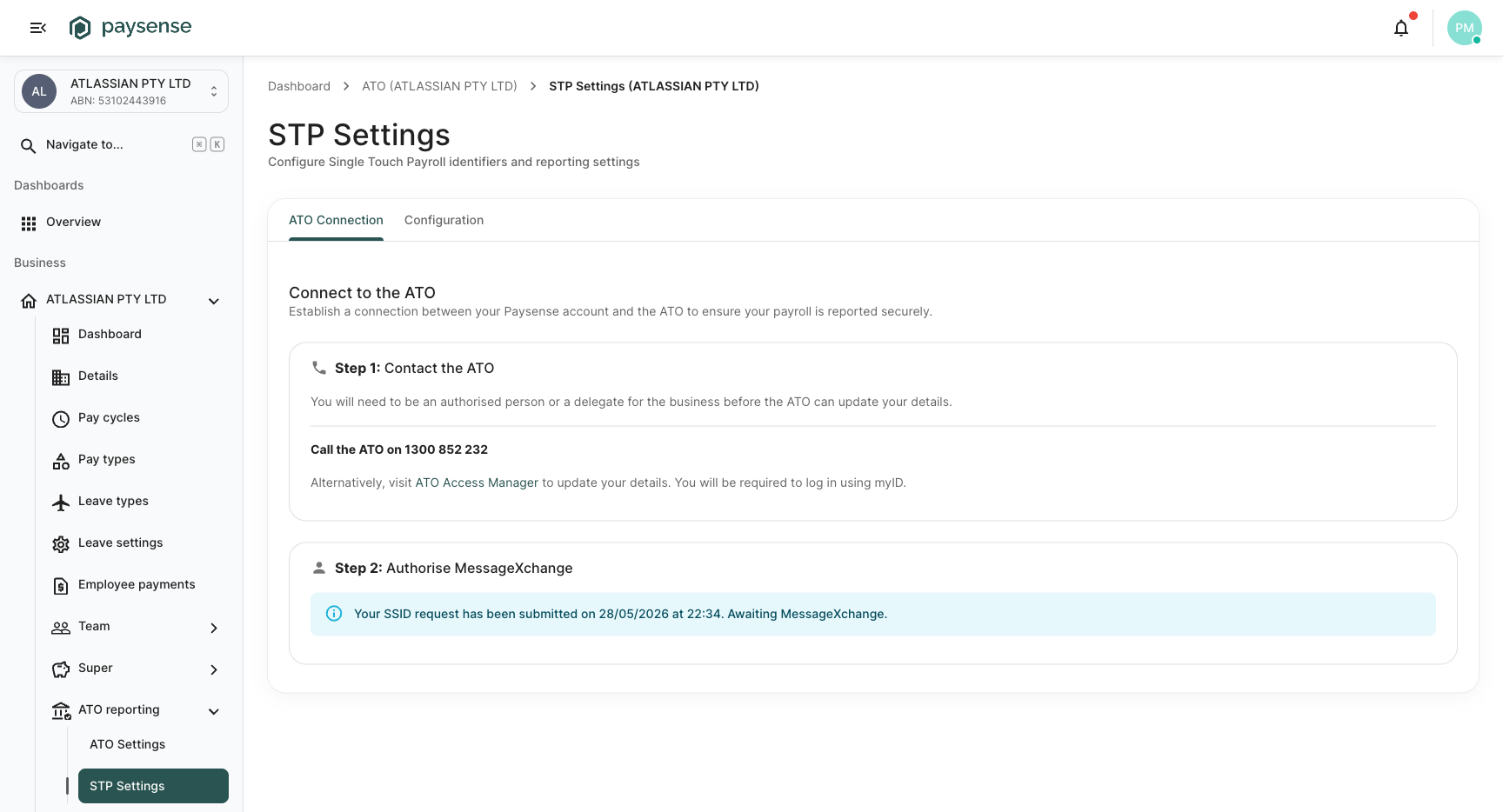
Click Request SSID only once. Repeated clicks won't queue extra MX tickets but will produce confusing audit trail entries. If the alert appears, the request is in.
While you wait for MessageXchange to respond, Paysense will move the status through two phases:
| Status | What it means |
|---|---|
SSID requested (alert: Your SSID request has been submitted on <date>. Awaiting MessageXchange.) | The request landed in Paysense and the MX email job is queued |
Pending SSID (alert: Paysense has forwarded your request to MessageXchange on <date>.) | The email has gone out to MX. We're now waiting on them to issue the SSID |
You'll see one alert or the other depending on how far along the request is. No further action from you in this phase - check back in a few business days.
Step 4: Link the SSID in ATO Access Manager
When MessageXchange returns your SSID to Paysense, the Step 2 card updates to show the SSID and instructions for the next manual step:
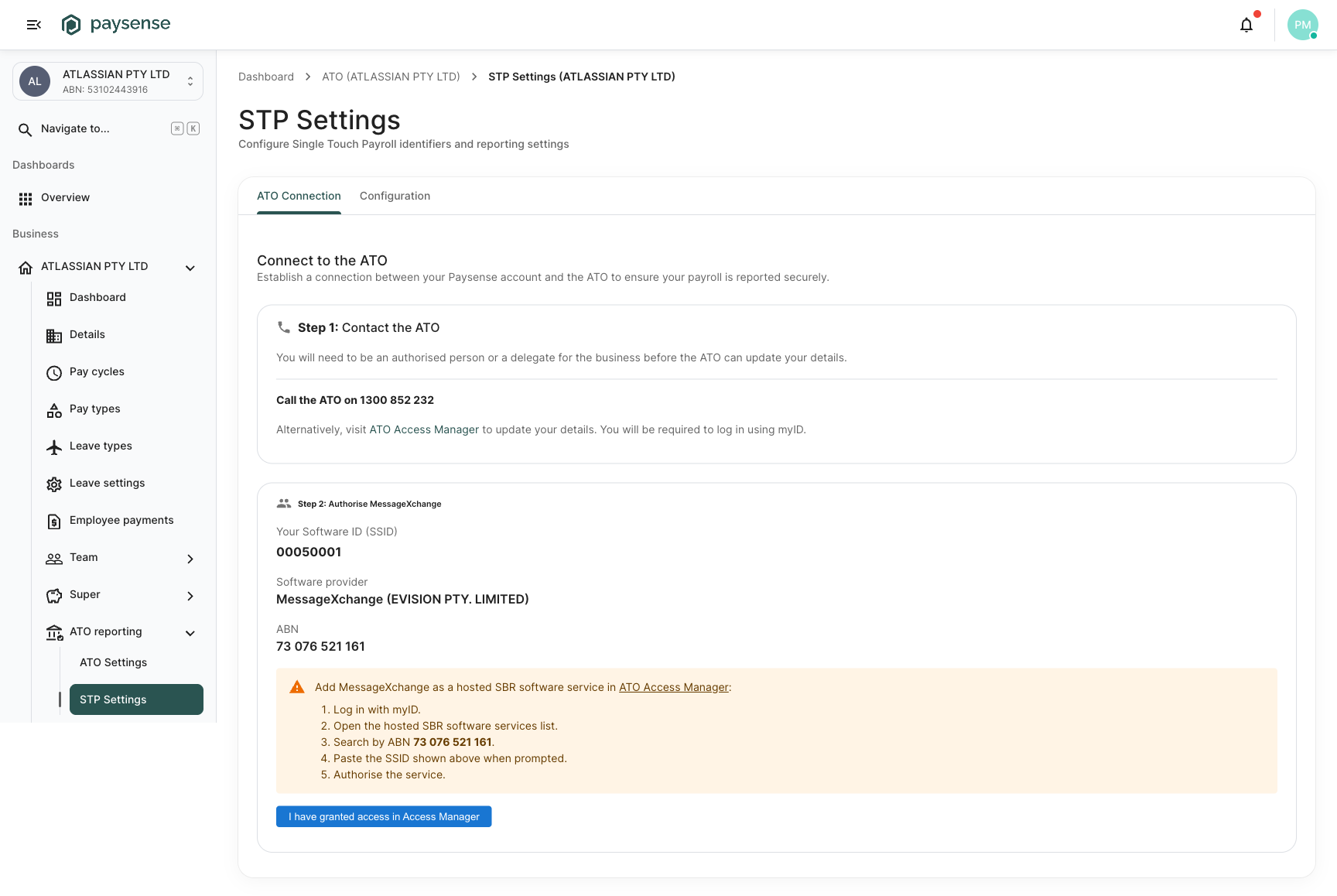
The card now displays:
- Your Software ID (SSID) - the value MessageXchange issued (in the example,
00050001) - Software provider + ABN - MessageXchange's details, repeated for convenience
- A warning alert with a five-step checklist
Follow the checklist in ATO Access Manager:
-
Log in with myID.
-
Open the hosted SBR software services list. This is under My business > Hosted SBR Software Services.
-
Search by ABN
73076521161- MessageXchange's ABN. Enter it without spaces; Access Manager's search box won't match a spaced value.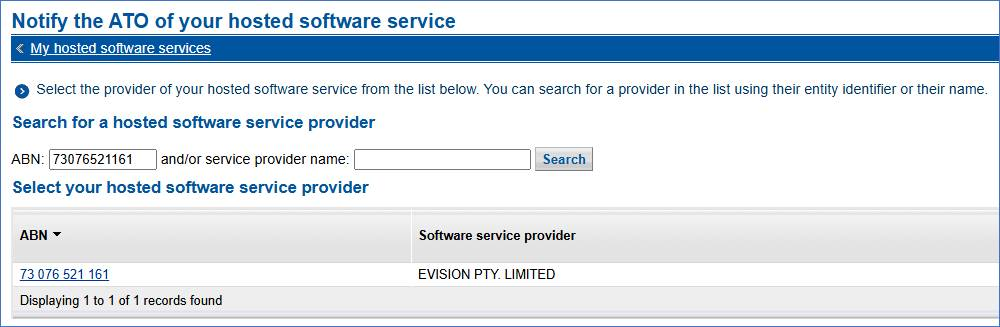
The result row shows EVISION PTY. LIMITED - that's MessageXchange's registered company name. Click the ABN link to select them.
-
Paste the SSID shown in Paysense when the form prompts for the Software ID.
-
Authorise the service. This links MessageXchange's hosted SBR service to your business under that SSID.
Once the ATO confirms the authorisation in Access Manager, come back to Paysense and click I have granted access in Access Manager.
The SSID is per-business. If you run payroll for multiple ABNs through Paysense, each business needs its own SSID and its own authorisation in Access Manager. Don't try to share one SSID across ABNs - the ATO will reject the STP events.
The ATO's own knowledge base article covers the Hosted SBR authorisation flow in more detail. MessageXchange also publishes a step-by-step walkthrough of the Access Manager screens with screenshots.
Step 5: Confirm access in Paysense
Clicking I have granted access in Access Manager flips the business to the final state:
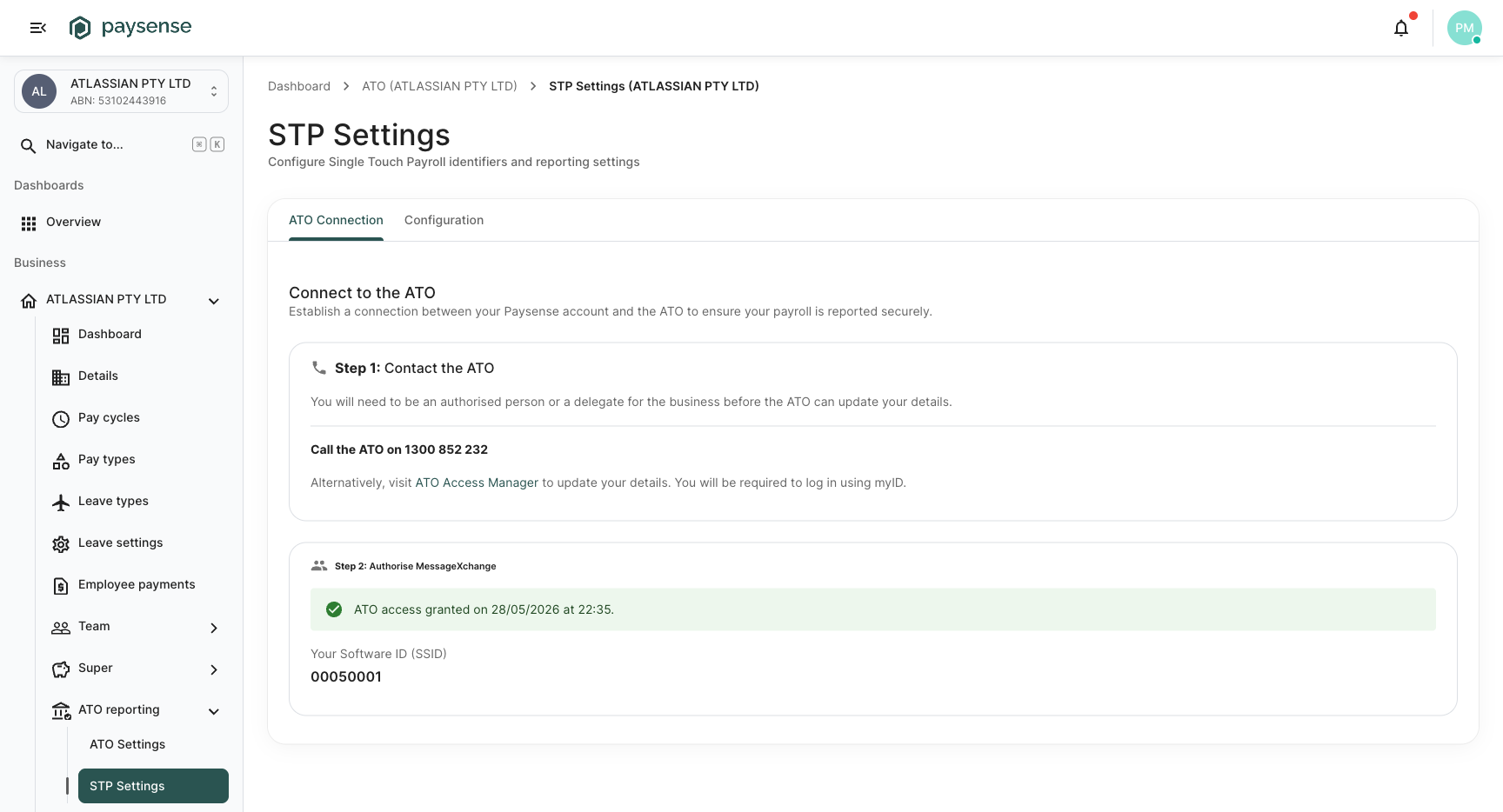
Paysense stores the access-granted timestamp and unlocks STP lodgement for the business. From this point on:
- Finalising a pay run generates an STP event ready to lodge.
- The STP > Pay Events screen shows the lodgement queue.
- Lodgements use the SSID automatically - you won't see it again unless you come back to this screen.
The SSID is also displayed in audit logs and on the STP event detail page, so you don't need to memorise it. If you ever need to look it up, head back to ATO reporting > STP Settings.
What's next
With STP set up, the typical next steps are:
- Configure ATO settings - if you have not already, set the reporting type (Business / Intermediary / Tax Agent) and the contact details that get embedded in every STP event. See Configure ATO settings.
- Run a pay run - if you haven't already, see Run your first pay run. Finalising the run is what generates the first STP event.
- Lodge the STP event - head to STP > Pay Events and submit the event Paysense generated. See Lodge an STP event.
Troubleshooting
| Symptom | Likely cause | What to do |
|---|---|---|
| The wrong declaration appears when you approve a pay event | The reporting type is still the default As a Business, but an agent or intermediary actually lodges for this business | Open ATO reporting > ATO Settings, set the correct reporting type, and save. See Configure ATO settings. |
| Stuck on Awaiting MessageXchange for more than 5 business days | MessageXchange may have queried something about the request | Contact MessageXchange support via their knowledge base - they can look up the request by your business name or ABN |
| Access Manager can't find MessageXchange when searching by ABN | The ABN was typed wrong (often with spaces - the search box wants 73076521161 unspaced), or your myID isn't linked to the business | Re-enter the ABN as 73076521161 without spaces, and verify your myID is authorised for the business under My business |
| Access Manager accepted the SSID but Paysense still shows Requires access grant | Paysense doesn't poll the ATO - you have to click the confirm button manually | Click I have granted access in Access Manager in the Step 2 card |
| STP events are stuck after finalising a pay run | Access wasn't granted yet, or the SSID was deauthorised in Access Manager | Re-check STP Settings - the card should be green. If it's not, redo Step 4. |
| Lost the SSID, where can I find it again? | The SSID is shown on the STP Settings screen once issued | Open ATO reporting > STP Settings. The SSID also appears on every STP event in the STP > Pay Events screen. |
| Multiple businesses, same ABN | One business = one SSID = one Access Manager authorisation | Each business in Paysense gets its own SSID. Repeat the whole flow per business. |
If you hit a problem the table doesn't cover, check Reports > Audit Logs - every SSID request, MX-reply, and Access-Manager confirmation is logged with timestamps, so you can reconstruct the timeline if support asks.
References
- MessageXchange: Hosted SBR Software Service setup - the article this guide cross-references
- ATO Access Manager - where the SSID gets linked
- ATO: Sending service providers and software IDs - explains the 1 July 2026 SSID mandate
- ATO: Notifying us of your sending service provider - the exact section of the ATO's guidance covering the Access Manager step
- ATO: Single Touch Payroll - background on what STP is and why your business needs it
- ATO: Access Manager overview - ATO's own documentation