Lodge a super contribution
A super contribution is the batch Paysense sends to your clearing house so each employee's super guarantee reaches their fund. It carries one payment per employee - the fund, the member number, and the amount - and it names the business bank account the money comes from.
Paysense builds the contribution for you when you finalise a pay run, then walks it through three states: you review the payments, validate the batch with the clearing house, and submit it.
This tutorial walks that sequence end-to-end for the Casuals - 7-20 Sep 2026 pay run on the CANVA SPACE business, which pays a single casual employee, James Anderson, on the Casuals - Fortnightly cycle. By the end you'll have a contribution with the status Submitted and a $403.20 payment on its way to AustralianSuper.
What you'll need
| Item | Required | Notes |
|---|---|---|
| A pay run ready to finalise | Yes | The contribution is generated during finalisation. See Run your first pay run. |
| Registration with Beam | Yes | Beam is the clearing house Paysense validates and submits through. Until the business is registered and its terms accepted, every validation fails. See Set up superannuation. |
| A business bank account | Yes | The account the contribution is paid from. See Add bank accounts. |
| A default super fund | Yes | Only strictly needed if an included employee has no fund of their own, but the validation refuses the batch when that happens. |
| Business legal name, ABN, contact email and mobile | Yes | All four are checked before every validate and submit. Set them under Business → Details. |
The supercontribution:read scope | Yes | Opens Super → Contributions. |
The supercontribution:validate scope | Yes | Shows the Validate button. |
The supercontribution:submit scope | Yes | Shows the Submit button. Owners always have it; other roles need it granted via Manage permissions. |
The supercontribution:write scope | No | Only needed for New Contribution and Edit. |
Validating and submitting are separate actions, so you can check the batch as soon as the pay run is finalised and leave the submission until you're ready for the money to move.
Step 1: Create the contribution while finalising the pay run
From the left-hand sidebar, click Pay Runs → Pay Runs, open your pay run, and click Finalise in the top-right. Paysense opens the Pay Run Finalisation wizard at /business/{businessId}/payruns/{payRunId}/finalise with three steps across the top: Pay Run Finalisation, STP Lodgement, and Super Contributions.
Work through the first two steps - payslip dispatch, then STP, both covered in Lodge an STP event - and click Next to reach Super Contributions. This step is where the contribution is created.
| Field | Required | Notes |
|---|---|---|
| Super Contribution Action | Yes | Create Contributions or Do Nothing. Defaults to Create Contributions, which is what generates the contribution. Choose Do Nothing only if you intend to build the contribution yourself later. |
| Bank Account Payment Type | Yes | Direct Debit, Direct Credit, or BPay. Defaults to Direct Debit. Records how the clearing house takes the money from you. Hidden when the action is Do Nothing. |
| Bank Account | Yes | The business account the contribution is paid from. Only accounts saved against this business are listed. Hidden when the action is Do Nothing. |
Leave the action on Create Contributions, leave Bank Account Payment Type on Direct Debit, and pick the account - for our example, Canva Operating Account.
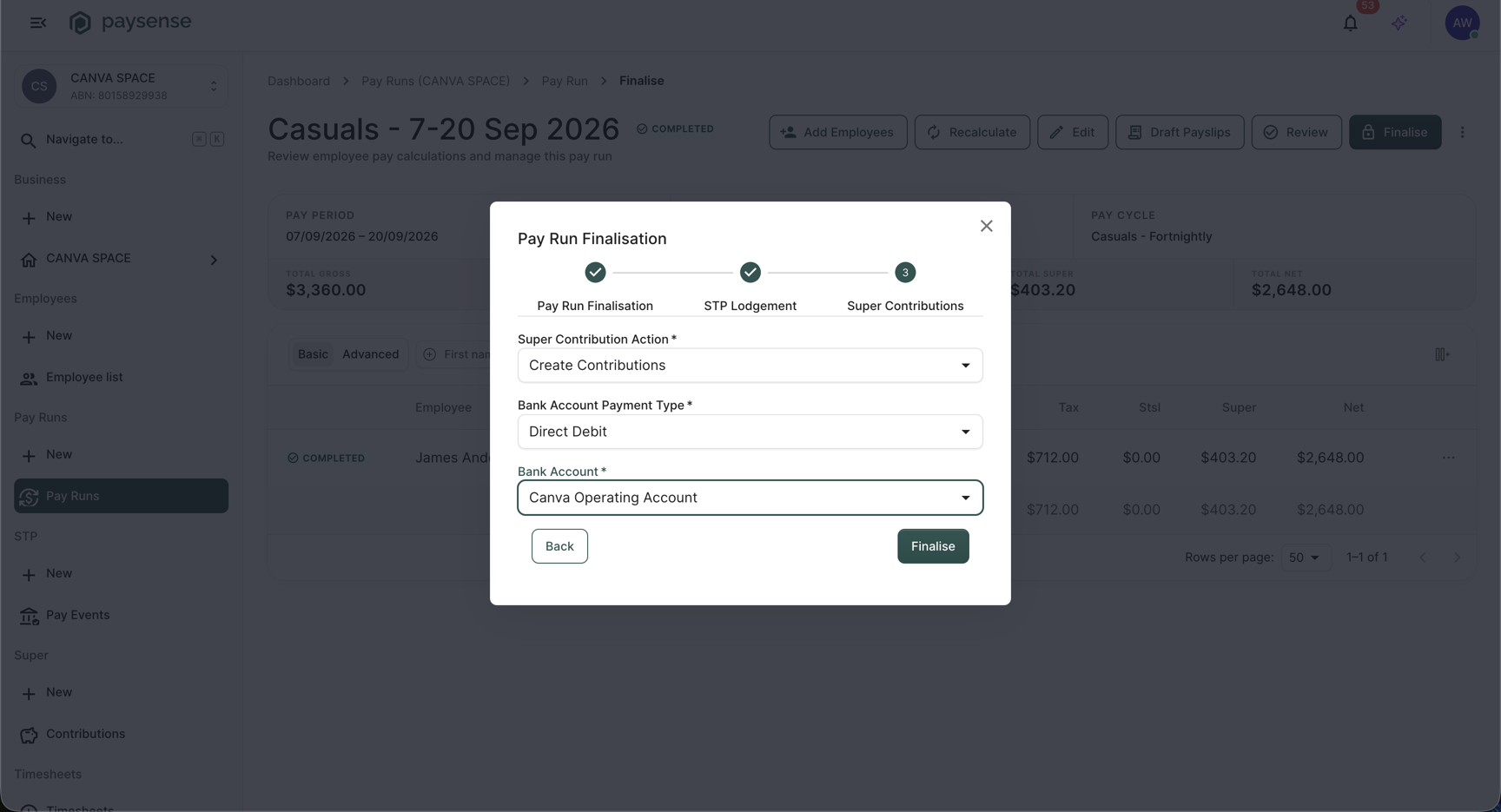
Click Finalise. Paysense shows a Pay Run Finalised confirmation, and the pay run page picks up a Super contribution has not been submitted. banner with a View Super details button that jumps straight to the new contribution.
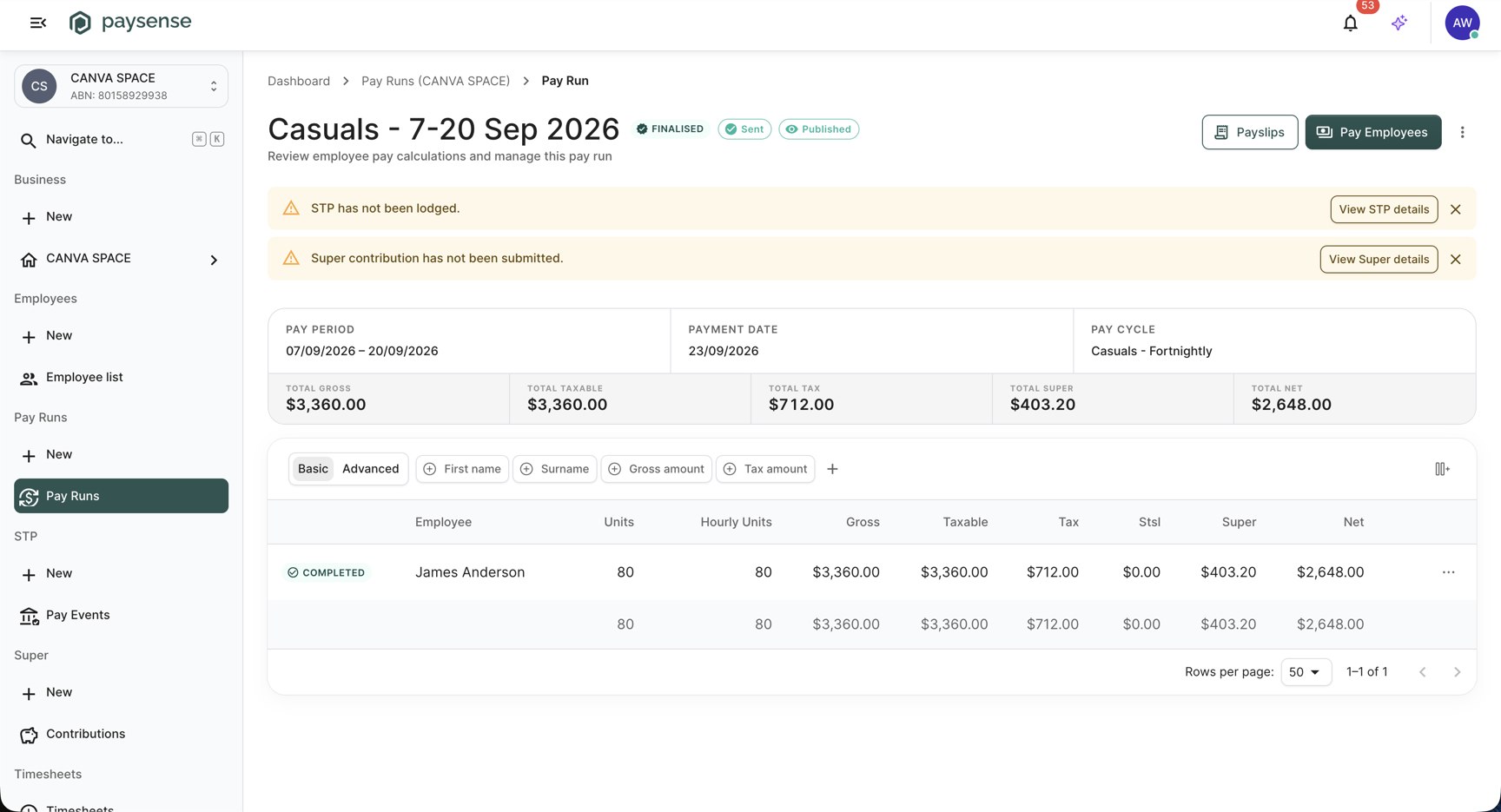
The contribution is generated by a background job, so it appears a moment after finalisation rather than instantly. Paysense names it for you as Super- plus the pay run name plus today's date, which is why the example reads Super-Casuals - 7-20 Sep 2026-20260907.
Step 2: Open the contribution
From the left-hand sidebar, click Super → Contributions to land on the list at /business/{businessId}/super/contributions. Your new contribution is there.
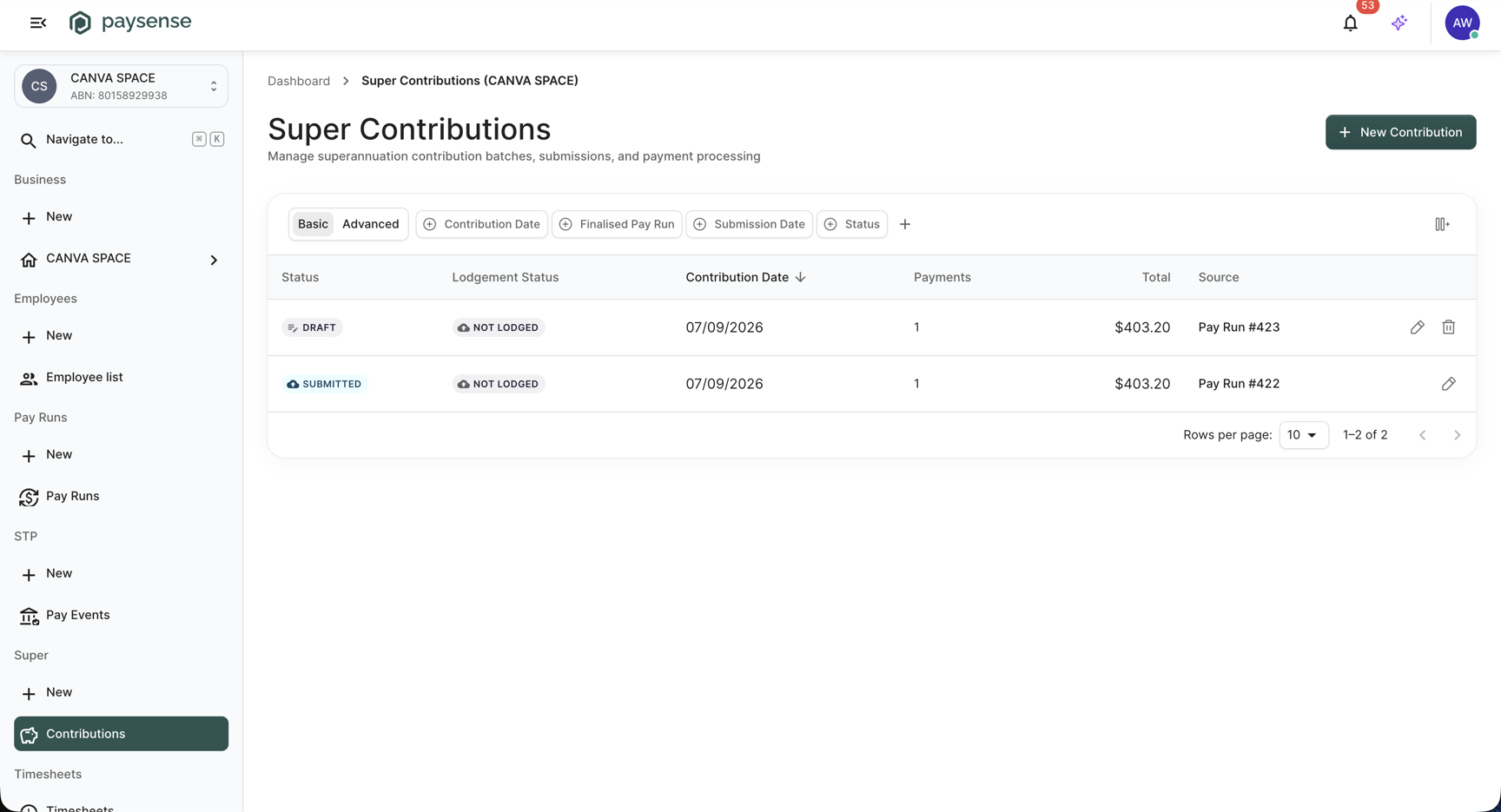
The list tracks two independent statuses, which is the thing to understand before going further:
| Column | What it shows |
|---|---|
| Status | Where the contribution is in the Paysense workflow: Queued, Processing, Draft, Submitted, Completed, Failed, or Cancelled. |
| Lodgement Status | Where the batch is with the clearing house: Not Lodged, Queued, Processing, Sending, Lodged, Failed, or Cancelled. |
| Contribution Date | The date the contribution was created. |
| Payments | How many employee payments the batch covers. |
| Total | The batch total. |
| Source | What the contribution was built from, for example Pay Run #423. |
| Actions | Edit reopens the wizard, and Delete removes the contribution. Both are only offered while the status is Draft or Failed. |
A freshly generated contribution reads Draft and Not Lodged. Click the row to open it.
Step 3: Review the payments
The details page at /business/{businessId}/super/contributions/{contributionId} is what you check before validating. The summary strip carries the batch metadata, and the table underneath holds one row per employee payment.
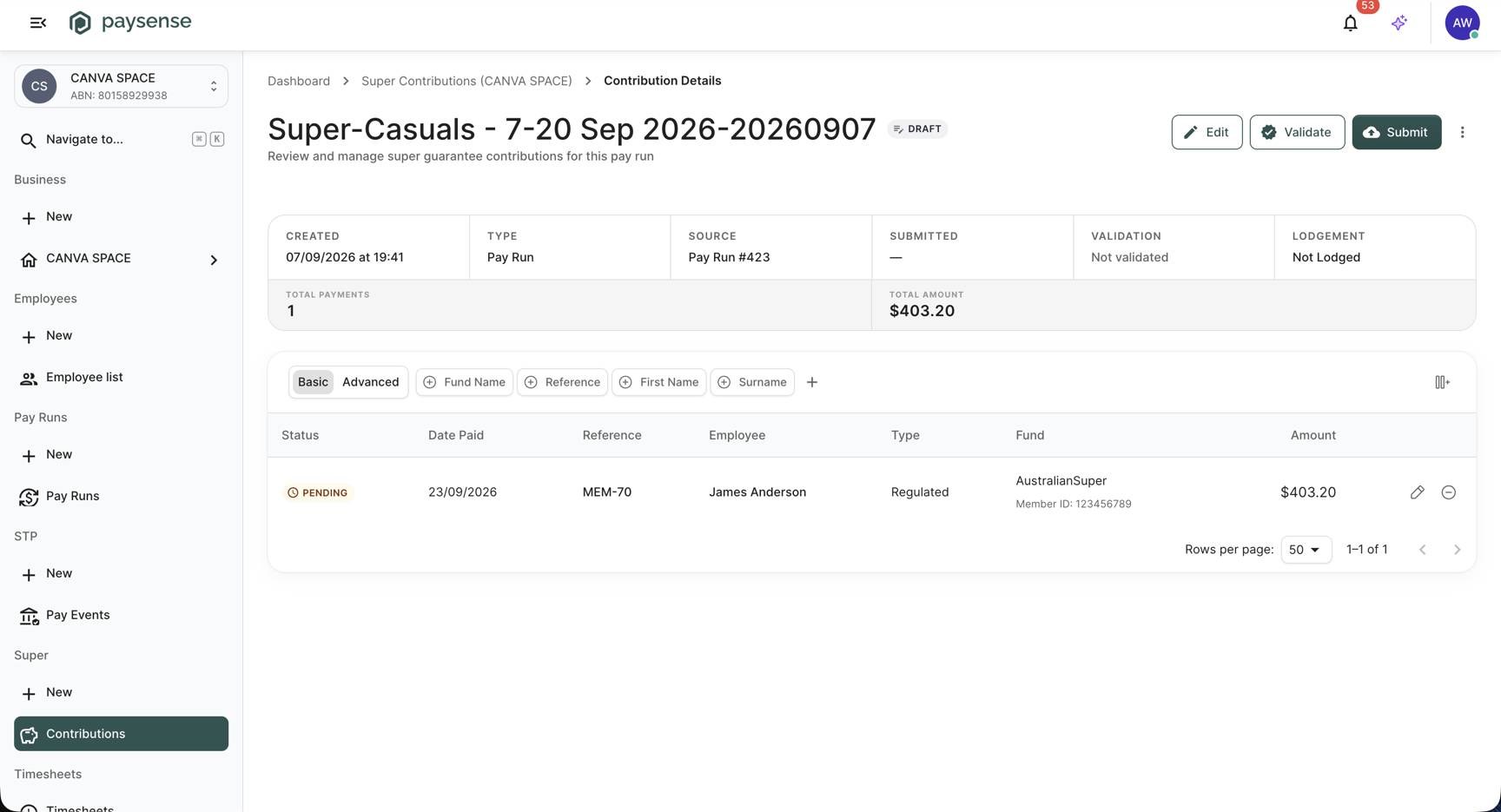
| Field | What it shows |
|---|---|
| Created | When the contribution was generated. |
| Type | How the batch was assembled: Pay Run, Pay Cycle, Employee, or Payments. |
| Source | The pay run, cycle, or employees behind the batch. |
| Submitted | Shows a dash until you submit. |
| Validation | Not validated, Passed, or Failed. |
| Lodgement | Not Lodged at this point. |
| Total Payments | How many employee payments the batch covers. |
| Total Amount | The batch total. |
Each payment row gives Status, Date Paid, Reference, Employee, Type, Fund with the member number underneath, and Amount. Rows sit at Pending until the batch is submitted. Use the pencil icon to change the fund a payment goes to, or the minus icon to exclude a payment from this batch.
Check the payment amounts against the pay run's Total Super before you validate. Once the contribution is submitted you cannot edit it, and the money is on its way to the funds.
Step 4: Validate the contribution
Click Validate in the top-right. Paysense sends the batch to the clearing house for a dry run - the funds, member numbers, and your own registration details are all checked - and returns the result without moving any money.
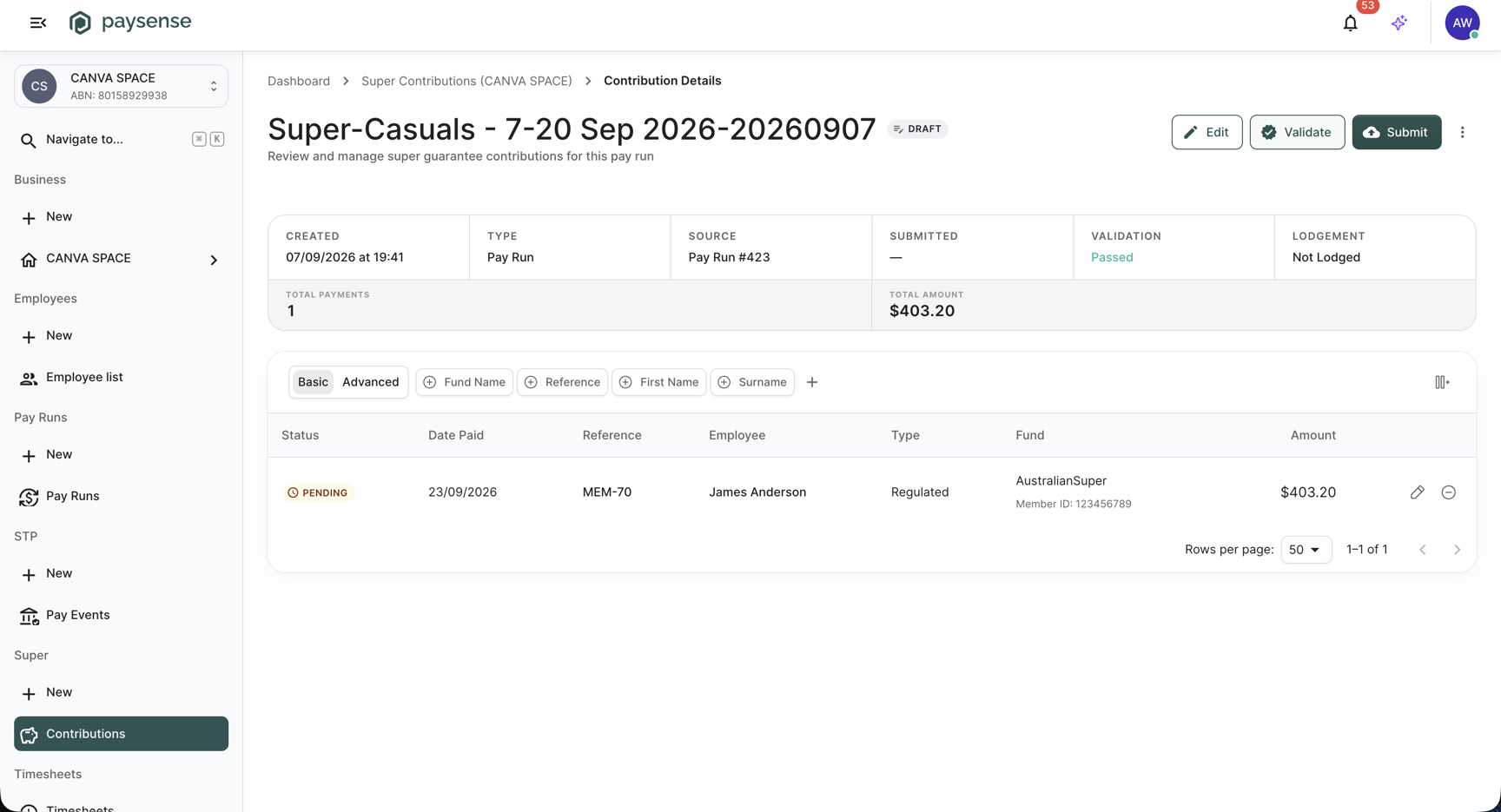
A pass turns Validation green and it reads Passed. The contribution stays in Draft, so you can still edit it.
If the clearing house finds problems instead, Validation reads Failed and the page offers a report listing each error. The Troubleshooting table below covers the errors you're most likely to see.
Step 5: Submit the contribution
With the contribution validated, click Submit. The screen does not change while you decide, so there is no separate screenshot for this step - the result is what you see in Step 6.
Paysense flips the status to Queued, disables Edit, Validate and Submit, and runs a background job that builds the batch and sends it to the clearing house. A progress bar tracks the job while it runs.
Submit hands the batch to the clearing house, which then direct debits your nominated bank account and distributes the money to each employee's fund. There is no undo once it has gone through. Make sure the payments in Step 3 are right before you click it.
Step 6: Confirmation
Once the job finishes, the status badge reads Submitted, Submitted fills in with the date and time, and a Contribution is awaiting payment. banner appears with a View clearing house response button. A Payment Details card lists the bank account the clearing house will debit, the payment type, and the amount.
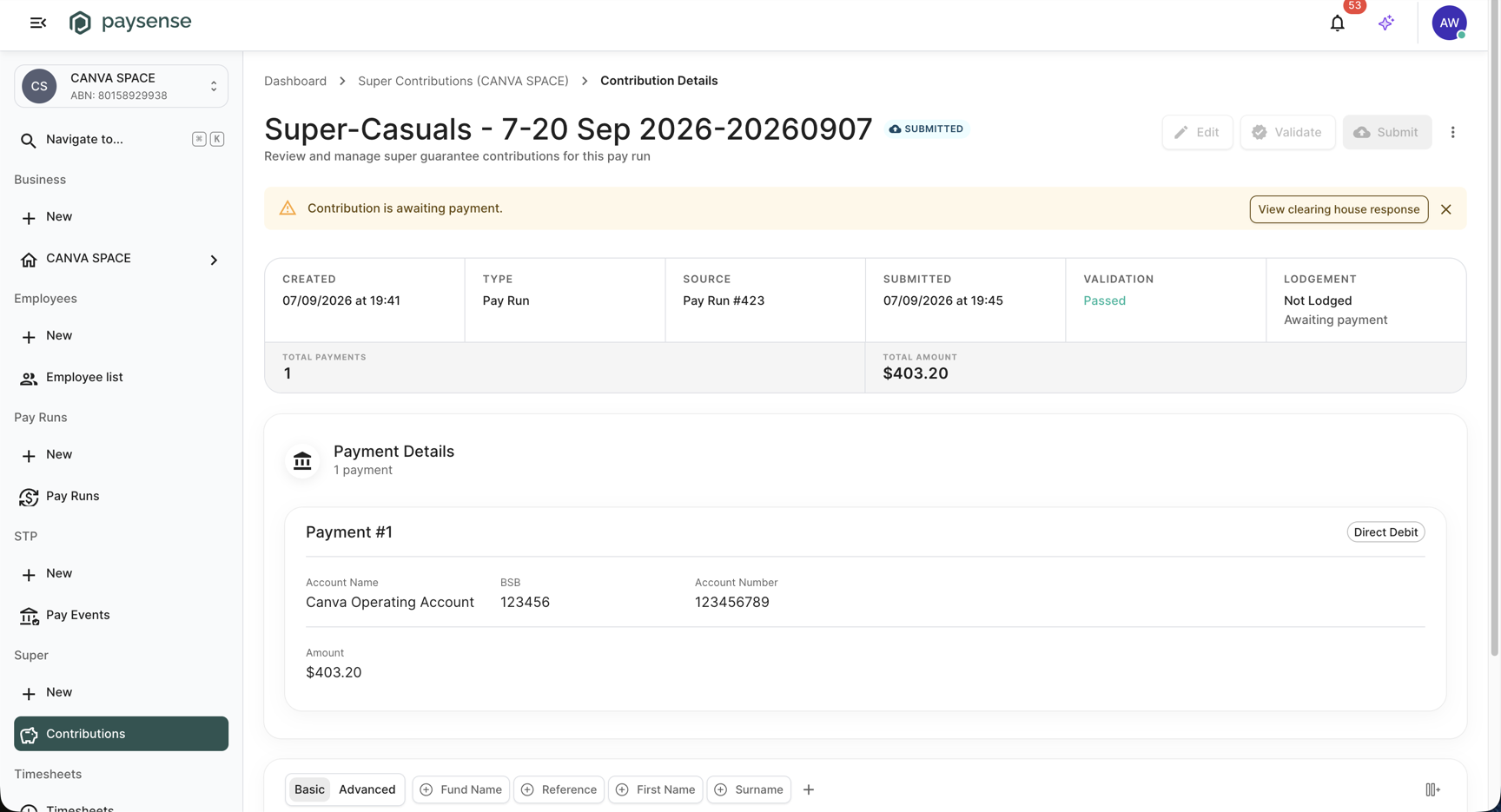
Lodgement reads Not Lodged with Awaiting payment underneath. Submitted means Paysense has handed the batch over; the lodgement status tracks the clearing house's own progress and updates as it works through the batch, moving through Queued, Processing, and Sending to Lodged, or to Failed if something goes wrong. The payment row moves off Pending to Submitted once the batch is away.
The line under Lodgement is the clearing house's own process status, and it is the one to watch after submitting:
| Process status | What it means |
|---|---|
Awaiting payment | Beam has the batch but not your money yet. This is where every contribution starts. |
Awaiting clearance | Direct debit only. The debit has reached Beam's bank and a three day clearance period has started. |
Sending contributions | Payment has cleared and Beam is sending the money out to the funds. |
Sent to fund | Every payment in the batch has gone to its destination fund. |
Sent to fund with responses | Sent, but a fund returned information such as a corrected membership number. |
Sent to fund with refund | Sent, but a fund rejected and refunded one or more payments. |
Dishonoured, Missing payment, Over payment, Under payment | The payment did not match the batch. Beam is waiting on you to sort it out. |
Submitting does not move any money on its own - it tells Beam what you owe and to whom. The funds are only paid once Beam has your payment and it has cleared, so a contribution can sit at Awaiting payment indefinitely if the payment never arrives. Beam cancels a contribution when payment has not been received within 10 business days of submission.
Create a contribution manually
Most contributions come from finalising a pay run, but you can also build one yourself - for a pay run that was finalised with Do Nothing, or to batch a group of employees together. Click New Contribution on the Super Contributions screen.
Step 1 collects the criteria.
| Field | Required | Notes |
|---|---|---|
| Contribution Name | Yes | Identifies the contribution in the list. |
| Description | No | Free text for your own reference. |
| Contribution Type | Yes | Pay Run, Pay Cycle, or Employee. Decides which selector appears below, and each contribution can use only one of them. |
| From Date, To Date | No | Shown for Pay Run and Pay Cycle. They narrow the Pay Runs list. Both become required if you pick Pay Cycle. |
| Pay Runs | Yes for Pay Run | Only finalised pay runs appear, listed as the cycle name plus the period. A pay run that already has an active contribution is rejected when you click Create. |
| Pay Cycle | Yes for Pay Cycle | Selects the cycle the contribution covers. |
| Employees | Yes for Employee | The employees whose outstanding super payments are batched. |
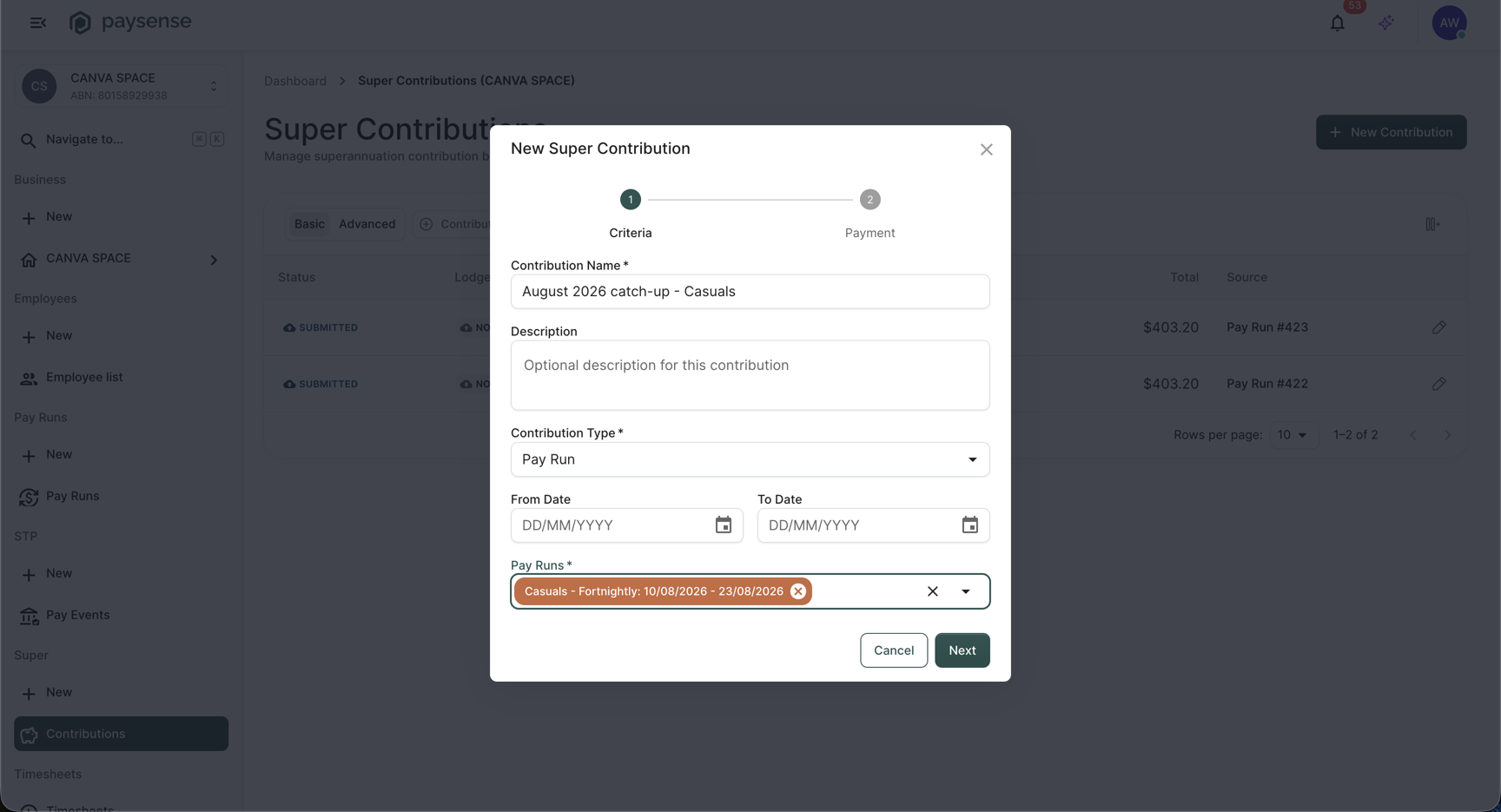
Click Next. Step 2 collects the payment details, and these are the two fields that matter.
| Field | Required | Notes |
|---|---|---|
| Payment Type | Yes | Direct Debit, Direct Credit, or BPay. The same field the finalisation wizard calls Bank Account Payment Type. |
| Bank Account | Yes | The business account the contribution is paid from. The dropdown is disabled when the business has no bank accounts saved - use the Add one here link underneath to create one. |
Picking an account shows a summary card with its BSB and account number so you can check you have the right one.
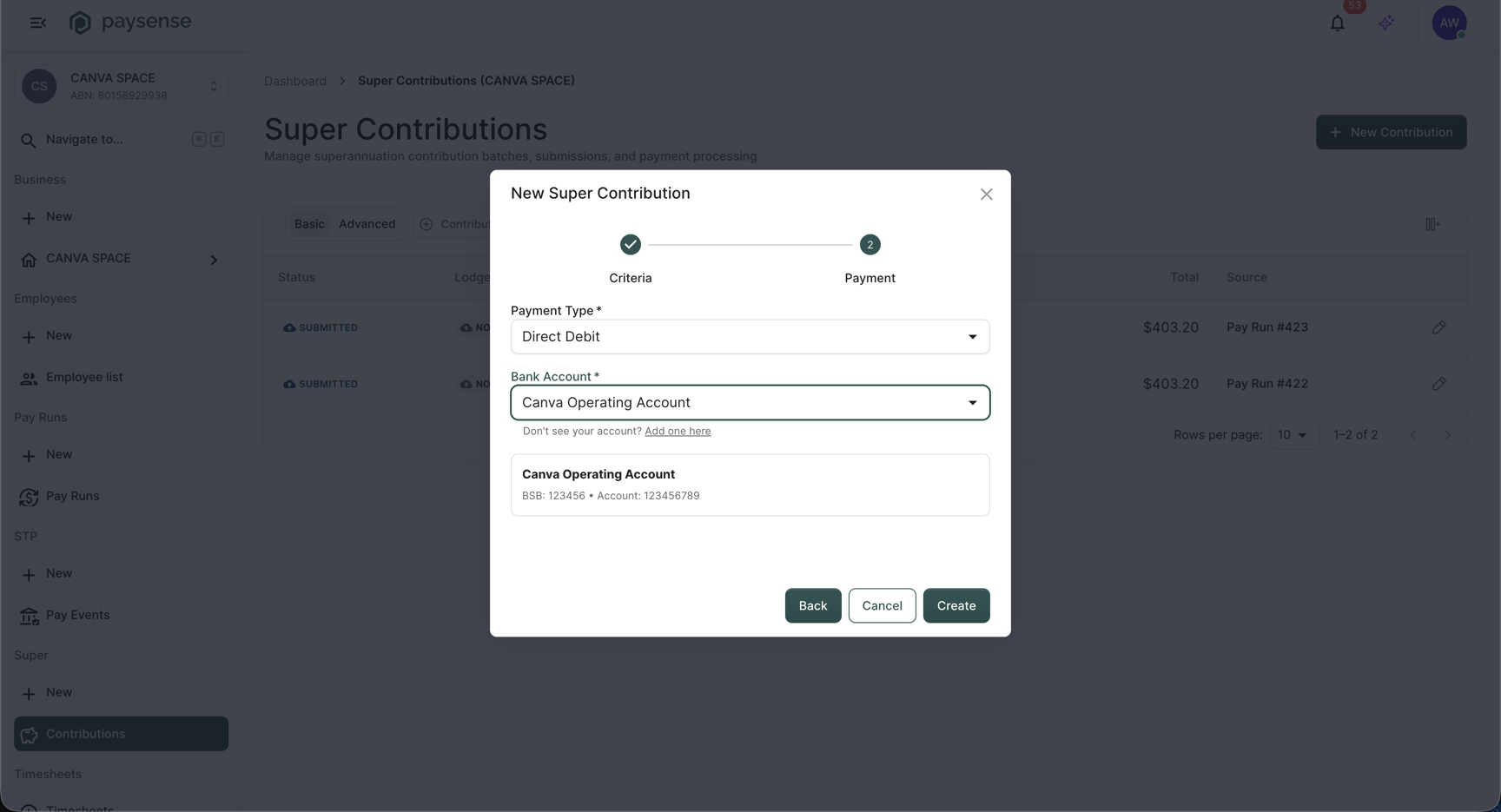
Click Create. Paysense confirms with Super Contribution Created! and offers Close and Create Another. From there the review, validation and submission steps are exactly the same.
The contribution starts at Queued with a $0.00 total while the job runs. Refresh the list after a moment and it settles at Draft with the real payment count and total.
What's next
Now that the contribution is with the clearing house, the rest of the post-pay-run work is:
- Lodge the STP event for the same pay run - finalising also created a pay event that still needs approving and lodging with the ATO. See Lodge an STP event.
- Watch the lodgement status - the contribution's Lodgement field updates as the clearing house works through the batch, and the payment rows move off
Pendingas the funds confirm receipt. - Run the next pay run - finalising it creates its own contribution. See Run your first pay run.
Troubleshooting
| Symptom | Likely cause | What to do |
|---|---|---|
| No contribution appeared after finalising | Super Contribution Action was set to Do Nothing | Create one with New Contribution and select the finalised pay run |
| The Super Contributions step shows no payment fields | The action is Do Nothing, which hides them | Set Super Contribution Action to Create Contributions |
| "Super bank account is required when creating a super contribution." | Finalise was clicked with no Bank Account selected | Pick an account, or set the action to Do Nothing and build the contribution later |
| Bank Account dropdown is empty or disabled | The business has no bank accounts saved | Add one via Add bank accounts, then reopen the wizard |
| "We do not hold a current direct debit authority that matches the direct debit details provided." | The business is not registered with Beam, or the account it holds differs from the one you selected | Complete Set up superannuation, then validate again |
| "You have not accepted the most recent terms and conditions." | Beam's current terms have not been accepted for this business | Accept them under Super → Authorisation, then validate again |
Validation reads Failed | The clearing house rejected something in the batch | Open the validation report and work through the listed errors |
| "Business validation failed: ..." | The business is missing its legal name, ABN, contact email, or contact mobile | Fill the missing fields under Business → Details, then validate again |
| "Contribution must contain at least one active payment" | Every payment in the batch has been excluded, or the pay run produced no super | Include a payment again with its row action, or check the pay run's Total Super |
| "Business requires a default super fund setup for employee's that don't have a super fund supplied" | An included employee has no fund of their own and the business has no default | Set a default fund, or add a fund to the employee. See Manage employee super funds. |
| "An active super contribution already exists for one or more of the selected pay run ids" | That pay run is already covered by a contribution | Open the existing contribution from the list instead of creating another |
| Validate and Submit are disabled | The contribution is not in Draft, or another action is still running | Only a Draft contribution can be validated or submitted. A contribution that has failed can be rebuilt from the current pay run data instead. |
| Submit is missing entirely | Your user lacks the supercontribution:submit scope | Ask a team member with Manage team to grant it |
Status stays at Awaiting payment after you have paid | The payment reached Beam but was not matched to this batch | Ask Beam support to link the payment to the contribution manually |
Status reads Dishonoured or Missing payment | The direct debit failed, or the amount Beam received does not match the batch | Check the debited account, then use View clearing house response for Beam's detail |
If you hit a problem the table doesn't cover, check the Notifications panel on the business dashboard - Paysense logs every contribution job failure there with the underlying error message.