Manage employee super funds
Each employee needs at least one super fund on file so Paysense can remit Super Guarantee contributions on their behalf. When an employee has a single fund, the entire contribution goes there. When they have multiple funds, you use payment allocation rules to control how contributions are split: the same allocation types used for bank accounts.
This guide covers the three super fund types and how to configure contribution allocations.
What you'll need
| Item | Required | Notes |
|---|---|---|
| An employee already added in Paysense | Yes | See Add an employee if you haven't done this yet |
| The employee's super fund details | Yes | Fund name or USI for regulated funds, or ABN and bank details for SMSFs |
| The employee's member number | Yes | For regulated funds: the membership number issued by the fund |
Step 1: Open the employee's Super page
From the left-hand sidebar, expand the employee's name and click Super. You'll see the Employee Super Funds page listing any existing funds.
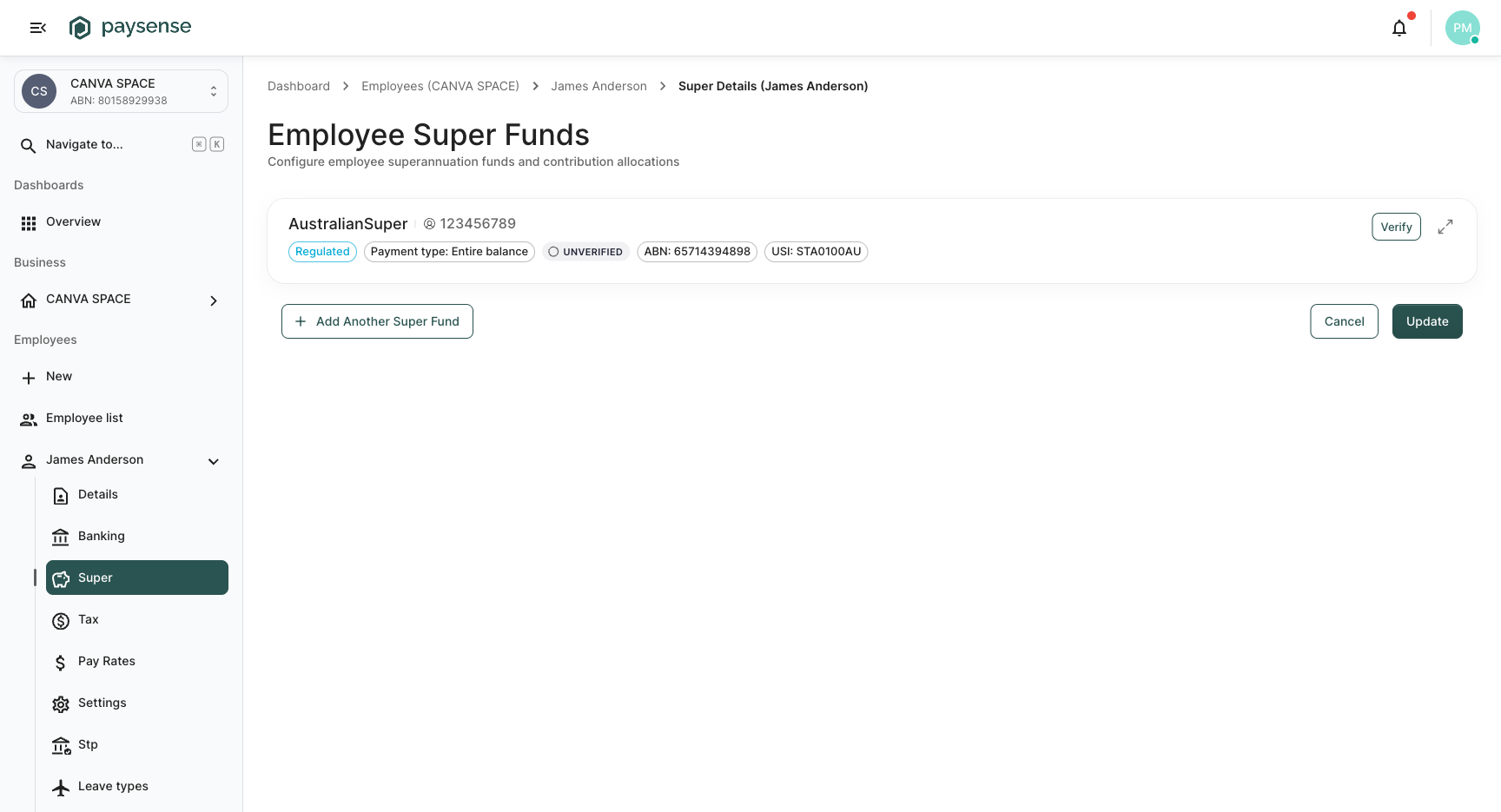
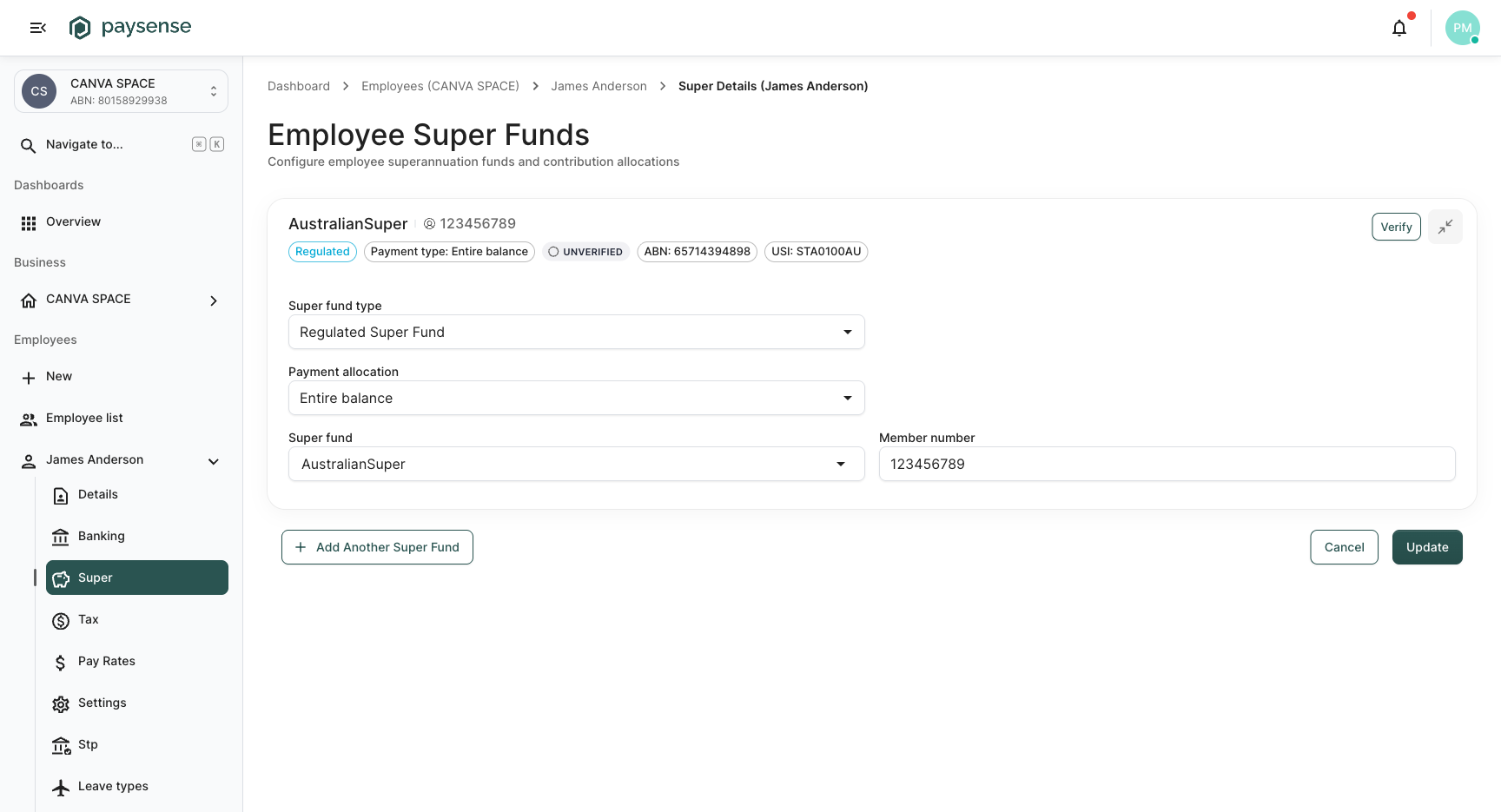
Each fund card shows the fund name, member number, fund type badge, payment type, verification status, and identifiers (ABN and USI) at a glance. Click the expand icon on a card to view and edit the full details.
Step 2: Understand super fund types
The Super fund type dropdown determines what information Paysense needs to identify and pay the fund. There are three types:
| Fund type | When to use it | Key fields |
|---|---|---|
| Regulated Super Fund | The employee is a member of an APRA-regulated fund (e.g. AustralianSuper, REST, Hostplus) | Super fund (searched by name, ABN, or USI), Member number |
| Self Managed Super Fund (SMSF) | The employee manages their own super fund with their own trust deed | SMSF name, SMSF ABN, Electronic service address, SMSF bank account name, SMSF BSB, SMSF account number |
| Not Supplied | The employee hasn't provided super fund details: contributions fall back to the business's default super fund | None |
Regulated Super Fund
This is the most common type. When selected, Paysense shows a Super fund autocomplete field that searches the live ASIC fund register by name, ABN, or USI. Pick the matching fund from the dropdown and enter the employee's Member number.
Each fund card displays the fund's ABN and USI for easy identification.
Self Managed Super Fund (SMSF)
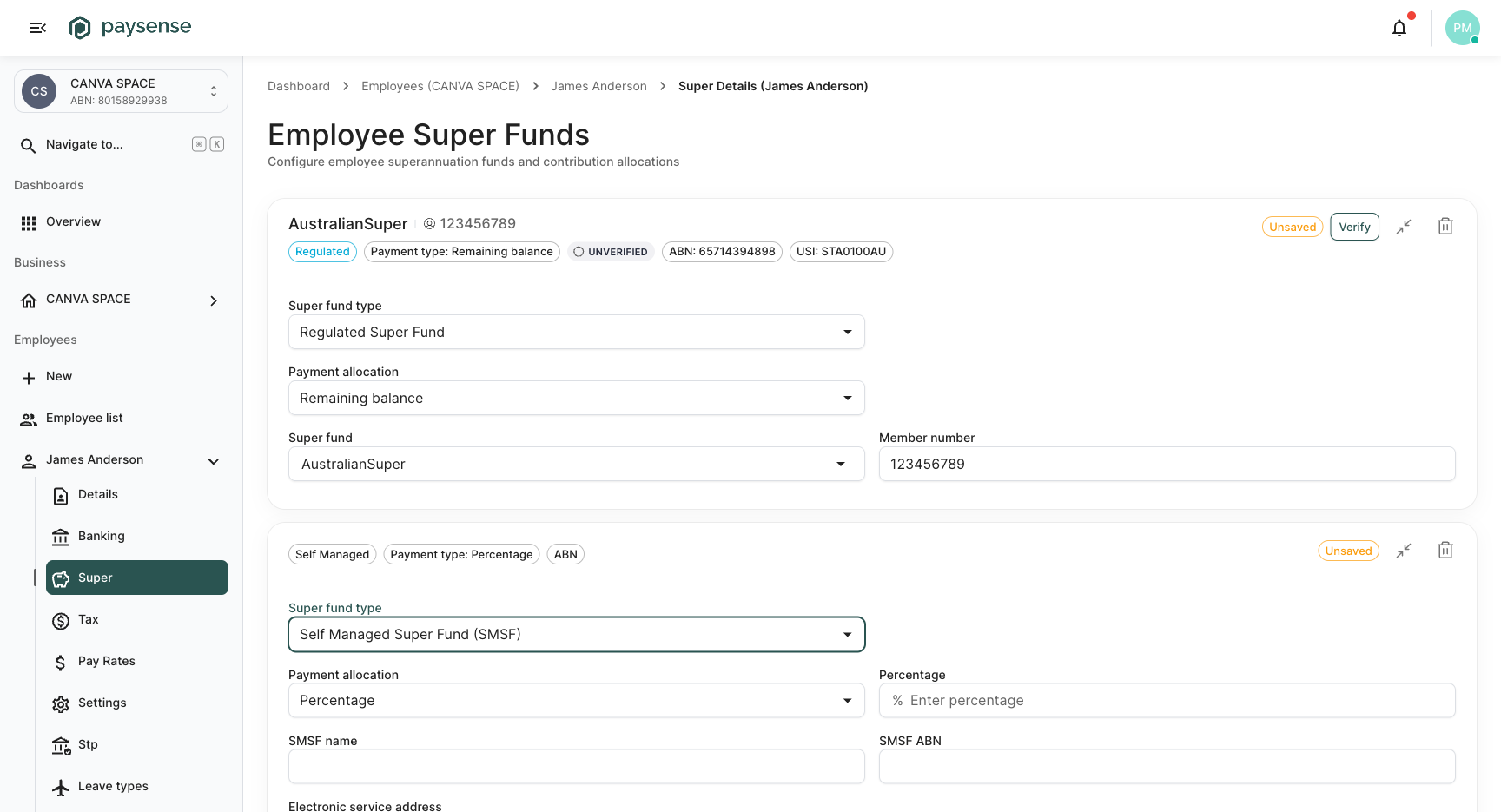
When an employee uses a self-managed super fund, select Self Managed Super Fund (SMSF) from the fund type dropdown. The form expands to show the SMSF-specific fields:
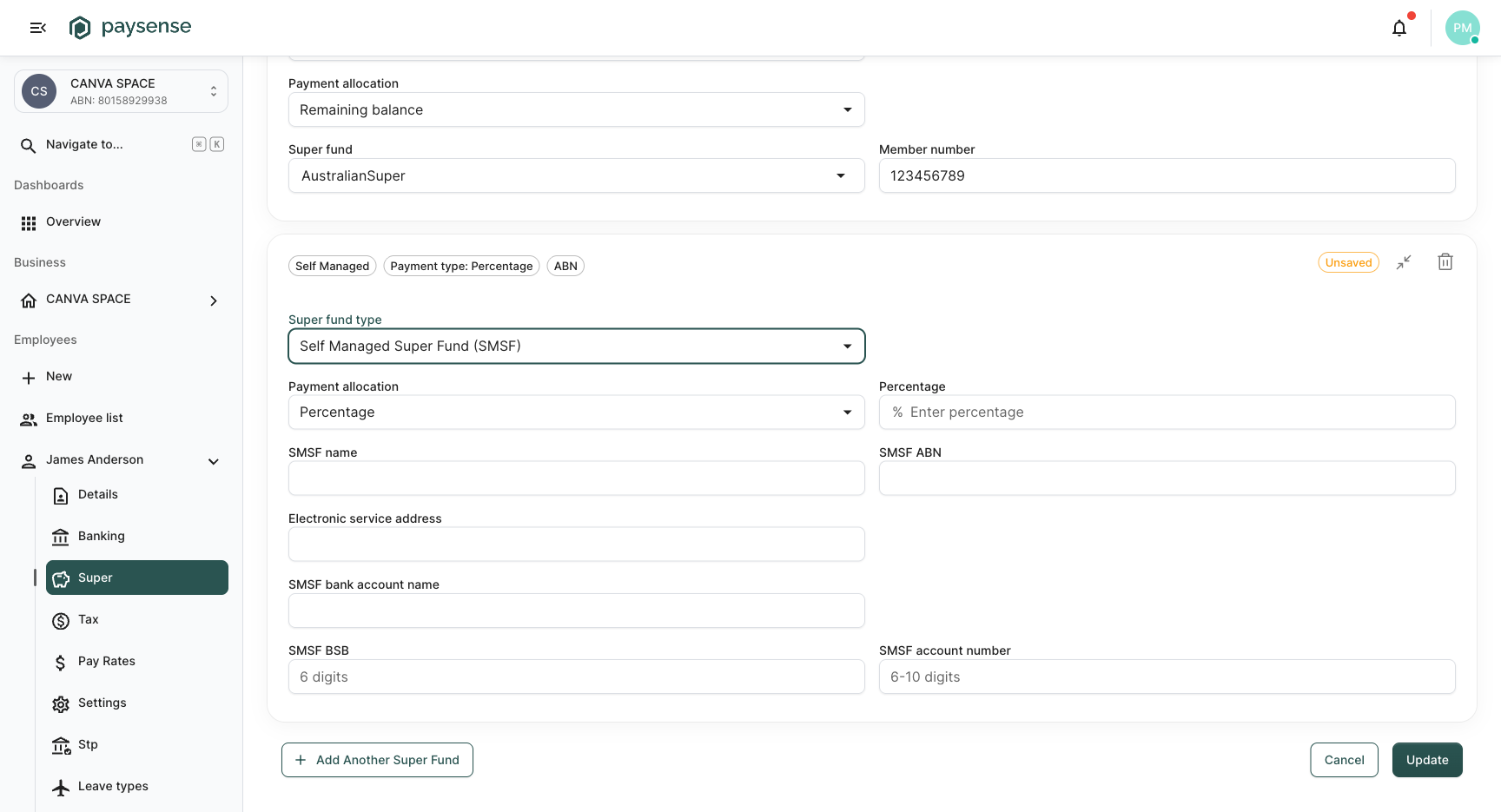
| Field | Required | Notes |
|---|---|---|
| SMSF name | Yes | The registered name of the self-managed super fund |
| SMSF ABN | Yes | The fund's 11-digit Australian Business Number: validated against ATO records |
| Electronic service address | Yes | The electronic service address used for SuperStream messaging |
| SMSF bank account name | Yes | The name on the SMSF's bank account where contributions are deposited |
| SMSF BSB | Yes | The six-digit Bank State Branch code for the SMSF bank account |
| SMSF account number | Yes | The SMSF bank account number (6–10 digits) |
For SMSFs, search for the fund by ABN rather than name. The employee's SMSF trustee or administrator will have the electronic service address and bank details needed to complete this form.
Not Supplied
Select Not Supplied when the employee hasn't provided their super fund choice. At contribution time, Paysense falls back to the business's default super fund configured in Set up superannuation.
Not Supplied can only be used when the employee has a single fund entry with Entire balance allocation. If the employee already has multiple funds configured, you must remove the extras before switching to Not Supplied.
Using Not Supplied is a temporary measure. The employee should provide their fund details as soon as possible so contributions are paid to their chosen fund rather than the business default.
Step 3: Understand payment allocation types
The Payment allocation dropdown determines how the employee's super contributions are distributed across their funds. The same five allocation types used for bank accounts apply here:
| Allocation type | When to use it | Additional field |
|---|---|---|
| Entire balance | The employee has a single super fund: all contributions go here | None |
| Fixed amount | A specific dollar amount should go to this fund each contribution (e.g. $200 to an SMSF) | Fixed amount ($) |
| Percentage | A percentage of contributions should go to this fund (e.g. 30% to a secondary fund) | Percentage (%) |
| Remaining balance | This fund receives whatever is left after all fixed and percentage allocations | None |
| Manual | The amount is not calculated automatically: you specify it manually each contribution run | None |
How allocation types work together
When an employee has a single fund, the allocation is automatically set to Entire balance: the full contribution goes to that fund.
When you add a second fund, the first fund's allocation automatically switches to Remaining balance, and you choose how the second fund is allocated:
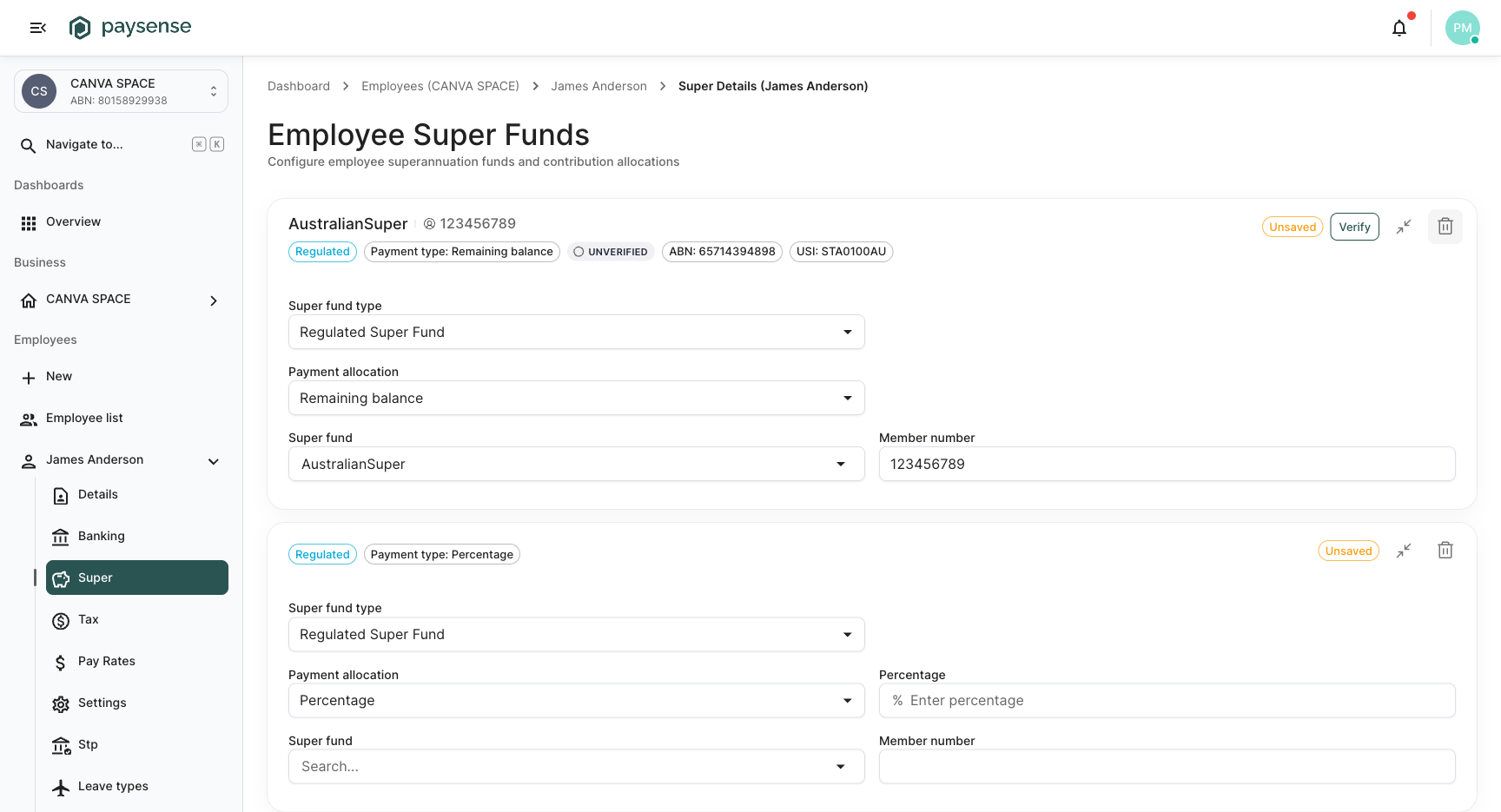
The payment allocation dropdown shows which types are available. Greyed-out options cannot be selected because another fund already fills that role:
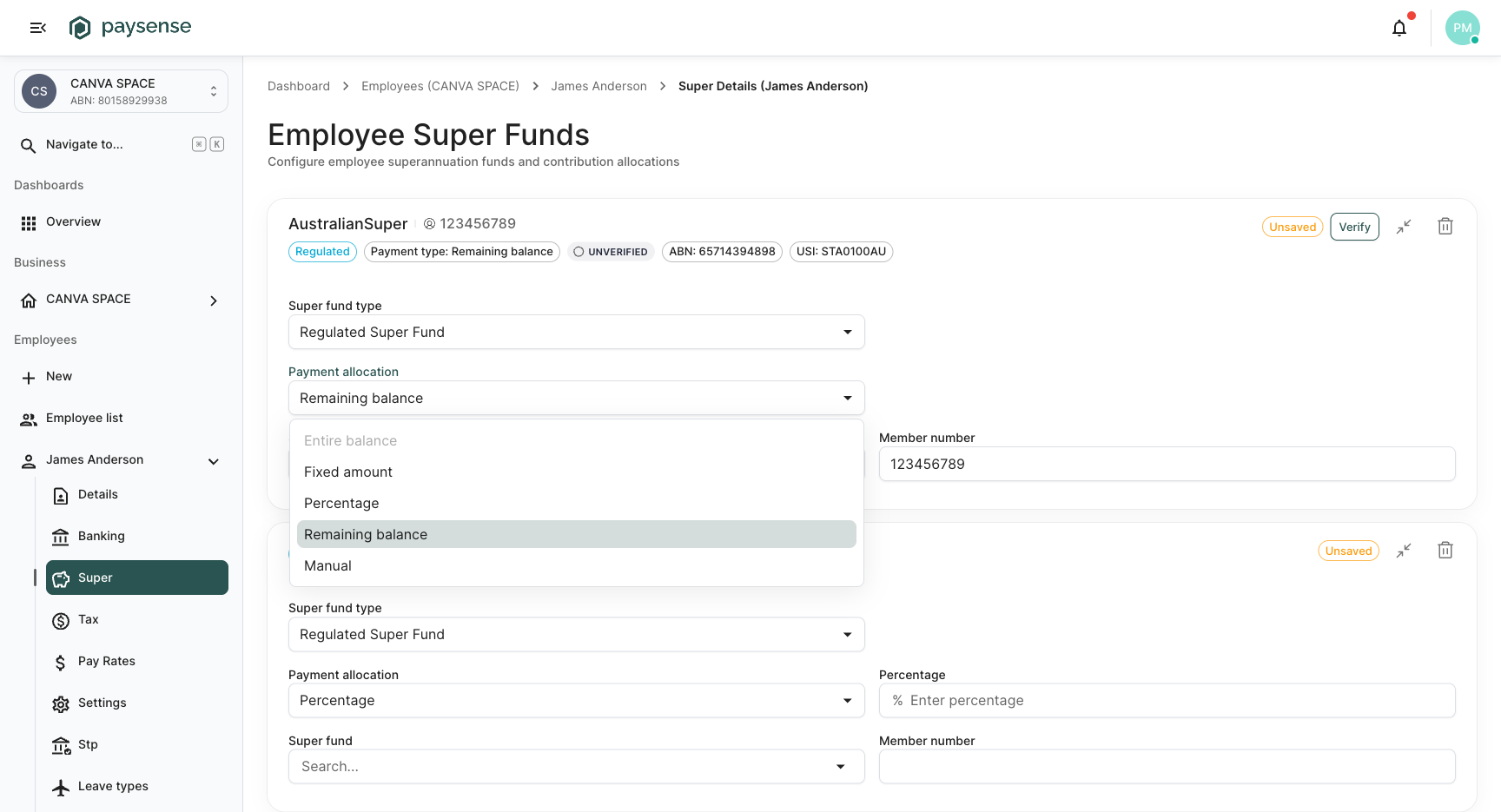
Allocation rules
Paysense enforces these rules to ensure every dollar of contributions is accounted for:
- Entire balance can only be used when the employee has a single super fund
- Only one fund can be set to Remaining balance: it acts as the catch-all for whatever is left
- Percentage allocations across all funds cannot exceed 100%
- If you use Fixed amount or Percentage, at least one other fund must be set to Remaining balance to receive the remainder
- Manual allocation requires that the other funds already cover the full contribution (via Entire balance, Remaining balance, or percentages totalling 100%)
- Not Supplied can only be used when there is exactly one fund entry set to Entire balance
When percentages are applied, Paysense calculates amounts after any fixed allocations have been deducted. The Remaining balance fund automatically absorbs any rounding differences to ensure the total matches the contribution amount exactly.
Adding more funds
Click Add Another Super Fund at the bottom of the page to add additional funds. Each fund can be a different type: for example, a regulated fund receiving the remaining balance and an SMSF receiving a fixed percentage.
To remove a fund, click the delete icon on its card.
What's next
- Manage employee bank accounts: configure where the employee's wages are deposited
- Add an employee: if you haven't completed the employee setup wizard yet
- Run a pay run: super contributions will be split across the employee's funds according to the allocation rules you've configured