Run your first pay run
A pay run in Paysense is a single payroll batch for a group of employees over a fixed period - one week, one fortnight, one month. The pay run handles all the per-employee calculations (gross, tax, super, STSL, net), generates the records that downstream features depend on (payslips, STP events, super contributions), and locks the period once you finalise so the numbers can't drift afterwards.
This tutorial walks through creating a pay run end-to-end: opening the New Pay Run wizard, configuring the period and inclusions, reviewing the details page, and finalising. By the end you'll have a Completed pay run on the list ready to feed payslips, STP, and super.
What you'll need
| Item | Required | Notes |
|---|---|---|
| A business in Paysense | Yes | Created via the Add a business tutorial |
| At least one pay cycle | Yes | The three default cycles (Weekly, Fortnightly, Monthly) cover most cases. See Configure pay cycles for custom cycles. |
| At least one employee on that pay cycle | Recommended | A pay run without employees still creates, but produces zero-value calculations. See Add an employee if your business is fresh. |
The payrun:write scope | Yes | Owners always have it. Other roles need it granted via Manage permissions. |
| The pay period start, end, and payment date | Yes | The wizard helps - pick the start date and the rest is derived from your pay cycle. |
The pay period and the payment date are different things. The period is the time the employee worked (e.g. 17 May – 30 May). The payment date is when the money actually lands in their bank (e.g. 1 June). The payment date is what the ATO uses for STP, so it's the date that matters for compliance.
Step 1: Open the Pay Runs screen
From the left-hand sidebar, expand your business and click Pay Runs > Pay Runs. You'll land on the list at /business/{businessId}/payruns.
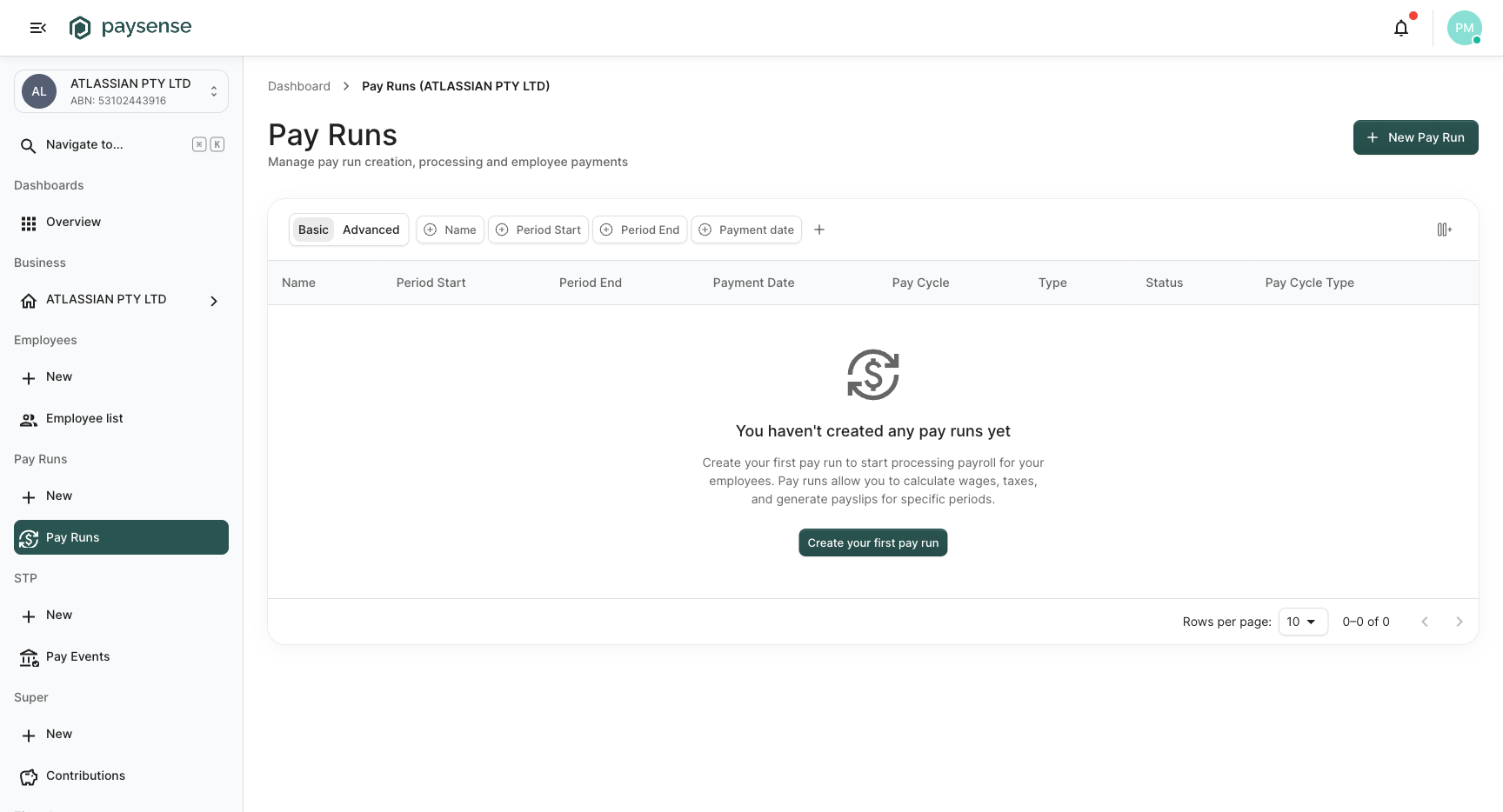
A brand-new business has no pay runs. The empty state offers a single call to action: Create your first pay run. Either that button or the New Pay Run button in the top-right opens the same two-step wizard.
The list columns explain what every pay run tracks:
| Column | Notes |
|---|---|
| Name | The label you typed when creating the pay run, e.g. "May 2026 - Fortnightly" |
| Period Start / Period End | The dates the pay run covers - derived from the pay cycle frequency |
| Payment Date | When the money is scheduled to land in employee accounts |
| Pay Cycle | The pay cycle the pay run belongs to (Weekly, Fortnightly, Monthly, or a custom cycle) |
| Type | Pay Cycle for routine runs, Adjustment for ad-hoc corrections |
| Status | Draft (in progress), Completed (finalised), Failed (errored), or transient states like Processing |
| Actions | View to open the details page and Delete to remove a draft pay run |
Step 2: Open the wizard and fill in pay run details
Click New Pay Run. The dialog opens on Step 1: Pay Run Details with a two-step stepper across the top.
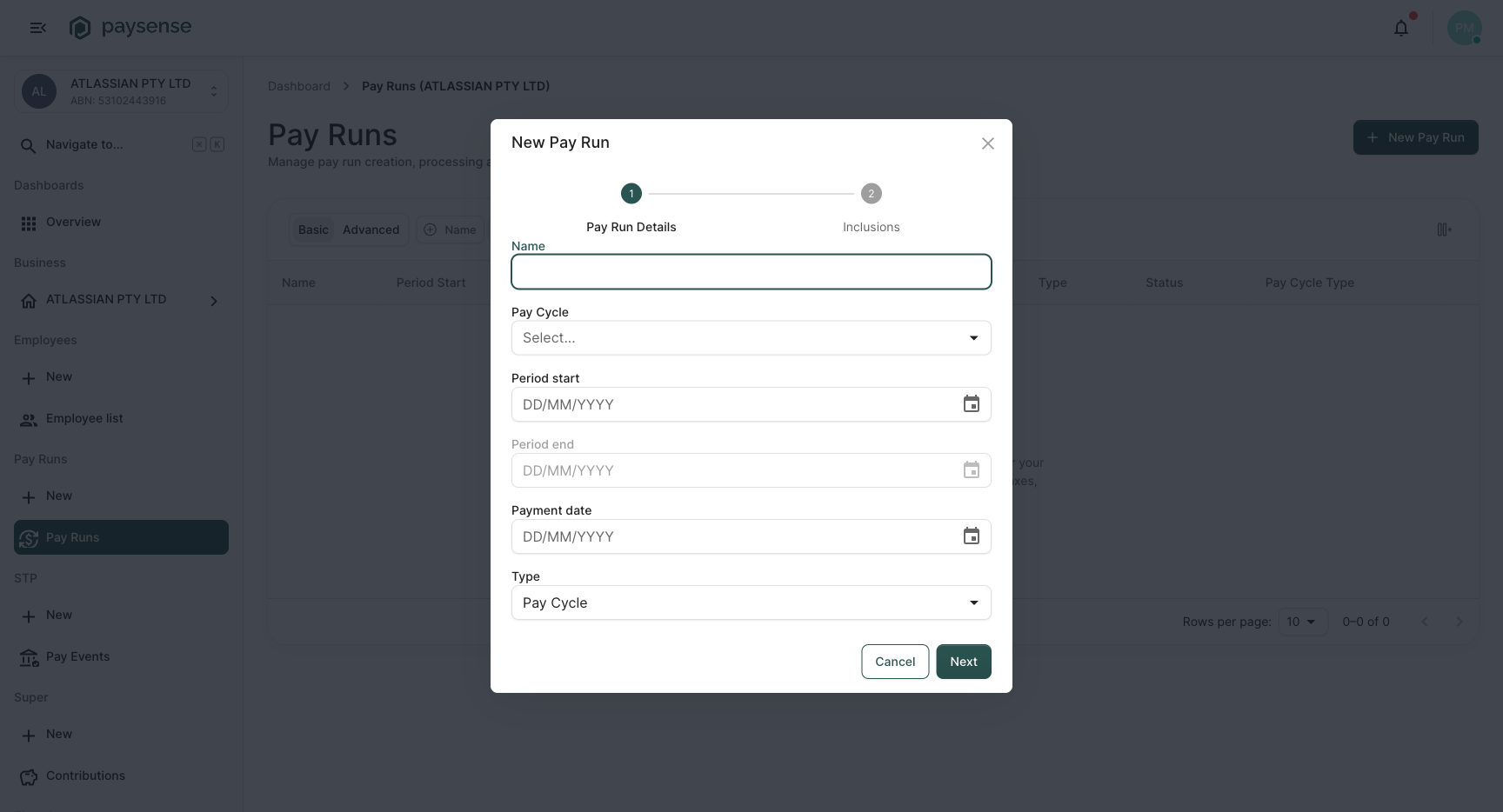
| Field | Required | Notes |
|---|---|---|
| Name | Optional | A label that appears in the list and on payslips. If left empty, Paysense generates one from the pay cycle and period. We recommend setting it - it makes future audits a lot easier. |
| Pay Cycle | Yes | Picks which employees and what frequency this run uses. The dropdown shows every cycle on the business. |
| Period start | Yes | The first day of the pay period |
| Period end | Auto-filled | Derived from Period start plus the pay cycle frequency. Disabled until Period start has a value. |
| Payment date | Yes | When the money is paid out. Almost always 1-3 business days after Period end. |
| Type | Yes | Defaults to Pay Cycle. Switch to Adjustment only when you need an out-of-cycle correction run. |
Click the Pay Cycle dropdown to see every cycle on the business - the defaults plus any custom ones (in the example below, there's a custom Casuals - Fortnightly alongside the three defaults).
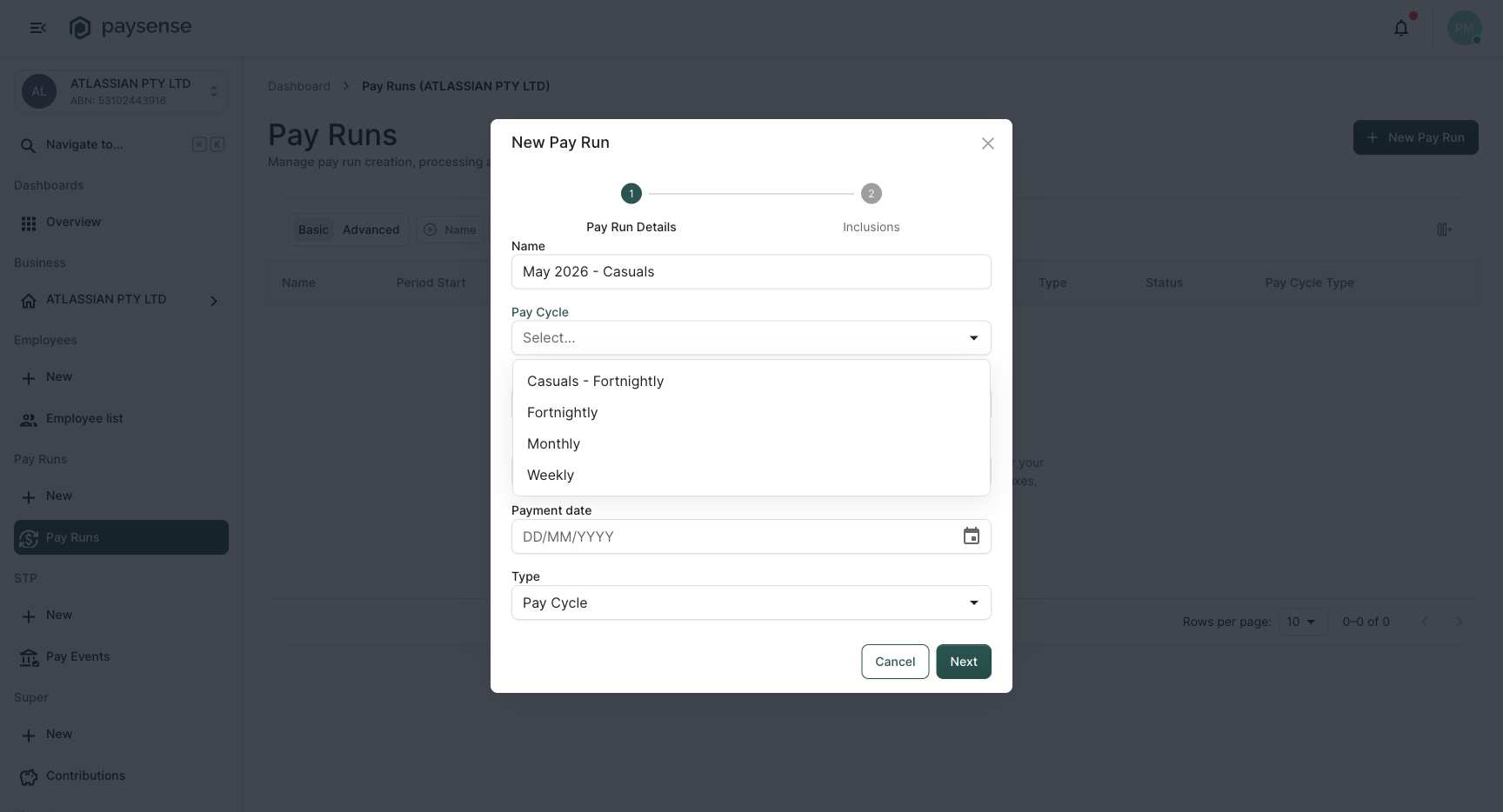
Pick a cycle, fill in Period start and Payment date, and Paysense will auto-fill Period end based on the cycle frequency.
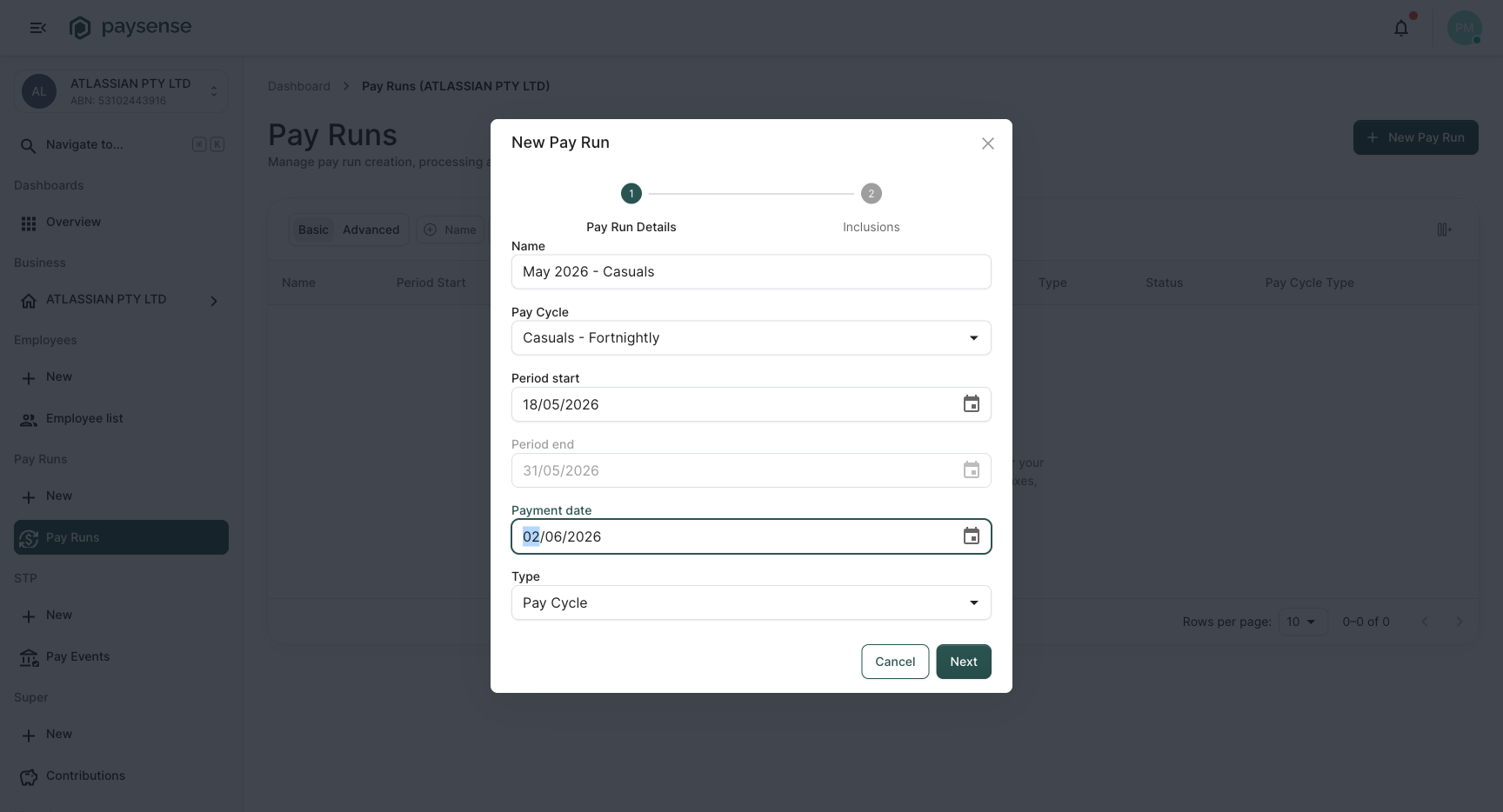
Click Next to advance to Step 2.
Period start must match the natural boundary of the chosen pay cycle. A Monthly cycle starting mid-month is allowed, but for the next run Paysense will use the regular cycle boundary - so your second run's period start might not line up with the first. For routine runs, start each new pay run on the day after the previous run's period end.
After the first pay run is created, the wizard remembers where the cycle ended. The next time you open it on the same pay cycle, Period start auto-populates to the day after the previous run's Period end, and Payment date is offset by the same gap you used last time. You only have to fill the dates from scratch once - every subsequent run is a couple of clicks.
Step 3: Configure inclusions
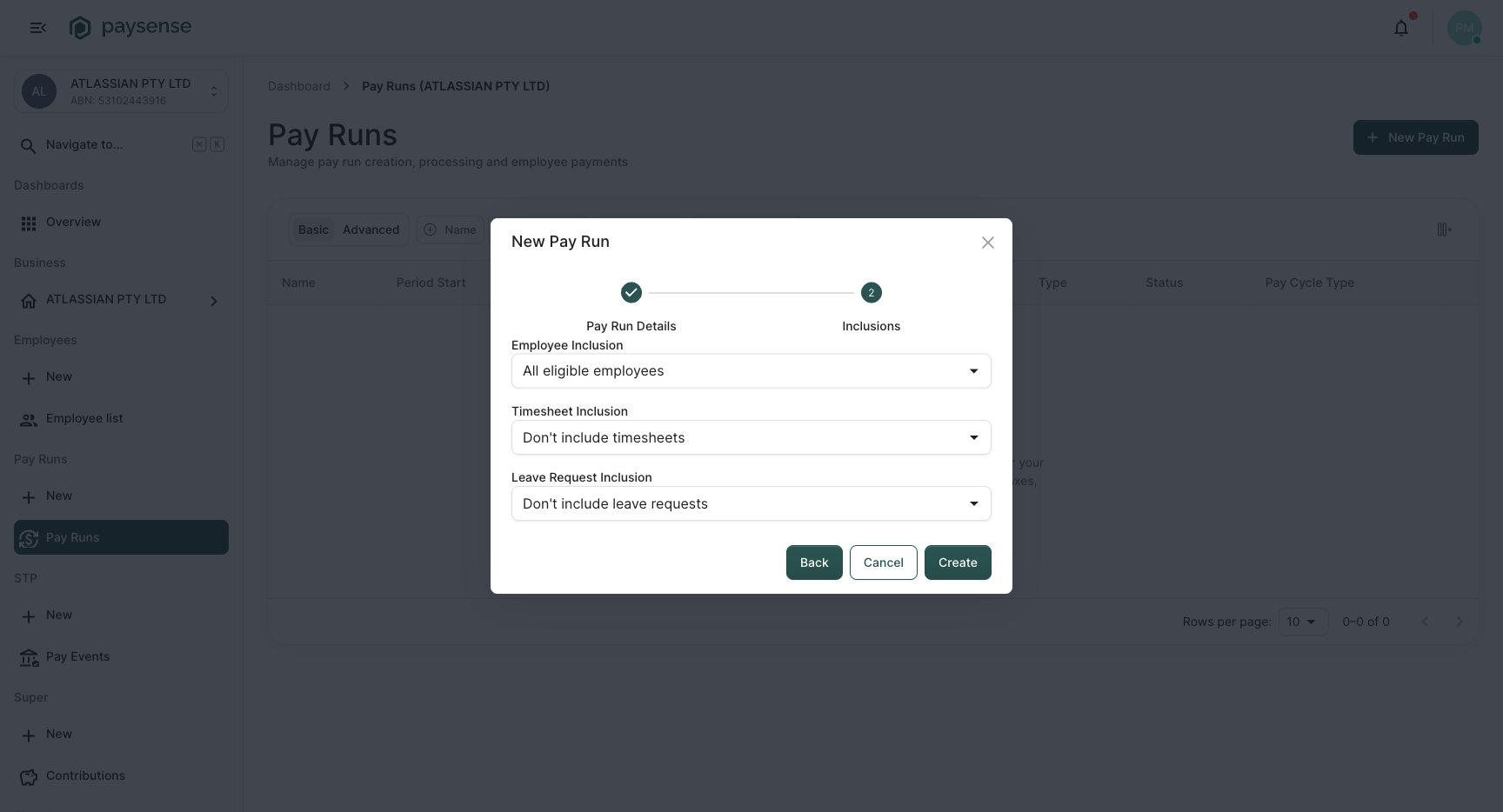
Step 2 controls what gets pulled into the pay run beyond the employees' base pay. There are three drop-downs:
| Field | Options | When to use each |
|---|---|---|
| Employee Inclusion | All eligible employees, Specific employees | Defaults to All eligible - includes every active employee on the chosen pay cycle. Switch to Specific employees for adjustment runs or partial periods. |
| Timesheet Inclusion | Don't include timesheets, Current period only, All unprocessed | Default doesn't import timesheets. Use Current period only to pull approved timesheets dated inside the pay period, or All unprocessed to catch timesheets that missed a previous run. |
| Leave Request Inclusion | Don't include leave requests, Current period only, All unprocessed, Apportion for period | Same pattern as timesheets. Apportion for period spreads a multi-period leave request proportionally across the runs that touch it. |
For a standard pay run with no timesheets or leave requests, leave all three on their defaults and click Create.
If your business doesn't use timesheets at all, leave Timesheet Inclusion on Don't include timesheets. Switching it on for a business with no timesheet setup just creates noise - it's safe to ignore until you onboard timesheets.
Step 4: Watch the create job complete
Clicking Create kicks off a background job that:
- Resolves which employees match the chosen pay cycle and inclusion filter
- Calculates gross, tax, super, STSL, and net for each one
- Generates payslip records, super contribution records, and a pending STP event
You'll see a progress bar in the dialog while the job runs. When it finishes, the dialog flips to a success screen.
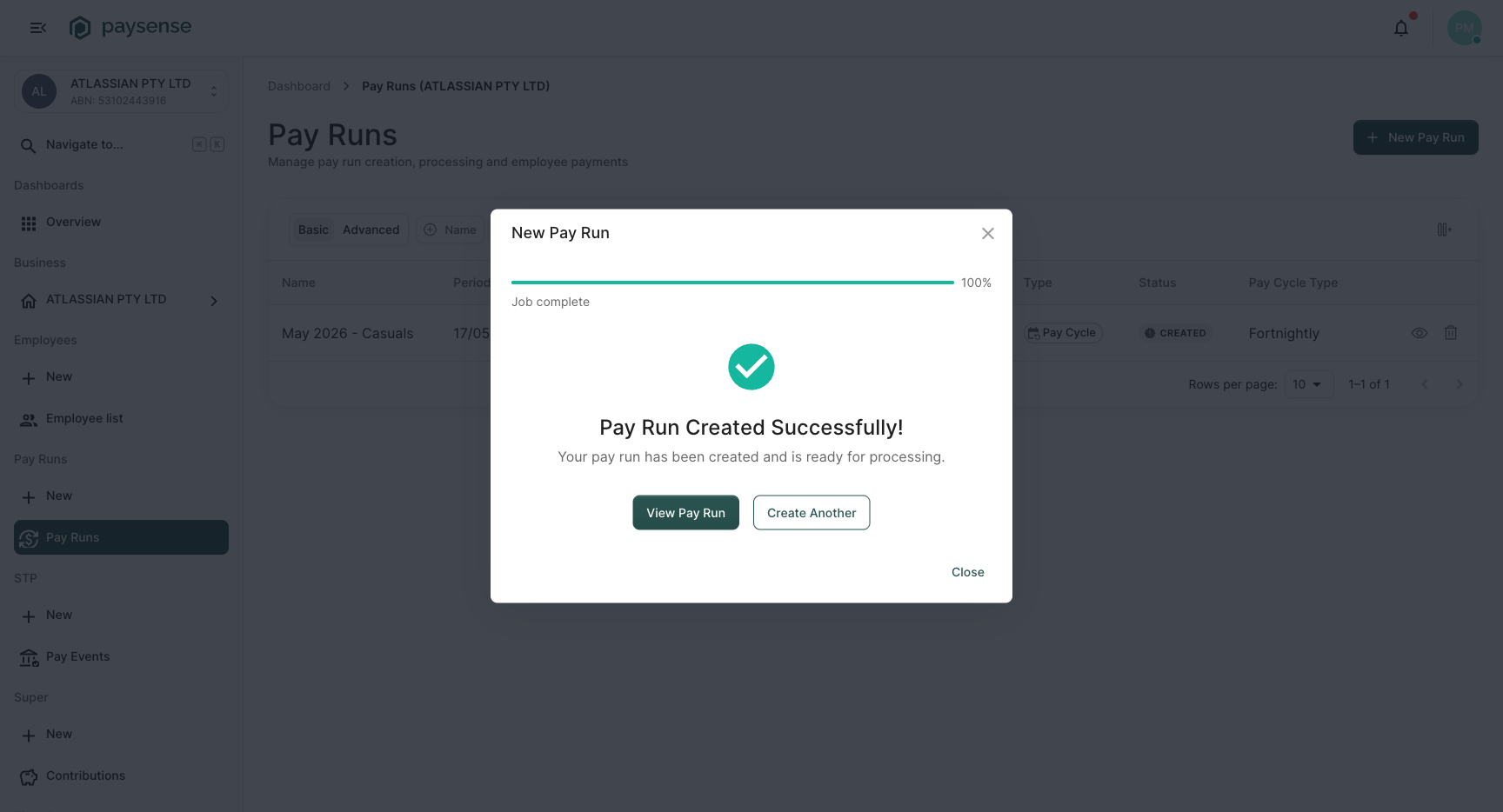
From here you can:
- View Pay Run - jump straight to the details page to review the calculations.
- Create Another - relaunch the wizard at Step 1 to create another run.
The create job is idempotent but the pay run name is not. If you click Create Another with the same period, you'll get two pay runs covering the same dates - rarely what you want. Delete the duplicate from the list, or use the Adjustment type instead.
Step 5: Review the pay run details
The details page at /business/{businessId}/payruns/{payRunId} is where you spend most of your time. The header shows the pay run name, current status badge, and a toolbar of actions; underneath is a summary card with totals, then the per-employee calculations table.
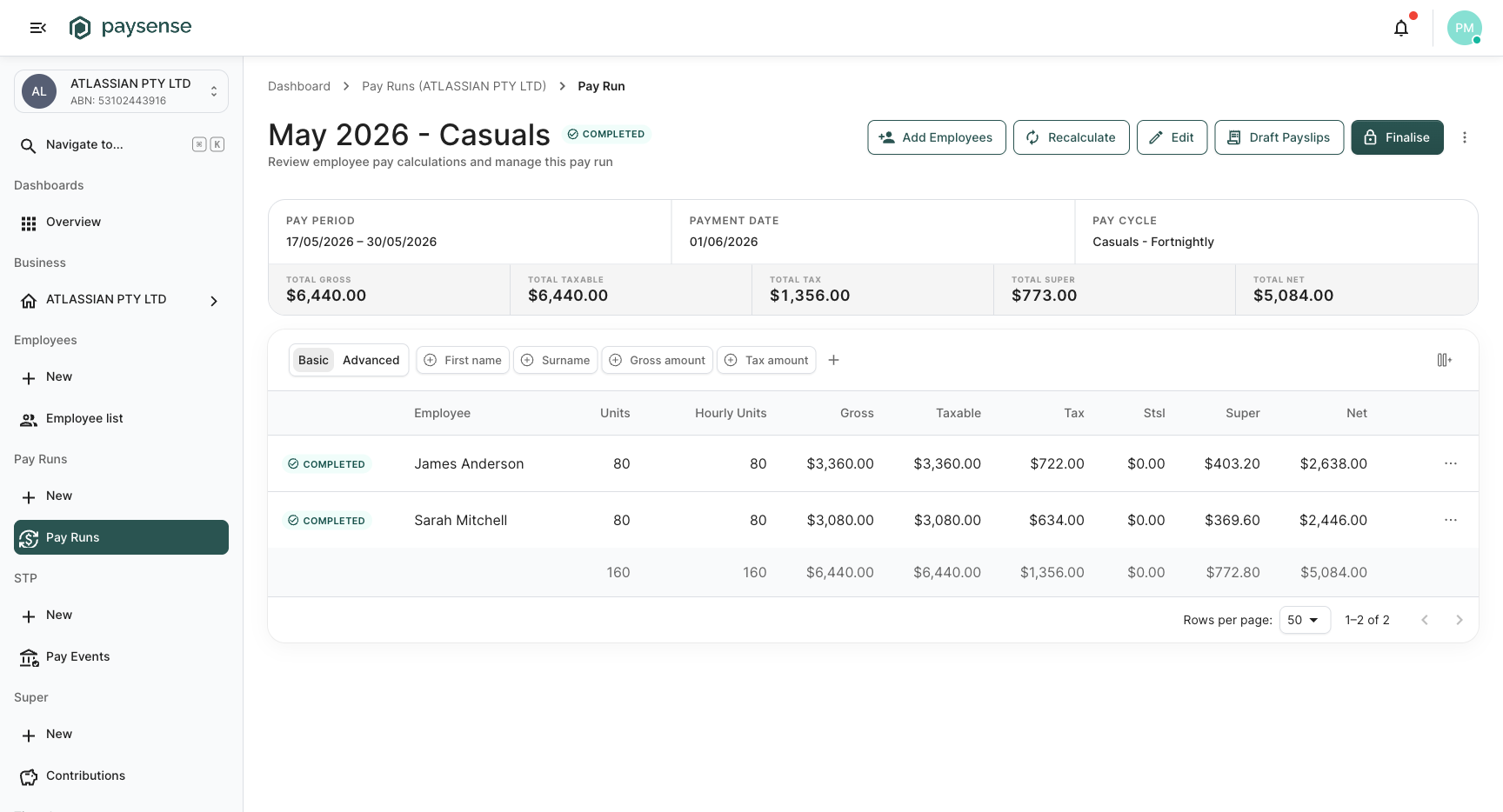
The summary card surfaces the five numbers payroll teams actually care about:
| Field | What it shows |
|---|---|
| Total Gross | Sum of all earnings before tax |
| Total Taxable | Sum of taxable earnings (gross minus pre-tax deductions) |
| Total Tax | PAYG withholding the ATO will receive |
| Total Super | Super Guarantee + voluntary contributions for the period |
| Total Net | What lands in employee bank accounts |
The toolbar exposes the actions you'll use most:
| Action | Notes |
|---|---|
| Add Employees | Pull additional employees into a draft pay run - useful when Employee Inclusion was set to Specific employees |
| Recalculate | Re-runs the calculations after you edit an employee's pay, leave, or timesheet |
| Edit | Edit the pay run header (name, dates, payment date) |
| Draft Payslips | Preview payslips before finalising - they don't go to employees yet |
| Finalise | Lock the pay run, generate final payslips, and queue the STP event |
| More options | Delete, regenerate, or other less-common actions |
The employee table lists every employee included with their per-row gross, taxable, tax, STSL, super, and net. Click any row to drill into the per-employee calculation view.
Always click Recalculate after changing anything that affects pay (employee details, leave requests, timesheet edits). The summary totals reflect the last calculation - if you edit a pay rate but forget to recalculate, the displayed totals will be stale until you do.
Step 6: Finalise the pay run
When the numbers look right, click Finalise in the toolbar. Paysense:
- Locks the pay run - no further edits to amounts, employees, or dates
- Generates the final payslips (visible to employees via the portal once published)
- Queues an STP pay event ready to lodge with the ATO
- Generates super contribution records ready to submit at the next super run
The status badge flips from Draft to Completed and you'll see the pay run on the list with the new status.
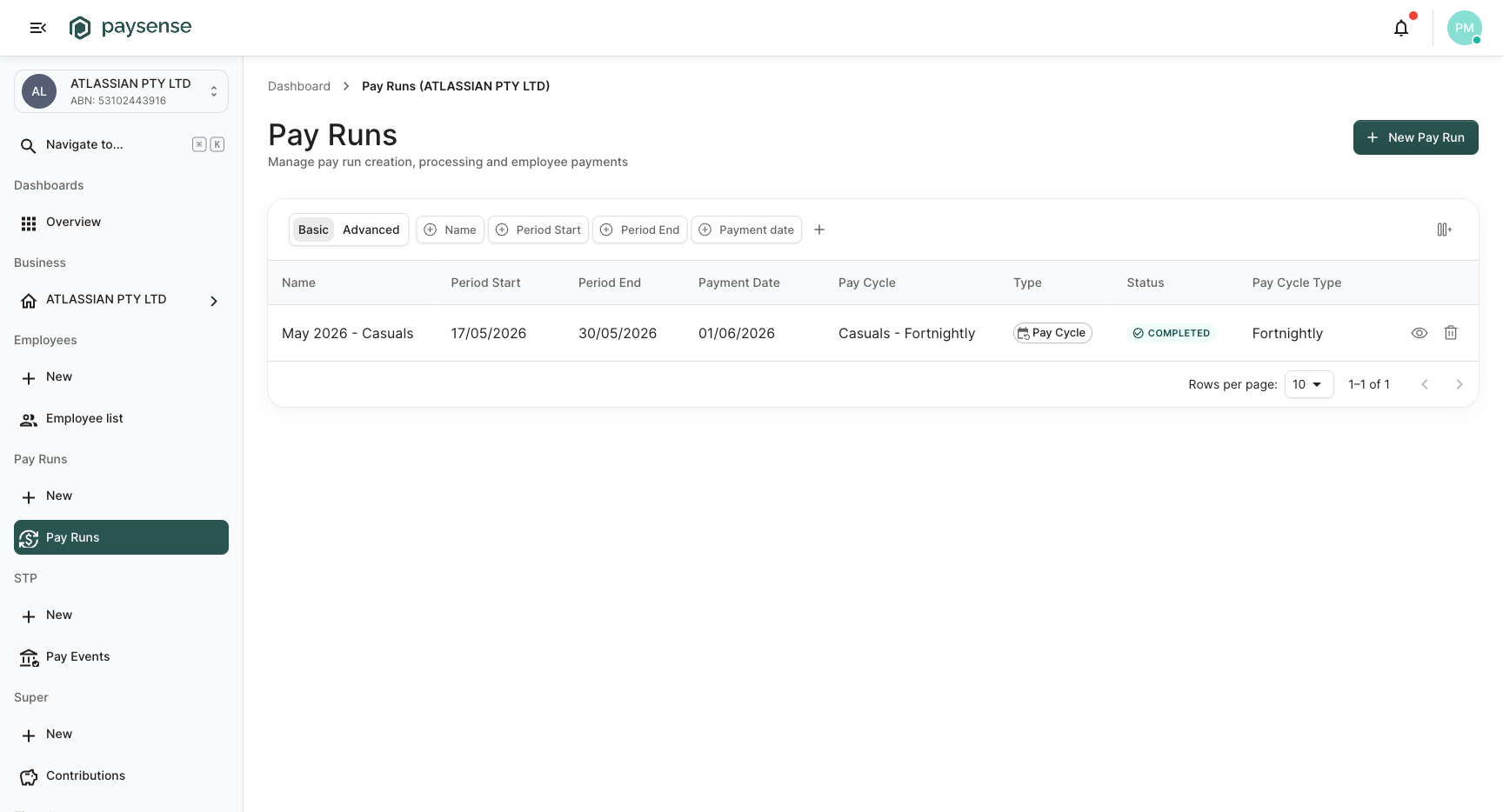
Finalising is one-way for amount edits. You can still update the payment date or generate adjustments, but once the run is Completed you can't change an employee's gross amount inside it - you'd create an Adjustment pay run instead. Triple-check before you click Finalise.
What's next
A Completed pay run is the starting point for several downstream tasks:
- Lodge the STP event - head to STP > Pay Events and submit the auto-generated event to the ATO. See Lodge an STP event.
- Submit super contributions - Super > Contributions will show pending records ready to validate and submit to Beam or your clearing house. See Lodge a super contribution.
- Publish payslips - until you publish, employees can't see their payslips in the portal. The Draft Payslips action lets you preview; More options has the publish action.
- Plan the next pay run - the next routine run picks up where this one ended. Most teams set a recurring calendar reminder on the day after Period end.
Troubleshooting
| Symptom | Likely cause | What to do |
|---|---|---|
| Create button is disabled in the wizard | Required fields are empty or invalid | Check the name, pay cycle, period start, and payment date. The wizard surfaces inline errors under each field. |
| Wizard finishes but the details page shows zero employees | The business has no employees on the chosen pay cycle, or Specific employees was selected with none picked | Add employees to that cycle, or use Add Employees on the details page |
| Totals all show $0.00 after Recalculate | Employees have $0 base pay rate or no pay type assigned | Open an employee from the table, click into their pay run row, and check Pay rate and Primary pay type |
| Finalise errored with "STP not configured" | Business doesn't have ATO settings filled in yet | Head to ATO reporting in the sidebar and complete the registration first |
| Pay run shows up twice for the same period | Wizard was run twice by accident | Delete the duplicate from the list (uses the trash icon in the Actions column). Only Draft runs can be deleted. |
| Super totals look wrong | Employee's super fund details are missing or fund USI couldn't be resolved | Open the employee, check their Super fund section. Recalculate the pay run after correcting. |
| Period end auto-calculated to a date I didn't expect | The cycle frequency rolled forward. For example, picking 18 May on a Fortnightly cycle gives period end 31 May, not the start of the next pay cycle. | Adjust Period start to the cycle boundary. Configure pay cycles explains how the cycle anchor date is set. |
If you hit a problem the table doesn't cover, the Audit Logs report (under Reports) records every pay-run create, edit, recalculate, and finalise event - useful when reconstructing what happened to a misbehaving run.