Lodge an STP event
A pay event is the Single Touch Payroll report Paysense sends to the ATO for a pay run. It carries each employee's year-to-date gross, tax withheld and employer super, and the ATO expects one for every pay run on or before the payment date.
Paysense creates the pay event for you when you finalise a pay run, then walks it through three states: you review the figures, sign a declaration to approve it, and lodge it with the ATO.
This tutorial walks that sequence end-to-end for the August 2026 - Casuals pay run on the CANVA SPACE business, which pays a single casual employee, James Anderson, on the Casuals - Fortnightly cycle. By the end you'll have a pay event with the status Approved and a lodgement status of Submitted.
What you'll need
| Item | Required | Notes |
|---|---|---|
| A finalised pay run | Yes | The pay event is generated during finalisation. See Run your first pay run. |
| ATO settings saved for the business | Yes | The reporting type decides which declaration you sign, and the declaration will not render without it. See Configure ATO settings. |
| An STP Software ID linked in ATO Access Manager | Yes | Paysense sends the report under your business's ABN. Without the software ID linked, the ATO rejects it. See Set up STP via MessageXchange (SSID). |
The stp:read scope | Yes | Opens STP → Pay Events. |
The stp:write scope | Yes | Creates, edits, regenerates and deletes pay events. |
The stp:submit scope | Yes | Shows the Approve and Lodge buttons. Owners always have it; other roles need it granted via Manage permissions. |
Approving and lodging are two separate actions, so you can review and approve a pay event as soon as the pay run is finalised and leave the actual lodgement until the payment date.
Step 1: Create the pay event while finalising the pay run
From the left-hand sidebar, click Pay Runs → Pay Runs, open your pay run, and click Finalise in the top-right. Paysense opens the Pay Run Finalisation wizard at /business/{businessId}/payruns/{payRunId}/finalise with three steps across the top: Pay Run Finalisation, STP Lodgement, and Super Contributions.
Set Payslip dispatch on the first step, then click Next to reach STP Lodgement. This step is where the pay event is created.
| Field | Required | Notes |
|---|---|---|
| STP Lodgement Action | Yes | Create Pay Event or Do Nothing. Defaults to Create Pay Event, which is what generates the pay event. Choose Do Nothing only if you intend to build the pay event yourself later. |
| STP Lodgement Type | Yes | Defaults to Regular, the type for a routine pay run. Hidden when STP Lodgement Action is Do Nothing. |
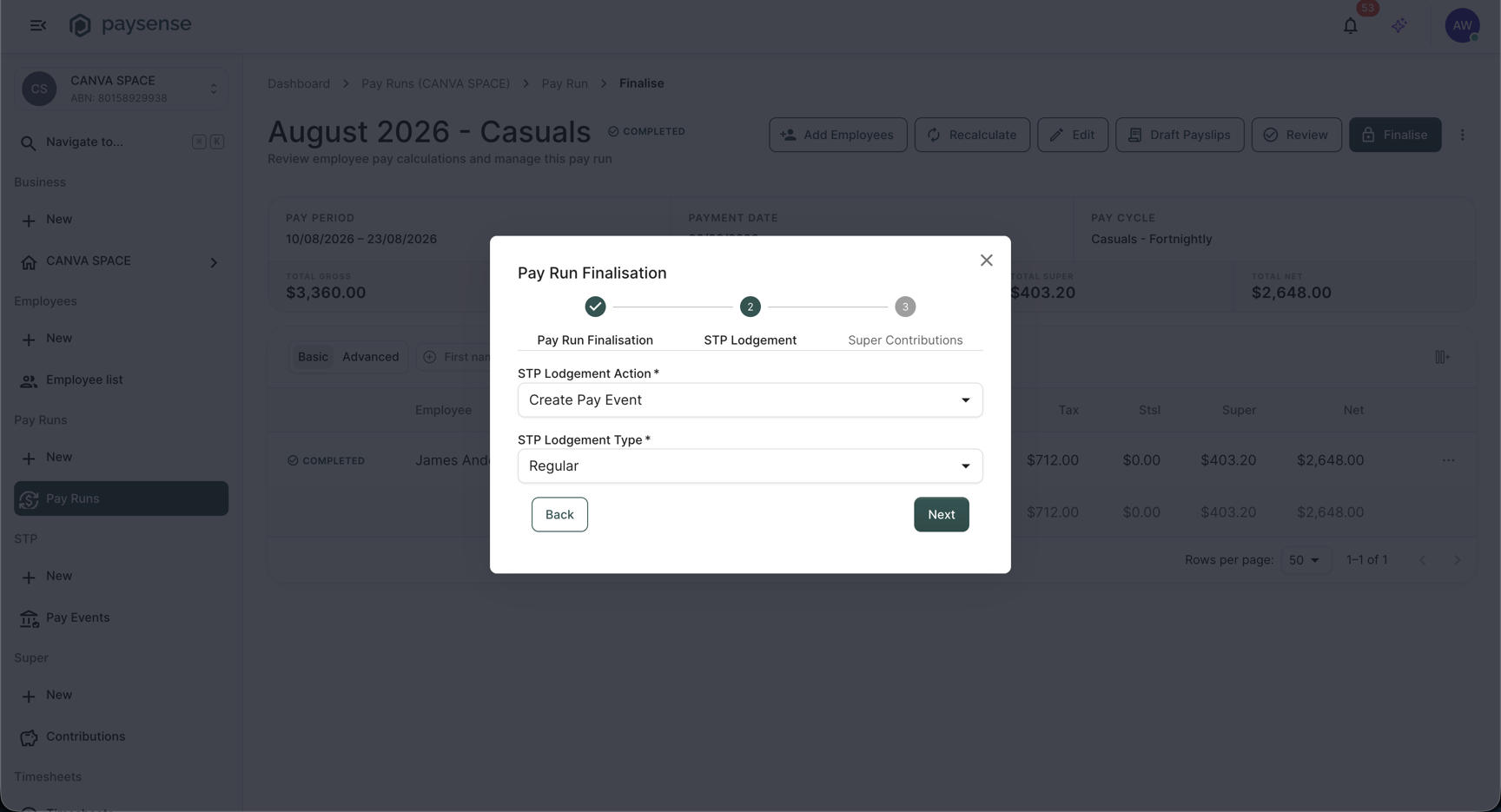
Leave both fields on their defaults, click Next, choose a Super Contribution Action on the last step, then click Finalise. Paysense shows a Pay Run Finalised confirmation, and the pay run page picks up an STP has not been lodged. banner with a View STP details button that jumps straight to the new pay event.
The pay event is a snapshot of the pay run as it stood at finalisation. If you later need to correct the figures, you create an adjustment pay run and lodge its own pay event rather than editing this one.
Step 2: Open the pay event
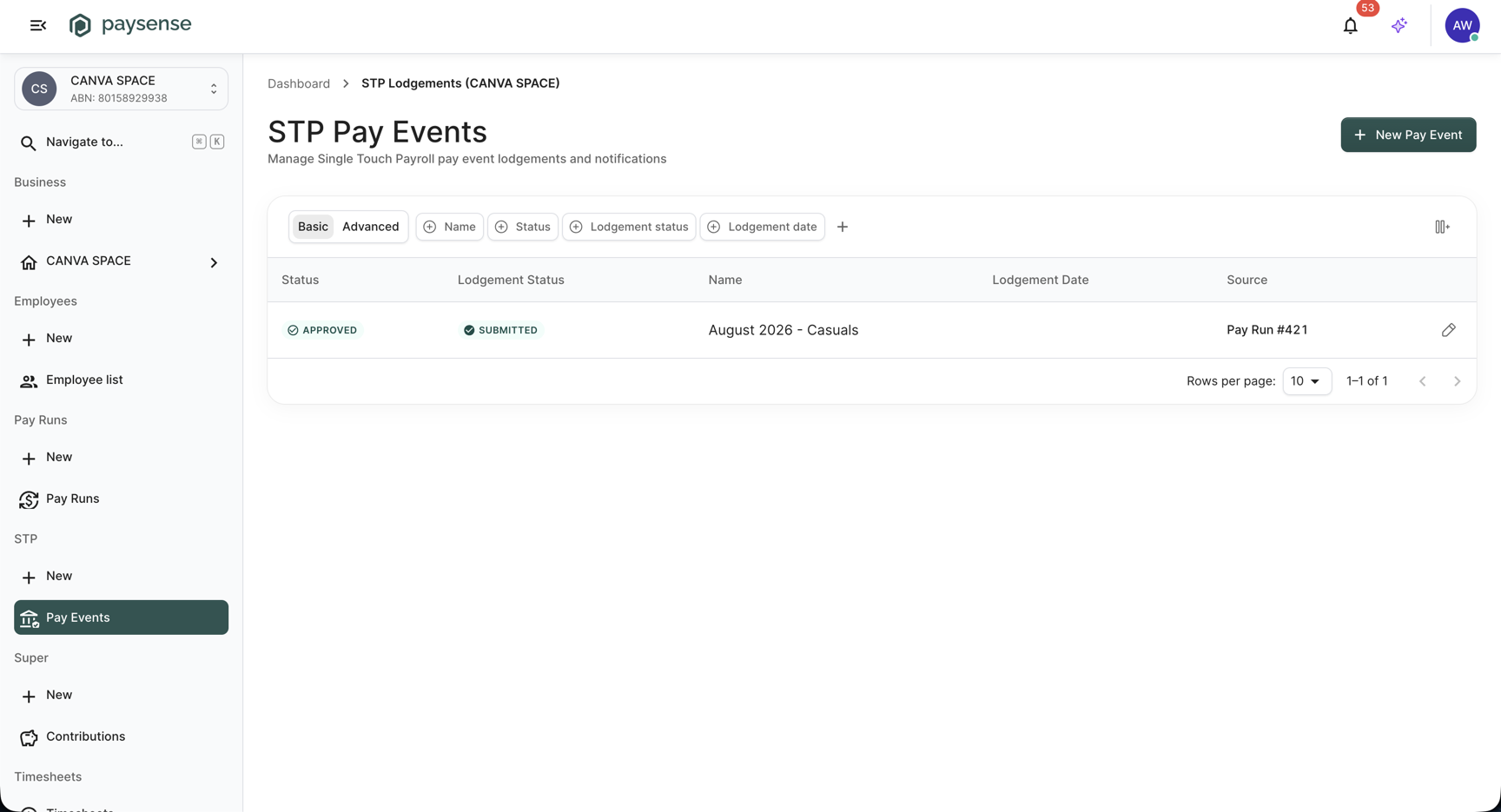
From the left-hand sidebar, click STP → Pay Events to land on the list at /business/{businessId}/stp. Your new pay event is there, named after the pay run it came from.
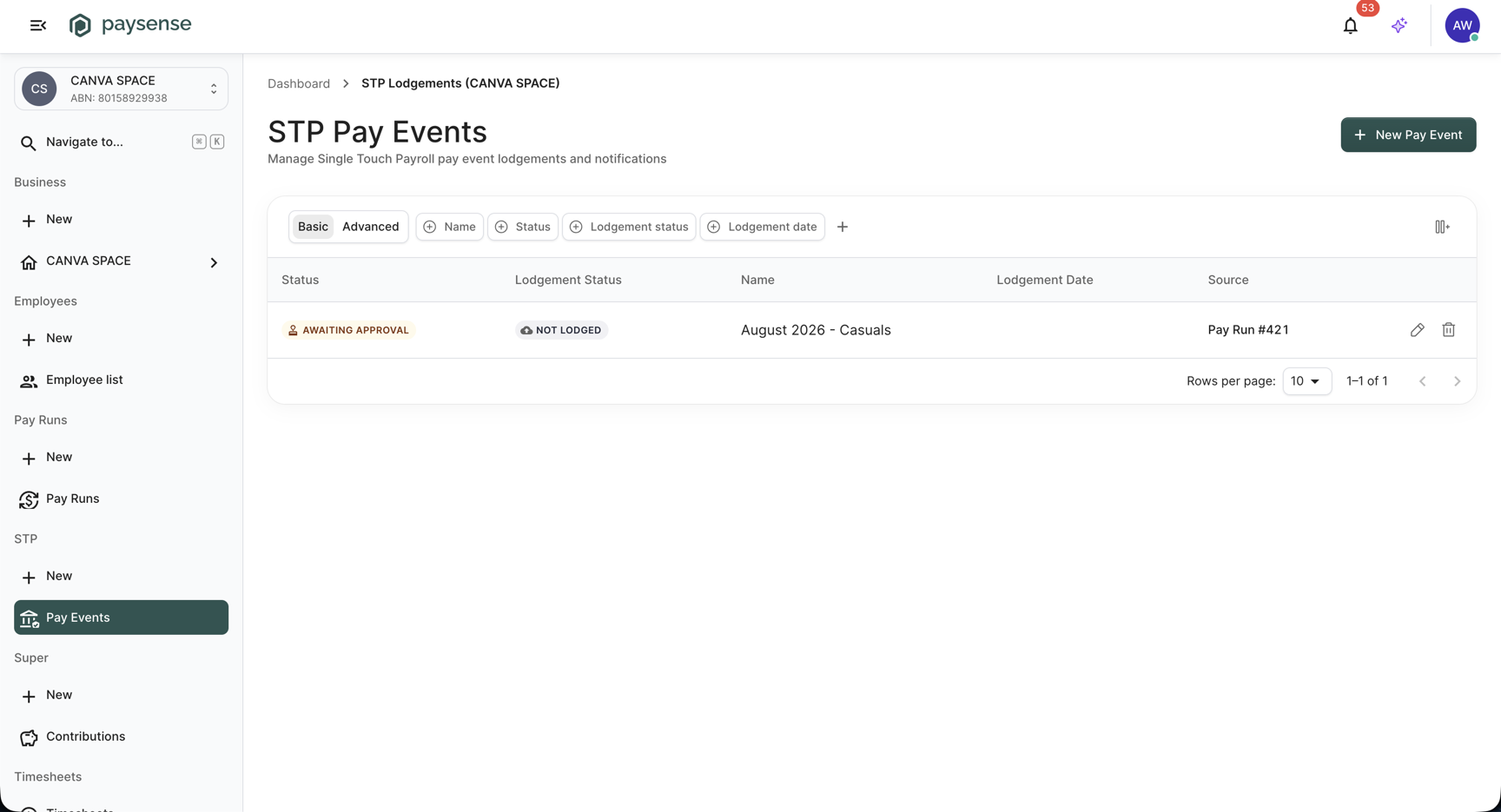
The list tracks two independent statuses, which is the thing to understand before going further:
| Column | What it shows |
|---|---|
| Status | Where the pay event is in the Paysense approval workflow: Created, Pending, Generation In Progress, Error, Awaiting Approval, Approved, Published, or Changed. |
| Lodgement Status | Where the report is with the ATO: Not Lodged, Pending, In Progress, Validating, Awaiting Submission, Submitted, Received by ATO, Lodged, or Error. |
| Name | Taken from the pay run at creation. |
| Lodgement Date | Set when you lodge. Empty until then. |
| Source | The pay run the event was generated from, for example Pay Run #421. |
| Actions | Edit opens the pay event, and Delete removes it. Delete is only available while the lodgement status is Not Lodged or Error. |
A freshly created pay event reads Awaiting Approval and Not Lodged. Click the row to open it.
Step 3: Review the figures
The details page at /business/{businessId}/stp/{payEventLodgementId} is what you check before approving. The header carries the pay event name and its status badge, and the summary card holds the three totals the ATO receives.
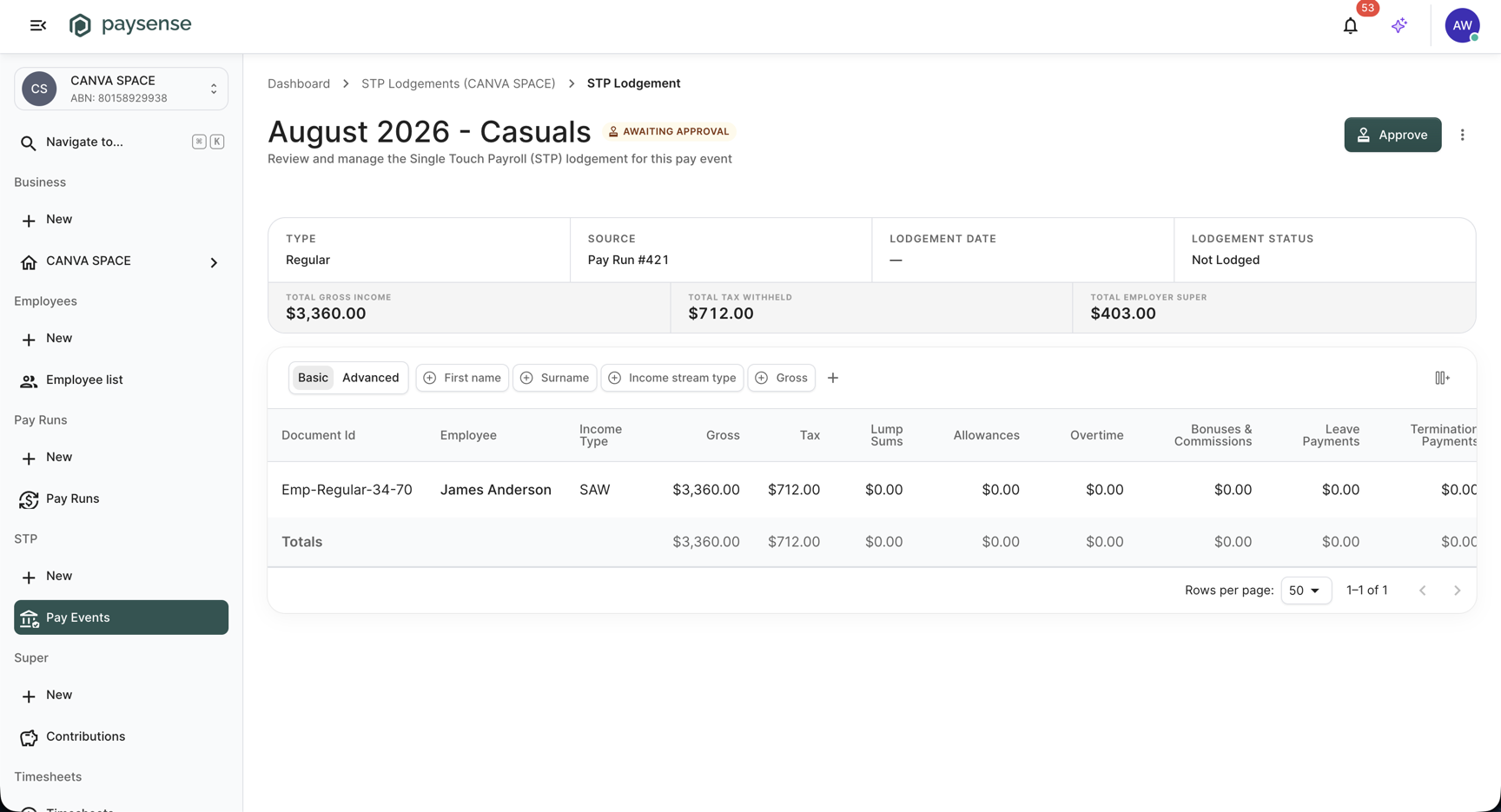
| Field | What it shows |
|---|---|
| Type | The lodgement type chosen at finalisation, normally Regular. |
| Source | The pay run behind the event. |
| Lodgement Date | Shows a dash until you lodge. |
| Lodgement Status | Not Lodged at this point. |
| Total Gross Income | Sum of gross earnings reported. |
| Total Tax Withheld | PAYG withholding reported. |
| Total Employer Super | Employer super reported. |
Underneath, one row per employee gives Document Id, Employee, Income Type, Gross, Tax, Lump Sums, Allowances, Overtime, Bonuses & Commissions, Leave Payments, Termination Payments, Super, Deductions, Start Date, Tax Treatment, and Payment Basis, with a Totals row at the foot. Click any employee row to open their individual STP detail.
If a figure is wrong, use More options in the top-right: Regenerate rebuilds the pay event from the current pay run data, and Edit changes which pay runs the event covers. Both are only available while the pay event has not been lodged.
Check Total Tax Withheld and Total Employer Super against the pay run before approving. Once the pay event is lodged you cannot edit it - correcting it means lodging a further pay event.
Step 4: Sign the declaration and approve
Click Approve in the top-right. Paysense opens the STP Pay Event Lodgement Declaration at /business/{businessId}/stp/{payEventLodgementId}/declaration.
The declaration you see depends on the reporting type saved in your ATO settings:
| Reporting type | Template | Title |
|---|---|---|
| Reporting as a business | EPS | Employer Payroll Software Declaration |
| Reporting as an intermediary | EMPS | Employer (Multi ABN) Payroll Software Declaration |
| Reporting as a registered tax agent | RAPS | Registered Agent Payroll Software Declaration |
| Field | Required | Notes |
|---|---|---|
| Declaration checkbox | Yes | Signs the declaration with your logged-in credentials, and the statement names you and your email address for the audit trail. Approve stays disabled until it is ticked. |
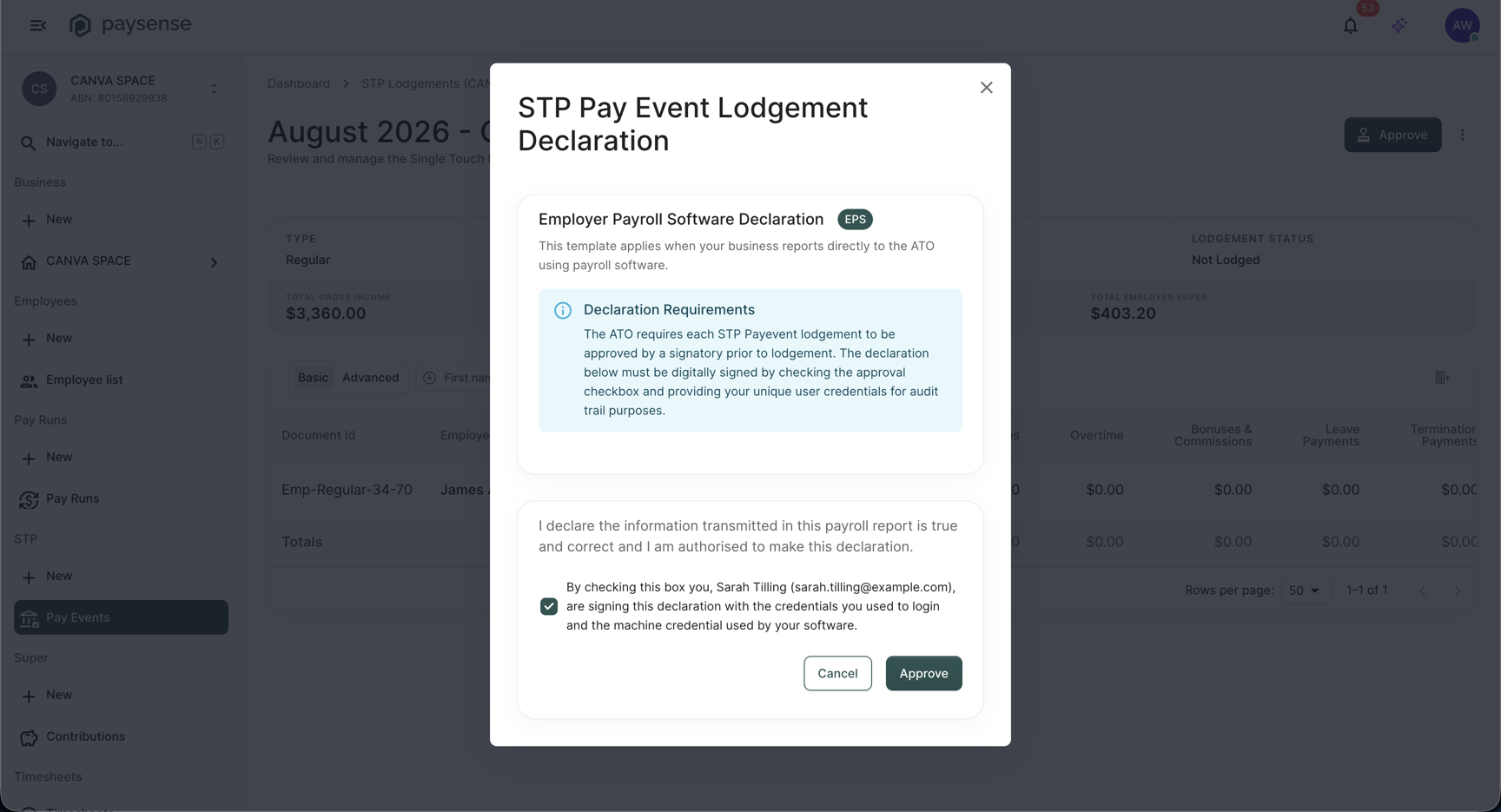
Read the declaration, tick the box, and click Approve. Paysense returns you to the details page and the status badge flips from Awaiting Approval to Approved.
The declaration is a legal statement that the payroll information is true and correct. Only tick it if you are authorised to make that declaration for the business.
Step 5: Lodge with the ATO
With the pay event approved, the primary button in the top-right changes from Approve to Lodge.
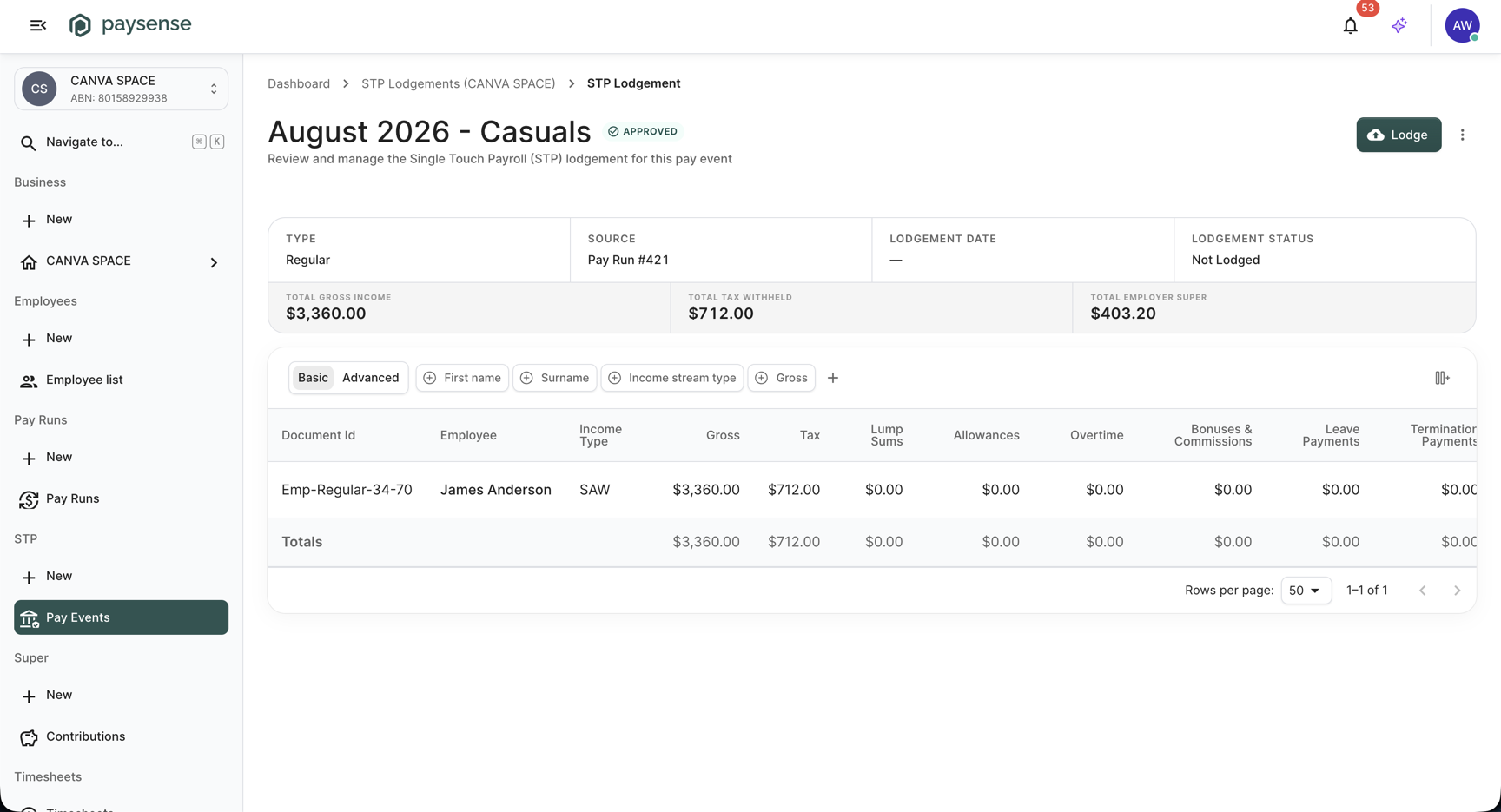
Click Lodge. Paysense queues a background job that builds the STP XML, validates it, and submits it to the ATO through your STP provider. The lodgement status moves through Pending and Awaiting Submission to Submitted.
Lodge transmits the report to the ATO under your business's ABN. There is no undo. Make sure the figures in Step 3 are right before you click it.
Step 6: Confirmation
Once the submission goes through, the details page shows an information banner reading STP lodgement is in progress., the Lodgement Date fills in, and Lodgement Status reads Submitted. The Lodge button is gone.
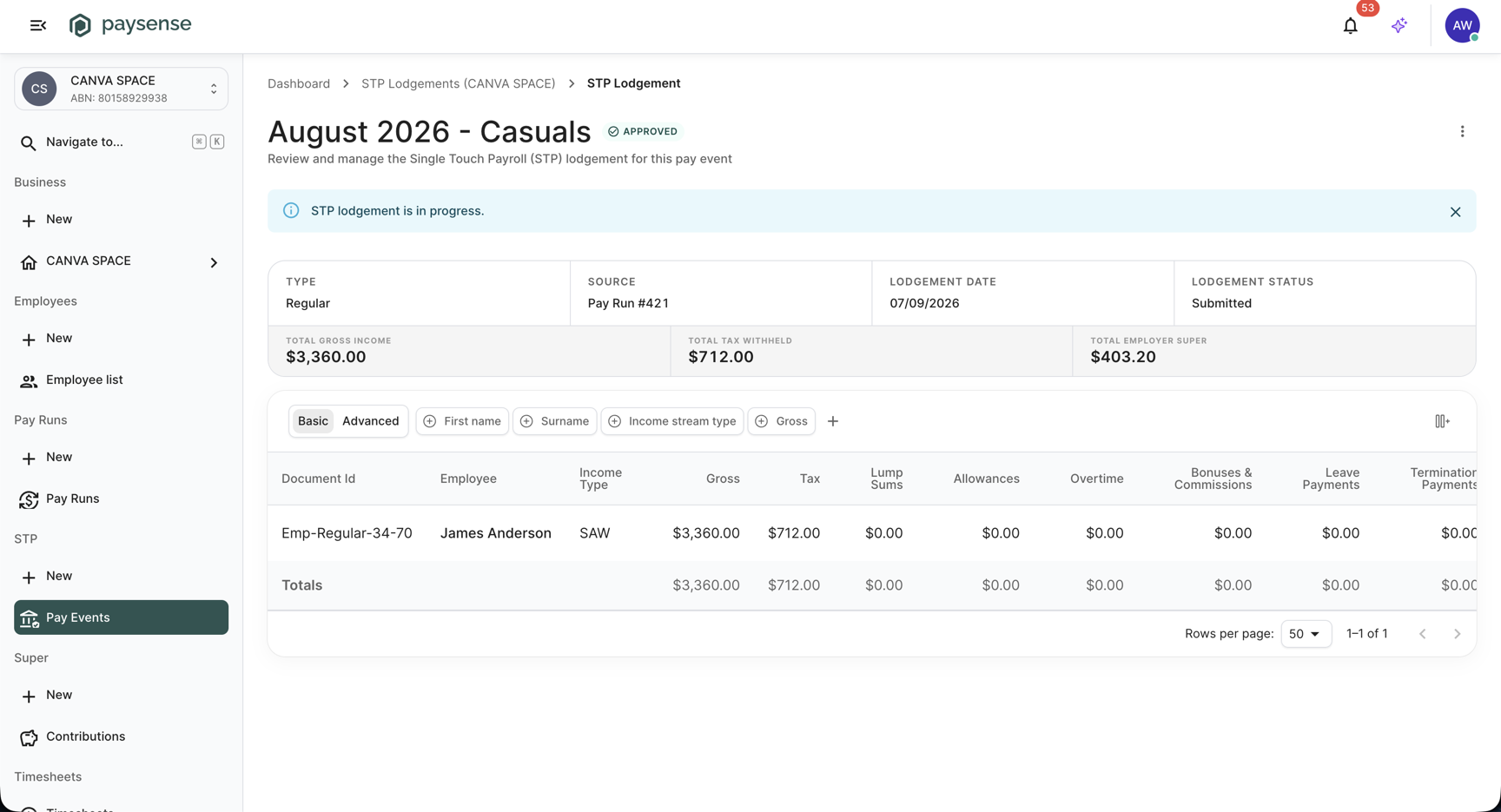
Back on STP → Pay Events, the row now reads Approved and Submitted, and the delete action is no longer offered.
Submitted means the ATO has the report but has not yet returned its response. Paysense polls for that response every 15 minutes and updates the lodgement status when it arrives:
| Lodgement status | Banner | What it means |
|---|---|---|
Submitted | STP lodgement is in progress. | Sent, waiting on the ATO. |
Lodged | STP lodgement processed. | Accepted with no issues. |
Lodged With Warnings | STP lodgement processed with warnings. | Accepted, but the ATO flagged something. |
Lodged With Errors | STP lodgement processed with errors. | The ATO rejected part of the report. |
Error | STP lodgement has failed. | The submission itself failed. |
Once a response is back, the banner carries a View response → button that opens the Pay Event Result dialog with the ATO's reply.
Create a pay event manually
Most pay events come from finalising a pay run, but you can also build one yourself - for an end-of-financial-year finalisation, an update event, or to zero out an employee. Click New Pay Event on the STP Pay Events screen.
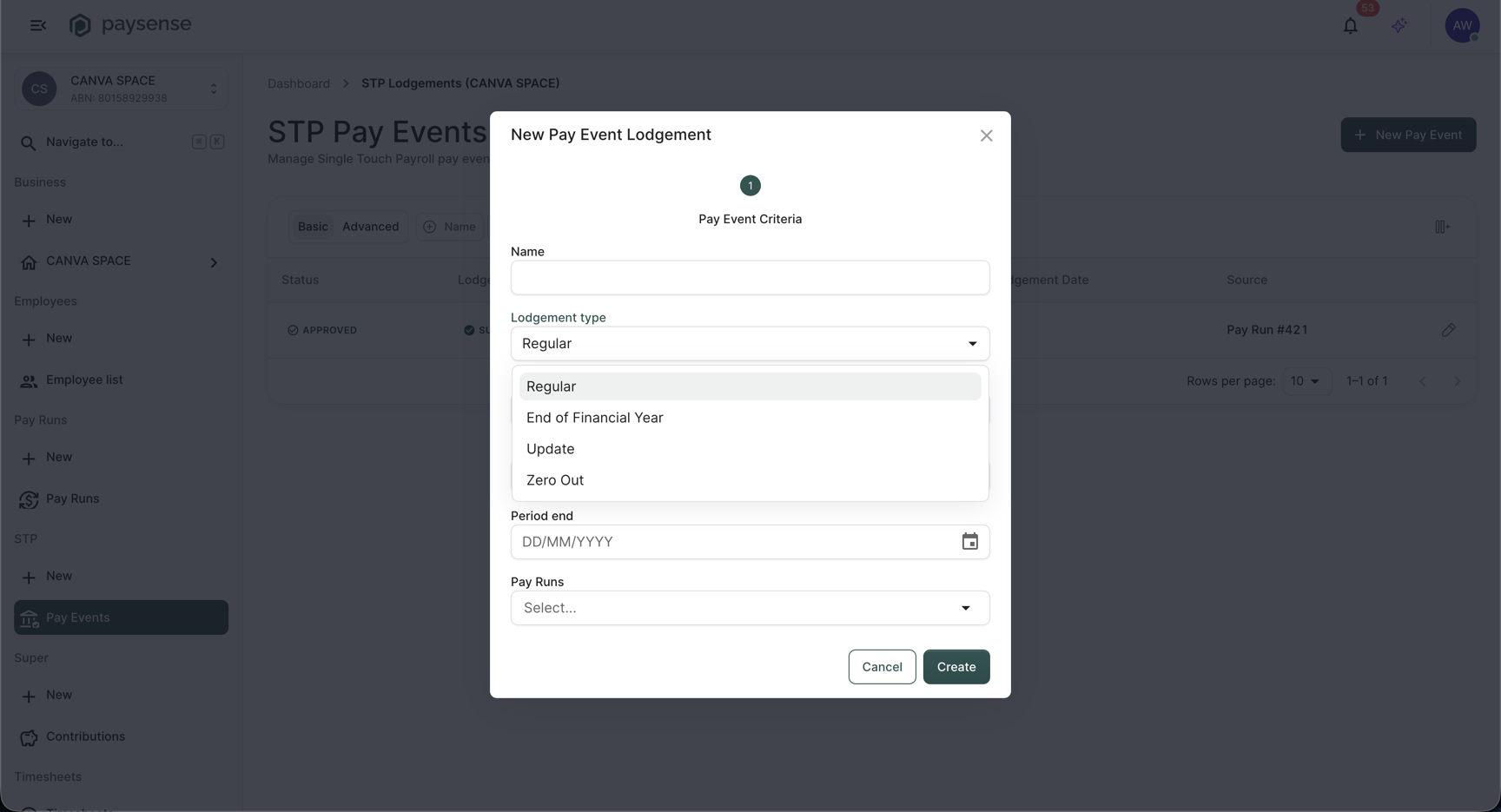
| Field | Required | Notes |
|---|---|---|
| Name | No | Free text. Becomes the row name in the list and the title on the details page. |
| Lodgement type | Yes | Regular, End of Financial Year, Update, or Zero Out. The type decides which of the fields below apply. |
| Pay cycle | Yes for Update and End of Financial Year | Selects the employees the event covers. For Regular it only narrows the Pay Runs list, and sending it with a Regular event is rejected with "Lodgement type Regular only supports criteria with pay run ids". |
| Period start, Period end | No | Filter the Pay Runs list only. They are not part of the pay event itself. |
| Pay Runs | Yes for Regular | Only finalised pay runs appear. A pay run that already has a pay event cannot be selected again. |
| Employees | Yes for Zero Out | The employees whose year-to-date figures are being zeroed. |
| As of date | No | Shown for every type except Regular. Dating an update into a previous tax year is rejected unless that year already has a submitted lodgement. |
Click Create. Paysense confirms with Pay event created and offers View Pay Event and Create Another. From there the review, declaration and lodgement steps are exactly the same.
What's next
Now that the pay event is with the ATO, the rest of the post-pay-run work is:
- Submit super contributions - Super → Contributions lists the contribution records generated at finalisation, ready to validate and send to your clearing house. See Lodge a super contribution.
- Publish payslips - if you chose
Don't send payslipswhen finalising, employees cannot see their payslips until you publish them. Tutorial coming soon. - Run the next pay run - the following pay run picks up where this one ended, and finalising it creates its own pay event. See Run your first pay run.
Troubleshooting
| Symptom | Likely cause | What to do |
|---|---|---|
| No pay event appeared after finalising | STP Lodgement Action was set to Do Nothing | Create one with New Pay Event and select the finalised pay run |
| Approve button is missing | Your user lacks the stp:submit scope | Ask a team member with Manage team to grant it |
| Approve stays disabled with the box ticked | The business has no ATO settings saved, so no declaration template loads | Complete Configure ATO settings, then reopen the declaration |
| Lodge button is missing | The pay event is not Approved yet, or the lodgement has already been sent | Approve it first. A pay event can only be lodged while its lodgement status is Not Lodged or Error. |
| "Pay Event Lodgement already exists for payrun ids ..." | That pay run already has a pay event | Open the existing pay event from the list instead of creating another |
| "Criteria must contain at least 1 payrun id, 1 paycycle id or 1 employee id" | Create was clicked with nothing selected | Pick at least one pay run, pay cycle, or employee for the chosen lodgement type |
Lodgement status went to Error | The submission failed, often because the STP Software ID is not linked in ATO Access Manager | Check Set up STP via MessageXchange (SSID), then use the Validate button on the details page to retry |
Status shows Submitted and stays there | The ATO has not responded yet | Paysense re-checks every 15 minutes. Give it time before re-lodging. |
Employee row shows a Tax Treatment you don't expect | The employee's tax declaration drives it | Open the employee and check their tax details, then Regenerate the pay event |
If you hit a problem the table doesn't cover, check the Notifications panel on the business dashboard - Paysense logs every pay event submission failure there with the underlying error message.