Configure ATO settings
ATO settings tell Paysense who is reporting to the Australian Taxation Office on the business's behalf. The reporting type you pick here decides which ATO declaration is put in front of you when a pay event is lodged, and the reporting details are the contact the ATO sees on every submission.
This is a single screen with one form, and it is the first thing to set up on the ATO side of a new business. This tutorial walks through it end-to-end for the CANVA SPACE test business. By the end you'll have a saved reporting type and a reporting contact, and the business will be ready for Set up STP via MessageXchange (SSID).
What you'll need
| Item | Required | Notes |
|---|---|---|
| A business in Paysense | Yes | Created via the Add a business tutorial |
The atosettings:write scope | Yes | Owners always have it. Without it the screen is read-only and the Save Settings button is not rendered at all. Other roles need it granted via Manage permissions. |
| A reporting contact name, email, and phone number | Yes | For As a Business these are pre-filled from the business's primary contact, so you may have nothing to type |
| The reporting entity's ABN | Only for Intermediary and Tax Agent | 11 digits. Validated against the standard ABN check digit. Not used at all for As a Business. |
| A registered agent number | Only for Tax Agent | Issued by the Tax Practitioners Board |
Every new business starts on As a Business with the primary contact already filled in. If that is how you report and the contact details are correct, there is nothing to do on this screen - open it, check, and move on.
Step 1: Open the ATO Settings screen
From the left-hand sidebar of your business, expand ATO reporting and click ATO Settings. You'll land on the settings screen at /business/{businessId}/ato/settings.
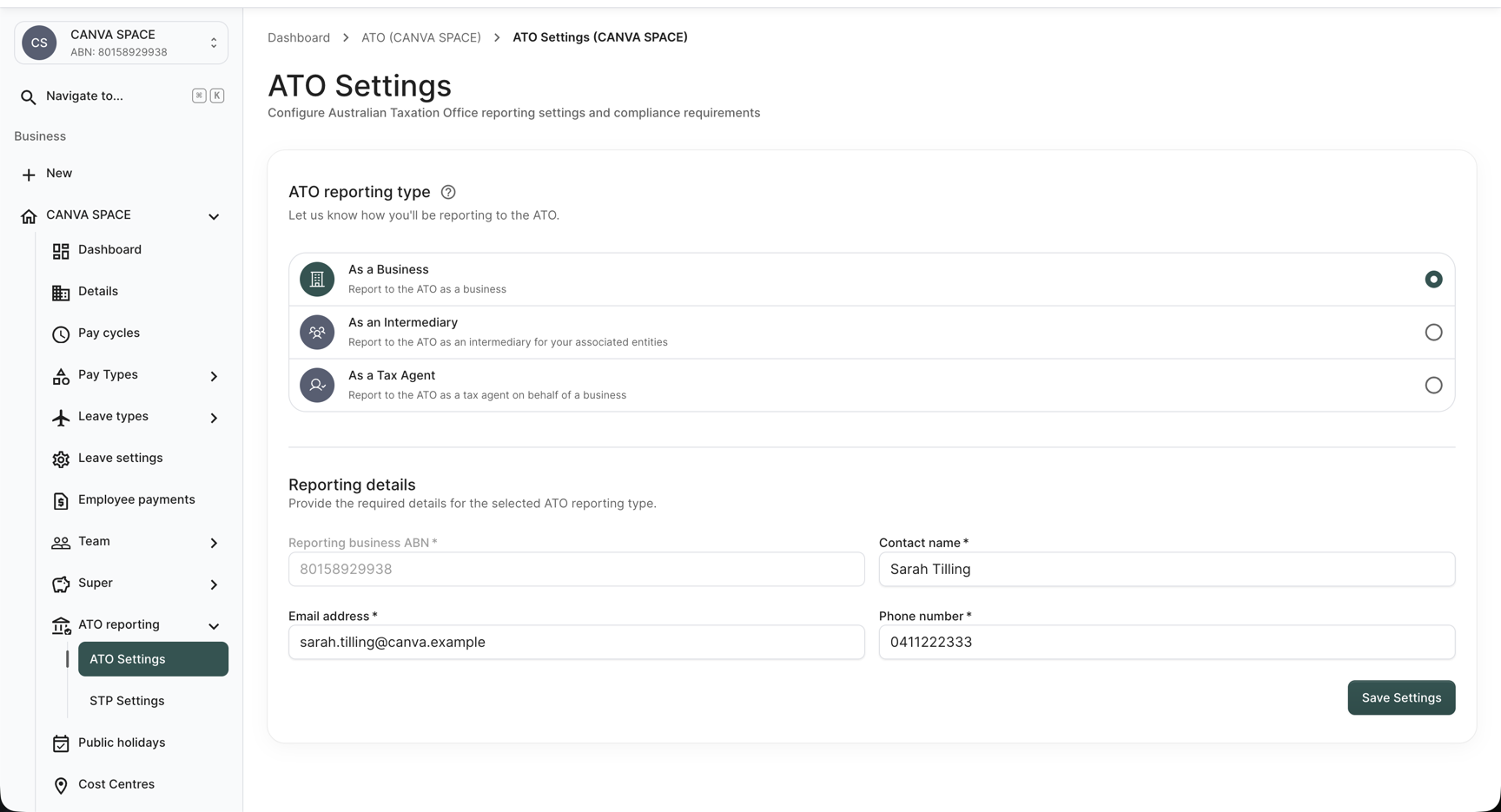
The screen is one form in two sections. ATO reporting type at the top is a three-way choice, and Reporting details below it collects the contact the ATO will see.
These settings are never empty. Every business is created with a reporting type of As a Business already set, which is why the screen opens on a complete form rather than a blank one.
The Reporting business ABN box is greyed out while As a Business is selected, and there is nothing to type into it. Paysense always reports the business's own ABN for this reporting type, reading it straight from the business record rather than from anything saved on this screen. Contact name, Email address, and Phone number work the same way until you save your own values over them - Paysense falls back to the business's primary contact so the form is never blank.
Step 2: Choose your ATO reporting type
Pick the option that matches who actually lodges to the ATO for this business. Clicking the ? beside ATO reporting type shows the same summary in the app, and adds a link to the ATO's Registered agents providing a payroll service guidance.
| Field | Required | Notes |
|---|---|---|
| As a Business / As an Intermediary / As a Tax Agent | Yes | Exactly one, defaulting to As a Business. Your choice controls which of the fields below are required. |
Which one applies:
| Option | Choose it when | Declaration used at lodgement |
|---|---|---|
| As a Business | No external tax or BAS agent lodges submissions on the business's behalf | EPS - Employer Payroll Software Declaration |
| As an Intermediary | You lodge every submission yourself and the business has one or more associated entities. The reporting details are the intermediary's own. | EMPS - Employer (Multi ABN) Payroll Software Declaration |
| As a Tax Agent | An external registered tax or BAS agent lodges on the business's behalf, even where associated entities exist. The reporting details are the agent's own, and a registered agent number is required. | RAPS - Registered Agent Payroll Software Declaration |
The declaration column is the part you cannot see from this screen. When someone later approves a pay event lodgement, Paysense picks the declaration wording from the reporting type saved here. Change the reporting type and the declaration text on the next lodgement changes with it.
Because every business defaults to As a Business, a business that an agent actually lodges for will keep signing the wrong declaration until someone changes this. Nothing warns you. Set the reporting type before your first lodgement.
Step 3: Fill in the reporting details
Reporting details is the contact the ATO sees. Which fields you have to complete depends on the reporting type you picked in Step 2.
| Field | Required | Notes |
|---|---|---|
| Reporting business ABN | No for As a Business, Yes for the other two | Disabled for As a Business, where Paysense always uses the business's own ABN. For As an Intermediary and As a Tax Agent it is the reporting entity's own ABN: 11 digits, checked against the ABN check digit. Errors are Business ABN is required, ABN must be 11 digits, and ABN is invalid. |
| Contact name | Yes | The person the ATO should contact about these submissions. Error is Contact name is required. |
| Email address | Yes | Must be a valid email address. Errors are Email is required and Invalid email. |
| Phone number | Yes | Digits only. Spaces, brackets, and a leading + are rejected with Invalid phone number. Only digits are allowed. Error when empty is Phone number is required. |
| Registered Agent Number | Yes for As a Tax Agent only | The field only appears when As a Tax Agent is selected. Error is Registered Agent Number is required. |
For As a Business there is usually nothing to change here. Selecting either of the other two types unlocks Reporting business ABN, and As a Tax Agent adds Registered Agent Number underneath:
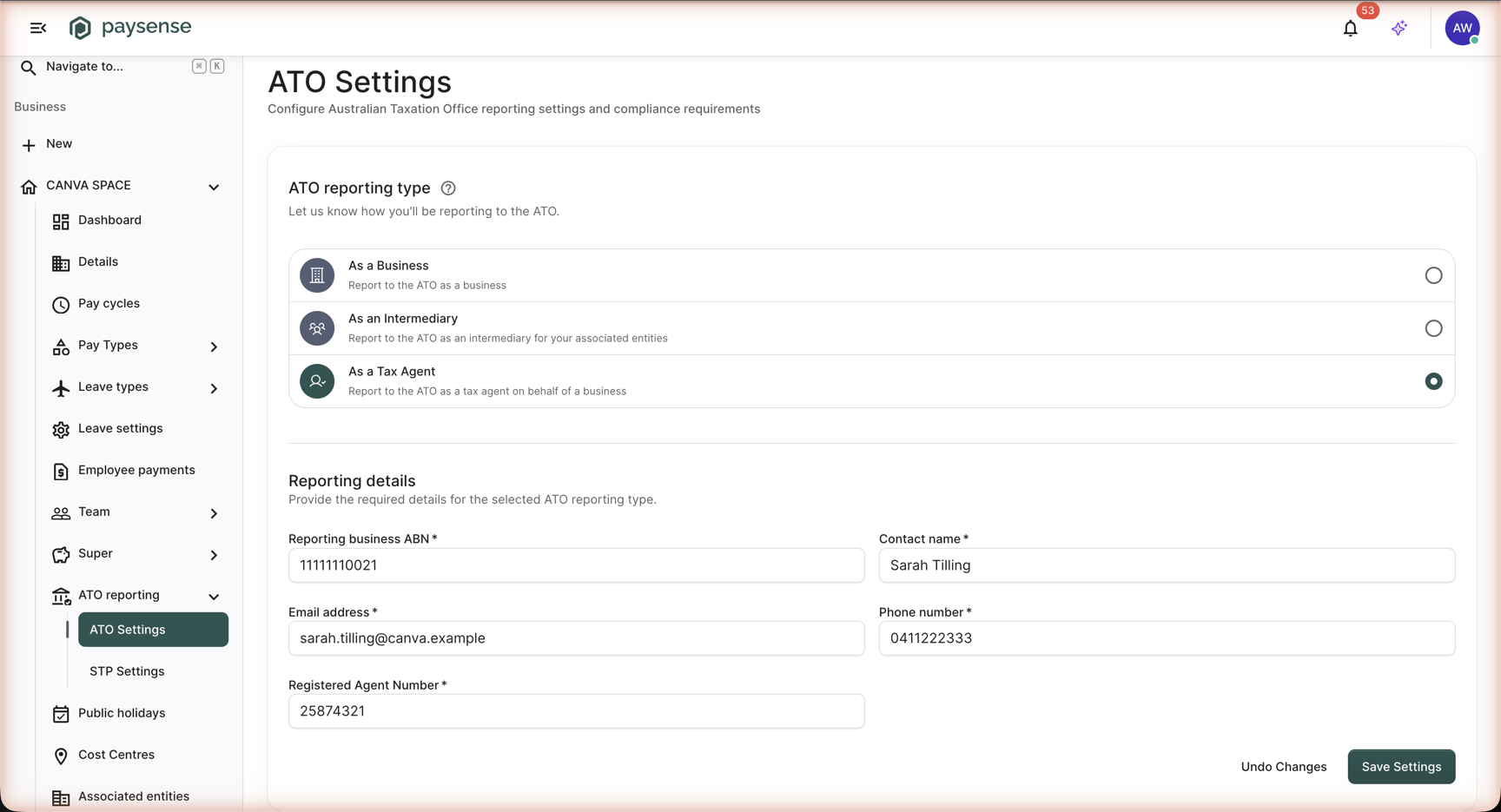
Switching reporting type does not clear what you have already typed, so an ABN entered under one type is still in the box if you switch to another. The exception is switching back to As a Business, which repopulates the ABN from the business record and disables the field again.
Whatever is on screen, Paysense only saves the fields that apply to the type you submit. Saving as As a Business stores no ABN, and saving as anything other than As a Tax Agent stores no registered agent number. The API rejects those combinations outright with ABN must not be provided when reporting as the business. and Registered agent number must only be provided when reporting as a tax agent.
Step 4: Save your settings
If you changed nothing, skip this step - the defaults are already in force. Otherwise click Save Settings. A green Settings saved successfully. toast appears in the bottom-right corner and the form's baseline resets to what you just saved. If the save fails you'll get Failed to save settings. Please try again. instead, and nothing is stored.
As soon as you change anything, an Undo Changes button appears to the left of Save Settings. It restores the last saved values and disappears again once the form matches them.
After saving as As a Business, the Reporting business ABN box goes empty. That is the trimming described in Step 3 doing its job, not lost data - the ABN was never yours to store for this reporting type. Reopen the screen and the business's own ABN is shown again.
Paysense warns you before you navigate away with unsaved changes, but the warning is your only safety net. Nothing on this screen is saved until you click Save Settings.
What's next
With the reporting party set, the typical next steps are:
- Connect the business to the ATO - request a Software ID and authorise MessageXchange. See Set up STP via MessageXchange (SSID).
- Set up superannuation - nominate the default fund and register with the clearing house. See Set up superannuation.
- Run a pay run - finalising a run is what generates your first STP event. See Run your first pay run.
- Lodge the STP event - approve and submit the pay event to the ATO. See Lodge an STP event.
Troubleshooting
| Symptom | Likely cause | What to do |
|---|---|---|
| There is no Save Settings button | Your user has atosettings:read but not atosettings:write, so the screen is read-only | Ask a team member with Manage team to grant the write scope. See Manage permissions. |
| The screen redirects to No Access | Your user has neither atosettings:read nor stp:read | Same as above - the whole ATO reporting section needs one of those two scopes |
Registered Agent Number is required appears the moment you pick As a Tax Agent | The field is empty and validates immediately on the type change | Enter the agent number issued by the Tax Practitioners Board |
ABN must be 11 digits or ABN is invalid | The ABN is the wrong length, or it fails the ABN check digit | Enter the 11 digits with no spaces. Check the number on the ABR if it keeps failing. |
Invalid phone number. Only digits are allowed | The number contains spaces, brackets, or a leading + | Strip everything but the digits, for example 0411222333 |
| Reporting business ABN is empty and greyed out | You are on As a Business, where the field is disabled and cleared on save | Nothing to fix. Reopen the screen and the business's ABN is displayed again. |
| The wrong declaration appears when approving a pay event | The reporting type here does not match who actually lodges | Come back to this screen, correct the reporting type, and save before lodging again |
If you hit a problem the table doesn't cover, check the Notifications panel on the business dashboard - Paysense logs every business-level action there.