Manage employee tax details
An employee's tax details are the answers from their TFN declaration and any Medicare levy variation declaration: their tax file number, residency, tax-free threshold, study loan, Medicare levy options, and tax category. Paysense uses them to work out PAYG withholding on every pay run and to report the employee through STP.
The Add Employee wizard covers the common case: an Australian resident with a TFN on the Regular tax category. This tutorial covers the changes you make afterwards on the employee's Tax page, using James Anderson at CANVA SPACE: recording a TFN exemption, setting a special residency or tax category, and claiming a Medicare levy reduction. By the end you'll have saved James's Medicare levy reduction and know which settings rule each other out.
What you'll need
| Item | Required | Notes |
|---|---|---|
| An employee with employment details completed | Yes | Created via the Add an employee tutorial. Paysense won't save tax details until the employee's employment details exist. |
| The employee's TFN declaration | Yes | The source for the TFN or exemption, residency, tax-free threshold, and study loan answers |
| The employee's Medicare levy variation declaration | Optional | Only needed if the employee is varying their Medicare levy with a surcharge, exemption, or reduction |
The Employee.Write permission | Yes | Without it the Save Settings and Undo Changes buttons are not shown. Undo Changes is also hidden until you change something, so an untouched form shows Save Settings on its own. |
Steps 2, 3, and 4 are independent. Make only the changes the employee's declarations call for, then click Save Settings once.
Step 1: Open the employee's Tax page
From the left-hand sidebar, expand the employee's name and click Tax (Employees → James Anderson → Tax). You'll land on Employee Tax Details at /business/{businessId}/employees/{employeeId}/tax.
The page opens with the employee's current settings. James was onboarded with a TFN, Claim Tax-Free Threshold ticked, an Australian residency, and every Medicare option at None.
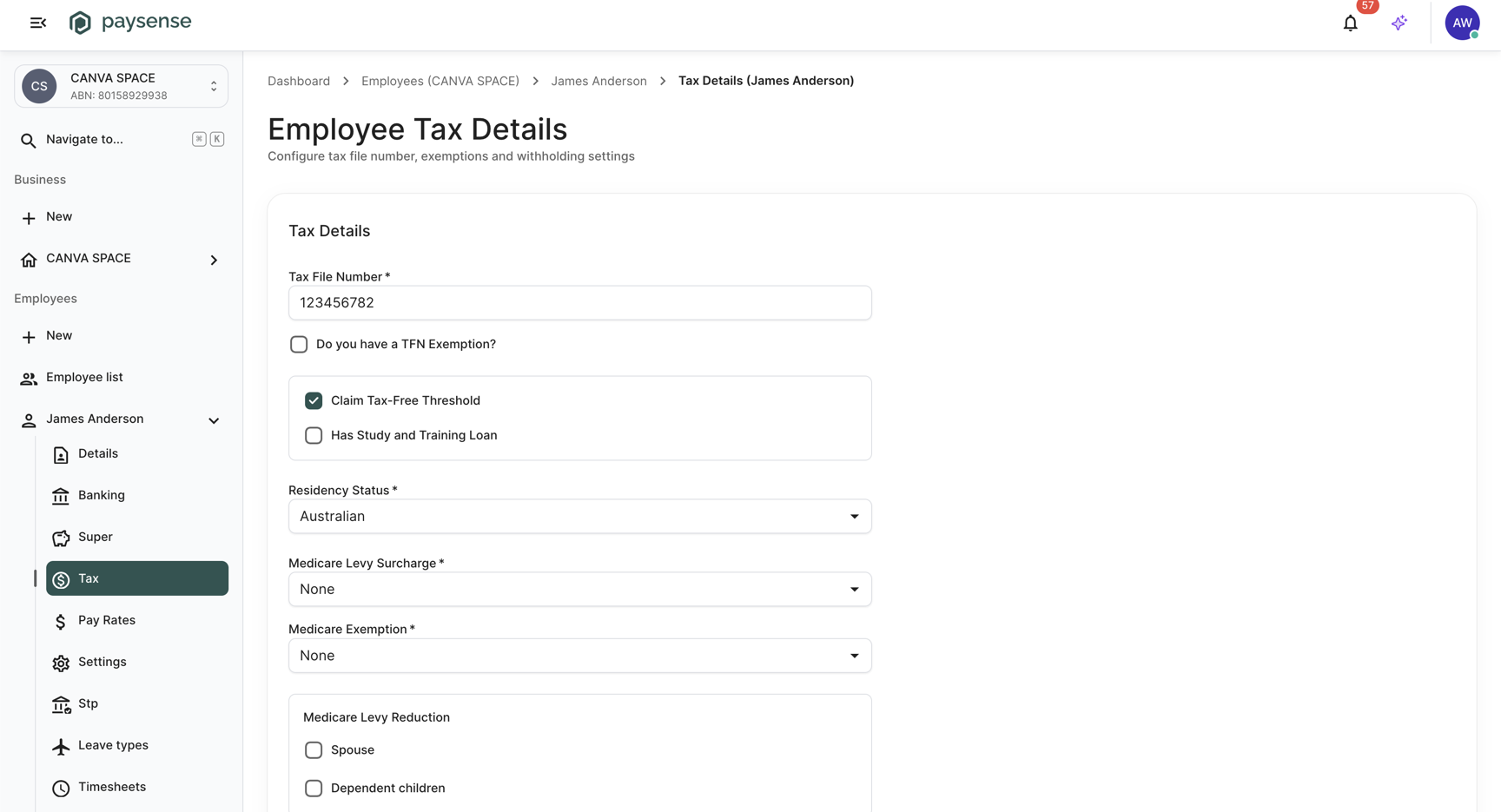
The selected nav item takes its colour from your partner's branding, so it will differ from the screenshots here.
| Field | Required | Notes |
|---|---|---|
| Tax File Number | Yes | 8 or 9 digits, checked against the ATO check-digit rule. Not needed when Do you have a TFN Exemption? is ticked - the field clears and locks. |
| Do you have a TFN Exemption? | No | Tick when the employee hasn't quoted a TFN. Shows Exemption Type. If Tax Category is empty at that point, Paysense sets it to No TFN - see Step 2. Unticking it clears Exemption Type and resets Tax Category, back to Regular for an Australian resident and to empty for a foreign resident. |
| Exemption Type | Yes | Shown only when the exemption box is ticked. No TFN quoted, TFN pending, Under eighteen, or Pensioner. |
| Claim Tax-Free Threshold | No | Tick if the employee claims the tax-free threshold from this employer. Must be ticked to claim a Medicare exemption, or a Medicare levy reduction alongside a study loan. |
| Has Study and Training Loan | No | Tick if the employee has a HELP, VSL, SFSS, or other study and training support loan. Not available for the Actors, No TFN, and ATO Defined tax categories, or when the exemption type is No TFN quoted. |
| Residency Status | Yes | Australian or Foreign Resident. Foreign Resident adds the Foreign Resident option to Tax Category. |
| Medicare Levy Surcharge | Yes, pre-filled None | Always holds a value and can't be blanked, so there is nothing to fill in unless the employee's declaration asks for the surcharge to be withheld. Then set Tier 1, Tier 2, or Tier 3. |
| Medicare Exemption | Yes, pre-filled None | Always holds a value and can't be blanked. Set Half or Full when the employee claims a Medicare levy exemption. |
| Spouse, Dependent children | No | The Medicare Levy Reduction options. Ticking Dependent children shows a box for the number of children. |
| Number of children (beside Dependent children) | Yes | Shown only when Dependent children is ticked. At least 1. |
| Tax Category | Yes | Defaults to Regular for an Australian resident. See Step 3 for each category. |
| Actor Tax Category | Yes | Shown only for the Actors category. T - With tax-free threshold, D - 3 or less performances per week, N - With no tax-free threshold, or P - Promotional. |
| ATO Defined Category | Yes | Shown only for the ATO Defined category. V - Downward Variation. |
Step 2: Record a TFN exemption
Use this when the employee hasn't given you a tax file number. Tick Do you have a TFN Exemption?. Paysense clears and locks the Tax File Number field and shows a required Exemption Type field underneath. Open it and pick the reason the employee gave on their declaration.
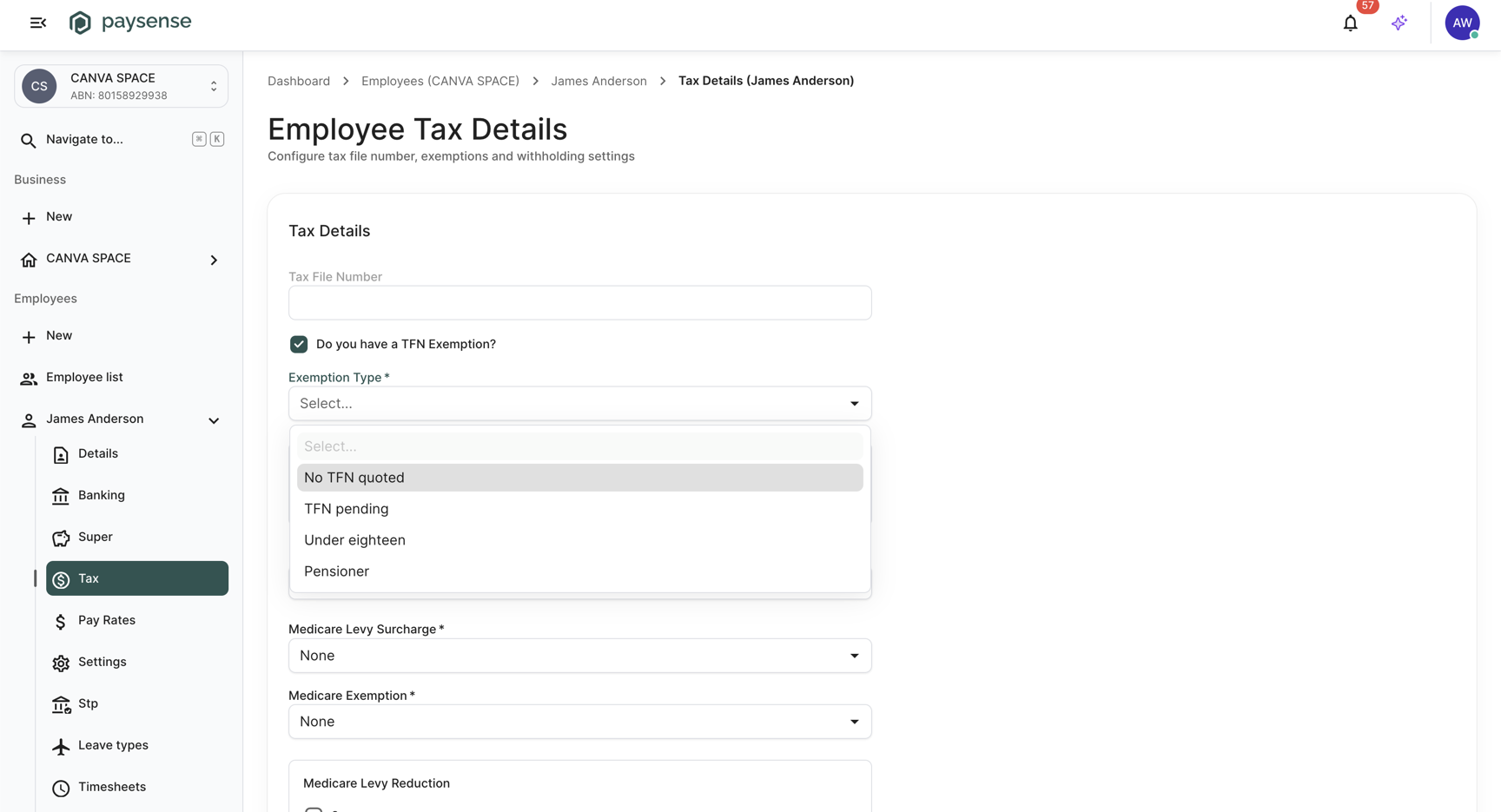
| Exemption type | Use it when |
|---|---|
No TFN quoted | The employee hasn't provided a TFN |
TFN pending | The employee has applied for a TFN and is waiting for it |
Under eighteen | The employee is under 18 and earns under the tax-free threshold |
Pensioner | The employee receives a social security or other pension |
No TFN quoted also switches off Has Study and Training Loan, because the loan component doesn't apply when no TFN has been provided. Paysense unticks it, greys it out and shows "Study and Training Support Loans (STSL) is not permissible when no Tax File Number has been quoted." The other three types leave it available.
Ticking the exemption doesn't change a Tax Category that is already set. If the category is empty, Paysense sets it to No TFN, which switches off Has Study and Training Loan and every Medicare levy option - so check Tax Category afterwards and set the one that matches the employee's situation, as in Step 3. When you save, Paysense stores the ATO's substitute TFN for the exemption type in place of a real number.
James has quoted a TFN, so he doesn't need an exemption. For our example, click Undo Changes to put his tax file number back before moving on. Undo Changes returns the whole form to the last saved settings, not only the field you changed last, so use it before you start on another change rather than part-way through one.
Step 3: Set the residency status and tax category
Residency Status and Tax Category decide which withholding scale Paysense applies. Set Residency Status first: the Foreign Resident category only appears in the Tax Category list once residency is Foreign Resident.
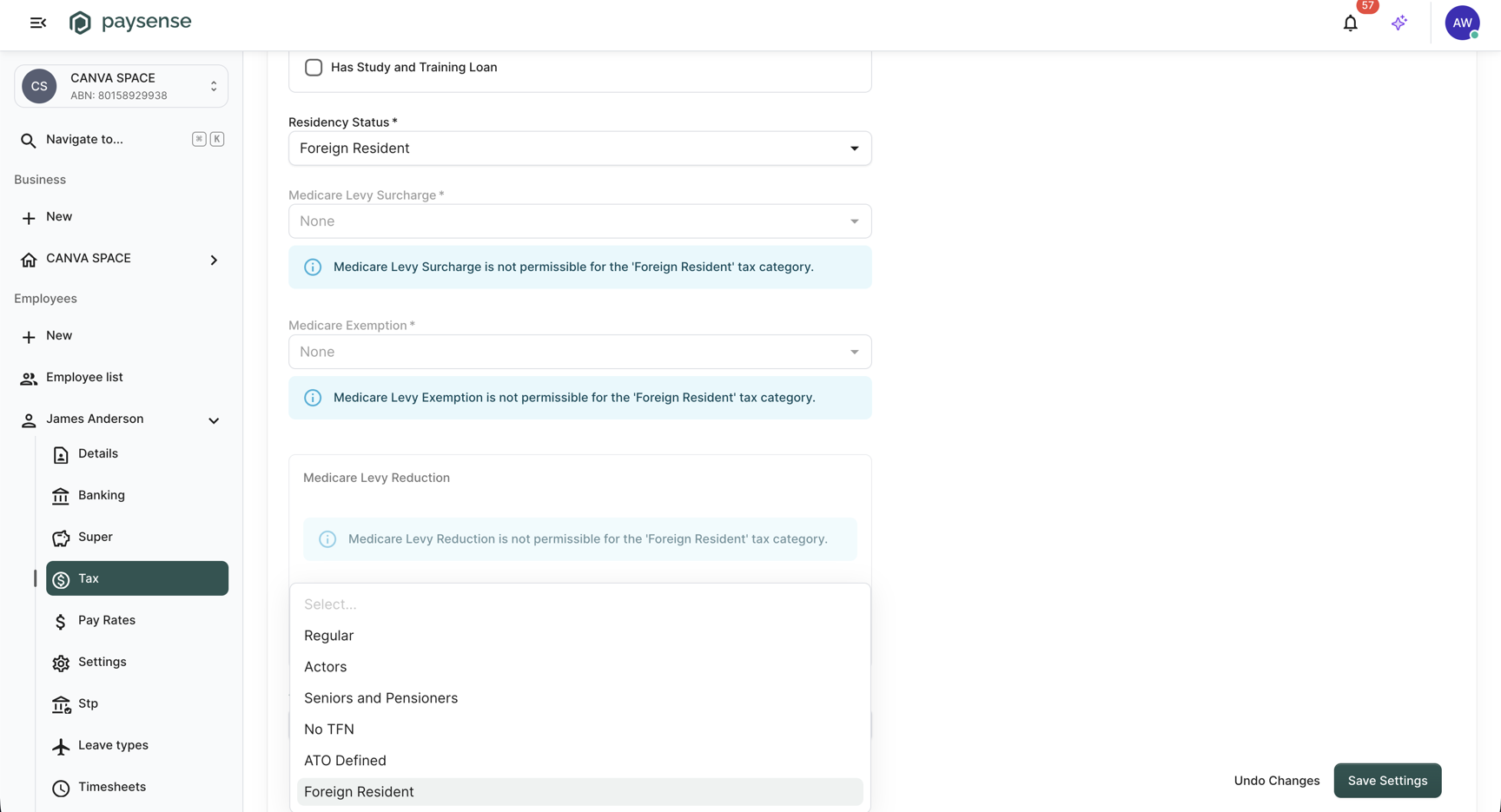
| Category | Available when | Extra field | What it turns off |
|---|---|---|---|
Regular | Always | None | Nothing |
Actors | Always | Actor Tax Category | Has Study and Training Loan and all Medicare levy options |
Seniors and Pensioners | Always | None | The Spouse Medicare levy reduction |
No TFN | Always | None | Has Study and Training Loan and all Medicare levy options |
ATO Defined | Always | ATO Defined Category | Has Study and Training Loan and all Medicare levy options |
Foreign Resident | Residency Status is Foreign Resident | None | All Medicare levy options |
When a category turns off the Medicare levy options, Paysense locks Medicare Levy Surcharge and Medicare Exemption at None, greys out Medicare Levy Reduction, and shows an info message under each naming the category.
Actors and ATO Defined add a second required field beside Tax Category. Pick the code from the employee's declaration or the ATO's variation notice.
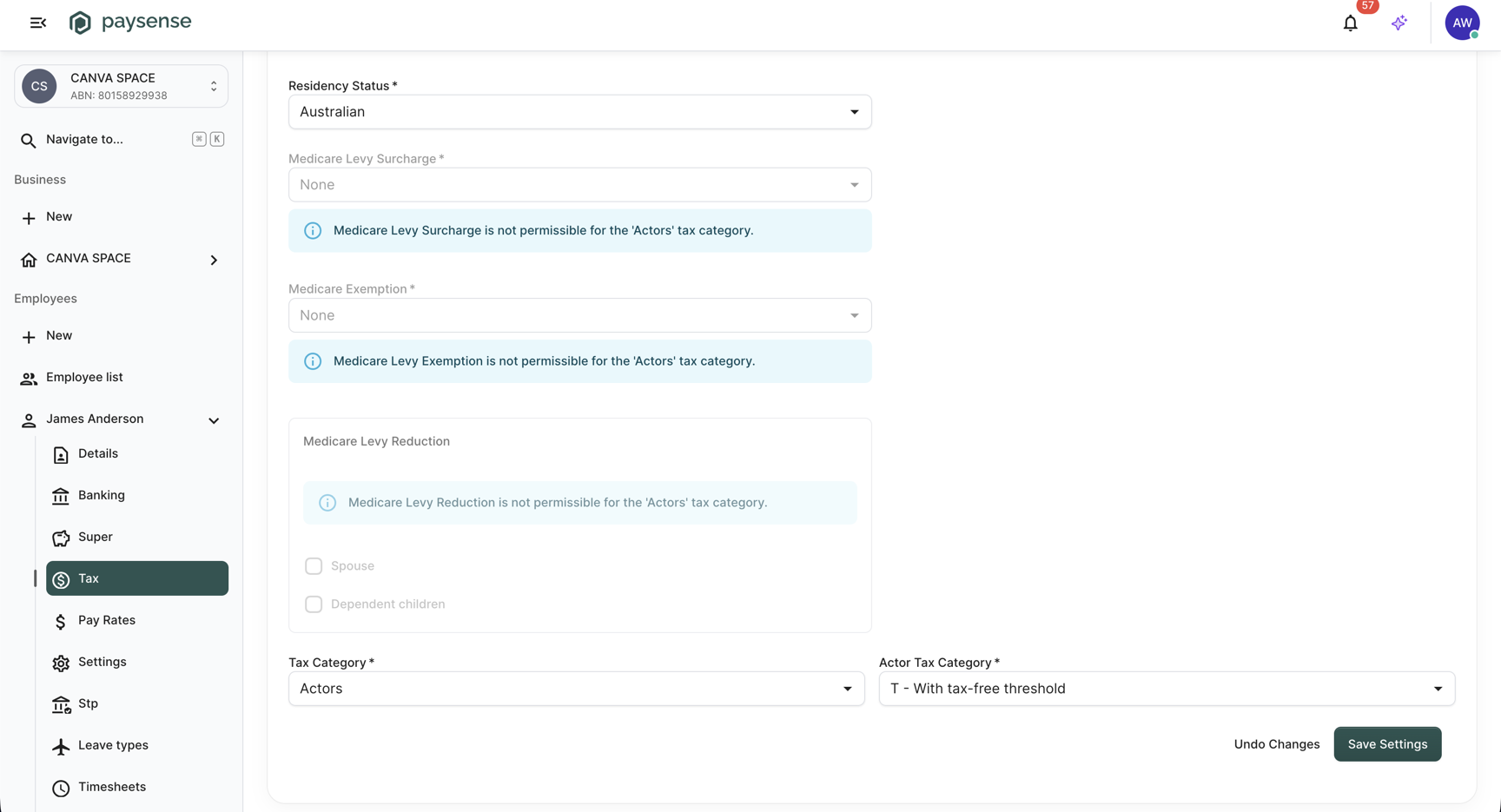
A change to residency or tax category changes the PAYG withholding Paysense calculates from the next pay run and what it reports through STP. Check the new settings against the employee's declaration before you save.
James is an Australian resident on the Regular category. For our example, click Undo Changes again before moving on, so the Medicare levy options are available in Step 4.
Step 4: Claim a Medicare levy adjustment
The three Medicare settings record what the employee claimed on their Medicare levy variation declaration. For our example, James claims a Medicare levy reduction for a spouse and two dependent children: tick Spouse, tick Dependent children, and enter 2 in the box beside it.
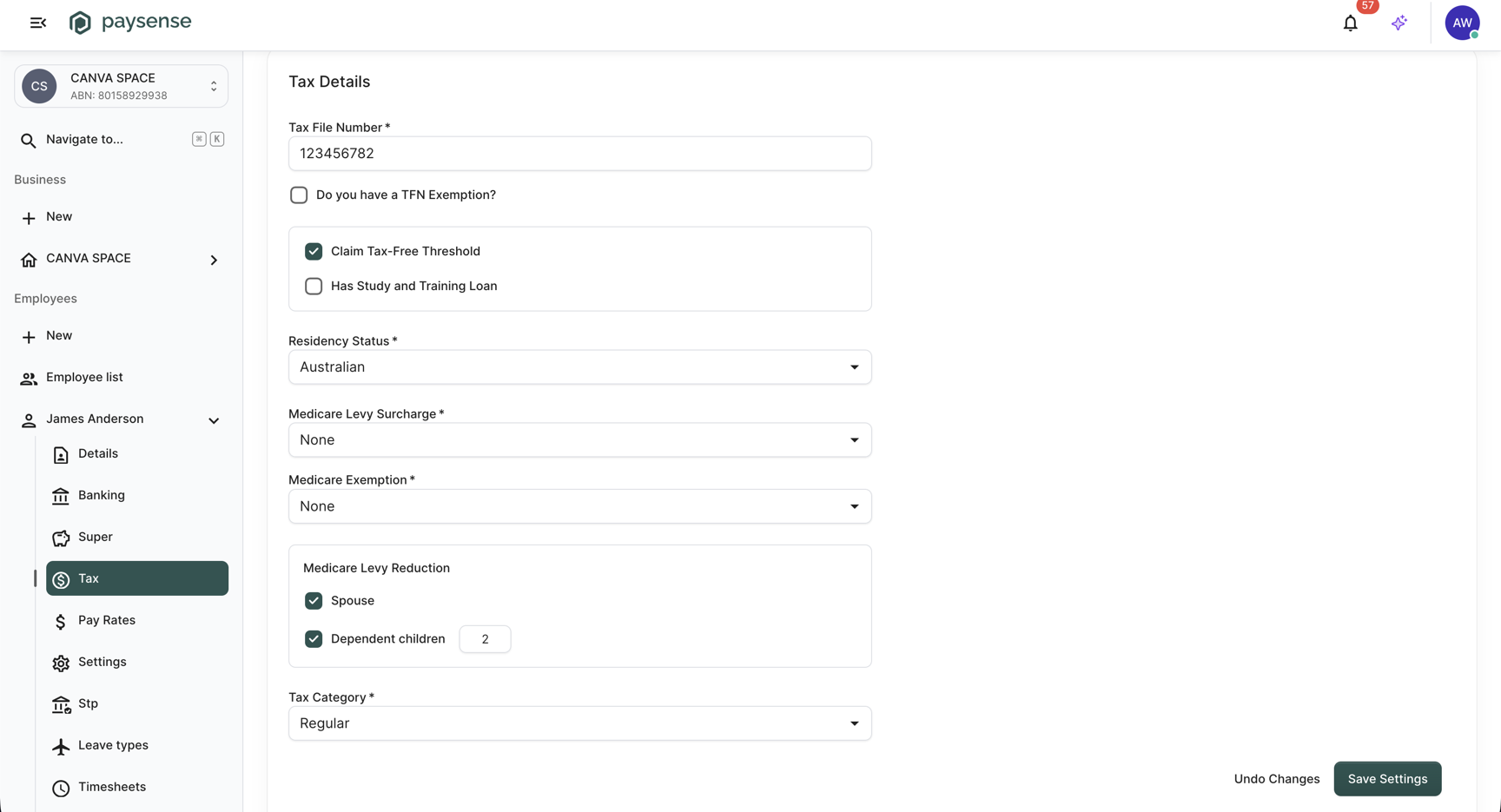
Some Medicare settings can't be claimed together. Once one is set, Paysense greys out the settings it rules out. Where the whole Medicare Levy Reduction section is ruled out, it shows the reason in a message inside the section. Where only one option is ruled out, hover over it to see why.
| When the form has | Paysense greys out | Reason |
|---|---|---|
| A Medicare Levy Surcharge tier | Half and Full in Medicare Exemption, and Medicare Levy Reduction (unticking Spouse and Dependent children) | "Medicare Levy Exemption cannot be claimed together with Medicare Levy Surcharge." and "Medicare Levy Reduction cannot be claimed with Medicare Levy Surcharge." |
A Medicare Exemption of Half or Full | The tiers in Medicare Levy Surcharge | "Medicare Levy Surcharge cannot be claimed together with Medicare Levy Exemption." |
A Medicare Exemption of Full | Medicare Levy Reduction, unticking Spouse and Dependent children | "Medicare Levy Reduction cannot be claimed with Full Medicare Levy Exemption." |
| Spouse or Dependent children ticked | The tiers in Medicare Levy Surcharge | "Medicare Levy Surcharge cannot be claimed together with Medicare Levy Reduction." |
| Claim Tax-Free Threshold unticked | Half and Full in Medicare Exemption | "Medicare Levy Exemption can only be claimed if the tax-free threshold is claimed." |
The Seniors and Pensioners tax category | Spouse, unticking it (a tooltip on the checkbox, not a message in the section) | "Seniors and Pensioners category cannot claim spouse-related Medicare Levy Reduction." |
Greying out only stops you picking a ruled-out option. It doesn't clear a value you had already chosen, so two combinations can still reach an invalid form. Paysense shows the message and won't save until you fix them:
- "Medicare Levy Exemption can only be claimed if the tax-free threshold is claimed." - a Medicare Exemption is set and Claim Tax-Free Threshold was then unticked.
HalfandFullgrey out at that point, but the exemption you already set stays selected. - "A payee with STSL may only claim Medicare Levy Reduction if they have claimed the tax-free threshold." - Has Study and Training Loan and a Medicare Levy Reduction are both ticked, but Claim Tax-Free Threshold isn't. Nothing greys out for this one at all.
When the form matches the employee's declarations, click Save Settings. To discard your edits instead, click Undo Changes and the form returns to the last saved settings.
Step 5: Confirmation
Paysense saves the tax details and shows a "Tax details saved successfully." toast in the bottom-right.
Paysense applies saved tax details from the end of the employee's last finalised pay run. For an employee who hasn't been in one yet, it applies them from their start date, or from the end of the business's opening balances pay run where that falls earlier. Pay runs you've already finalised keep the tax settings they were calculated with.
What's next
With the employee's tax details up to date, the typical next steps are:
- Check where their pay goes - see Manage employee bank accounts.
- Check their super fund - see Manage employee super funds.
- Run a pay run - the new settings apply to withholding from the next pay run. See Run your first pay run.
Troubleshooting
| Symptom | Likely cause | What to do |
|---|---|---|
| No Save Settings button | Your account lacks the Employee.Write permission | Ask a team admin to grant it from Team → Members, or use an account that has it |
| No Undo Changes button, but Save Settings is there | Nothing has been changed yet - the button only appears once the form differs from the last saved settings | Nothing to do. It appears as soon as you edit a field. |
| Redirects to No Access | Your account lacks the Employee.Read permission | Ask a team admin to grant it from Team → Members |
| "Employment details must be completed before tax details can be saved." | The employee's employment details haven't been saved yet | Finish the employee's employment details first - see Add an employee |
| "Tax file number must be 8 or 9 digits" or "Tax File Number is invalid" | The TFN is the wrong length or fails the ATO check-digit rule | Check the number against the employee's TFN declaration |
| "Exemption Type is a required field" | Do you have a TFN Exemption? is ticked but no exemption type is picked | Pick an Exemption Type, or untick the exemption and enter the TFN |
| "Actor Tax Category is a required field" or "ATO Defined Category is a required field" | The tax category is Actors or ATO Defined and its second field is empty | Pick the code in the field beside Tax Category |
| "Number of children is required" | Dependent children is ticked but the count is empty | Enter the number of children, or untick Dependent children |
| "Tax Category is not valid for the selected residency status" | The category is Foreign Resident but Residency Status isn't | Set Residency Status to Foreign Resident, or pick another category |
| Has Study and Training Loan is greyed out and unticked | The exemption type is No TFN quoted, or the tax category is Actors, No TFN, or ATO Defined | Expected - the loan component doesn't apply. Change the exemption type or tax category if it's wrong. |
| Medicare fields are greyed out with an info message | The tax category doesn't allow Medicare levy options | Expected for Actors, No TFN, ATO Defined, and Foreign Resident. Change the category if it's wrong. |
If you hit a problem the table doesn't cover, check the Notifications panel on the business dashboard for the underlying error message.