Set up pay type definitions and levels
A pay type definition in Paysense is a reusable container that groups a set of pay types under one name - typically an award or an enterprise agreement - so employment contracts and employees can point at the same structure instead of re-keying rates one person at a time. Each definition carries a ladder of levels, and each level holds the rate variations for that definition's shared pay types (for example, the classification levels in an award).
You need at least one definition with levels before you can build an employment contract, because every pay rule in a contract names a definition, a level on it, and a pay type carrying a rate on that level.
This tutorial walks through creating a definition, adding a level, attaching a pay type, and pricing it end-to-end on the CBA Business test business. By the end you'll have a Digital Services Agreement definition whose Level 1 - Graduate level pays an Ordinary Hours pay type at $30.00 - a structure an employment contract can read from.
What you'll need
| Item | Required | Notes |
|---|---|---|
| A business in Paysense | Yes | Created via the Add a business tutorial |
The paytypedefinition:read scope | Yes | Gates the screen and its Pay Types → Definitions sidebar item. Without it the page redirects to No Access. |
The paytypedefinition:write scope | Yes | Gates Add Definition, Add Level, and the pay rate save |
The paytype:write scope | Yes | Gates Add Pay Type on the definition's Pay Types screen |
| The Pay Type Definitions feature enabled | Yes | A tenant feature flag. When it is off the sidebar item is hidden and the route returns Not Found. |
You don't have to build the whole ladder in one sitting. Create the definition first, then add levels to it whenever you're ready - each one saves on its own.
Step 1: Open the Pay Type Definitions screen
From the left-hand sidebar of your business, expand Pay Types and click Definitions. You'll land on the list at /business/{businessId}/paytypedefinitions. On a business with no definitions yet, the screen shows an empty state and a Create your first definition button.
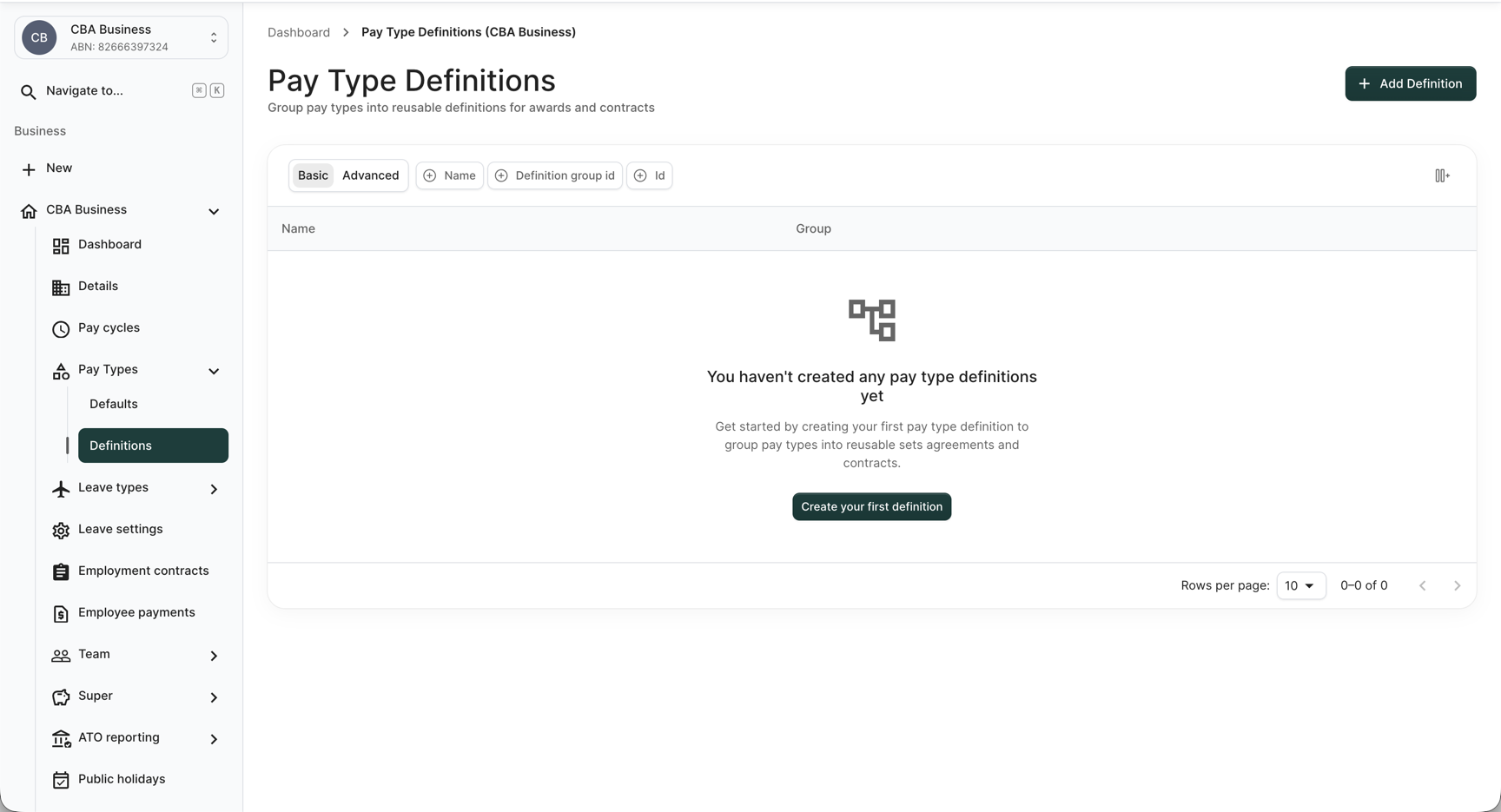
Click Add Definition in the top-right (or Create your first definition in the centre) to open the Add Pay Type Definition dialog.
The Add Definition button, the logo, and the highlighted sidebar item come from your partner's tenant branding and differ per portal. Look for the button labelled Add Definition, not for a particular colour.
Step 2: Create a pay type definition
The Add Pay Type Definition dialog collects the definition's name and an optional grouping number.
| Field | Required | Notes |
|---|---|---|
| Name | Yes | Up to 256 characters. Must be unique within the business - a duplicate is rejected with Pay type definition with name '<name>' already exists. |
| Group Id | No | Optional whole number. The helper text reads Used for award grouping - it groups definitions that belong to the same award so you can filter the list by it. |
For this walkthrough, enter the name Digital Services Agreement and leave Group Id blank.
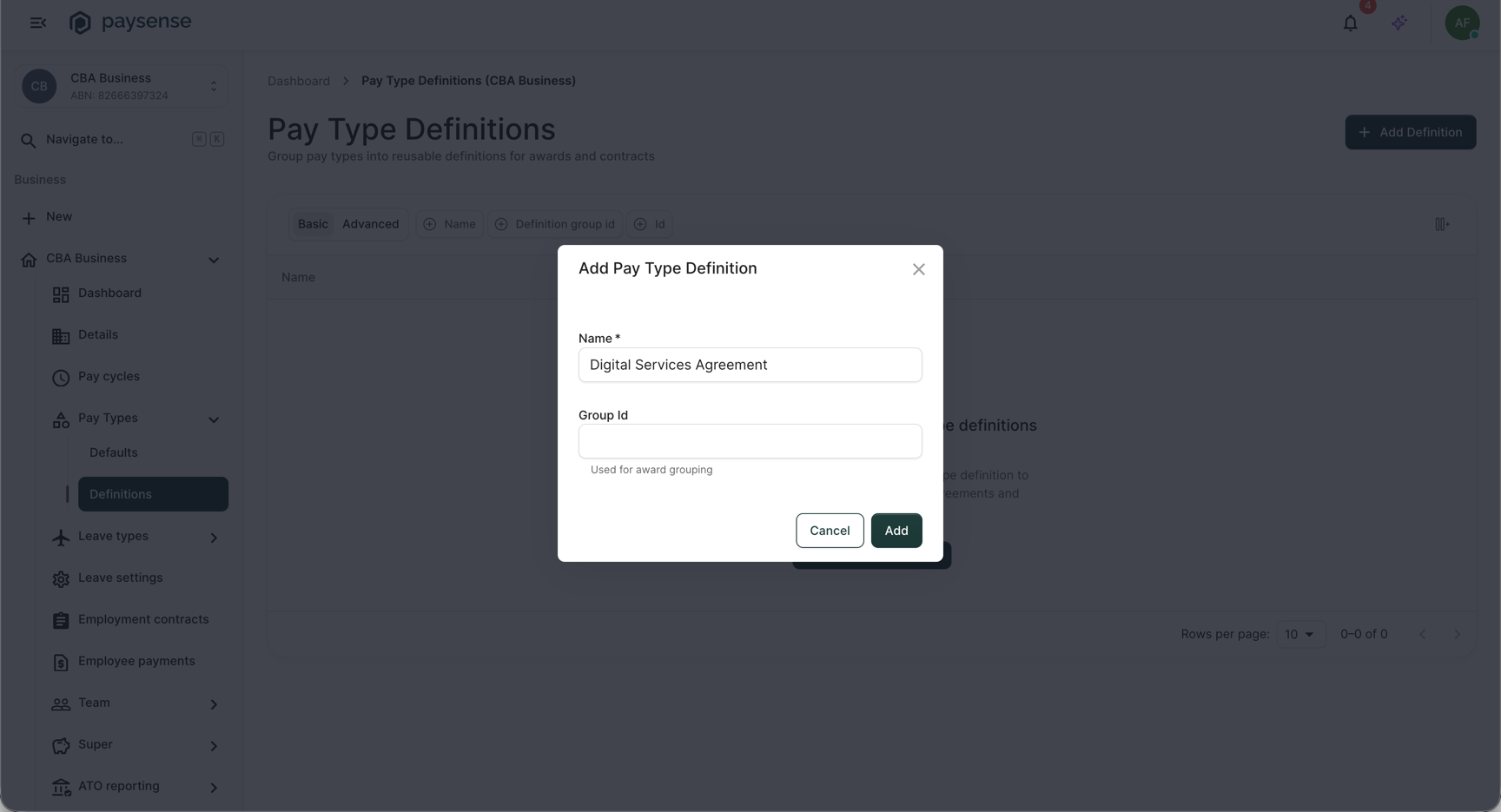
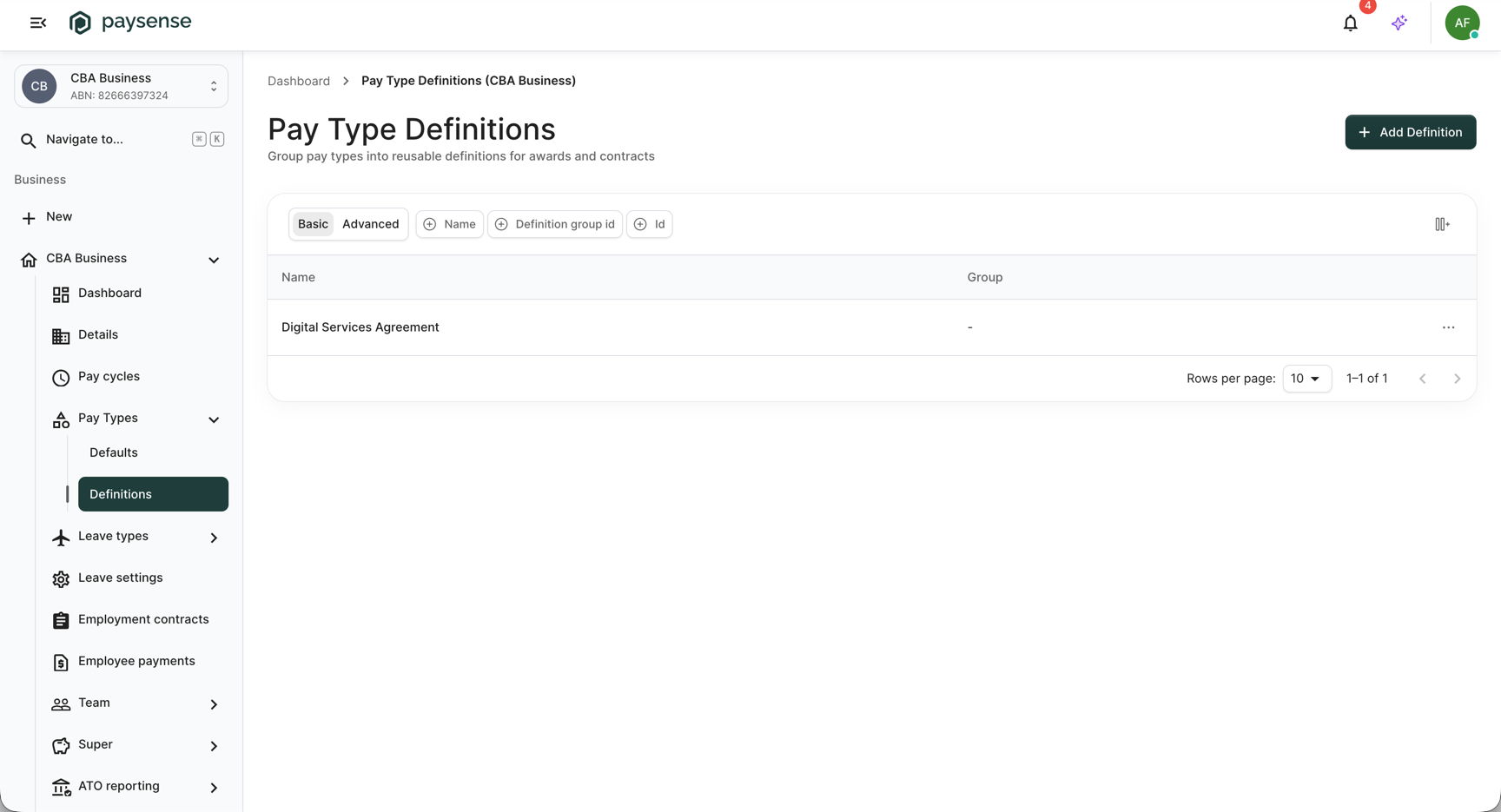
Click Add. Paysense saves the definition, closes the dialog, and the new Digital Services Agreement row appears in the list with a - in the Group column.
Step 3: Open the definition's Levels screen
Each definition row carries a ⋯ actions menu on the right. Open it and click Levels to move to that definition's levels at /business/{businessId}/paytypedefinitions/{payTypeDefinitionId}/levels.
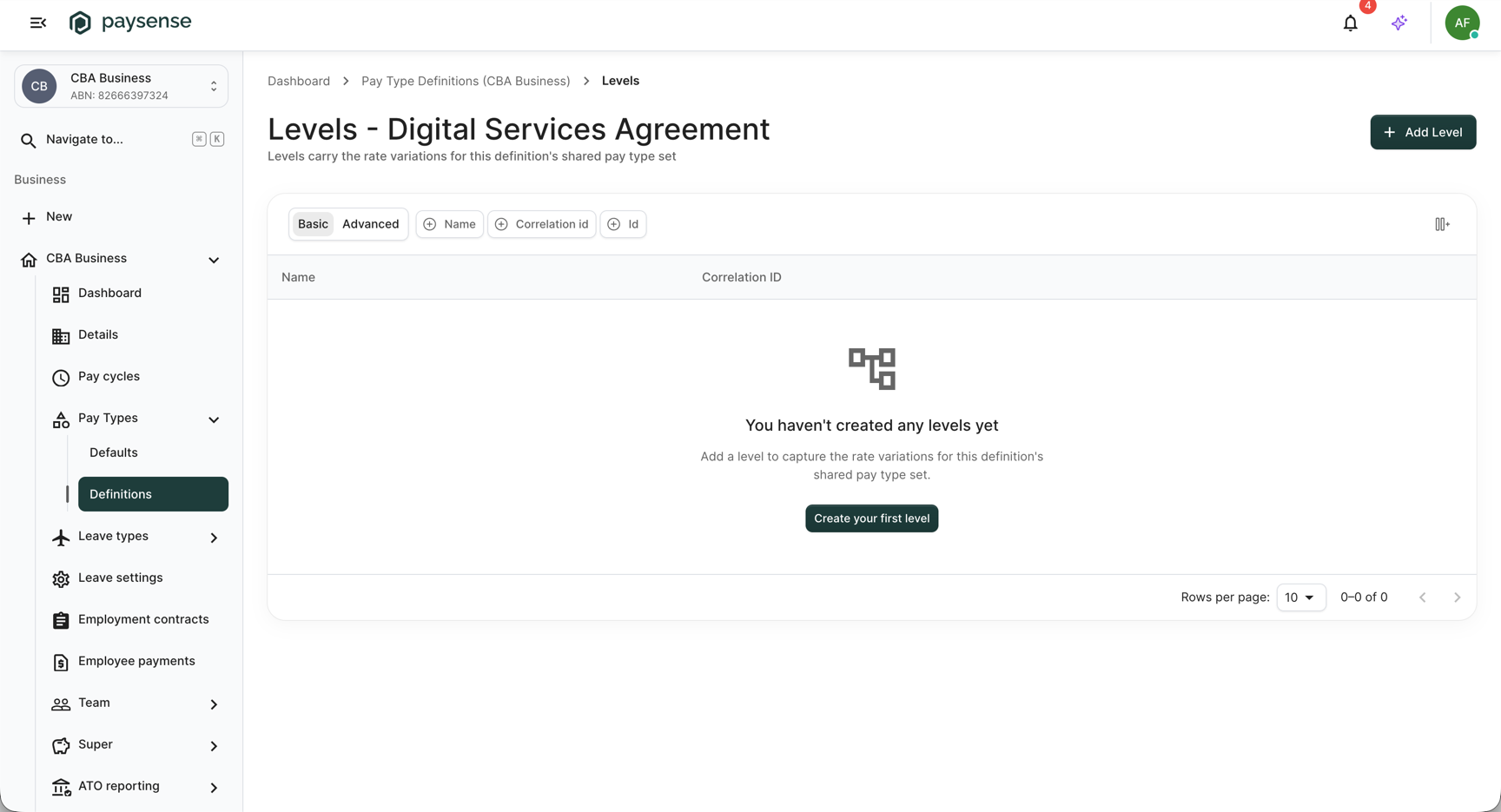
The screen title reads Levels - Digital Services Agreement, so you always know which definition you're adding levels to. With no levels yet, it shows an empty state and a Create your first level button.
The same ⋯ menu also holds View (the definition's pay types), Edit (rename it or change its Group Id), and Delete. Deleting asks you to confirm with Delete '<name>'? This cannot be undone. before it goes.
Step 4: Add a level
Click Add Level in the top-right (or Create your first level) to open the Add Level dialog.
| Field | Required | Notes |
|---|---|---|
| Name | Yes | Up to 256 characters. Must be unique within this definition - a duplicate is rejected with Pay type definition level with name '<name>' already exists. |
| Correlation ID | No | Up to 100 characters. An optional external reference for the level - for matching it against an award classification code or a payroll import. Entries over the limit show Correlation ID must be at most 100 characters. |
Enter Level 1 - Graduate as the name and DSA-L1 as the correlation ID.
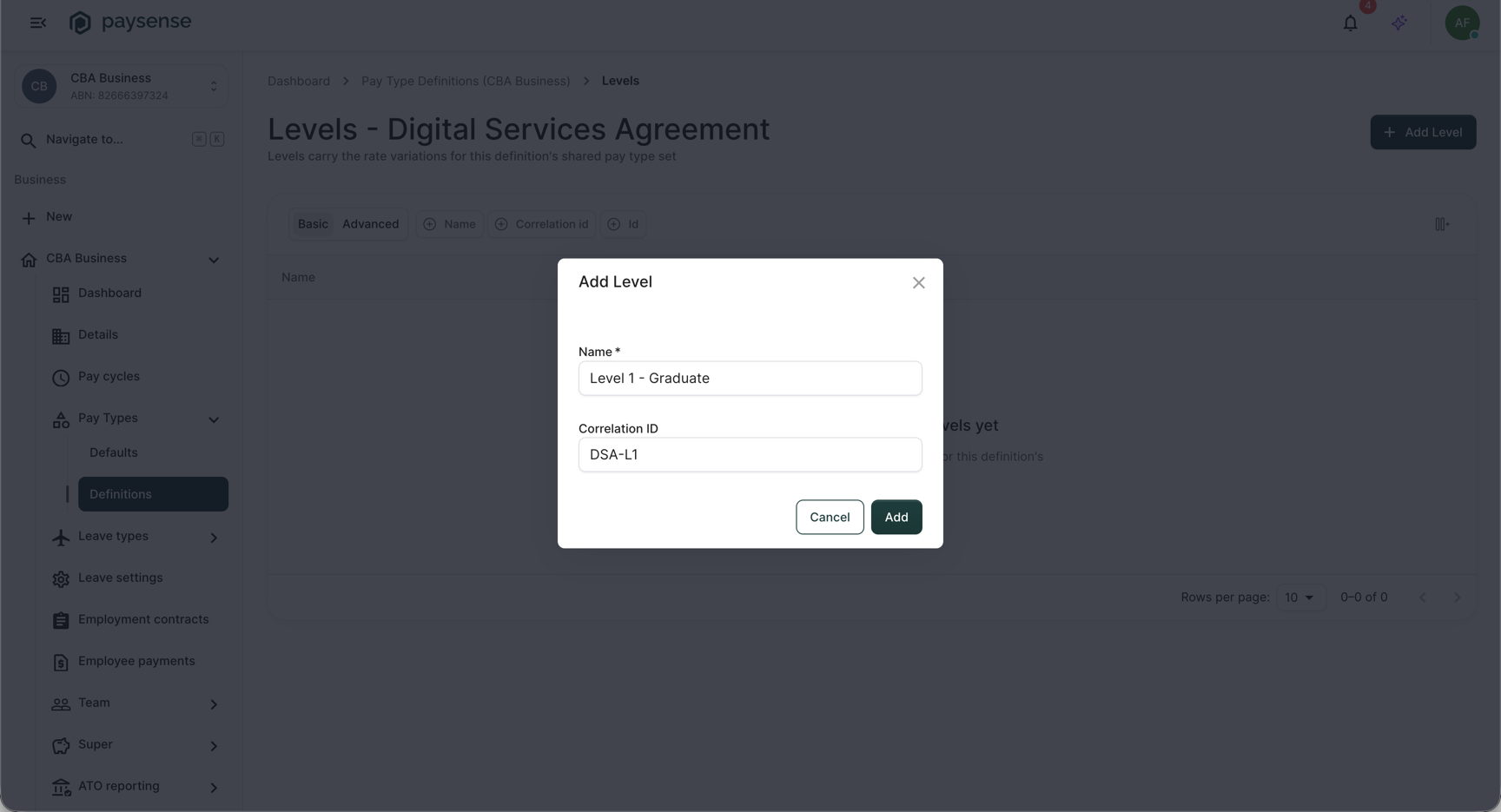
Click Add. Paysense saves the level, closes the dialog, and the new row appears in the grid.
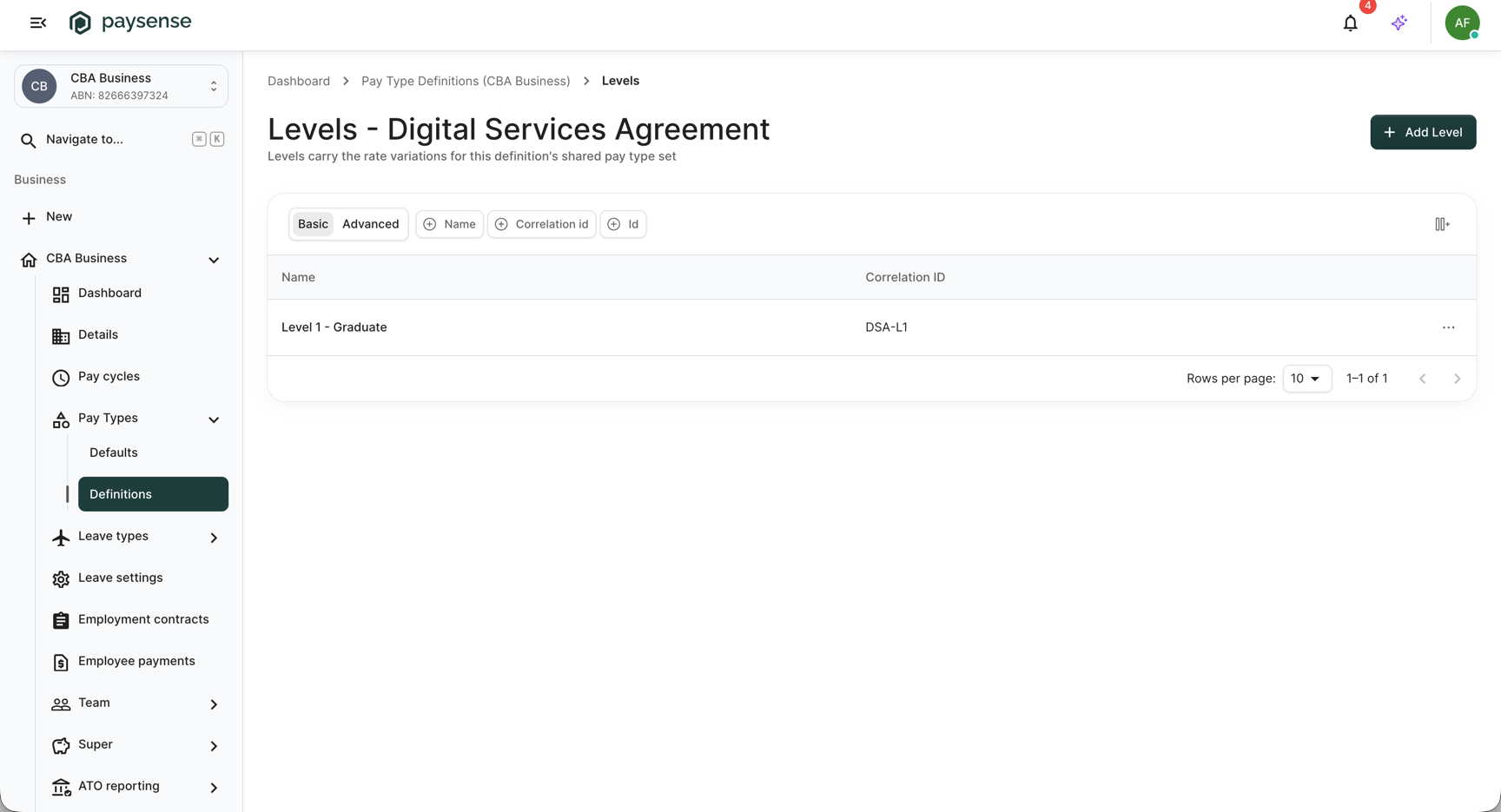
The grid now lists Level 1 - Graduate with its correlation ID DSA-L1. Repeat this step to add the rest of the definition's levels. A level on its own carries no rates yet - that takes two more steps: attach the pay types the definition shares, then set what each one pays at this level.
Step 5: Add pay types to the definition
A definition holds one shared set of pay types, and every level prices that same set. Add them from the definition's Pay Types screen. From the definitions list, open a definition's ⋯ menu and click View (or, from the Levels screen, use the breadcrumb back to the definition), landing on /business/{businessId}/paytypedefinitions/{payTypeDefinitionId}/paytypes.
Click Add Pay Type in the top-right. This opens the same pay type form used on the Pay Types → Defaults screen, so the full field detail lives in that tutorial - the fields below are the ones you must set.
| Field | Required | Notes |
|---|---|---|
| Name | Yes | The pay type name, e.g. Ordinary Hours. |
| Rate Unit | Yes | Hourly, Daily, Weekly, or Annual. Defaults to Hourly. |
| Rate Multiplier | Yes | Multiplies the level's rate to reach the paid rate (e.g. 1.5 for overtime). Defaults to 1. |
| Leave Behaviour | Yes | Whether the pay type accrues leave. Defaults to Accrues Leave. |
| Loading Multiplier | Yes | Applies casual or shift loading. Defaults to 1. |
| Payment Classification | Yes | The STP classification for the earnings. Defaults to Standard. |
| Rounding Rule | Yes | How the calculated pay is rounded. Defaults to None. |
For this walkthrough, enter Ordinary Hours and leave the rest on their defaults. Click Add. Paysense creates the pay type and it appears in the grid, attached to the Digital Services Agreement definition.
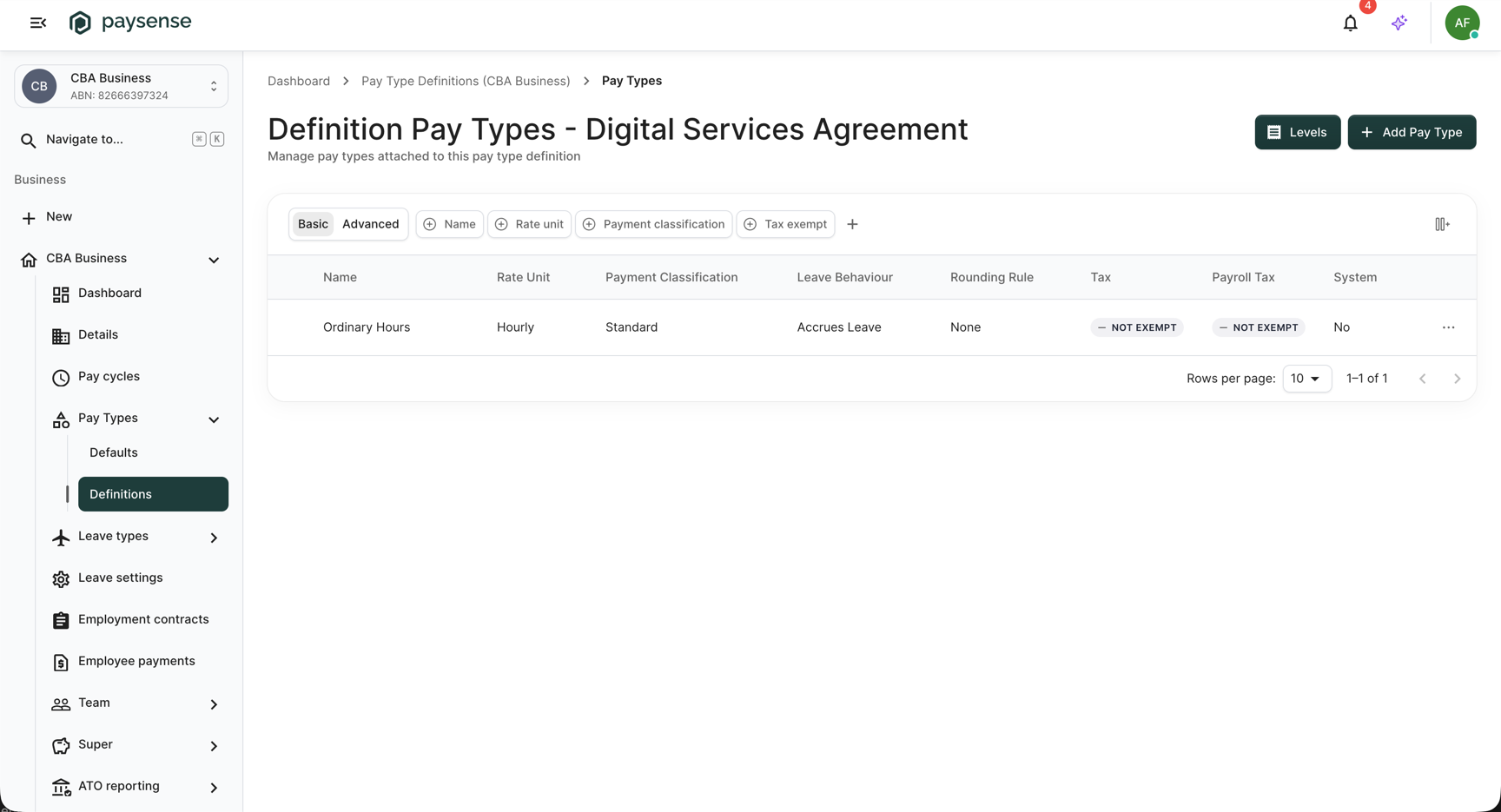
The Levels button in the top-right jumps straight back to this definition's Levels screen, so you can hop between the shared pay type set and the levels that price it.
Step 6: Set the rate on the level
Now price that pay type at the level. Back on the Levels screen, open the level's ⋯ menu and click Pay Rates, landing on /business/{businessId}/paytypedefinitions/{payTypeDefinitionId}/levels/{payTypeDefinitionLevelId}/payrates. The screen lists every pay type on the definition with its rate for this level - a new pay type starts at $0.00.
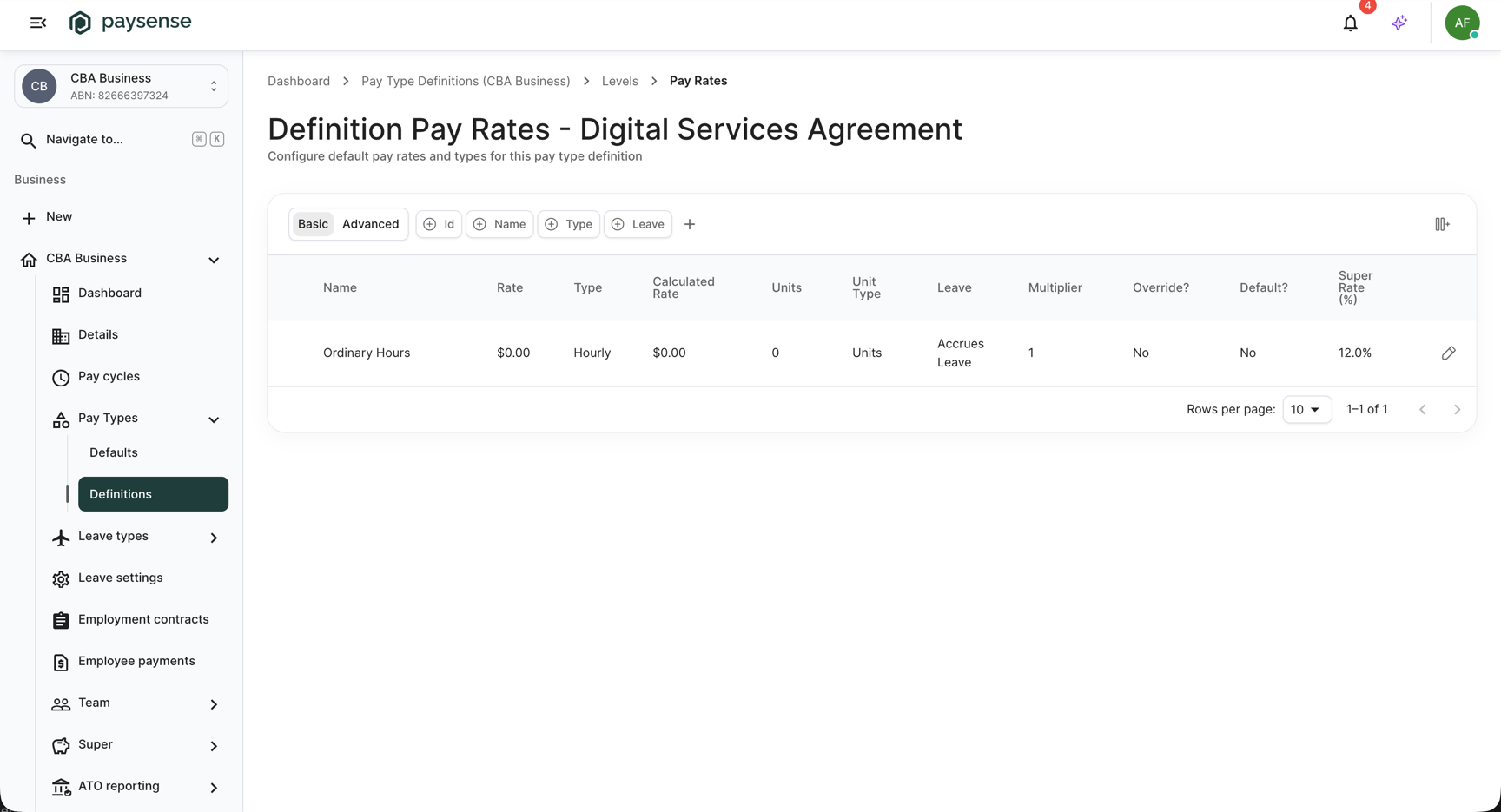
Click the pencil on the Ordinary Hours row to open the Update Definition Pay Type panel. The business-level fields - Name, Type, Rate Multiplier, Base Super Rate, Leave Behaviour, Rounding Rule - are read-only here; you set the rate values for this level.
| Field | Required | Notes |
|---|---|---|
| Rate Override | No | Toggle. When on, the Rate you enter replaces the pay type's own base rate for this level. |
| Rate | Yes | Dollar amount, zero or greater (Base rate must be greater than or equal to 0). What one unit pays at this level. |
| Calculated Rate | - | Read-only. Rate times the pay type's Rate Multiplier; recomputed when you save. |
| Units | Yes | Zero or greater (Units must be greater than or equal to 0). The number of units the rate covers. |
| Unit Type | Yes | Weekly, Daily, or Units - the unit the rate is measured in. |
| Override Super Rate | No | Toggle. When on, set a super rate for this level instead of the pay type's base super rate. |
| Use Current Super Rate | No | Toggle, available only when Override Super Rate is on. Tracks the current statutory rate instead of a fixed number. |
| Super Rate | No | Percentage, 0–100 (Super rate cannot exceed 100%). Editable only when overriding the super rate. |
| Default Pay Type | No | Toggle. Marks this as the level's default pay type. |
For this walkthrough, turn Rate Override on, set Rate to 30, Units to 1, and Unit Type to Units.
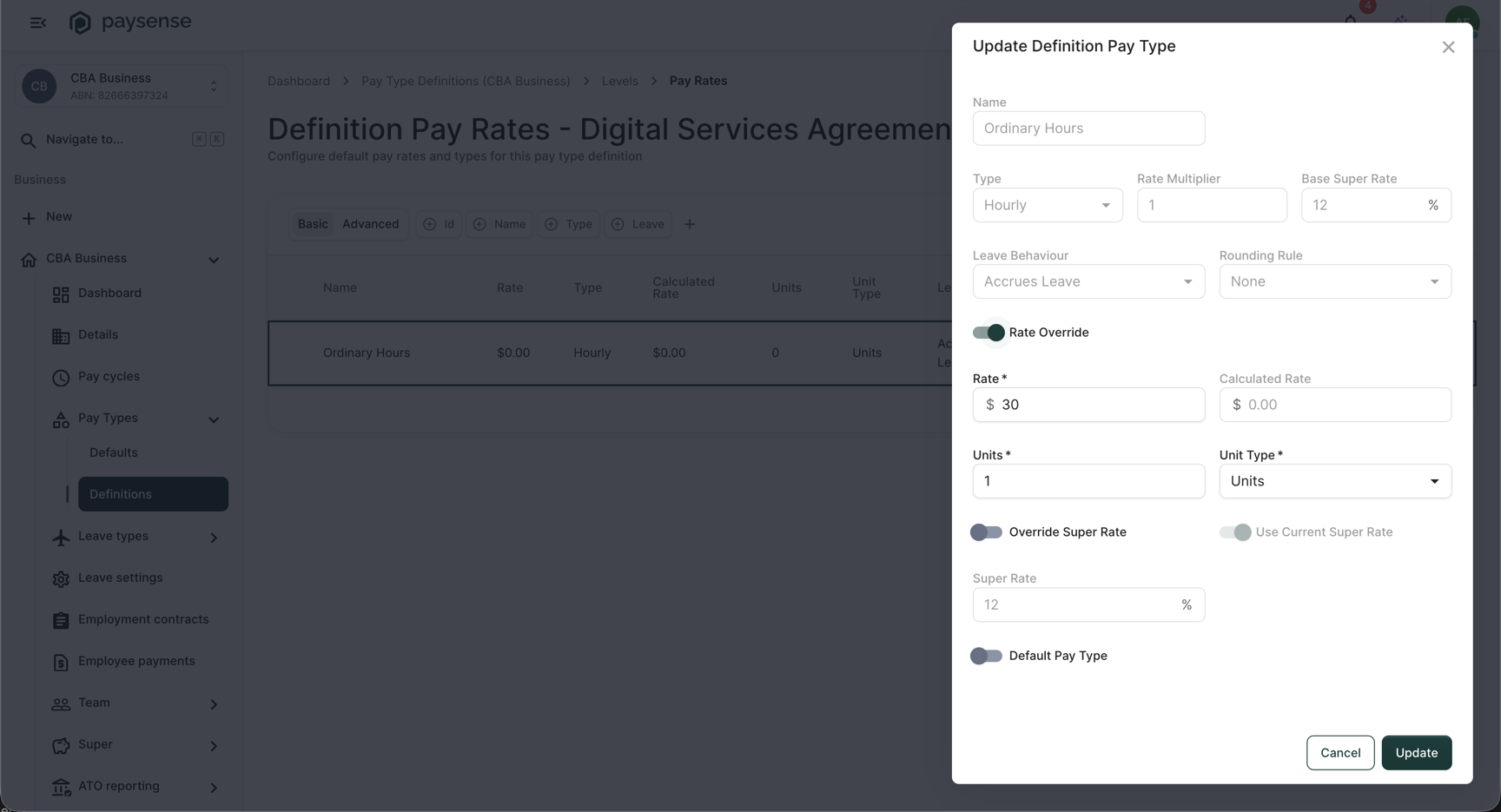
Click Update. Paysense saves the rate and the row updates in place.
Step 7: Confirmation
The pay rates grid now shows Ordinary Hours with a Rate and Calculated Rate of $30.00, 1 unit, Override? Yes, confirming the pay type is priced at Level 1 - Graduate.
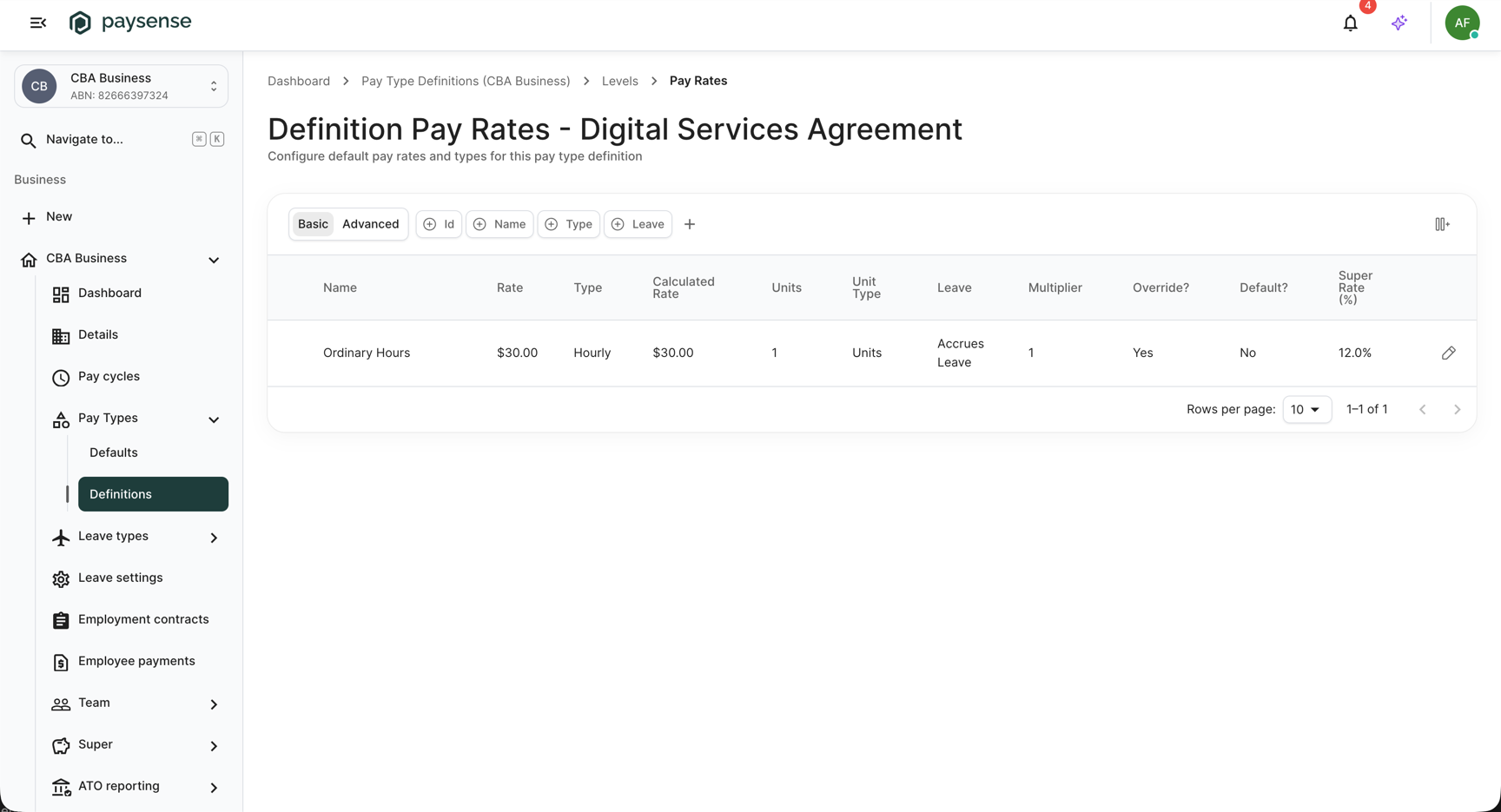
Repeat Steps 4 to 6 to build out the rest of the ladder - a level per classification, each pricing the same shared pay types. That is the structure an employment contract's pay rules read from.
What's next
Now that a definition has a level with a priced pay type, the typical next steps are:
- Add the rest of the levels and rates - repeat Steps 4 to 6 for each classification in the award.
- Build an employment contract on top - point a contract's pay rules at this definition, its levels, and the pay types you priced. See Set up employment contracts.
- Group leave the same way - leave type definitions mirror this structure for leave. See Set up leave type definitions and leave types.
Troubleshooting
| Symptom | Likely cause | What to do |
|---|---|---|
| Add Definition or Add Level is missing | Your user lacks the paytypedefinition:write scope | Ask a team member with Manage team to grant it |
| Add Pay Type is missing on the Pay Types screen | Your user lacks the paytype:write scope | Ask a team member with Manage team to grant it |
| The Pay Rates screen is empty | The definition has no pay types yet | Add pay types on the definition's Pay Types screen first (Step 5) |
Base rate must be greater than or equal to 0 or Units must be greater than or equal to 0 | A negative Rate or Units was entered | Enter zero or a positive number |
Pay type definition with name '<name>' already exists. | Another definition on this business already uses the name | Give the definition a different name |
Pay type definition level with name '<name>' already exists. | Another level on this definition already uses the name | Give the level a different name within this definition |
Correlation ID must be at most 100 characters | The correlation ID is too long | Shorten it to 100 characters or fewer |
| Screen is blank or redirects to Not Found | The Pay Type Definitions feature flag is off for this tenant | Ask your Paysense administrator to enable it |
| Redirects to No Access | Your user lacks the paytypedefinition:read scope | Ask a team member with Manage team to grant it |
If you hit a problem the table doesn't cover, check the Notifications panel on the business dashboard - Paysense logs every pay type definition action there.