Call the Paysense API with your own API token
An API token is a long-lived credential tied to your own Paysense user. A script, spreadsheet tool, or integration holding it can call the Paysense API as you, with exactly the permissions you have in Paysense.
The offline token functionality gives business users a way to integrate with the Paysense API for businesses within their permission scope. If you sign in to Paysense directly, you can generate an API token yourself from your account menu.
This tutorial generates a token as the user Tom Kazansky, swaps it for a short-lived access token, uses that to list the businesses Tom can see, and then revokes the token. By the end you'll have a working API call and know how to keep it working after the first access token expires.
What you'll need
| Item | Required | Notes |
|---|---|---|
| A Paysense user you sign in to directly | Yes | API tokens isn't offered when you use Paysense inside a partner's app, because the sign-in step can't run there |
| API tokens enabled for your tenant | Yes | If API tokens is missing from your account menu, ask Paysense support to enable it |
| Your Paysense password | Yes | Paysense asks you to sign in again before it creates the token |
| Permission for what you want to call | Yes | The token carries your permissions. The example call in Step 5 lists businesses, so you need access to read at least one business. |
A computer that can run curl or a script | Yes | The examples use curl. Any tool that can send HTTP requests works, as long as it runs on a computer or server - a web page on another site is blocked from calling the sign-in server. |
| Somewhere safe to keep the token | Yes | A password manager, secrets manager, or your operating system's keychain |
Have your script or password manager open before you click Generate token. The token is only on screen for 2 minutes.
Step 1: Open the API tokens page
Click your avatar in the top-right corner of Paysense. The account menu opens with your name and email, and API tokens sits under Account.
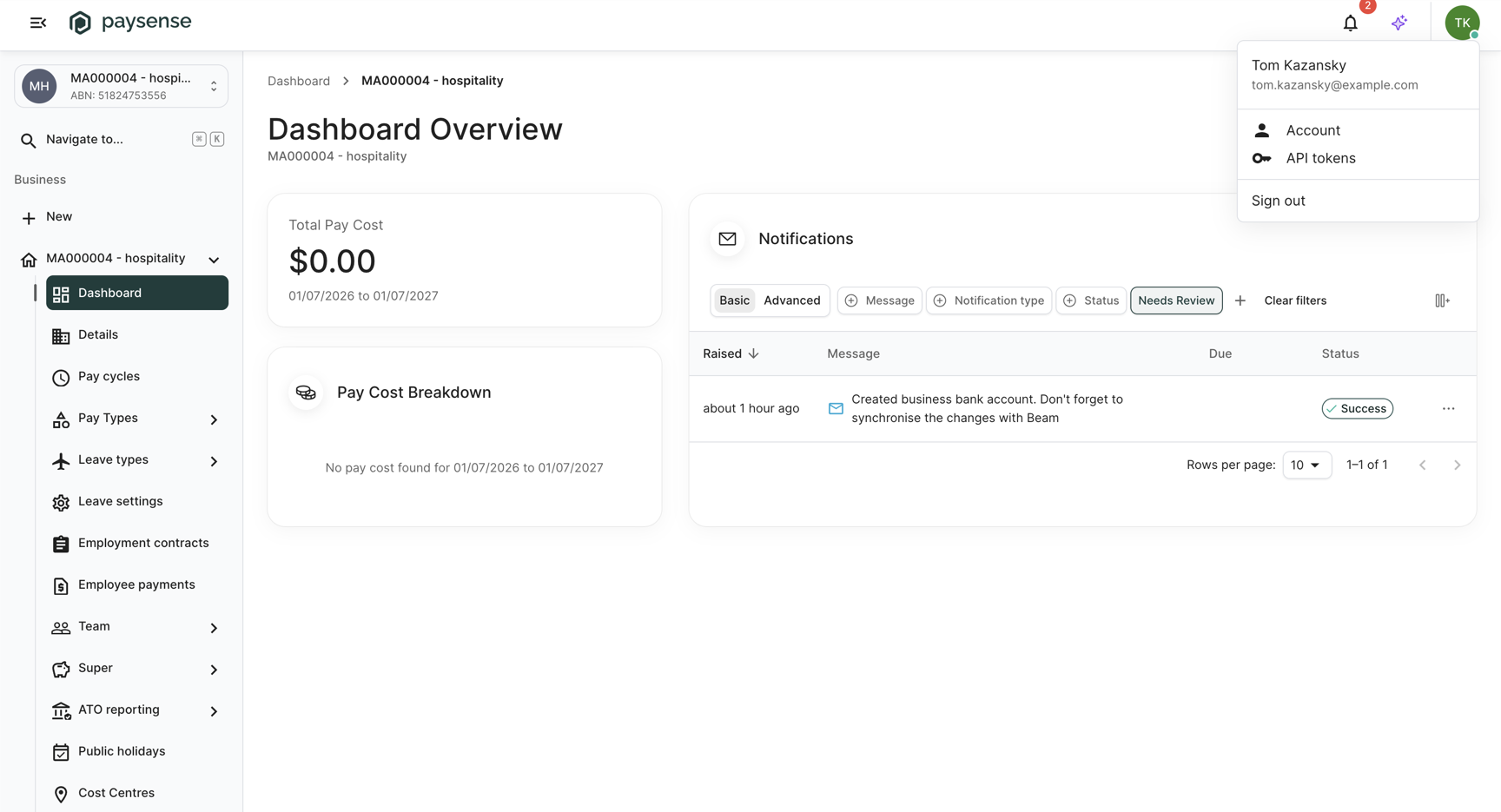
Click API tokens. You'll land on the API tokens page at /account/api-tokens.
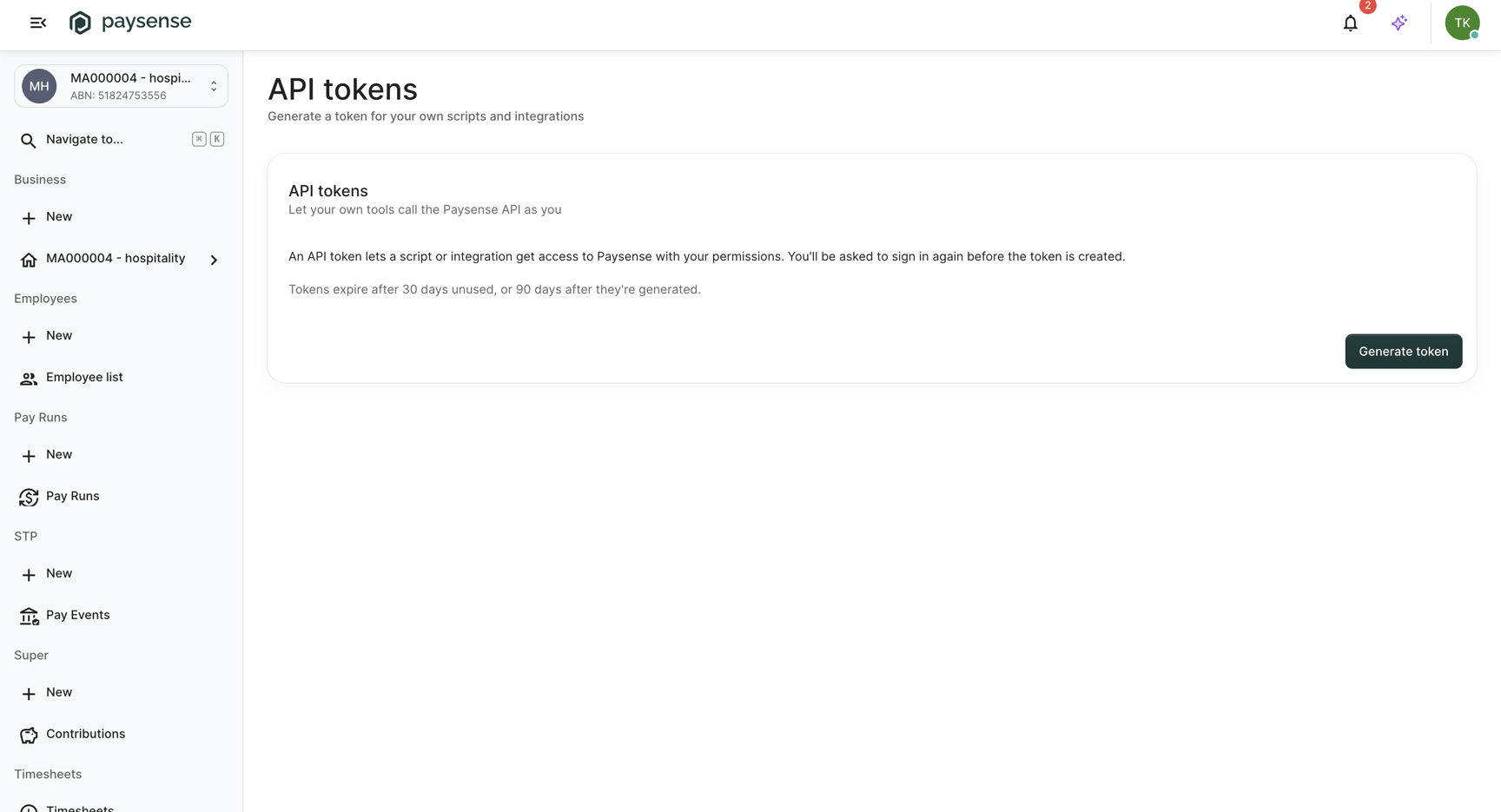
The page explains what a token does and how long it lasts: tokens expire after 30 days unused, or 90 days after they're generated, whichever comes first.
If you open /account/api-tokens and land back on your account details, API tokens aren't available to you. Either the feature isn't enabled for your tenant, or you're using Paysense inside a partner's app.
Step 2: Generate the token and sign in again
Click Generate token. Paysense sends you to the sign-in page and asks you to confirm your password before it issues a long-lived credential.
| Field | Required | Notes |
|---|---|---|
| Password | Yes | Your normal Paysense password. The email above the form is the user the token will belong to. |
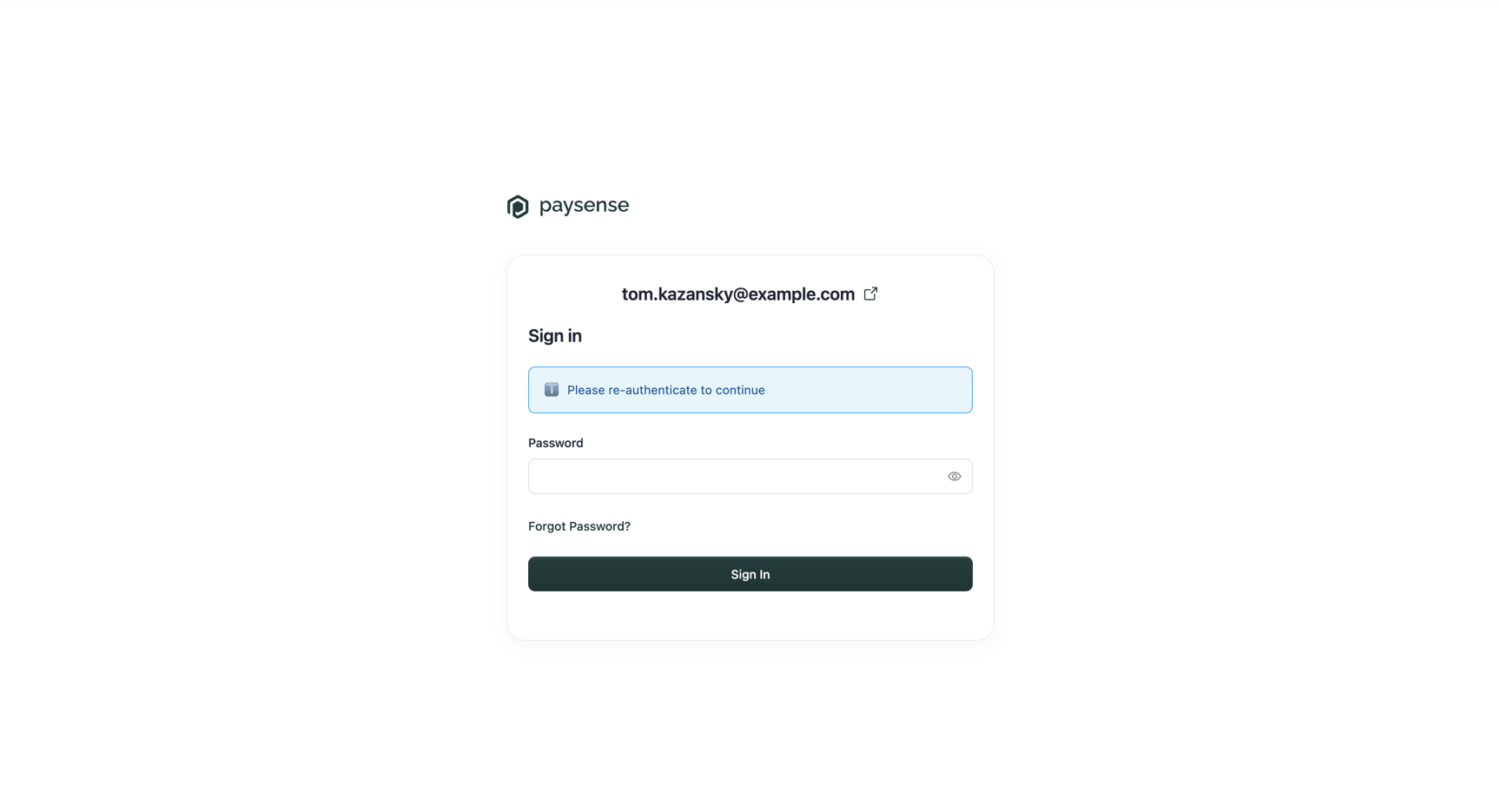
Enter your password and click Sign In. Paysense returns you to the API tokens page with the new token on screen.
Step 3: Copy the token
The new token is shown once, masked, in the API token box.
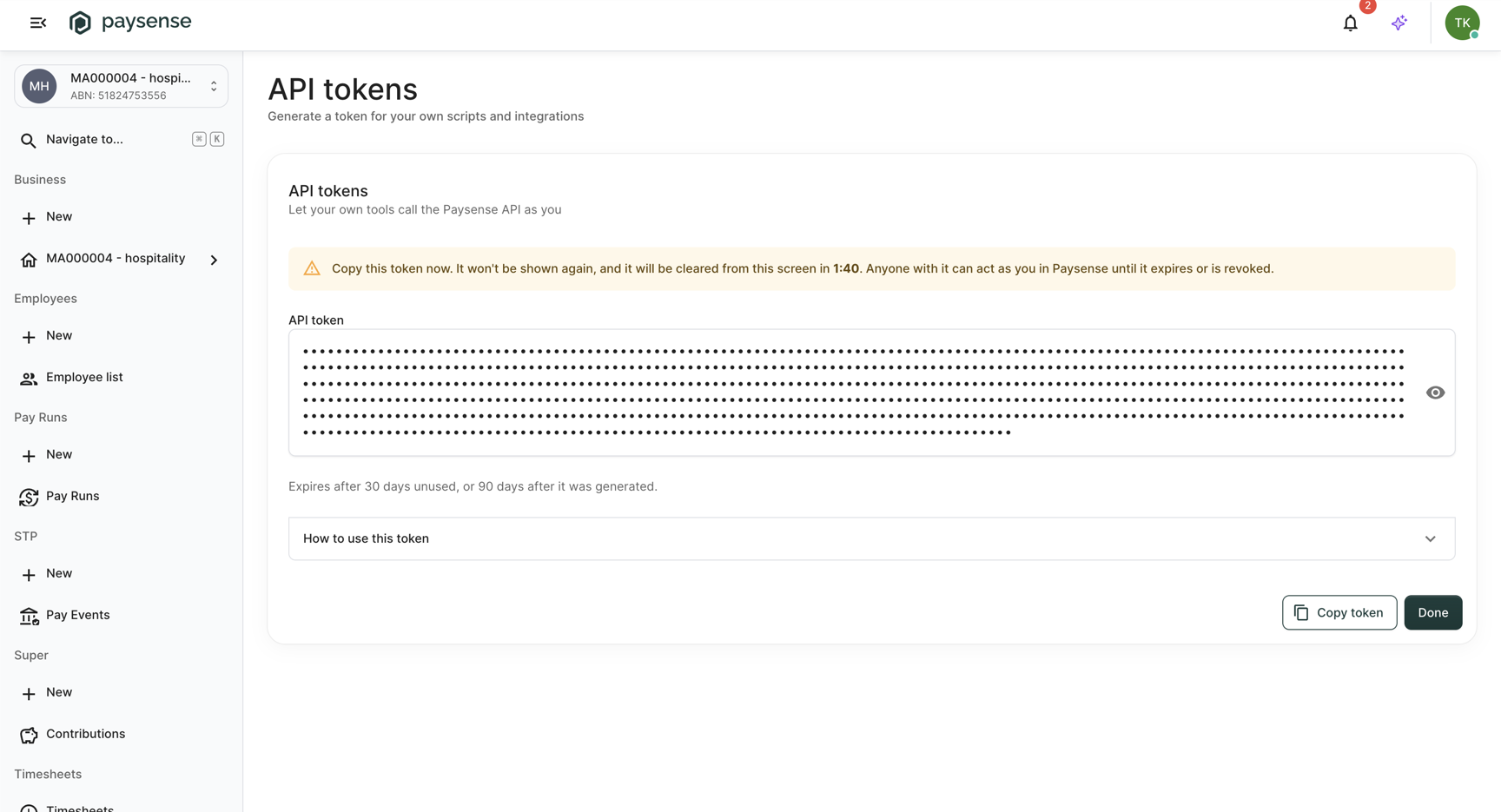
A warning above the token counts down from 2:00. When it reaches zero, Paysense clears the token from the screen and shows "API token cleared from the screen. If you didn't copy it, generate a new one." The token itself still works - it just can't be shown again.
Click Copy token. Paysense copies the token to your clipboard and shows "API token copied." Paste it straight into your password manager or your script's secret store.
Click the eye icon if you want to check the token before you copy it. Click Done when you've saved it.
Anyone holding the token can act as you in Paysense until it expires or is revoked. Never paste it into email, chat, a shared document, or source control.
Step 4: Swap the token for an access token
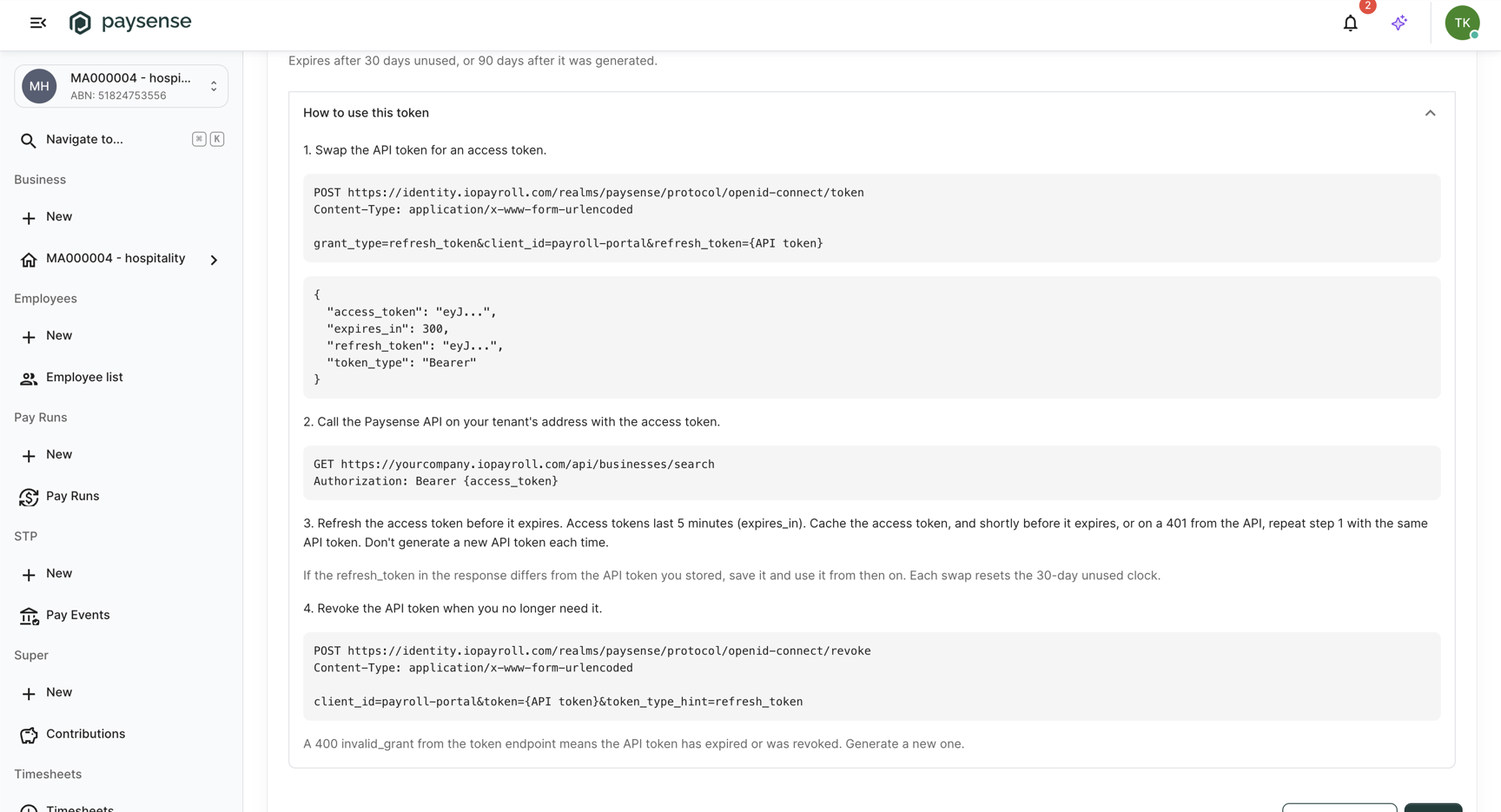
The API doesn't accept the API token directly. Your script first swaps it for an access token at the Paysense sign-in server, then sends the access token with each API call.
Use the sign-in server for the environment your tenant runs in:
| Environment | Sign-in server ({identity}) | Your tenant ({tenant}) |
|---|---|---|
| Production | https://identity.iopayroll.com/realms/paysense | https://{subdomain}.iopayroll.com |
| UAT | https://identity.dev.iopayroll.com/realms/paysense | https://{subdomain}.dev.iopayroll.com |
{subdomain} is the part before .iopayroll.com in the address you sign in to.
curl -X POST "{identity}/protocol/openid-connect/token" \
  -H "Content-Type: application/x-www-form-urlencoded" \
  -d "grant_type=refresh_token" \
  -d "client_id=payroll-portal" \
  --data-urlencode "refresh_token={API token}"
No client secret is needed. The response includes:
| Field | What it holds |
|---|---|
access_token | The token to send to the API in Step 5 |
expires_in | 300 - the access token lasts 5 minutes |
token_type | Bearer |
refresh_token | A replacement for your API token. Save it over the one you stored and use it next time. |
When the access token is close to expiring, or the API returns 401, repeat this same request with the token you have stored. Don't generate a new API token each time. Each swap resets the 30-day unused clock, but nothing extends the 90 days.
The same instructions are on the API tokens page while a token is on screen. Click How to use this token to expand them. The addresses shown there are already filled in for your tenant.
Step 5: Call the Paysense API
Send the access token in the Authorization header. This call lists the businesses you can see:
curl "{tenant}/api/businesses/search" \
  -H "Authorization: Bearer {access_token}"
The response lists the businesses in items - each with its id, name, and registrationNumber - along with pageIndex, pageSize, and totalCount for paging. Use a business's id in any further calls about that business.
The tenant comes from the address you call, and your Paysense permissions apply to every request. If someone removes a permission from you, your script loses it on its next request.
Step 6: Revoke the token when you're done
When your script no longer needs access, revoke the token so it can't be used again:
curl -X POST "{identity}/protocol/openid-connect/revoke" \
  -H "Content-Type: application/x-www-form-urlencoded" \
  -d "client_id=payroll-portal" \
  -d "token_type_hint=refresh_token" \
  --data-urlencode "token={API token}"
A successful revoke returns 200 with an empty body. To confirm it worked, repeat the swap from Step 4 with the same token: it now returns 400 with invalid_grant.
Paysense has no screen that lists or revokes your API tokens. Revoke from your script as shown above. If a token may have leaked and you can't revoke it yourself, contact Paysense support.
What's next
Now that your script can call the API as you, the typical next steps are:
- Check what the token can do - it has exactly your permissions. See Manage team member permissions to review them.
- React to payroll events instead of polling - Paysense can notify your system when pay runs and employees change. See Verify webhook signatures.
- Connect a partner product - if you're building an integration for many Paysense customers, a partner API key under a partner agreement is the right fit.
Troubleshooting
| Symptom | Likely cause | What to do |
|---|---|---|
| API tokens is missing from the account menu | You're using Paysense inside a partner's app, or API tokens aren't enabled for your tenant | Sign in to Paysense directly at your tenant's address. If it's still missing, ask Paysense support to enable it. |
| "Couldn't start API token generation. Try again." | Paysense couldn't reach the sign-in page | Click Generate token again |
| "API token generation was cancelled." | You left the sign-in page without signing in | Click Generate token again and enter your password |
| "The API token could not be generated." | The sign-in completed but no token came back | Click Generate token again. If it keeps happening, contact Paysense support. |
| "Couldn't copy the token. Select it and copy it manually." | The browser blocked clipboard access | Click the eye icon, select the token text, and copy it yourself |
| "API token cleared from the screen. If you didn't copy it, generate a new one." | The 2-minute display window ran out | If you didn't save it, generate a new token. The cleared one still works until it expires, so revoke it if you can, or let it expire unused after 30 days. |
400 with invalid_grant from the sign-in server | The API token expired, was revoked, or your user was disabled | Don't retry. Generate a new token. |
401 from the API | The access token expired | Swap again (Step 4) and retry the call once |
403 from the API | You don't have the permission for that call, or you aren't a member of this tenant | Ask a team member with Manage team to grant the permission |
| The swap fails from a web page with a CORS error | Browsers block web pages on other sites from calling the sign-in server | Make the call from a script, server, or desktop tool instead |
If you hit a problem the table doesn't cover, contact Paysense support with the time you generated the token - and if you think the token has leaked, ask them to revoke it.